


How to Use Function Keys Without the Fn Key in Windows 10
Function keys (F1 through F12) are essential shortcuts that provide quick access to various features in Windows and many software applications. However, on many modern laptops, these keys are assigned to multimedia functions such as adjusting volume, controlling screen brightness, or managing playback. As a result, users often need to hold down the Fn (Function) key to use the traditional F1–F12 commands.
If you frequently use keyboard shortcuts in applications like Microsoft Office, Visual Studio, Photoshop, or web browsers, constantly pressing the Fn key can slow down your workflow. Fortunately, Windows laptops often provide ways to reverse this behavior so that the function keys work without pressing Fn.
This guide explains several methods to use function keys without the Fn key on Windows 10, including BIOS settings, keyboard shortcuts, manufacturer utilities, and troubleshooting tips.
Why Do Function Keys Require the Fn Key?
Many laptop manufacturers configure the function keys to prioritize multimedia controls instead of the standard F1–F12 functions.
For example:
- F1 may mute the speakers.
- F2 may lower the volume.
- F3 may increase the volume.
- F5 may adjust keyboard lighting.
- F11 may decrease screen brightness.
- F12 may increase screen brightness.
To access the traditional function assigned to these keys, such as refreshing a webpage with F5 or opening the Developer Tools with F12, you typically need to hold the Fn key.
This design is intended to make commonly used multimedia controls more convenient for everyday users.

Understanding Function Key Modes
Most laptops support two function key modes:
Standard Function Mode
In this mode:
- Pressing F1–F12 performs the traditional function.
- Holding Fn + F1–F12 activates multimedia controls.
This mode is ideal for programmers, office workers, and power users.
Multimedia Mode
In this mode:
- Pressing F1–F12 controls brightness, volume, playback, and other hardware features.
- Holding Fn + F1–F12 performs the traditional function key actions.
Many laptops ship with this mode enabled by default.
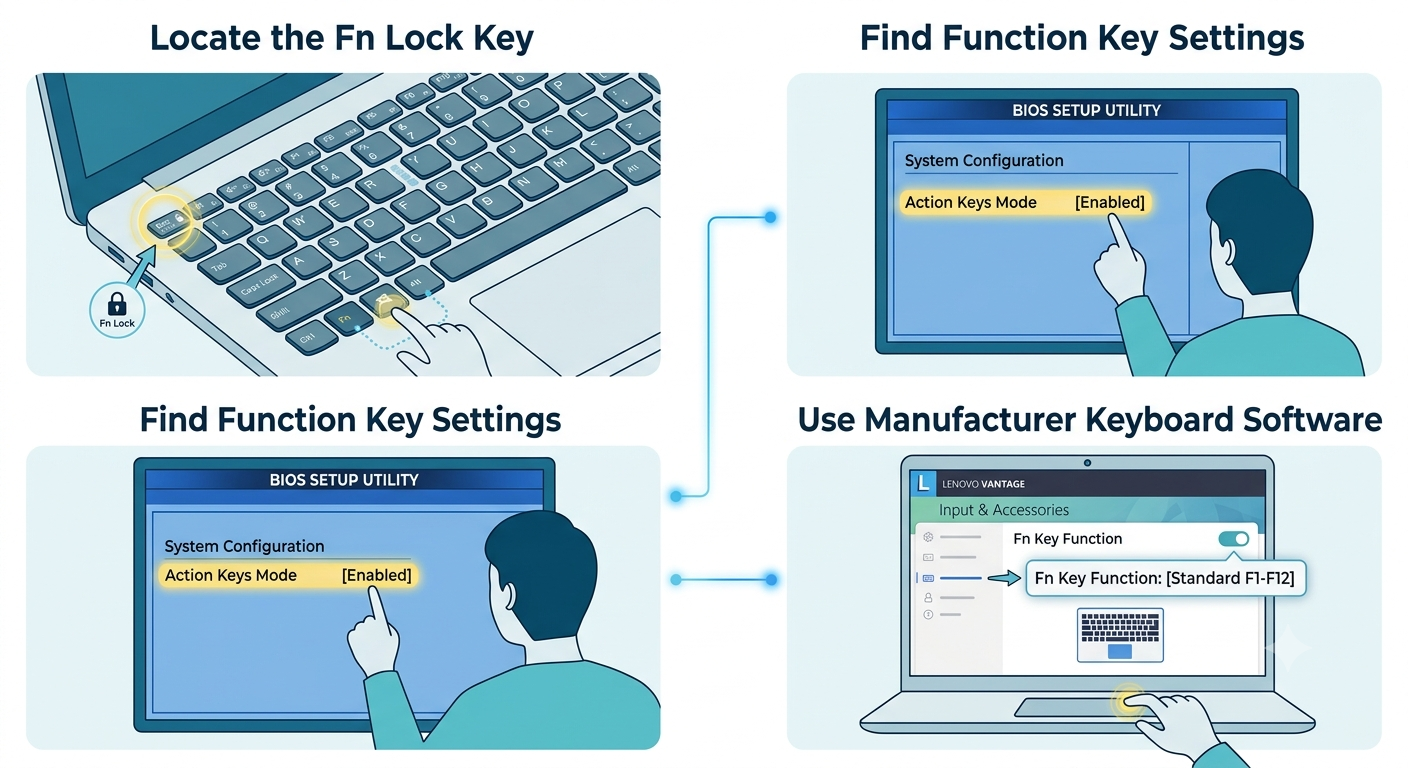
Method 1: Use the Fn Lock Key
The easiest solution is enabling Fn Lock.
Many keyboards include a built-in shortcut that toggles between multimedia mode and standard function mode.
Step 1: Locate the Fn Lock Key
Look for a key that contains:
- A lock icon
- “Fn Lock”
- A small padlock with “Fn”
Common keys include:
- Esc
- Shift
- Caps Lock
Image: Keyboard showing the Fn Lock icon.
Step 2: Enable Fn Lock
Press one of the following combinations depending on your laptop:
- Fn + Esc
- Fn + Caps Lock
- Fn + Shift
If supported, the keyboard immediately switches modes.
Now pressing F1–F12 works without holding the Fn key.
Image: Demonstrating Fn + Esc.
Method 2: Change the Setting in BIOS or UEFI
Many manufacturers allow you to change function key behavior in the BIOS or UEFI firmware.
Step 1: Restart Your Computer
Restart your Windows 10 PC.
Step 2: Enter BIOS
During startup, repeatedly press the appropriate key.
Common BIOS keys include:
- F2
- Delete
- Esc
- F10
- F12
The correct key depends on your computer manufacturer.
Image: BIOS startup screen.
Step 3: Find Function Key Settings
Navigate to sections such as:
- Advanced
- Configuration
- System Configuration
- Keyboard
- Function Key Behavior
Different BIOS interfaces use different names.
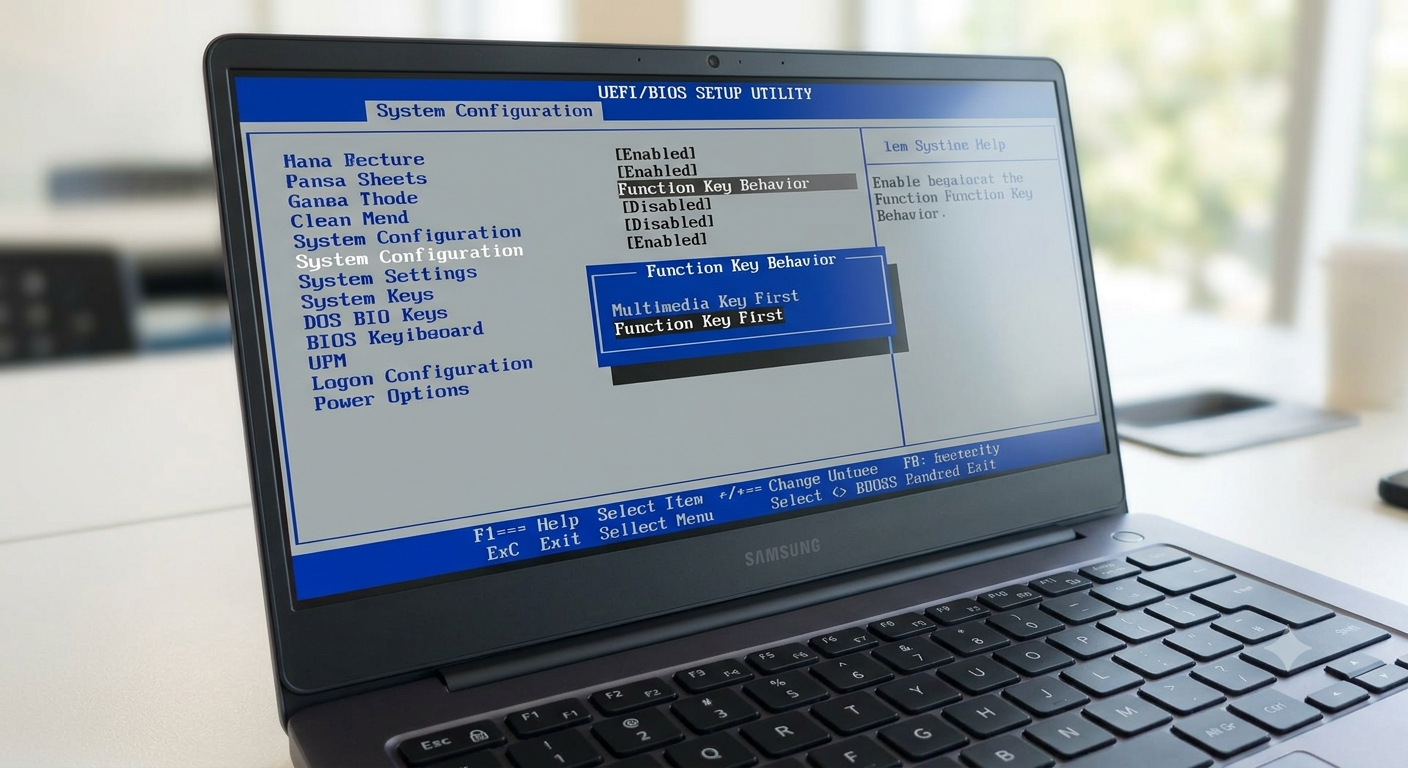
Image: BIOS keyboard settings.
Step 4: Change Function Key Behavior
Look for settings such as:
- Action Keys Mode
- Hotkey Mode
- Function Key Behavior
- Multimedia Key First
- Special Function Mode
Change the option to:
- Function Keys First
- Disabled (for Action Keys)
- Standard Function
Image: Function key behavior option.
Step 5: Save Changes
Press the appropriate key to save, often:
F10
Select Yes.
The computer restarts with the new configuration.
Method 3: Use Manufacturer Keyboard Software
Some laptop manufacturers include software that controls keyboard behavior.
Examples include:
- Dell QuickSet
- HP System Event Utility
- Lenovo Vantage
- ASUS MyASUS
- Acer Quick Access
- MSI Center
These applications may allow you to switch between multimedia mode and standard function mode without entering BIOS.
Example Using Lenovo Vantage
- Open Lenovo Vantage.
- Go to Device Settings.
- Open Input & Accessories.
- Locate Function Key Behavior.
- Select Function Keys.
Image: Lenovo Vantage keyboard settings.
Method 4: Use Windows Mobility Center (Available on Some Devices)
Some laptops include keyboard settings inside Windows Mobility Center.
Step 1: Open Mobility Center
Press:
Windows + XChoose:
Mobility Center
Alternatively, search for Windows Mobility Center from the Start menu.
Step 2: Find Function Key Settings
Some manufacturers provide a section called:
- Function Key Row
- Keyboard Settings
- Fn Key Behavior
If available, change it to:
Function Keys
Image: Windows Mobility Center.
Note that this option is only available on certain laptop models.
Method 5: Check Keyboard Software Updates
If the Fn Lock shortcut is not working, your keyboard software may need updating.
Visit your computer manufacturer’s support website.
Download the latest versions of:
- Keyboard drivers
- BIOS updates
- System utilities
- Hotkey drivers
After installation, restart your computer and test the function keys again.
How Function Keys Are Commonly Used
Here are some of the standard Windows function key shortcuts.
| Function Key | Common Purpose |
|---|---|
| F1 | Open Help |
| F2 | Rename selected item |
| F3 | Search |
| F4 | Address bar in File Explorer |
| F5 | Refresh |
| F6 | Move between screen elements |
| F7 | Spelling and Grammar in Microsoft Office |
| F8 | Startup options on some systems |
| F9 | Application-specific commands |
| F10 | Activate menu bar |
| F11 | Full-screen mode |
| F12 | Save As or Developer Tools in browsers |
These shortcuts are especially useful for productivity and software development.
Laptop Manufacturers and Function Key Settings
Different manufacturers use different terminology.
HP
Look for:
- Action Keys Mode
Disable it to make F1–F12 work without pressing Fn.
Dell
Look for:
- Function Key Behavior
Choose:
Function Key
Lenovo
Look for:
- HotKey Mode
Disable HotKey Mode to prioritize function keys.
ASUS
Look for:
- Hotkey Mode
Or use the MyASUS application if supported.
Acer
Use:
- Acer Quick Access
Or change the option in BIOS.
MSI
Use MSI Center or BIOS settings to configure function key behavior.
Troubleshooting Function Key Problems
Fn Lock Doesn’t Work
Possible reasons include:
- Your keyboard does not support Fn Lock.
- BIOS settings override the shortcut.
- Keyboard drivers are outdated.
- Hotkey software is missing.
Try updating your manufacturer’s keyboard software.
Function Keys Still Control Volume
This usually indicates that multimedia mode remains enabled.
Verify:
- BIOS settings
- Manufacturer software
- Fn Lock status
Function Keys Don’t Work at All
Possible causes include:
- Keyboard driver issues
- Hardware failure
- Disabled keyboard shortcuts
- Corrupted Windows drivers
Update your keyboard driver through Device Manager.
External Keyboard Works Normally
USB keyboards generally use traditional F1–F12 behavior.
If an external keyboard works correctly but your laptop keyboard does not, the issue is likely related to your laptop’s firmware or keyboard settings.
Tips for Choosing the Right Function Key Mode
The best mode depends on how you use your computer.
Choose Standard Function Mode if you:
- Use Microsoft Office shortcuts regularly.
- Write code.
- Use Photoshop or AutoCAD.
- Frequently refresh webpages with F5.
- Use browser Developer Tools with F12.
Choose Multimedia Mode if you mostly:
- Watch videos.
- Listen to music.
- Adjust brightness frequently.
- Control volume often.
Many users who work with productivity software prefer keeping the standard function keys active.
Frequently Asked Questions
Can Windows 10 change function key behavior by itself?
No. Function key behavior is usually controlled by your laptop’s BIOS, firmware, or manufacturer-provided software rather than Windows itself.
Why do desktop keyboards not require the Fn key?
Most desktop keyboards are designed with dedicated function keys that default to the standard F1–F12 actions. They typically do not include multimedia-first behavior unless configured through special software.
Can I permanently disable the Fn key?
On many laptops, you cannot disable the Fn key itself, but you can change the keyboard’s default behavior so that the function keys work without holding Fn.
Will changing function key behavior affect Windows?
No. Changing the function key mode only changes which action occurs when you press the F1–F12 keys. Windows and your applications will continue to work normally.
What if my laptop doesn’t have an Fn Lock feature?
If your keyboard lacks an Fn Lock shortcut, check your BIOS or UEFI settings and any manufacturer utilities. These are the most common alternatives for changing function key behavior.
Conclusion
Using function keys without pressing the Fn key on Windows 10 can significantly improve productivity, especially if you rely on shortcuts in professional applications, development tools, or web browsers. While many laptops default to multimedia controls, most provide a way to switch back to traditional function key behavior through Fn Lock, BIOS or UEFI settings, or manufacturer software such as Lenovo Vantage, MyASUS, or MSI Center.