


Excel Expense Tracking Worksheets You Can Download for Free
Managing your finances begins with understanding where your money goes. Whether you’re budgeting for your household, tracking business expenses, planning a vacation, or monitoring monthly spending, an expense tracking worksheet can help you stay organized and make informed financial decisions.
Microsoft Excel is one of the best tools for expense tracking because it offers flexibility, built-in formulas, charts, and customizable templates. Instead of creating a worksheet from scratch, you can use free Excel expense tracking templates that simplify budgeting and help you monitor your financial progress over time.
In this guide, you’ll learn about different types of free expense tracking worksheet templates, their features, how to customize them, and tips for using them effectively.
Why Use an Expense Tracking Worksheet?
An expense tracking worksheet allows you to record income and expenses in one place, making it easier to understand your spending habits.
Some key benefits include:
- Better budgeting
- Improved financial awareness
- Easier tax preparation
- Reduced unnecessary spending
- Clear financial reporting
- Goal tracking
- Better cash flow management
- Organized financial records
Regularly tracking expenses can help you identify areas where you can save money and make smarter financial decisions.
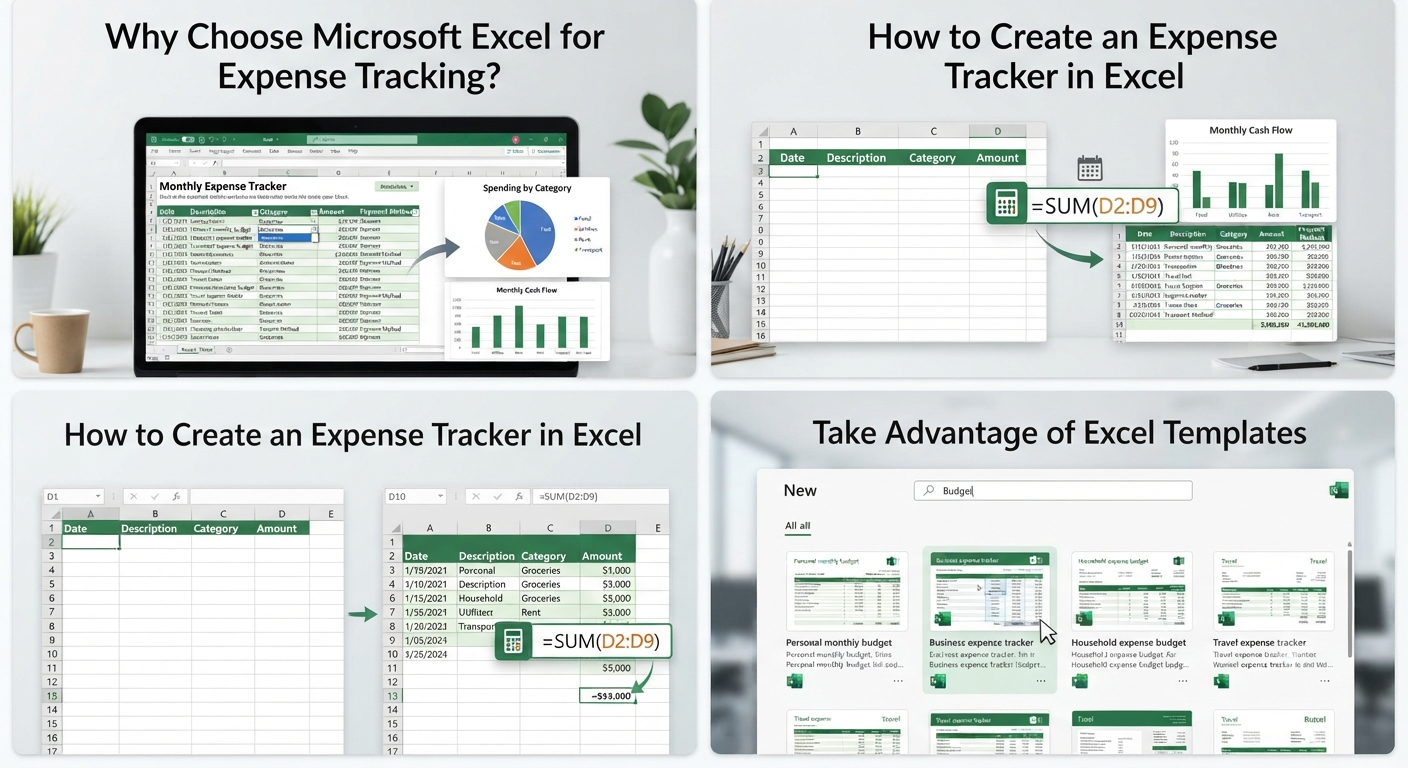
Why Choose Microsoft Excel for Expense Tracking?
Excel is widely used because it combines simplicity with powerful calculation tools.
Some advantages include:
- Automatic calculations
- Built-in formulas
- Charts and graphs
- Custom categories
- Sorting and filtering
- Conditional formatting
- Easy printing
- Cloud synchronization with OneDrive
Excel templates can also be modified to fit personal, family, or business needs.
Types of Free Expense Tracking Templates
There are many types of expense worksheets available for different financial situations.
Monthly Expense Tracker
A monthly expense tracker helps monitor spending throughout a single month.
Typical sections include:
- Date
- Description
- Category
- Payment method
- Amount
- Running balance
This template is ideal for everyday budgeting.
Annual Expense Tracker
An annual worksheet summarizes expenses across all twelve months.
It helps you:
- Compare monthly spending
- Identify seasonal trends
- Monitor yearly financial goals
- Prepare annual reports
Annual templates provide a broader view of your financial health.
Household Budget Worksheet
Household budget templates are designed for families and individuals managing personal finances.
Common categories include:
- Housing
- Utilities
- Groceries
- Transportation
- Healthcare
- Entertainment
- Insurance
- Savings
These worksheets make it easier to stay within your monthly budget.
Business Expense Tracker
Businesses often need more detailed records.
Business templates may include:
- Vendor
- Invoice number
- Business category
- Tax amount
- Payment status
- Reimbursement status
Accurate expense records simplify accounting and tax reporting.
Travel Expense Worksheet
Travel expense templates help monitor costs during business trips or vacations.
Common expense categories include:
- Transportation
- Hotels
- Meals
- Fuel
- Entertainment
- Parking
- Miscellaneous
Keeping all travel expenses in one worksheet makes reimbursement and budgeting much easier.
Project Expense Tracker
Project managers can use dedicated templates to monitor project costs.
Typical sections include:
- Task
- Expense category
- Budgeted amount
- Actual cost
- Remaining budget
These worksheets help keep projects within budget.
Essential Features of an Expense Tracking Worksheet
A well-designed Excel expense tracker usually includes several important components.
Income Section
Record all sources of income, such as:
- Salary
- Freelance income
- Investments
- Rental income
- Other earnings
Tracking income alongside expenses provides a complete financial picture.
Expense Categories
Organizing expenses into categories improves reporting.
Examples include:
- Food
- Utilities
- Rent
- Mortgage
- Transportation
- Medical
- Shopping
- Education
- Entertainment
- Savings
Consistent categorization makes spending analysis much easier.
Automatic Totals
Excel formulas automatically calculate:
- Daily totals
- Weekly totals
- Monthly totals
- Annual totals
This reduces manual calculations and minimizes errors.
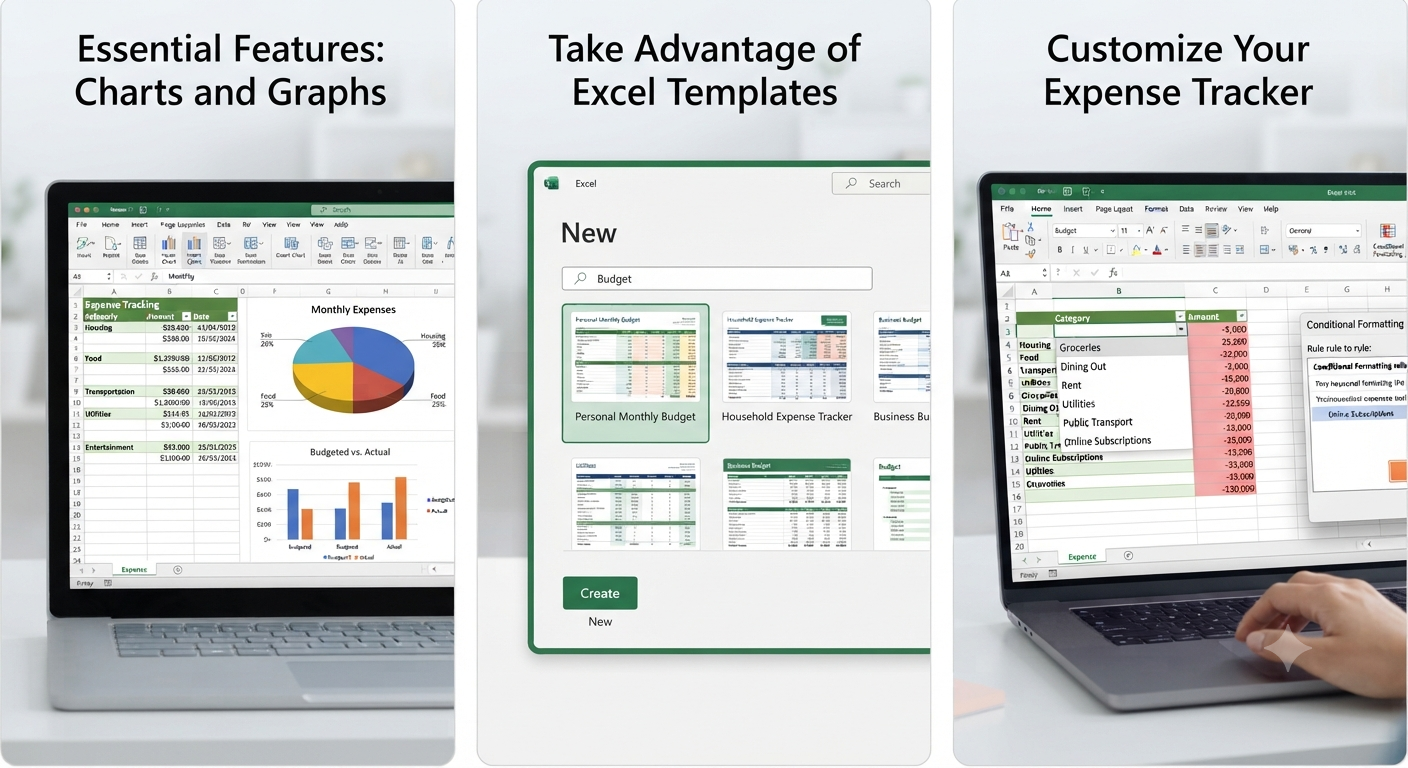
Charts and Graphs
Visual reports make financial trends easier to understand.
Common chart types include:
- Pie charts
- Bar charts
- Line charts
- Column charts
Charts quickly show where most of your money is being spent.
Image: Excel expense tracking dashboard.
How to Create an Expense Tracker in Excel
If you prefer building your own worksheet, Excel makes the process straightforward.
Step 1: Create Column Headers
Include columns such as:
- Date
- Description
- Category
- Amount
- Payment Method
- Notes
These fields capture the essential details of each transaction.
Step 2: Enter Your Expenses
Record each expense as it occurs.
Updating the worksheet regularly ensures your financial data stays accurate.
Step 3: Use Formulas
Useful Excel formulas include:
- SUM
- AVERAGE
- IF
- COUNTIF
- SUMIF
These formulas automate calculations and simplify reporting.
Step 4: Add Charts
Select your expense data and insert a chart to visualize spending by category or over time.
Charts can help identify spending patterns that may not be obvious from numbers alone.
Customize Your Expense Tracker
One of Excel’s greatest strengths is its flexibility.
You can customize your worksheet by:
- Adding new categories
- Changing colors
- Creating dropdown lists
- Using conditional formatting
- Including savings goals
- Adding debt tracking
- Tracking recurring bills
A personalized worksheet better reflects your financial situation.
Use Conditional Formatting
Conditional formatting highlights important information automatically.
Examples include:
- Expenses that exceed your budget
- Overdue payments
- Negative balances
- High spending categories
Visual indicators make it easier to spot potential issues.
Protect Your Financial Data
Expense worksheets often contain sensitive information.
To improve security:
- Password-protect the workbook.
- Store files in OneDrive with account protection.
- Create backup copies regularly.
- Limit editing permissions if sharing the workbook.
These precautions help prevent accidental changes and unauthorized access.
Take Advantage of Excel Templates
Excel includes built-in templates that save time.
To access them:
- Open Microsoft Excel.
- Select New.
- Search for:
- Budget
- Expense Tracker
- Personal Budget
- Monthly Budget
- Business Expenses
Choose a template that best fits your needs and customize it as necessary.
Image: Excel template gallery.
Common Mistakes to Avoid
Many people stop using expense trackers because of poor habits rather than poor templates.
Avoid these common mistakes:
- Forgetting to record expenses
- Using inconsistent categories
- Ignoring small purchases
- Not reviewing monthly reports
- Failing to back up the workbook
- Overcomplicating the worksheet
Keeping your tracker simple and updated encourages long-term use.
Tips for Effective Expense Tracking
To get the most value from your worksheet:
- Record expenses daily.
- Review your budget every week.
- Compare actual spending to planned spending.
- Create realistic financial goals.
- Keep receipts when necessary.
- Update formulas after adding new rows.
- Back up your workbook regularly.
- Analyze spending trends each month.
Consistency is the key to successful financial management.
Who Can Benefit from Expense Tracking Templates?
Expense tracking worksheets are useful for many types of users.
Examples include:
- Students
- Families
- Freelancers
- Small business owners
- Self-employed professionals
- Travelers
- Project managers
- Event planners
Regardless of your financial situation, tracking expenses helps improve budgeting and decision-making.
Frequently Asked Questions
Are Excel expense tracking templates free?
Yes. Microsoft provides several free budget and expense tracking templates within Excel, and many additional templates are available from reputable websites.
Can I customize an Excel expense tracker?
Absolutely. You can modify categories, formulas, colors, charts, and layouts to match your personal or business financial needs.
Which Excel formulas are most useful for expense tracking?
Common formulas include SUM, SUMIF, COUNTIF, AVERAGE, and IF. These functions help automate calculations and summarize your financial data.
Can I use an expense tracker on multiple devices?
Yes. If your workbook is stored in OneDrive, you can access and update it from Windows, macOS, the web version of Excel, or the Excel mobile app.
How often should I update my expense worksheet?
For the most accurate financial picture, update your worksheet whenever you make a purchase or at least once a day. Regular updates make it easier to stay on budget and avoid missing transactions.
Conclusion
An Excel expense tracking worksheet is one of the simplest and most effective tools for managing personal or business finances. Whether you’re monitoring daily expenses, planning a monthly budget, tracking travel costs, or managing project spending, a well-designed template can help you stay organized and make smarter financial decisions.