


Tips for Using Outlook Contacts and Calendars Effectively
Microsoft Outlook is much more than an email application. Its built-in Contacts and Calendar features provide a centralized way to organize your professional and personal life, helping you stay on top of appointments, meetings, and important relationships. By learning how to use these tools effectively, you can improve productivity, reduce scheduling conflicts, and keep essential information at your fingertips.
This guide explains the key features of Outlook Contacts and Calendar and offers practical tips for managing them efficiently.
Why Use Outlook for Contacts and Calendars?
Keeping your contacts and schedule in one application offers several benefits:
- Quick access to email addresses and phone numbers
- Seamless meeting scheduling
- Synchronization across devices
- Improved collaboration with colleagues and family members
With Outlook, your information stays organized and readily available wherever you sign in.
Getting Started with Outlook Contacts
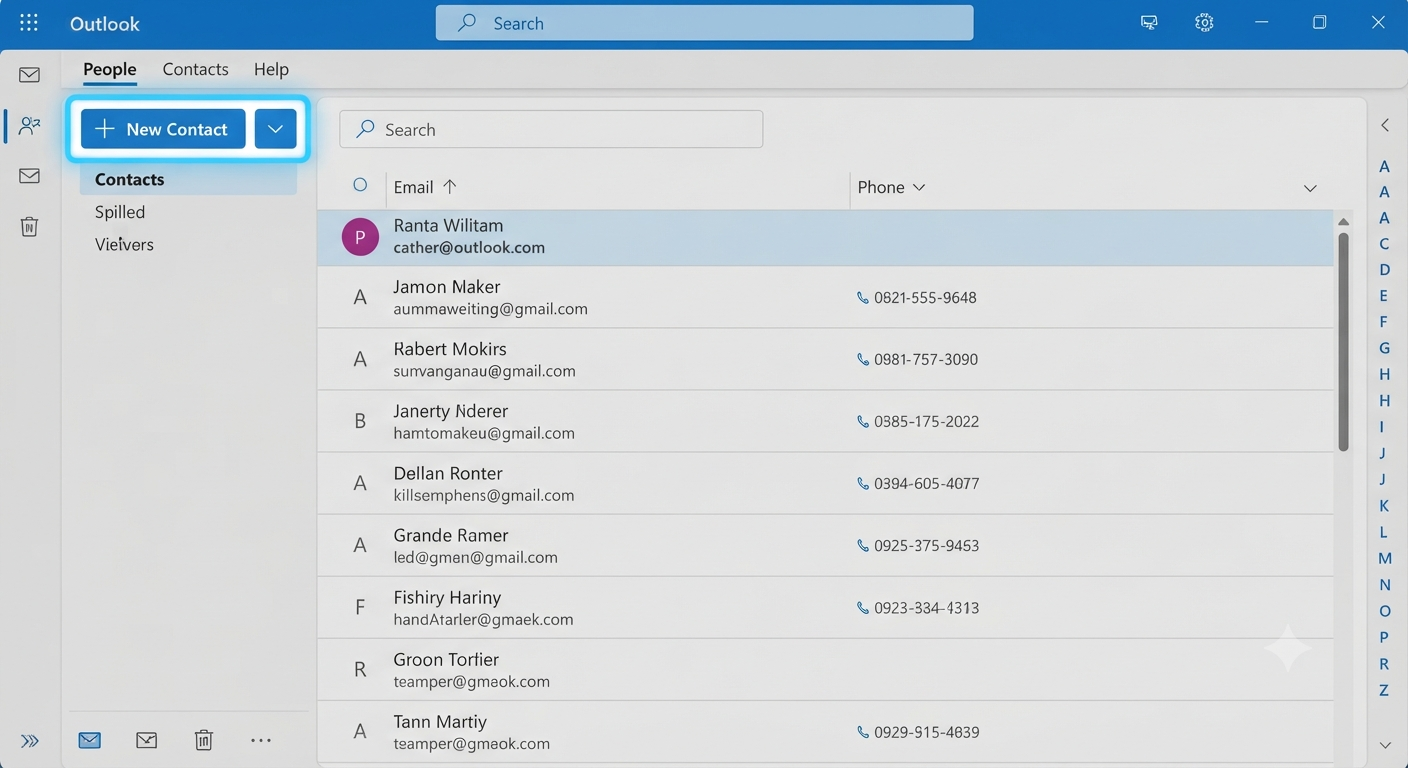
The Contacts section, also known as People, stores information about individuals and organizations.
You can save:
- Names
- Email addresses
- Phone numbers
- Physical addresses
- Notes and birthdays
Maintaining complete contact records makes communication faster and more efficient.
Create and Edit Contacts
To add a new contact:
- Open the People view.
- Select New Contact.
- Enter the desired information.
- Save the entry.
Review your contact list periodically to update outdated details and remove duplicates.
Organize Contacts with Categories
Categories allow you to group contacts by purpose, such as:
- Family
- Clients
- Vendors
- Classmates
Color-coded categories make it easier to locate specific groups when sending messages or invitations.
Import and Export Contacts
Outlook supports importing and exporting contacts using common formats such as CSV files. This feature simplifies migration from other email services and helps you maintain backups of important information.
Using the Outlook Calendar
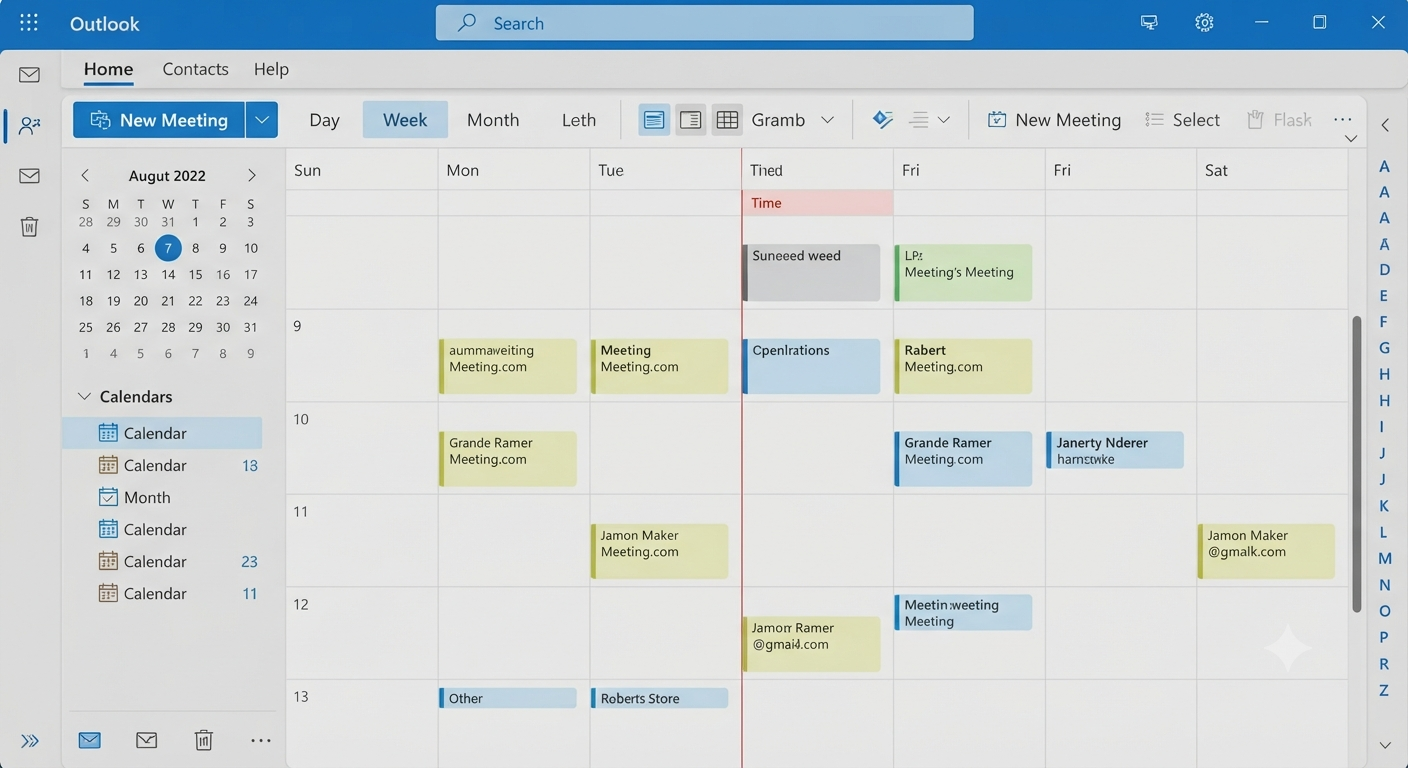
The Calendar module lets you schedule appointments, meetings, and reminders in a single, easy-to-view interface.
You can create:
- One-time events
- Recurring appointments
- All-day events
- Online meetings
Having all commitments in one place reduces the likelihood of missed deadlines or double bookings.
Image: Outlook calendar with scheduled meetings.
Schedule Meetings Efficiently
When creating a meeting, use Outlook’s scheduling tools to check attendees’ availability and choose a convenient time. Including agendas and attachments in invitations ensures that participants are prepared.
Set Reminders and Notifications
Reminders help you stay on schedule. Customize notification times based on the importance of the event and your personal preferences.
Share Calendars with Others
Outlook allows you to share your calendar with colleagues, family members, or team members. Shared calendars improve coordination and make planning group activities much easier.
Synchronize Across Devices
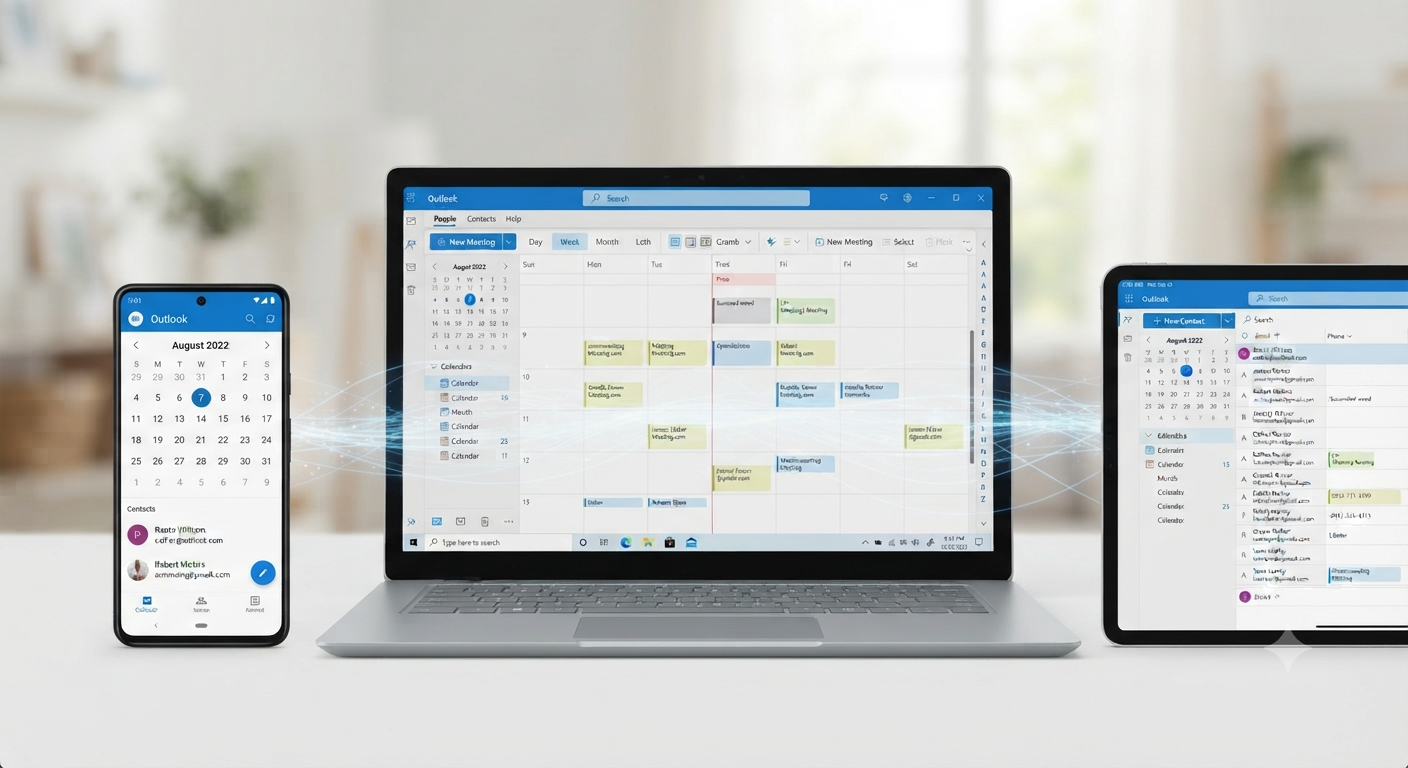
By using a Microsoft 365 or Exchange account, your contacts and calendars automatically sync across computers, smartphones, and tablets. This ensures that you always have access to the latest information.
Keep Your Data Secure
Protect your Outlook account by:
- Using a strong password
- Enabling multifactor authentication
- Reviewing sharing permissions regularly
These practices help safeguard your personal and professional information.
Best Practices for Organization
To maintain an efficient Outlook setup:
- Update contacts regularly.
- Use descriptive event titles.
- Color-code categories consistently.
- Archive outdated entries.
- Review your schedule weekly.
A few minutes of maintenance can save significant time later.
Frequently Asked Questions
Can I use Outlook contacts on my phone?
Yes. Contacts and calendars synchronize automatically when you use a supported Outlook or Microsoft account.
How do I avoid duplicate contacts?
Review imported entries carefully and use Outlook’s built-in cleanup tools when available.
Can I share only part of my calendar?
Yes. Outlook allows you to customize sharing permissions and limit the details that others can view.
Do reminders work when Outlook is closed?
This depends on your device and account type. Mobile devices and web notifications can often provide reminders even when the desktop application is not running.
Conclusion
Outlook’s Contacts and Calendar features provide a powerful way to organize communication and manage your schedule. By keeping contact information current, categorizing entries, and taking advantage of shared calendars and reminders, you can streamline both personal and professional planning.