


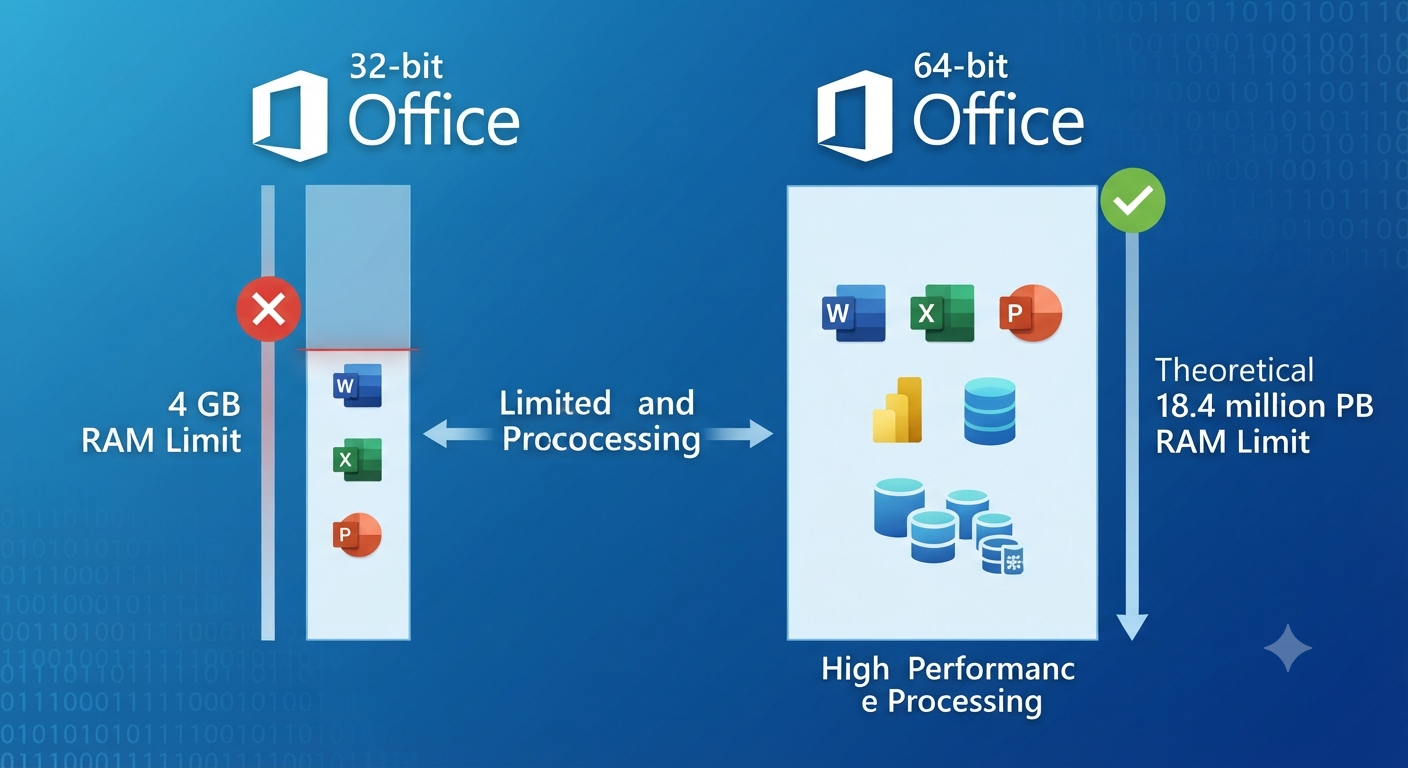
Choosing Between 32-Bit and 64-Bit Versions of Microsoft Office
When installing Microsoft Office, one of the first decisions you’ll encounter is whether to install the 32-bit or 64-bit version. At first glance, this choice may seem confusing, especially since both versions include the same familiar applications such as Word, Excel, PowerPoint, Outlook, and OneNote. However, selecting the appropriate version can affect compatibility, performance, and your overall productivity.
For most users, Microsoft recommends the 64-bit edition of Office, but there are situations where the 32-bit version remains the better choice. Understanding the differences between these two editions will help you make an informed decision based on your hardware, software, and workflow.
This comprehensive guide explains the key differences between 32-bit and 64-bit Microsoft Office, their advantages and disadvantages, and how to determine which version best suits your needs.
What Is the Difference Between 32-Bit and 64-Bit Microsoft Office?
The primary difference lies in how the software processes memory and interacts with the Windows operating system.
A 32-bit application can access a smaller amount of memory, while a 64-bit application can utilize significantly more system memory. This allows the 64-bit version of Office to handle larger datasets, more complex calculations, and memory-intensive tasks more efficiently.
Despite these technical differences, both versions provide the same core Office applications and user interface.
Understanding 32-Bit Microsoft Office
The 32-bit edition has been available for many years and remains compatible with a wide range of older software and add-ins.
Advantages of 32-Bit Office
Some benefits include:
- Excellent compatibility with older Office add-ins
- Better support for legacy ActiveX controls
- Works with older VBA solutions
- Compatible with many third-party extensions designed for earlier Office versions
- Suitable for most everyday office tasks
For organizations relying on older business applications, the 32-bit version may still be the safest choice.
Limitations of 32-Bit Office
However, it also has several limitations:
- Lower memory capacity
- Reduced performance with very large Excel workbooks
- Less efficient when processing massive datasets
- May struggle with memory-intensive calculations
Most home users will never encounter these limitations, but advanced Excel users might.
Understanding 64-Bit Microsoft Office
The 64-bit edition is designed to take advantage of modern computer hardware and operating systems.
It is particularly beneficial for users working with:
- Large Excel spreadsheets
- Extensive databases
- Complex financial models
- High-resolution PowerPoint presentations
- Large Outlook mailboxes
Because it can access much more memory, the 64-bit version performs better in demanding scenarios.
Advantages of 64-Bit Office
Key advantages include:
- Better performance with large files
- Improved handling of complex Excel calculations
- Greater memory utilization
- Better support for large data models in Excel
- Enhanced performance for Power Pivot and Power Query
These benefits make it an excellent choice for analysts, engineers, researchers, and business professionals.
Potential Drawbacks
Although compatibility has improved significantly over the years, some older Office add-ins or VBA code may require updates before they work correctly with the 64-bit version.
Organizations using legacy Office solutions should verify compatibility before upgrading.
Which Version Does Microsoft Recommend?
For current versions of Microsoft 365 and Office, Microsoft generally recommends installing the 64-bit version on supported devices because it offers better performance and can handle larger workloads.
However, if you depend on older COM add-ins, ActiveX controls, or legacy integrations that are only compatible with 32-bit Office, Microsoft advises using the 32-bit edition instead.
Before installing Office, it is a good idea to review the compatibility requirements of any business-critical applications or add-ins you use.
How to Check Whether Windows Is 32-Bit or 64-Bit
Before choosing an Office version, verify your Windows architecture.
On Windows 10 or Windows 11:
- Open Settings.
- Select System.
- Click About.
- Locate System type.
You will see one of the following:
- 64-bit operating system
- 32-bit operating system
A 32-bit version of Windows can only run 32-bit Office.
A 64-bit version of Windows can run either 32-bit or 64-bit Office.
How to Check Which Version of Office You Have
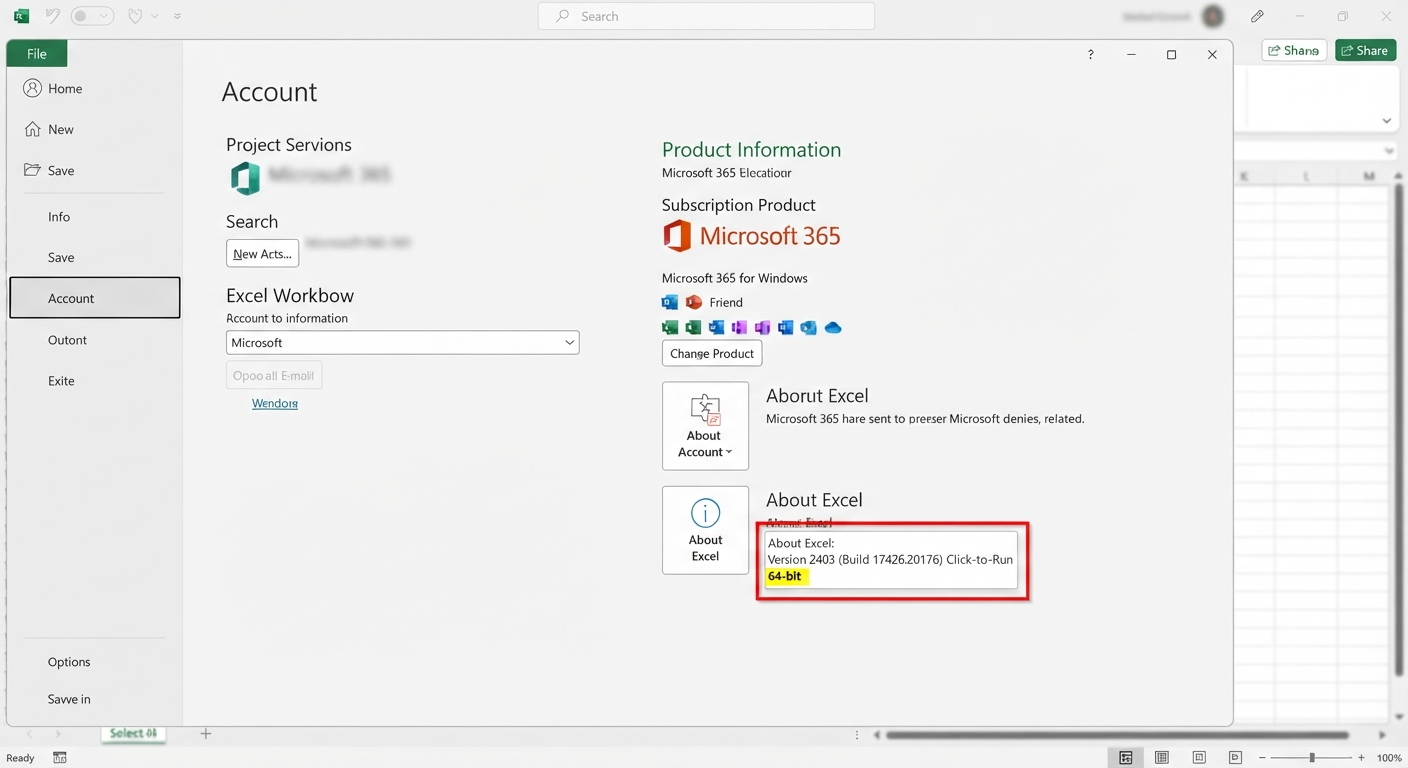
To determine your installed Office edition:
- Open Word, Excel, or another Office application.
- Click File.
- Select Account.
- Choose About Word, About Excel, or the corresponding application.
The dialog box displays whether your installation is 32-bit or 64-bit.
Image: Microsoft Office About window showing the installed edition.
Who Should Choose 32-Bit Office?
The 32-bit edition is a suitable choice if you:
- Use older Office add-ins.
- Depend on legacy VBA applications.
- Work with older COM integrations.
- Have specialized business software requiring 32-bit Office.
- Operate on a 32-bit version of Windows.
Compatibility is the primary reason to select the 32-bit edition.
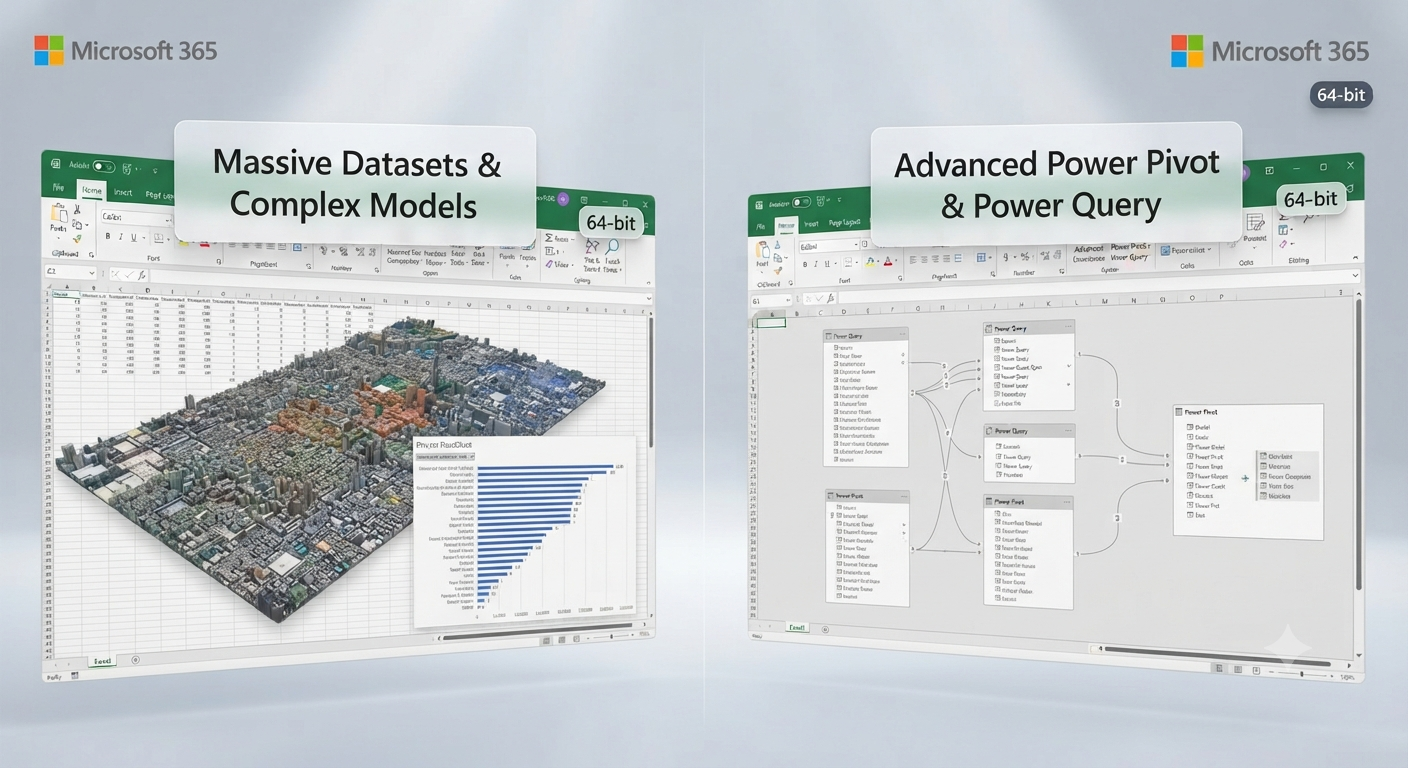
Who Should Choose 64-Bit Office?
The 64-bit edition is ideal if you:
- Work with large Excel workbooks.
- Analyze millions of rows of data.
- Use Power Pivot extensively.
- Create complex Power Query workflows.
- Work with large Access databases.
- Have a modern 64-bit version of Windows.
The additional memory support provides better performance for demanding workloads.
Excel Performance Differences
Excel users benefit the most from the 64-bit version.
Examples include:
- Financial modeling
- Scientific research
- Statistical analysis
- Engineering calculations
- Business intelligence reports
Large workbooks that may approach memory limits in 32-bit Office often perform more smoothly in the 64-bit edition.
Office Add-In Compatibility
Although most modern Office add-ins support both architectures, some legacy solutions may not.
Before upgrading:
- Check with the add-in developer.
- Review documentation.
- Test in a non-production environment.
This helps avoid unexpected compatibility issues.
Can You Switch Between 32-Bit and 64-Bit Office?
Yes, but you cannot install both editions of the same Office version side by side on the same Windows installation.
To switch:
- Uninstall the current Office installation.
- Restart the computer.
- Install the desired edition.
- Sign in with your Microsoft account if required.
Be sure to back up custom templates, Outlook data files, and other important settings before making changes.
Common Installation Errors
Some users encounter installation messages indicating that the selected Office edition is incompatible with an existing installation.
Typical causes include:
- Remaining Office components from a previous installation
- Installed Office add-ins using a different architecture
- Existing Microsoft Access Database Engine components
Completely removing the previous Office installation usually resolves these conflicts.
Frequently Asked Questions
Can I install 64-bit Office on 32-bit Windows?
No. A 64-bit Office installation requires a 64-bit version of Windows.
Will I notice a speed difference?
For typical tasks such as writing documents, creating presentations, or managing email, the performance difference is usually minimal. The advantages of 64-bit Office become more noticeable when working with large files, extensive datasets, or complex calculations.
Does 64-bit Office use more memory?
Yes. It can access and utilize more system memory, allowing it to process larger workloads more efficiently.
Can I keep both versions installed?
No. Microsoft does not support installing both the 32-bit and 64-bit editions of the same Office version simultaneously.
Which version is best for Excel power users?
In most cases, the 64-bit version is the better choice because it supports larger workbooks, advanced data models, Power Query, Power Pivot, and memory-intensive calculations.
Conclusion
Choosing between the 32-bit and 64-bit versions of Microsoft Office depends on your specific needs, hardware, and software compatibility. While both editions offer the same familiar Office applications and features, the 64-bit version is generally the preferred option for modern computers due to its ability to utilize more memory and handle larger, more demanding workloads.
However, the 32-bit version remains valuable for users who rely on older add-ins, legacy business applications, or specialized integrations that have not yet been updated for 64-bit compatibility.