


Mastering Power Query in Excel for Mac: An In-Depth Data Analysis Guide
Microsoft Excel has long been one of the most popular tools for organizing, analyzing, and presenting data. For Mac users, Excel has continued to evolve with powerful features that make professional data analysis easier than ever. One of the most important tools available today is Power Query, a data transformation and connection technology that helps users collect, clean, and prepare information before analysis.
Power Query allows Excel users to work with large amounts of data from multiple sources without manually copying, formatting, or modifying information. Whether you are a business analyst, researcher, student, or professional working with reports, learning how to use Power Query in Excel for Mac can significantly improve your productivity.
This comprehensive guide explains what Power Query is, how it works on Mac, its key features, and how you can use it for efficient data analysis.
What Is Power Query in Excel?
Power Query is an Excel feature designed for importing, transforming, and combining data from different sources. It allows users to connect to external data, apply cleaning steps, and load the results into Excel worksheets or data models.
Instead of manually editing large datasets, Power Query automates repetitive tasks through a series of recorded transformation steps.
Common tasks include:
- Removing duplicate data
- Changing data formats
- Combining multiple files
- Filtering information
- Splitting columns
- Merging tables
- Cleaning inconsistent entries
Once created, Power Query steps can be refreshed whenever new data becomes available.
Is Power Query Available in Excel for Mac?
Microsoft has expanded Power Query support for Excel on macOS over recent years. Modern versions of Excel for Mac include many Power Query capabilities through the Data tab.
However, feature availability may depend on:
- Your Excel version
- Microsoft 365 subscription status
- macOS version
- Available updates
For the best experience, keep Microsoft Excel updated through Microsoft AutoUpdate.
Why Use Power Query for Data Analysis?
Traditional spreadsheet workflows often require repetitive manual tasks. Power Query simplifies these processes by creating automated data preparation workflows.
Benefits include:
- Faster data cleaning
- Fewer manual errors
- Repeatable processes
- Better organization
- Easier reporting
- Improved productivity
For professionals working with frequent reports, Power Query can save significant time.
Getting Started with Power Query on Mac
To access Power Query:
- Open Microsoft Excel.
- Select the Data tab.
- Look for options such as importing data or getting data from external sources.
- Choose your data source.
Depending on your Excel version, available connectors may include:
- Excel workbooks
- CSV files
- Text files
- Online sources
- Databases
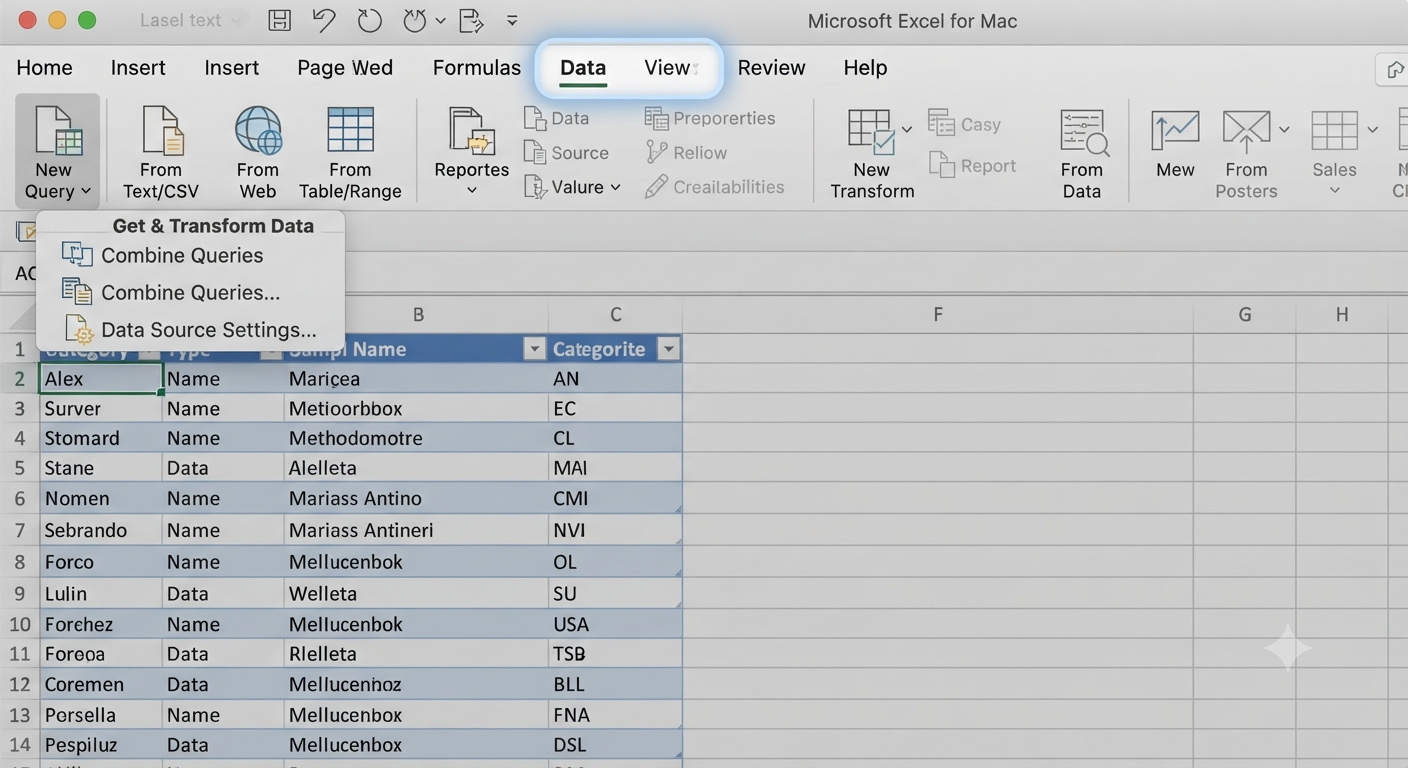
After selecting a source, Excel opens the Power Query Editor.
Image: Excel Power Query Editor interface on Mac.
Understanding the Power Query Editor
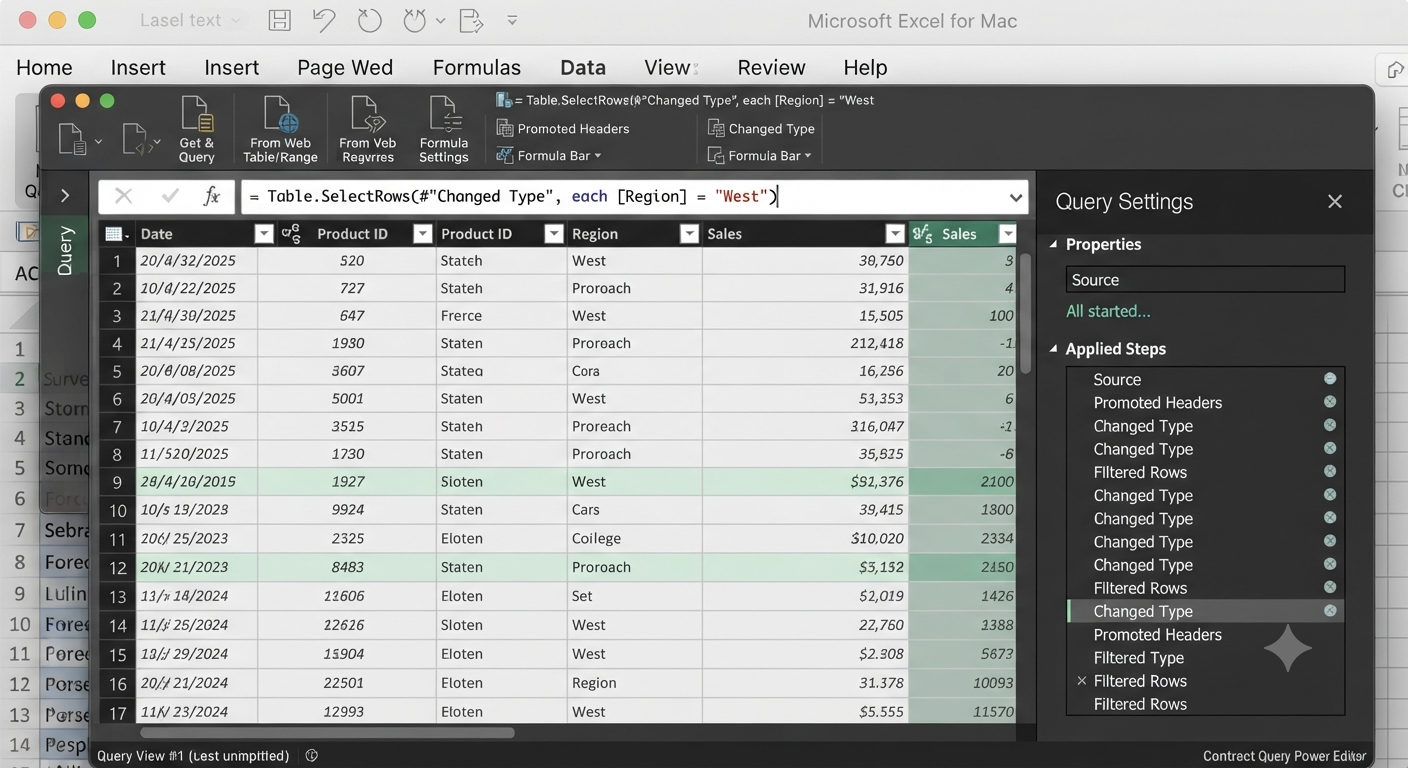
The Power Query Editor is where you transform your data.
Its main areas include:
Query Settings
This section displays:
- Query name
- Applied steps
- Transformation history
Every action you perform is recorded as a step.
Data Preview Window
The preview area shows how your data changes after each transformation.
Formula Bar
Advanced users can view and edit Power Query expressions using the M language.
Import Data from Multiple Sources
One of Power Query’s biggest advantages is the ability to combine information from different locations.
Examples include:
- Monthly sales files
- Customer databases
- Survey results
- Financial reports
- Online data sources
Instead of manually combining files, Power Query can automate the process.
Clean and Transform Data
Data preparation is often the most time-consuming part of analysis. Power Query provides tools to simplify this process.
Common transformations include:
Remove Duplicate Rows
Duplicate information can affect calculations and reports. Power Query allows you to remove repeated entries quickly.
Change Data Types
Correct data formats are essential.
You can convert columns into:
- Text
- Numbers
- Dates
- Times
- Currency values
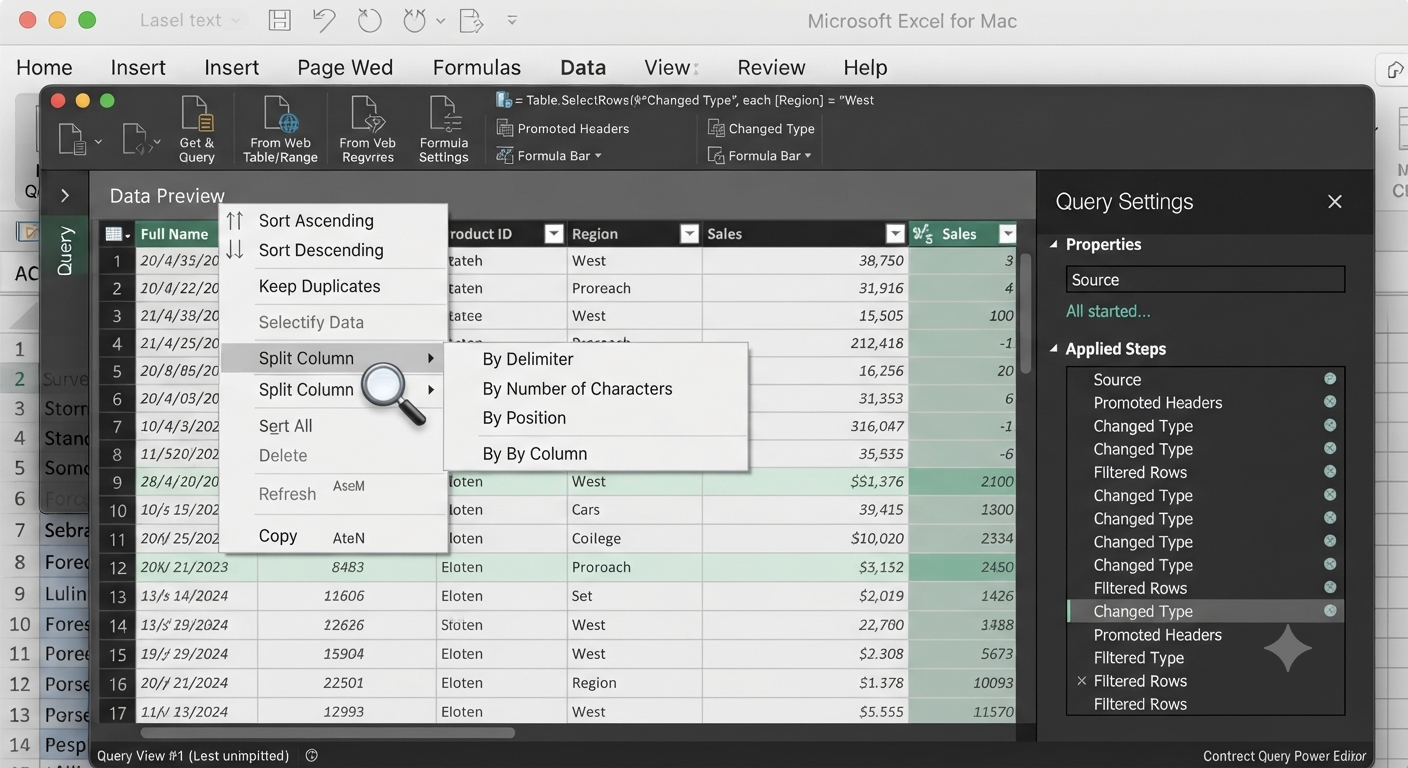
Split Columns
If a column contains combined information, Power Query can separate it.
For example:
- Full names into first and last names
- Addresses into separate fields
- Product codes into categories
Filter Data
Filtering removes unnecessary information and allows you to focus on relevant records.
Combine Multiple Files Using Power Query
One of the most useful features for businesses is combining files from a folder.
For example, if you receive monthly sales reports:
- Store all files in one folder.
- Connect Power Query to the folder.
- Combine the files automatically.
- Apply transformation steps.
- Refresh when new files are added.
This workflow is especially useful for recurring reports.
Create Refreshable Reports
Power Query creates dynamic connections between your data source and Excel.
When new data arrives:
- Open your workbook.
- Refresh the query.
- Updated information appears automatically.
This eliminates repetitive data preparation.
Power Query and PivotTables
Power Query works extremely well with PivotTables.
A common workflow is:
- Import raw data with Power Query.
- Clean and transform the data.
- Load the results into Excel.
- Create PivotTables for analysis.
This combination provides a powerful solution for business reporting.
Tips for Using Power Query Effectively
To get better results:
- Keep original data unchanged.
- Use clear query names.
- Document important transformation steps.
- Remove unnecessary columns early.
- Refresh data regularly.
- Check results after major changes.
Good organization makes complex workflows easier to maintain.
Common Power Query Problems on Mac
Some users may experience issues such as:
Missing Power Query Options
Possible solutions:
- Update Excel.
- Verify your Microsoft 365 subscription.
- Restart Excel.
- Check whether your version supports the required feature.
Slow Data Processing
Large datasets may take longer to process.
Improve performance by:
- Removing unnecessary columns.
- Filtering data earlier.
- Avoiding excessive transformations.
Refresh Errors
Refresh problems may occur because:
- Source files were moved.
- Permissions changed.
- Data formats changed.
Check the original data source and update connections if necessary.
Power Query vs Traditional Excel Methods
Without Power Query, users often rely on:
- Manual copy and paste
- Complex formulas
- VBA scripts
While these methods still have value, Power Query offers a more structured and repeatable approach.
It is especially useful when working with large or frequently updated datasets.
Frequently Asked Questions
Is Power Query free in Excel for Mac?
Power Query is included with supported versions of Excel, especially Microsoft 365 subscriptions. Availability depends on the specific Excel version.
Do I need programming skills to use Power Query?
No. Most Power Query tasks can be completed through the graphical interface. Advanced users can learn the M programming language for more customization.
Can Power Query handle large datasets?
Yes. Power Query is designed to process large amounts of data efficiently, although performance depends on your Mac hardware and data complexity.
Can I automate reports with Power Query?
Yes. Once queries are created, you can refresh them whenever new data becomes available.
Conclusion
Excel for Mac Power Query is a powerful tool that transforms the way users collect, clean, and analyze data. Instead of spending hours manually preparing spreadsheets, you can create automated workflows that improve accuracy and efficiency.