


Ways to Fix a Corrupted Windows Store Cache in Windows 10
The Microsoft Store is an essential component in Windows 10, allowing you to download and update applications easily. However, sometimes you might run into an error that says “Windows Store cache may be damaged.” This issue typically appears after running the Windows Store Apps troubleshooter or when the Store fails to load, update, or install apps. Fortunately, this problem can be fixed using several reliable methods.
This comprehensive guide will explain why this error appears and provide step-by-step solutions to help you repair the Microsoft Store cache and restore normal operation.
What Causes the Windows Store Cache Error?
Before attempting to fix the problem, it helps to understand what might be causing it. The most common reasons include:
Corrupted Cache Files
Over time, the Microsoft Store cache can become corrupted and prevent app downloads or updates.
Incorrect Permissions
If your system cannot access the cache folder properly, the Store may not function normally.
Disabled Windows Services
Essential services like the Windows Update Service or Background Intelligent Transfer Service may be turned off.
Outdated Windows System Files
Missing patches or system updates can affect the Store’s functionality.
Third-Party Software Conflicts
Security programs, firewalls, or system cleaners might delete or block Store components.
Now let’s go through the actual fixes.
Run the WSReset Command
The quickest and most common fix for Microsoft Store issues is using the WSReset tool, which clears and resets the cache without altering your account settings or installed apps.
How to Use WSReset
-
Press Windows + R to open the Run dialog
-
Type wsreset.exe
-
Press Enter
A blank Command Prompt window will appear for several seconds. Once the process is complete, the Microsoft Store will open automatically. This often resolves the error immediately.
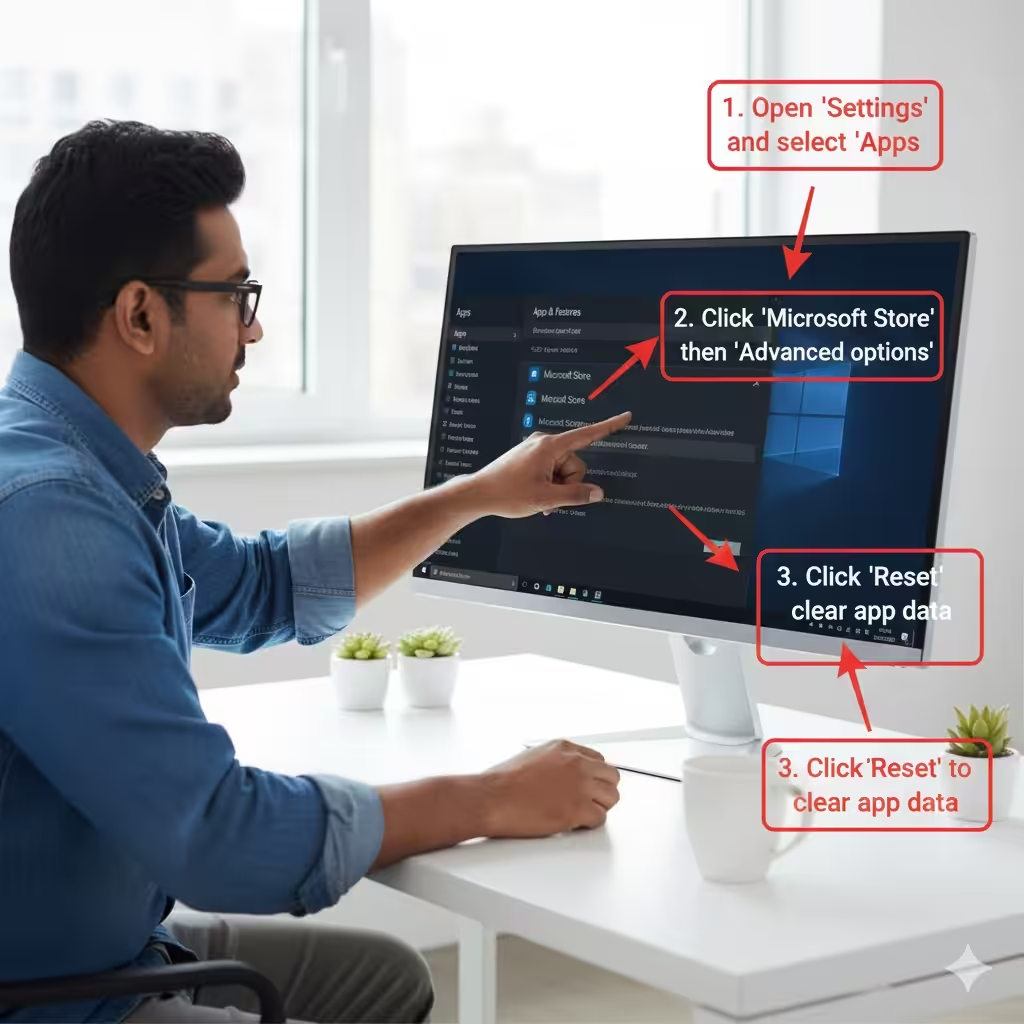
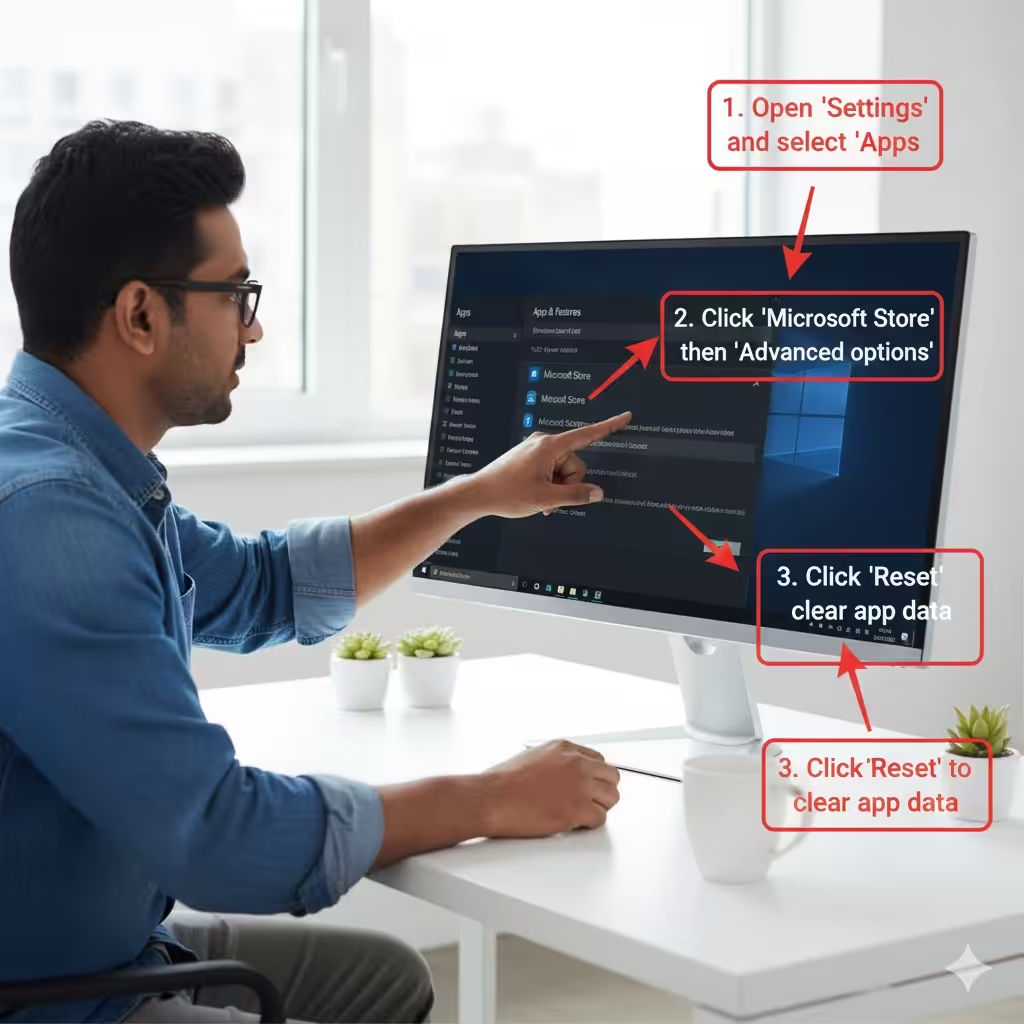
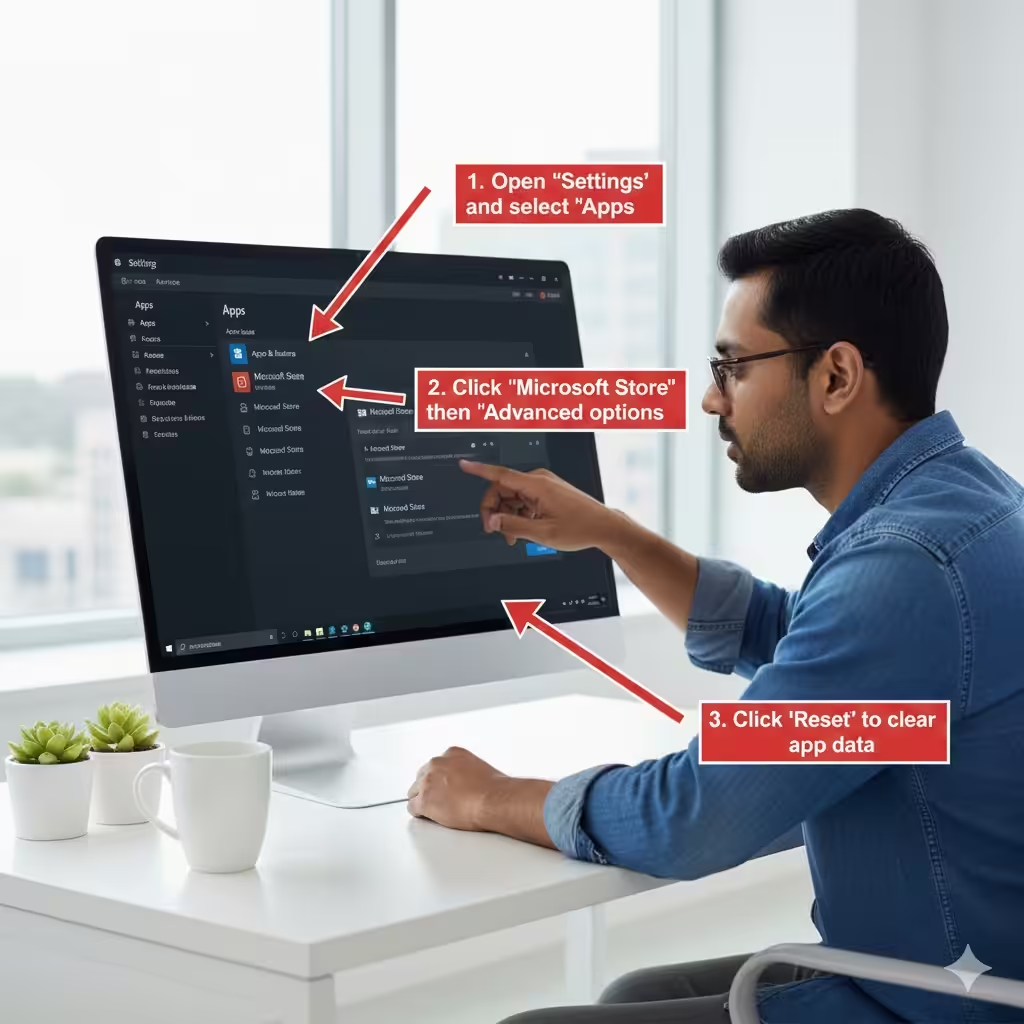
Reset the Microsoft Store App
If WSReset doesn’t fix the problem, you can manually reset the Microsoft Store using the Windows Settings menu. This option repairs the app and clears its data.
Steps to Reset the Store
-
Open Settings
-
Select Apps
-
Click Apps & features
-
Find Microsoft Store in the list
-
Click Advanced options
-
Scroll down and choose Reset
Windows will reinstall core components of the Store. After this, restart your computer and test the Store again.
Re-wp-signup.php the Microsoft Store Using PowerShell
If the Microsoft Store installation becomes corrupted, re-wp-signup.phping it through PowerShell can restore missing or broken components.
How to Re-wp-signup.php the Store
-
Press Start
-
Type PowerShell, right-click Windows PowerShell, and choose Run as administrator
-
Enter the following command:
-
Press Enter
-
Restart your computer
This command re-wp-signup.phps the Store package and fixes broken installation files.
Delete the Microsoft Store Cache Manually
If the cache folder itself is corrupt, manually deleting it may resolve the error.
Steps to Clear Cache Files
-
Press Windows + R
-
Type:
-
Open the folder called:
Microsoft.WindowsStore_8wekyb3d8bbwe
-
Find the folder named LocalCache
-
Delete everything inside it
Restart your PC and check if the error is gone.
Check and Adjust Cache Folder Permissions
The Microsoft Store requires proper permissions to access the cache folder. Wrong or restricted permissions can lead to the “cache may be damaged” error.
How to Fix Permissions
-
Navigate to:
-
Open:
Microsoft.WindowsStore_8wekyb3d8bbwe
-
Right-click LocalCache → choose Properties
-
Go to the Security tab
-
Click Edit
-
Ensure your user account has Full control
-
Click Apply, then OK
Once permissions are corrected, launch the Store again.
Enable Required Windows Services
Microsoft Store relies on several background services. If any are disabled, you may receive cache-related errors.
Check These Essential Services
-
Press Windows + R
-
Type services.msc
-
Ensure the following services are running:
-
Windows Update
-
Background Intelligent Transfer Service (BITS)
-
Windows License Manager Service
-
Microsoft Store Install Service
How to Enable a Service
-
Double-click the service
-
Set Startup type to Automatic
-
Click Start
-
Press OK
After enabling necessary services, restart the PC.
Run the Windows Store Apps Troubleshooter
Windows includes a built-in troubleshooter that scans for corrupted components and resets settings related to Microsoft Store apps.
How to Use It
-
Open Settings
-
Go to Update & Security
-
Select Troubleshoot
-
Click Additional troubleshooters
-
Choose Windows Store Apps
-
Click Run the troubleshooter
Follow the suggestions provided by the tool.
Check for Windows Updates
Outdated system files can interfere with Store functionality.
Install Pending Updates
-
Open Settings
-
Go to Update & Security
-
Select Windows Update
-
Click Check for updates
Install all updates and restart your device.
Disable Third-Party Antivirus or Firewall Temporarily
Security software may block Store components. To test this:
-
Temporarily disable your antivirus
-
Try opening the Microsoft Store
-
If it works, add the Store to the antivirus exclusion list
-
Re-enable your antivirus afterward
Do not leave antivirus disabled for long periods.
Perform a System File Scan
Corrupted system files may cause Store cache errors.
Run SFC and DISM Commands
-
Open Command Prompt (Admin)
-
Run:
-
Wait for completion
-
Then run:
-
Restart your PC
These commands repair system-level corruption.
Create a New User Account
If your user profile is corrupted, the Microsoft Store may stop functioning properly.
Create a New Account
-
Open Settings
-
Go to Accounts
-
Select Family & other users
-
Click Add someone else to this PC
-
Create a new user
-
Log in with the new account and test the Store
If it works, your old profile may be damaged.
Conclusion
The “Windows Store cache may be damaged” error can prevent you from downloading or updating apps, but the solutions above cover every possible cause—from simple cache resets to repairing system files. Start with easier steps like running WSReset, then progress to more advanced fixes like re-wp-signup.phping the Store or checking permissions.