


How to Repair a Keyboard That Stops Functioning on Windows 10
A keyboard that suddenly stops working on Windows 10 can be frustrating, especially when you rely on it for work, school, or gaming. Whether the keyboard is completely unresponsive, certain keys do not work, or the keyboard behaves erratically, there are many possible causes. The issue might come from hardware problems, driver faults, incorrect settings, or software conflicts. Fortunately, Windows 10 provides several tools that help diagnose and resolve most keyboard problems.
This guide explains all the major solutions step by step. You can try these methods in order, from the simplest checks to more advanced system fixes.
Check Basic Hardware Connections First
Before diving into software fixes, it’s important to confirm that your keyboard is physically connected and powered.
Ensure the Keyboard Is Properly Plugged In
If you are using a wired keyboard:
-
Verify that the USB cable is securely connected to your computer
-
Try unplugging and reconnecting the keyboard
-
Test different USB ports
-
Avoid using USB hubs, as they may not supply enough power
If the keyboard lights do not turn on, the port or cable may be defective.
Check Wireless Keyboard Setup
For wireless keyboards:
-
Replace or recharge the batteries
-
Confirm the USB receiver is plugged in properly
-
Ensure Bluetooth is enabled if it’s a Bluetooth keyboard
-
Re-pair the keyboard with your PC
Interference from other devices can sometimes disrupt wireless connections, so keeping the receiver close to the keyboard may help.
Try the Keyboard on Another Computer
If the keyboard still does not work, test it on another device. If it works elsewhere, the issue is likely with your Windows 10 system rather than the keyboard hardware.
Restart Your Computer
A simple restart can fix temporary glitches, driver errors, or incomplete system updates that may affect keyboard functionality. If your keyboard does not respond at all, you can restart using:
-
Ctrl + Alt + Delete and select Restart
-
Press the power button on your PC and choose Restart
-
Hold the power button to force shutdown if necessary
After restarting, check whether the keyboard works again.
Run the Windows 10 Keyboard Troubleshooter
Windows 10 includes built-in troubleshooters for common hardware issues.
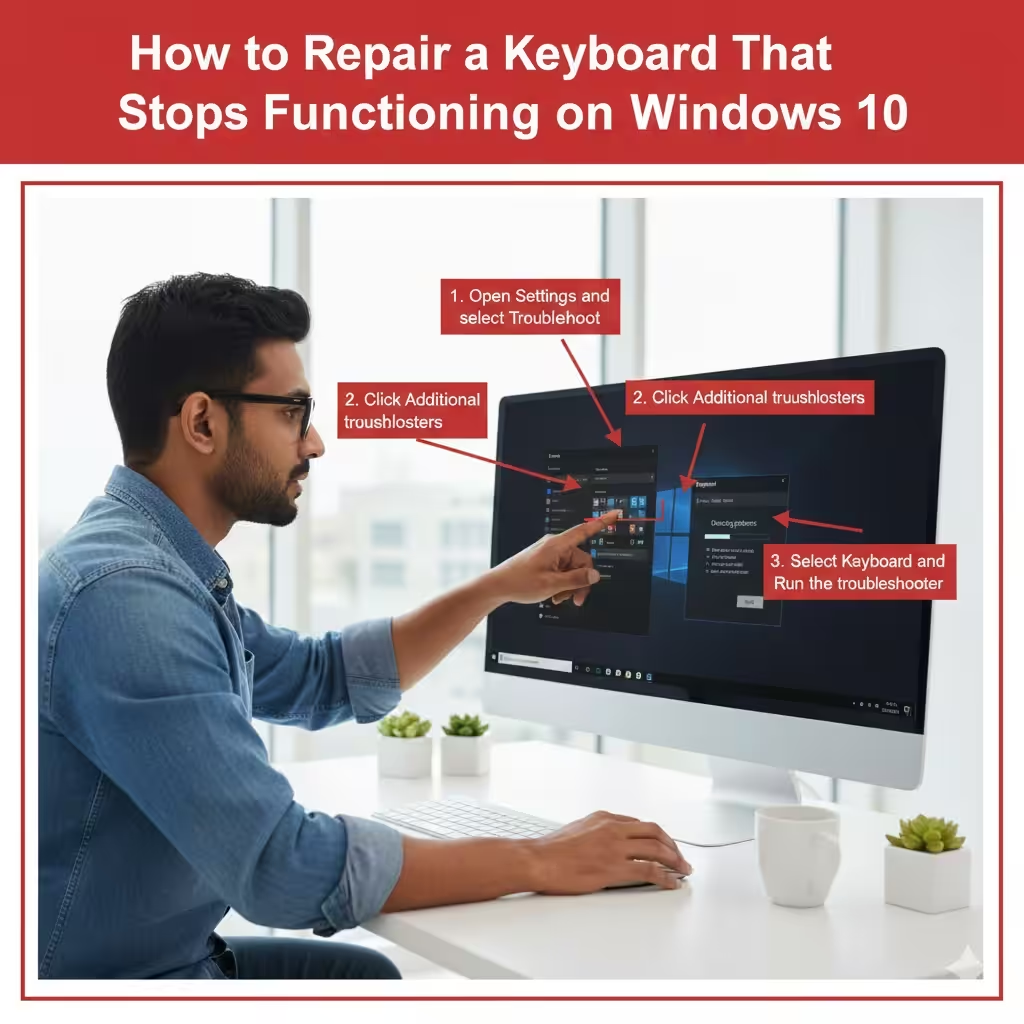
How to Run the Troubleshooter
-
Open Settings
-
Go to Update & Security
-
Select Troubleshoot
-
Click Additional troubleshooters
-
Select Keyboard
-
Click Run the troubleshooter
Windows will automatically scan for configuration issues or malfunctioning drivers and attempt to fix them.
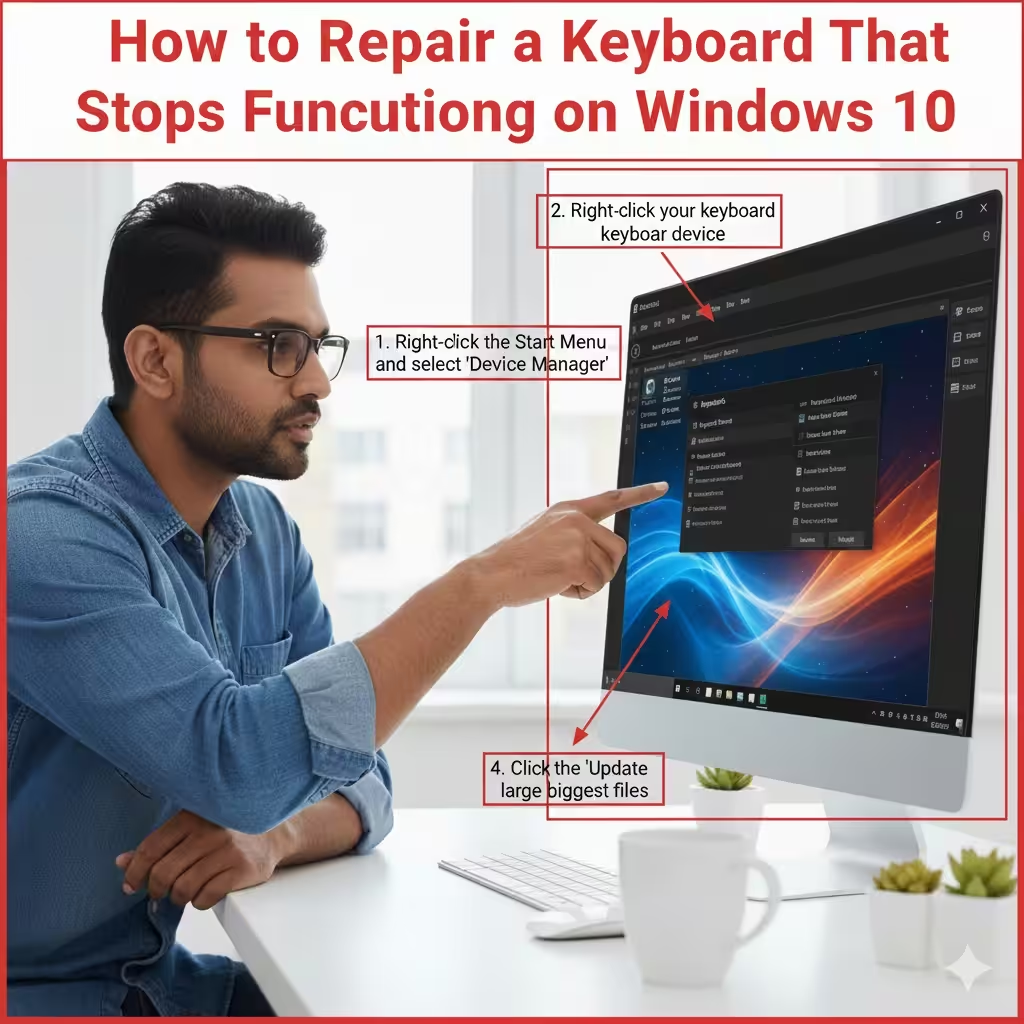
Update or Reinstall Keyboard Drivers
Outdated or corrupted drivers often cause keyboard problems in Windows 10.
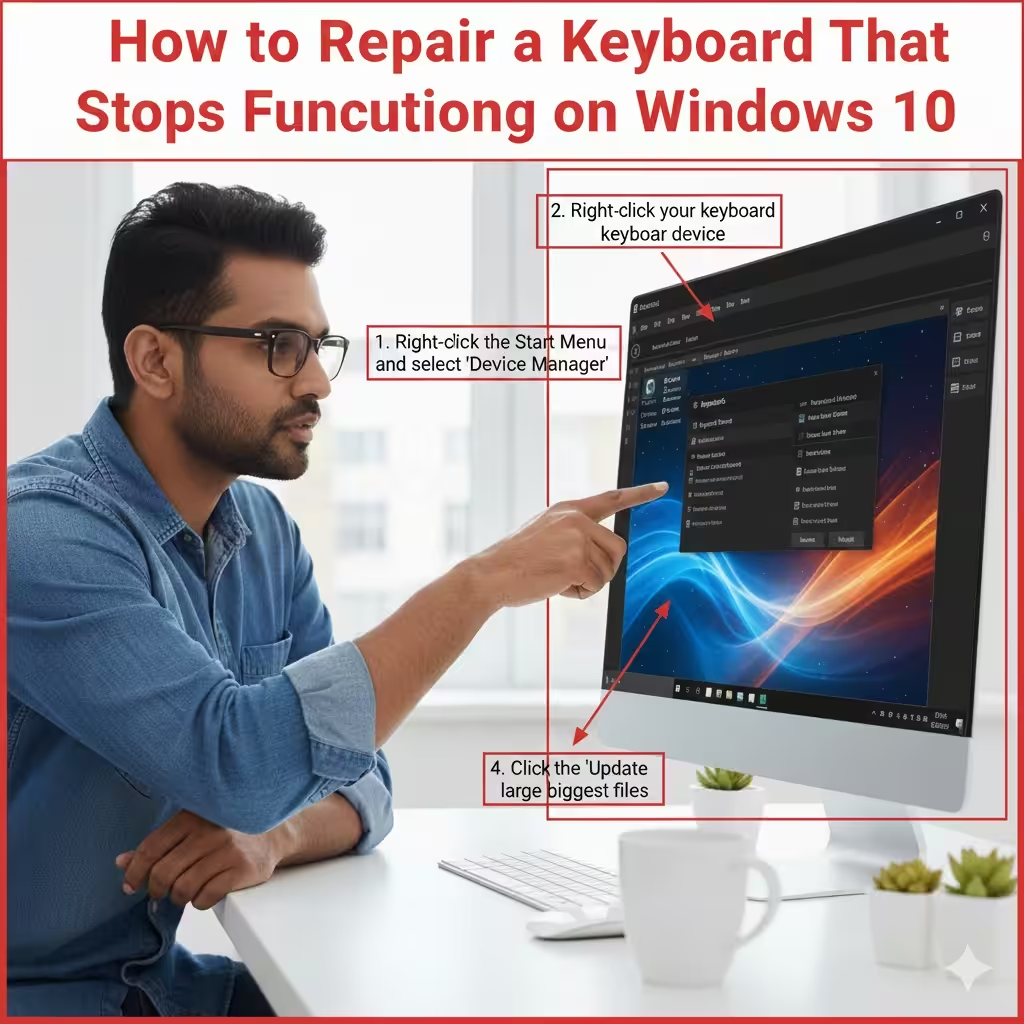
How to Update Keyboard Drivers
-
Right-click the Start Menu
-
Select Device Manager
-
Expand the Keyboards section
-
Right-click your keyboard device
-
Click Update driver
-
Choose Search automatically for updated drivers
After updating, restart the system and test the keyboard.
How to Reinstall Keyboard Drivers
If updating does not work:
-
In Device Manager, right-click your keyboard
-
Select Uninstall device
-
Restart your computer
Windows should automatically reinstall the correct driver upon reboot.
Check for Windows Updates
Sometimes Windows updates include hardware compatibility improvements.
How to Check for Updates
-
Open Settings
-
Select Update & Security
-
Click Windows Update
-
Choose Check for updates
Install any available updates and restart your computer.
Disable Filter Keys in Windows 10
Filter Keys is an accessibility feature that can cause your keyboard to behave as if it is unresponsive or slow to react.
Disable Filter Keys
-
Open Settings
-
Go to Ease of Access
-
Click Keyboard
-
Turn Filter Keys off
After turning it off, test whether the keyboard responds normally again.
Check for Software Conflicts
Some third-party applications—especially keyboard utilities, RGB software, or macro tools—can interfere with Windows drivers.
Boot Into Safe Mode
Safe Mode disables most third-party software so you can determine whether the issue is software-based.
-
Open Settings
-
Click Update & Security
-
Select Recovery
-
Under Advanced startup, click Restart now
-
Choose Troubleshoot → Advanced options → Startup Settings
-
Click Restart
-
Press 4 for Safe Mode
If your keyboard works in Safe Mode, then a background program is causing the issue.
Uninstall Recently Installed Programs
If the problem started after installing new software, remove it:
-
Open Settings
-
Select Apps
-
Sort by Recently installed
-
Uninstall suspicious or unnecessary programs
Afterward, reboot your PC.
Check Keyboard Layout and Language Settings
Incorrect keyboard layout settings can cause keys to type the wrong characters or appear unresponsive.
Verify Keyboard Layout
-
Open Settings
-
Click Time & Language
-
Select Language
-
Make sure your correct language (such as English US) is selected
-
Remove any unnecessary layouts
Change Input Method Quickly
You can also switch between layouts using:
Windows key + Spacebar
If the wrong layout is active, the keyboard may seem broken.
Use On-Screen Keyboard Temporarily
If you cannot type at all, Windows provides a virtual keyboard.
Enable the On-Screen Keyboard
-
Open Settings
-
Select Ease of Access
-
Click Keyboard
-
Toggle On-Screen Keyboard on
This allows you to continue troubleshooting even if your physical keyboard is unusable.
Check BIOS or UEFI Settings
In rare cases, keyboard issues may be related to BIOS settings.
How to Access BIOS
Restart your computer and press:
-
Delete
-
F2
-
F10
-
Esc
Keys vary by manufacturer.
Look for USB Keyboard or Legacy USB
Ensure the following options are Enabled:
-
USB Keyboard Support
-
Legacy USB Support
-
USB Configuration
Incorrect BIOS configuration can prevent your keyboard from functioning during startup or within Windows.
Perform a System Restore
If the problem started recently, System Restore may help.
Using System Restore
-
Type rstrui into the Start Menu
-
Select a restore point from before the issue occurred
-
Click Next, then Finish
Your system will reboot and restore previous configurations.
Try a Different Keyboard
If none of the software fixes work, your keyboard may simply be failing. Try using another keyboard—wired or wireless—to confirm whether the problem is with the hardware itself.
Conclusion
A keyboard not working in Windows 10 can be caused by anything from loose connections to driver problems or incorrect system settings. The good news is that most issues are easy to fix with the right steps. By checking hardware connections, updating drivers, adjusting accessibility settings, and troubleshooting software conflicts, you can often restore your keyboard to full functionality.
If your keyboard still doesn’t work after trying everything in this guide, the issue may be hardware-related, and replacing the keyboard could be the best solution.