


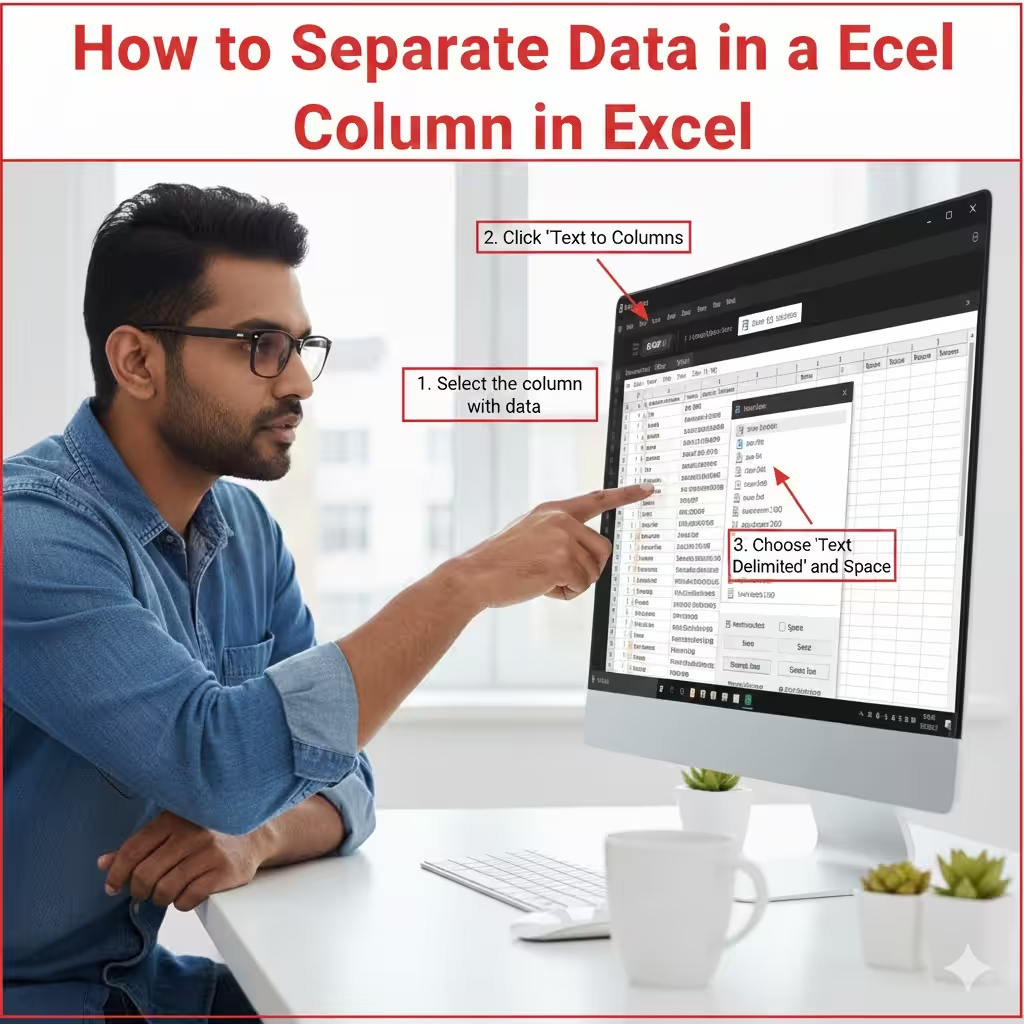
How to Separate Data in a Column in Excel
Splitting a column in Excel is one of the most useful tools for organizing and cleaning data. Whether you’re working with imported information, combined text fields, or inconsistent formatting, Excel offers several built-in features to separate data into multiple columns. You can split data using the Text to Columns tool, formulas, Flash Fill, Power Query, or even advanced functions for dynamic spreadsheets.
This guide will walk you through all the major methods in detail, helping you understand when and how to use each technique effectively.
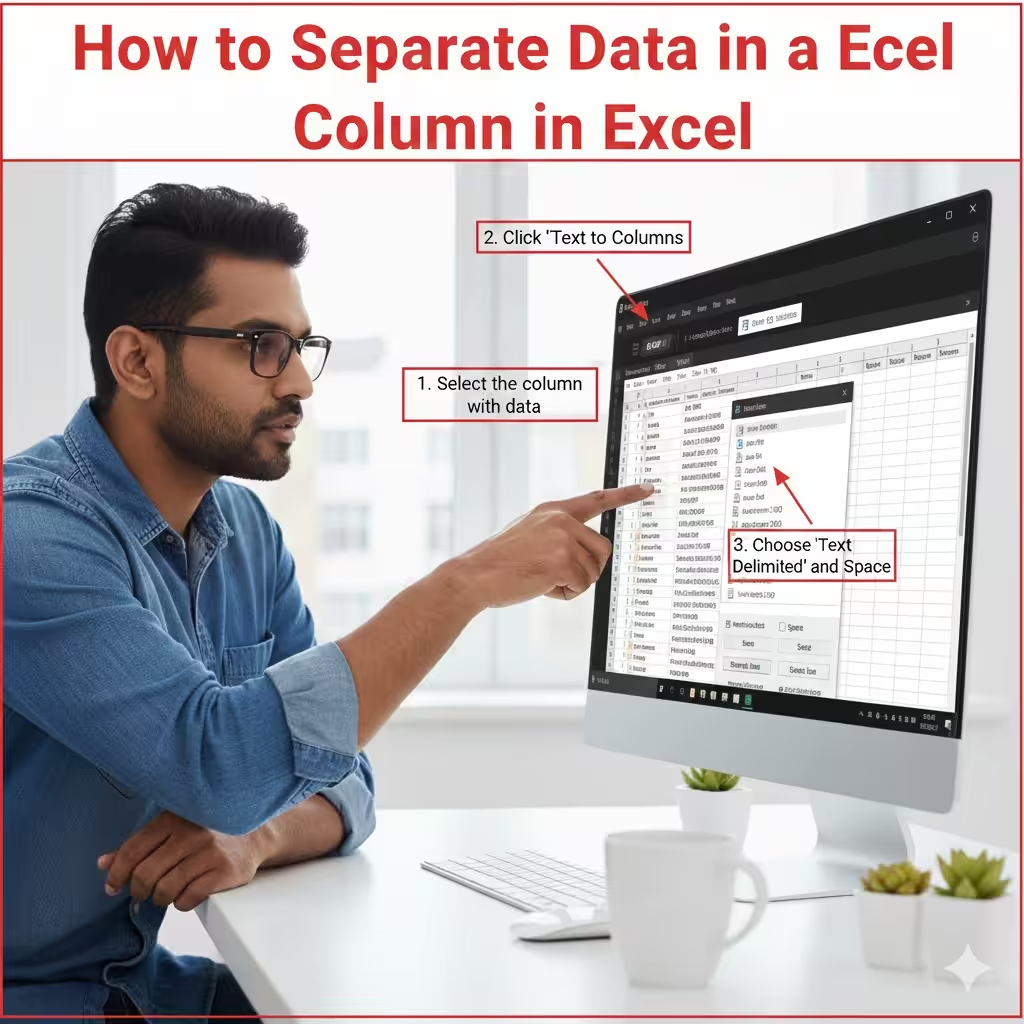
Why Split a Column in Excel?
Before learning the methods, it’s helpful to know why splitting a column is useful. Common reasons include:
-
Separating first and last names
-
Splitting email prefixes and domains
-
Separating product codes
-
Breaking dates, times, or IDs into components
-
Cleaning imported data from databases or websites
-
Dividing text where commas, spaces, or special characters appear
Excel provides flexibility for both simple and complex splitting tasks, making it easier to work with structured data.
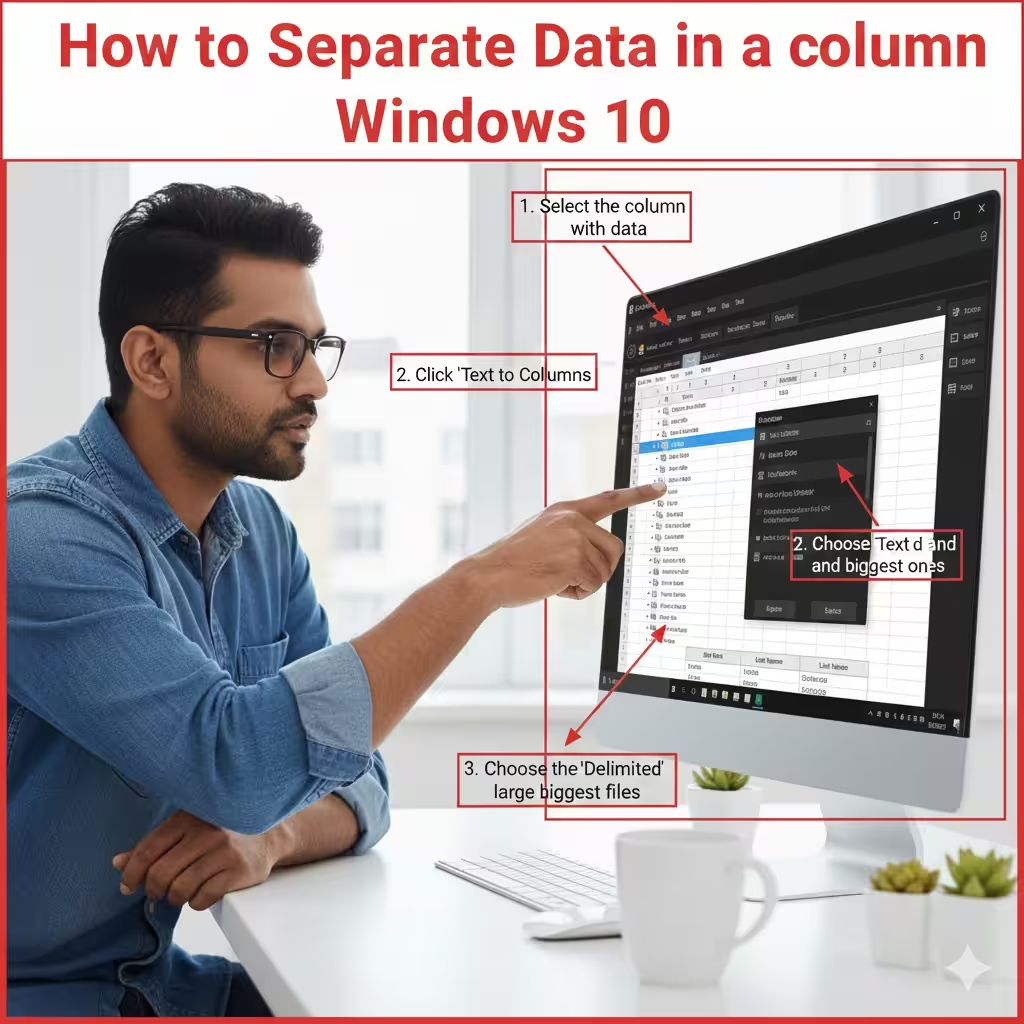
Method 1: Split a Column Using Text to Columns
The Text to Columns feature is the most popular and direct way to split a column in Excel. It works best when your column contains consistent delimiters such as commas, spaces, semicolons, tabs, or custom characters.
How to Use Text to Columns (Delimited Option)
-
Select the column you want to split.
-
Go to the Data tab.
-
Click Text to Columns.
-
Choose Delimited and click Next.
-
Select your delimiter (comma, space, tab, semicolon, or custom).
-
Click Next.
-
Choose the destination cells (optional).
-
Click Finish.
How Delimiters Work
Delimiters are characters that separate items in text. Common examples include:
-
Commas (John,Smith)
-
Spaces (John Smith)
-
Hyphens (123-456)
-
Tabs
-
Semicolons
Excel uses the delimiter to determine where each split occurs.
When to Use This Method
Use Text to Columns when:
-
Data is consistently formatted
-
A specific character separates values
-
You want a quick, one-time split
-
You don’t need dynamic updates
This method is fast and effective for most basic splitting tasks.
Method 2: Use Text to Columns with Fixed Width
If your data does not use delimiters but the spacing is consistent—for example, an ID code like “ABC123XYZ”—you can split using fixed widths.
How to Use Fixed Width
-
Select the target column.
-
Go to Data → Text to Columns.
-
Choose Fixed width and click Next.
-
Excel will display break lines. Click to create or drag to adjust lines.
-
Click Next, then Finish.
This is ideal for structured text where each segment has a fixed number of characters.
Method 3: Split Columns with Excel Formulas
Formulas are excellent when you want a dynamic solution that updates automatically when data changes. Excel offers several text functions that can help extract parts of a cell.
Split by Space Using LEFT, RIGHT, and FIND
If you have full names like:
John Smith
You can split the first and last name using formulas.
First name:
Last name:
Split Using MID
MID extracts text from the middle of a string:
This extracts 5 characters starting from position 3.
Split Using SEARCH
SEARCH works like FIND but is not case sensitive:
Used with LEFT or MID, it can help locate split positions.
When to Use Formula-Based Splitting
Use formulas when:
-
Your data changes frequently
-
You want dynamic updates
-
The split needs custom logic
-
You must process large datasets with automation
Formulas give you maximum flexibility but require more setup.
Method 4: Split Using Excel’s Flash Fill
Flash Fill is one of Excel’s most powerful data-cleaning tools. It detects patterns and fills in the rest of the column automatically.
How to Use Flash Fill
-
Enter an example of the desired split in an empty column.
-
Press Enter.
-
Go to Data → Flash Fill, or press Ctrl + E.
Excel will automatically detect the pattern and complete the remaining rows.
Best Uses for Flash Fill
Flash Fill works best when:
-
Data follows a clear pattern
-
You want quick results without formulas
-
You’re splitting text like names, emails, or codes
Flash Fill is not dynamic—if the source data changes, you must run it again.
Method 5: Use Power Query to Split Columns
Power Query is a more advanced tool for automating data imports, transformations, and splits. It is ideal for large or frequently updated data sets.
How to Split Data with Power Query
-
Select the column to split.
-
Go to Data → From Table/Range.
-
In Power Query, right-click the column.
-
Select Split Column.
-
Choose By Delimiter, By Number of Characters, or Advanced Options.
-
Click OK.
-
Press Close & Load to return the data to Excel.
Why Use Power Query?
-
Automatically updates when data changes
-
Handles complex splitting logic
-
Works well for large datasets
-
Supports advanced transformation tools
Power Query is the most powerful long-term method for splitting columns.
Method 6: Split Using Excel’s TEXTSPLIT Function (Microsoft 365)
If you use Microsoft 365, Excel includes the modern TEXTSPLIT function, making splitting text incredibly easy.
Basic Usage
This splits a cell into multiple columns using a space as a delimiter.
Split by Row or Column
Split by column (default):
Split by row:
Multiple Delimiters Example
This splits by comma, semicolon, or space.
TEXTSPLIT is dynamic and updates automatically when your data changes.
Method 7: Split Emails, Dates, and Codes Automatically
Excel provides built-in tools for common split scenarios.
Split Email Address
For example:[email protected]
Username:
Domain:
Split Date and Time
If a cell contains:2025-02-10 14:35
Use:
for date, and
for time.
Split Product Codes
Use FIND, MID, and LEFT depending on the format.
Final Thoughts
Splitting a column in Excel is an essential skill for data organization and cleaning. Whether you’re working with names, codes, emails, text, or imported data, Excel offers a variety of methods to help you divide content effectively. From simple tools like Text to Columns and Flash Fill to advanced features like Power Query and TEXTSPLIT, you can choose the technique that best fits your workflow.
Mastering these methods will help you work faster, clean data more accurately, and manage complex spreadsheets with confidence.