


Effective Methods to Fix “Plugged In Not Charging” on Windows 7
The “Plugged in, not charging” error is a common and frustrating problem for Windows 7 laptop users. This issue occurs when your laptop recognizes that the power adapter is connected, but the battery does not charge. As a result, your device may suddenly shut down when the battery runs out, limiting mobility and productivity.
Although Windows 7 is an older operating system, many users still rely on it for legacy hardware or specialized software. Fortunately, the “Plugged in, not charging” problem can usually be fixed by following the correct troubleshooting steps. This guide explains the possible causes of the issue and provides clear, practical solutions to help restore normal charging behavior.
Understanding the “Plugged In, Not Charging” Error
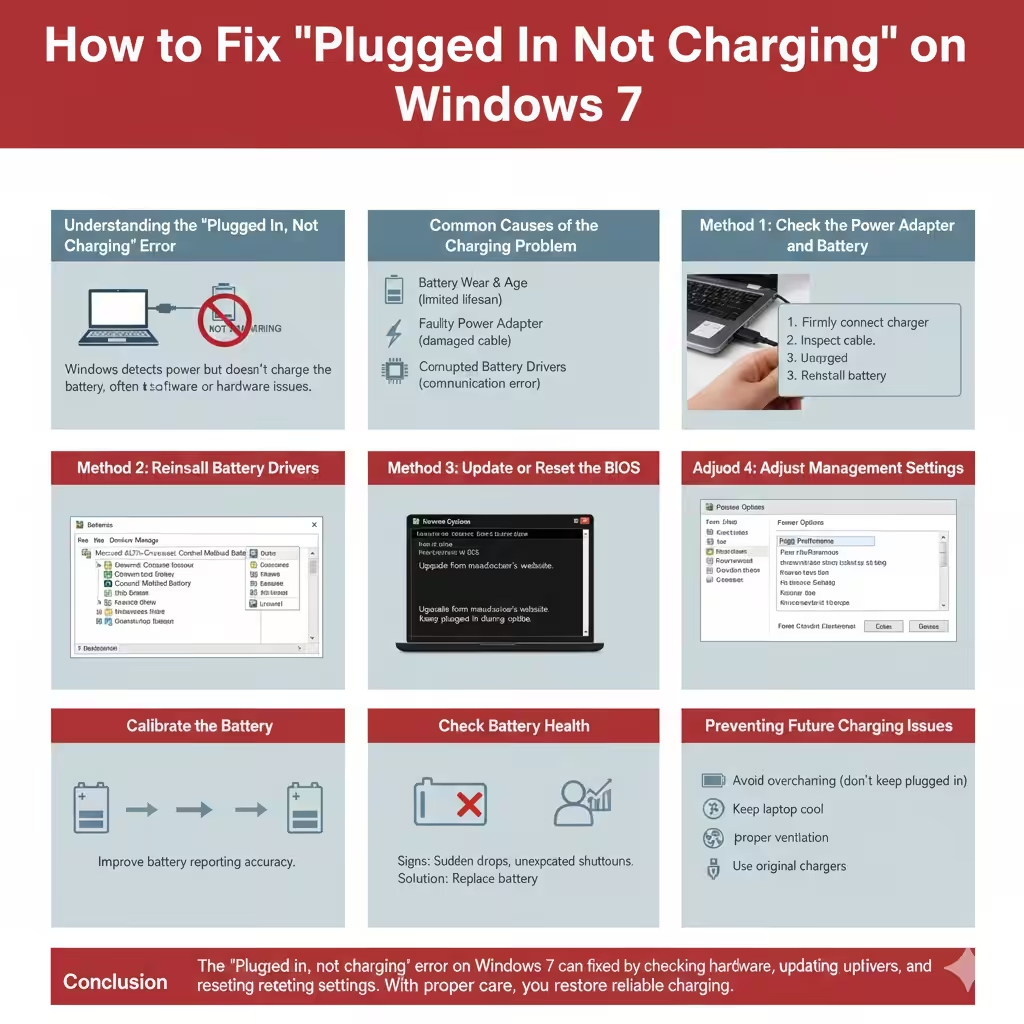
When your laptop displays the message “Plugged in, not charging,” it means Windows detects the AC adapter but prevents the battery from charging. This behavior is often triggered by software misconfigurations, outdated drivers, battery health limitations, or hardware problems.
In some cases, Windows 7 may stop charging the battery to protect it from overheating or further degradation. Understanding the root cause is essential for choosing the most effective fix.
Common Causes of the Charging Problem
Several factors can contribute to this error, ranging from simple settings issues to physical hardware damage.
Battery Wear and Age
Laptop batteries have a limited lifespan. Over time, their capacity decreases, and Windows may stop charging them to prevent instability or safety risks.
Faulty Power Adapter or Cable
A damaged charger or loose connection can provide enough power to run the laptop but not enough to charge the battery.
Incorrect or Corrupted Battery Drivers
Battery-related drivers help Windows communicate with the hardware. If these drivers are outdated or corrupted, charging problems may occur.
BIOS or Firmware Issues
Outdated BIOS firmware can cause compatibility problems with batteries and power management systems.
Method 1: Check the Power Adapter and Battery
Before changing any system settings, inspect the physical components.
What to Check
- Ensure the charger is firmly connected to both the laptop and the power outlet
- Inspect the cable for fraying or visible damage
- Remove the battery (if removable), clean the contacts, and reinsert it
- Try using a compatible charger if available
Sometimes, a simple hardware check can resolve the issue immediately.
Method 2: Reinstall Battery Drivers
Reinstalling battery drivers can fix communication issues between Windows 7 and the battery.
Steps to Reinstall Drivers
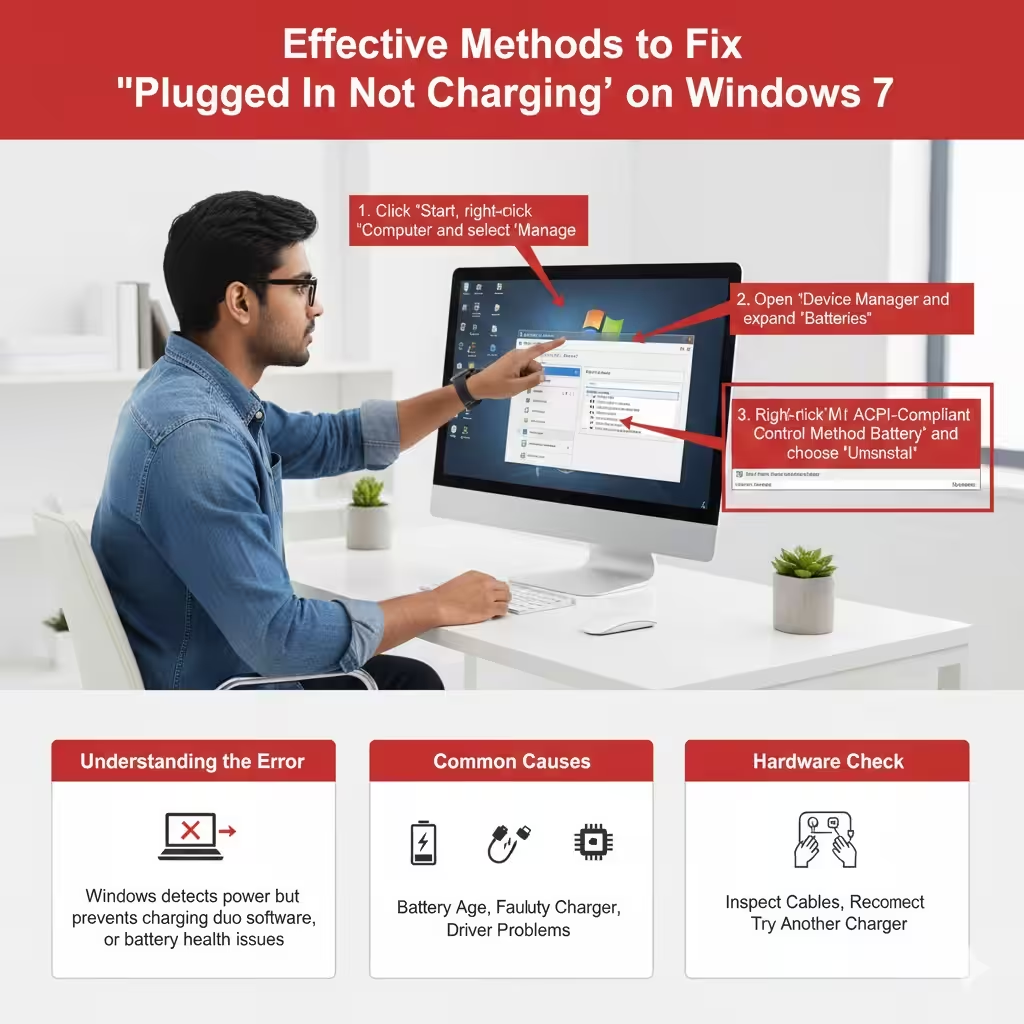
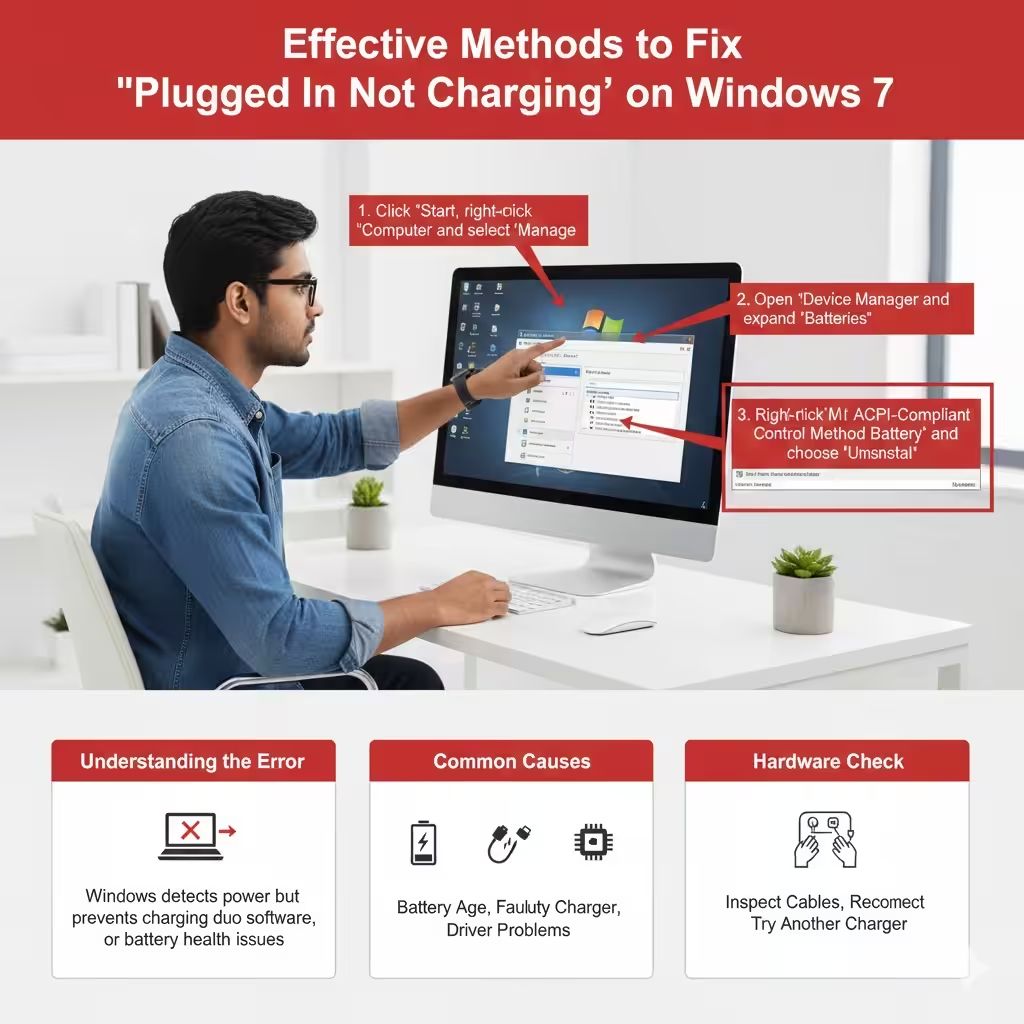
- Click Start, right-click Computer, and select Manage
- Open Device Manager
- Expand Batteries
- Right-click Microsoft ACPI-Compliant Control Method Battery and choose Uninstall
- Restart your laptop
Windows will automatically reinstall the driver after rebooting.
Method 3: Update or Reset the BIOS
BIOS updates often include fixes for power and battery-related problems.
Important Notes
- Only download BIOS updates from the manufacturer’s official website
- Ensure the laptop is plugged in during the update
- Do not interrupt the update process
Updating the BIOS can improve battery detection and charging behavior on older systems.
Method 4: Adjust Power Management Settings
Incorrect power settings can limit charging or cause Windows to misreport battery status.
How to Check Power Settings
- Open Control Panel
- Select Power Options
- Choose your active power plan
- Click Change plan settings
- Restore default settings if changes were previously made
Resetting power plans can eliminate conflicts caused by manual configuration.
Method 5: Calibrate the Battery
Battery calibration helps Windows accurately detect battery capacity and charging status.
How to Calibrate
- Charge the battery to 100%
- Leave the laptop plugged in for an additional hour
- Unplug the charger and use the laptop until the battery drains completely
- Turn off the laptop and leave it off for several hours
- Recharge the battery to 100% without interruption
Calibration can improve battery reporting and charging accuracy.
Method 6: Check Battery Health
If none of the software fixes work, the battery itself may be failing.
Signs of a Failing Battery
- Battery percentage drops suddenly
- Laptop shuts down unexpectedly
- Battery does not hold a charge
In such cases, replacing the battery may be the only permanent solution.
Preventing Future Charging Issues
- Avoid overcharging the battery continuously
- Keep the laptop cool and well-ventilated
- Use original or certified chargers only
- Update drivers and BIOS periodically
Proper battery care can significantly extend battery lifespan.
Conclusion
The “Plugged in, not charging” error on Windows 7 can stem from a variety of causes, including driver problems, hardware faults, or battery degradation. By following the methods outlined in this guide, you can identify the source of the issue and apply the appropriate fix. While some solutions involve simple checks, others may require deeper system updates or battery replacement. With proper troubleshooting and maintenance, you can restore reliable charging and extend the usability of your Windows 7 laptop.