


How to Stop Click-to-Run Service in Microsoft Office
Microsoft Office Click-to-Run is a modern installation and update technology designed to deliver Office applications quickly and keep them up to date automatically. While it offers convenience for many users, Click-to-Run can sometimes cause issues such as high CPU usage, background updates during work, compatibility conflicts, or difficulties in enterprise environments. In these situations, users may prefer to disable Click-to-Run to gain more control over Office behavior.
This guide provides a complete explanation of what Click-to-Run is, why you might want to disable it, and how to safely do so on Windows systems without compromising Office functionality.
What Is Click-to-Run in Microsoft Office?
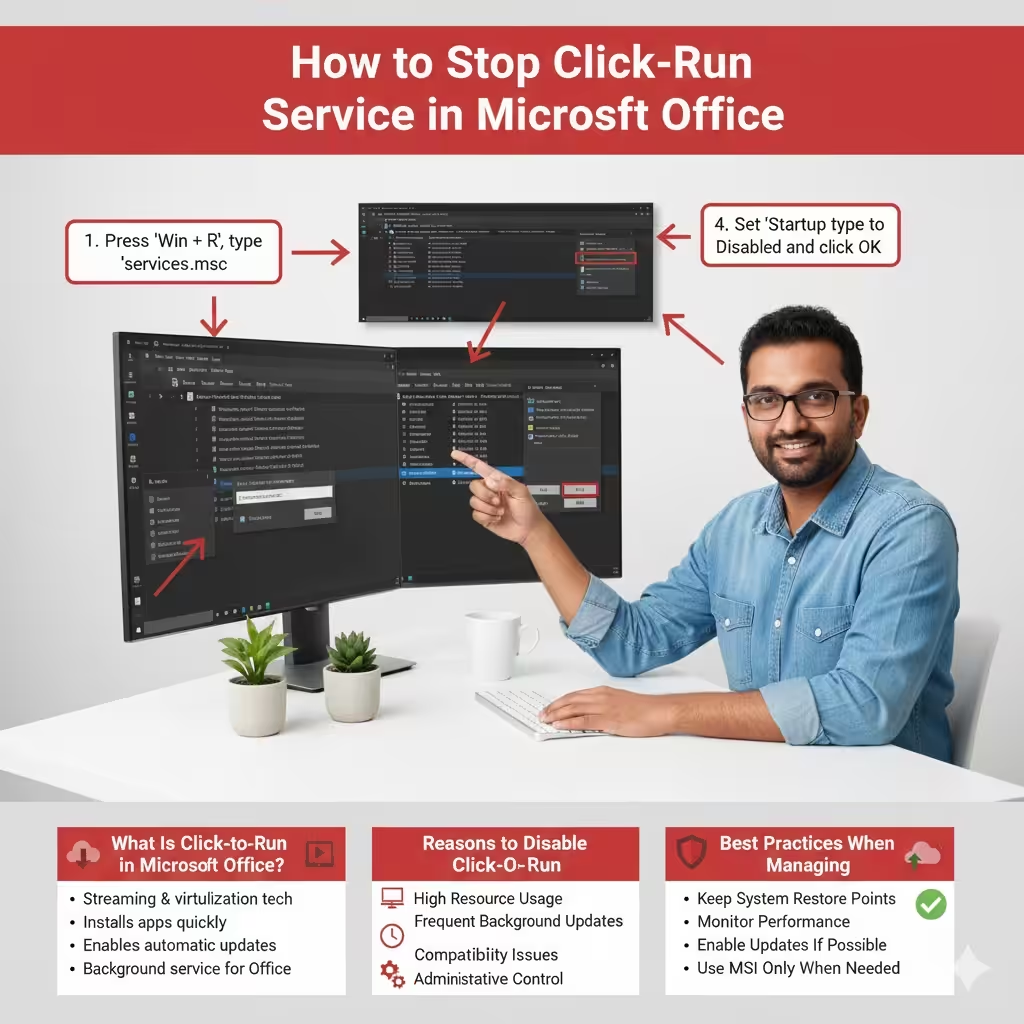
Click-to-Run is a Microsoft streaming and virtualization technology used to install Office products. Instead of installing Office entirely from local files, Click-to-Run allows applications to start running before the installation is complete. It also enables automatic background updates, ensuring users always have the latest features and security patches.
Click-to-Run replaces older Windows Installer (MSI)–based installations in most modern Office versions, including Microsoft 365 Apps. Although efficient, it runs background services that may not suit all users or system environments.
Reasons to Disable Click-to-Run
Disabling Click-to-Run is not necessary for most users, but there are valid reasons why some may choose to do so.
High Resource Usage
Click-to-Run services may consume CPU, memory, or disk resources during updates, which can affect performance on older or low-spec systems.
Frequent Background Updates
Automatic updates can interrupt work, slow down the system, or cause unexpected changes in Office behavior.
Compatibility and Stability Issues
Some add-ins, macros, or enterprise tools work better with MSI-based Office installations rather than Click-to-Run.
Administrative Control
In business or managed environments, administrators may prefer manual update control and consistent Office versions across devices.
Important Notes Before Disabling Click-to-Run
Before proceeding, it is important to understand the limitations and risks involved.
- Click-to-Run is deeply integrated into modern Office versions
- Disabling the service may affect updates or repairs
- Some Office editions cannot function without Click-to-Run
Always back up important files and ensure you understand your Office license type before making changes.
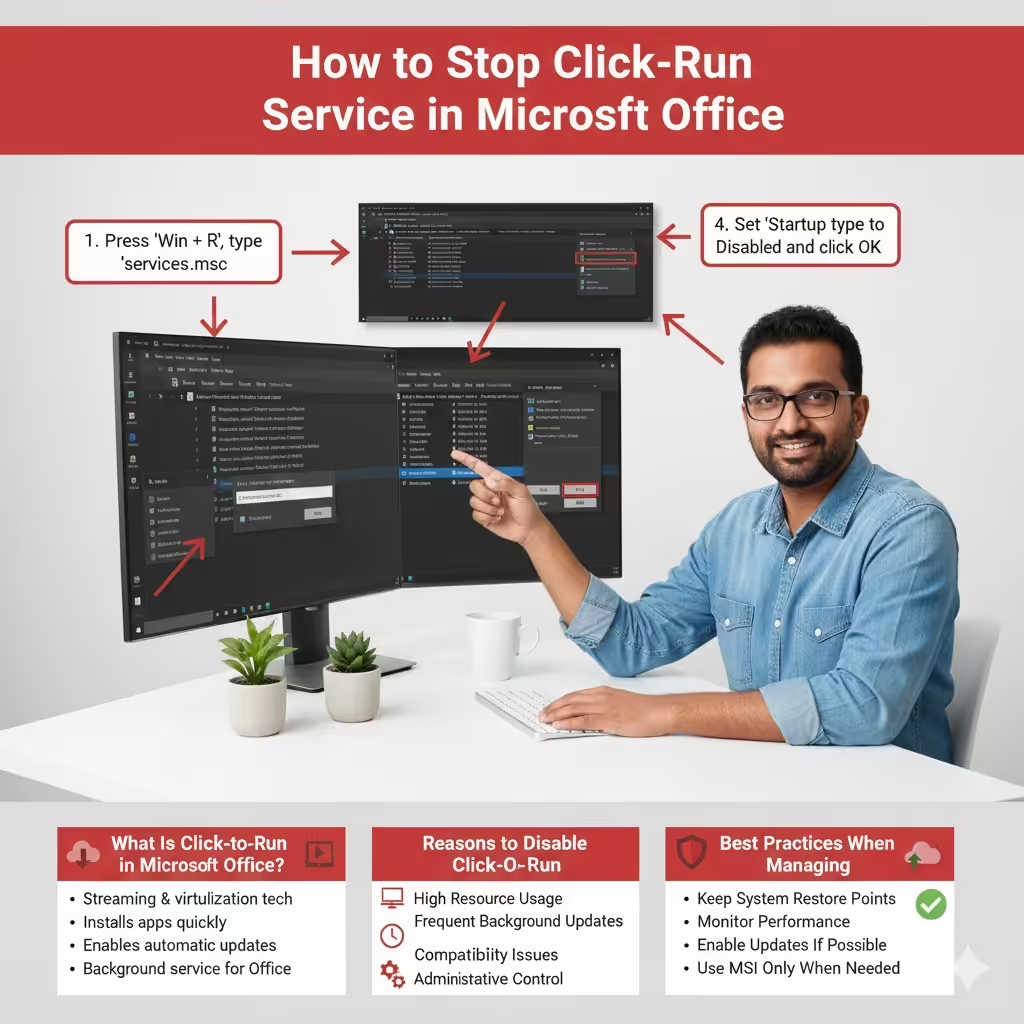
Method 1: Disable Click-to-Run Service via Services
The most direct way to disable Click-to-Run is by stopping and disabling its background service.
Step-by-Step Instructions
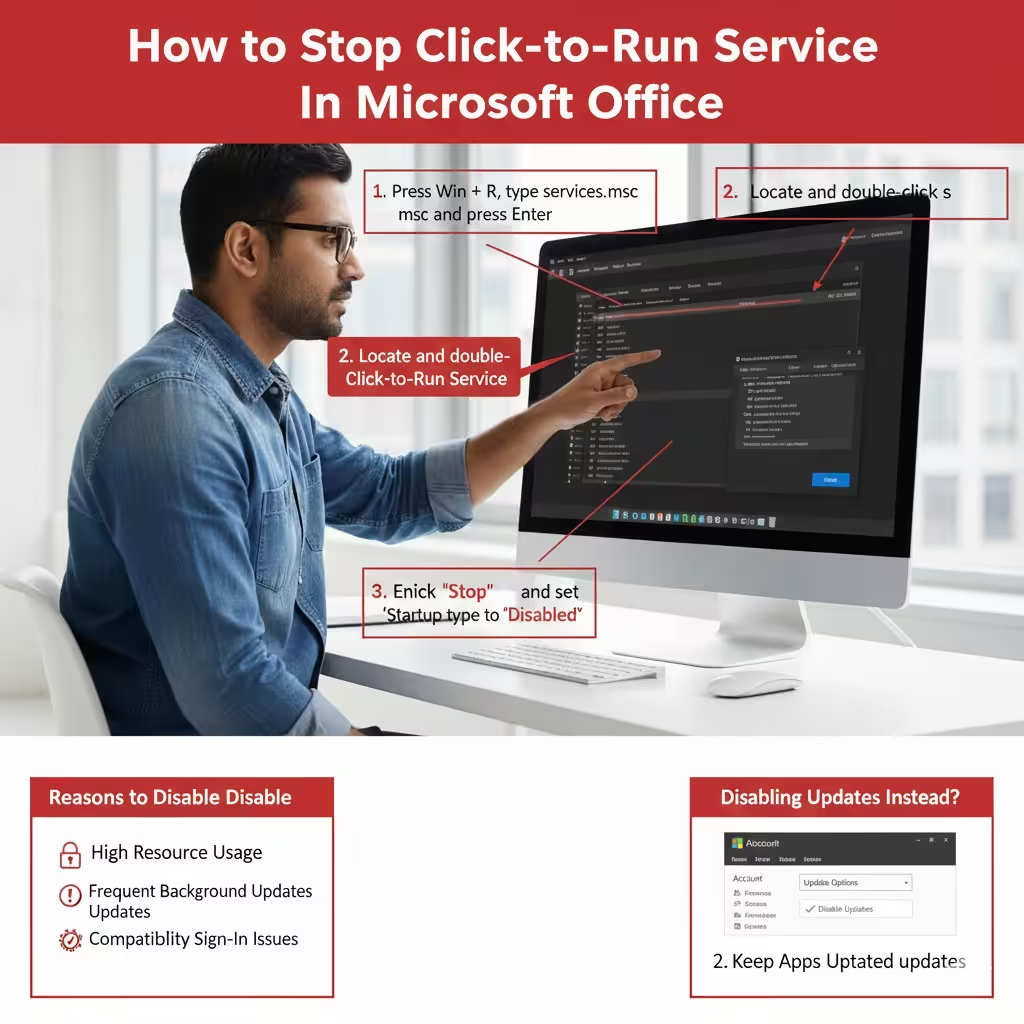
- Press Windows + R, type services.msc, and press Enter
- Locate Microsoft Office Click-to-Run Service
- Double-click the service to open its properties
- Click Stop to stop the service
- Set Startup type to Disabled
- Click Apply and then OK
After restarting your computer, Click-to-Run will no longer run in the background.
Method 2: Disable Click-to-Run Using Registry Editor
Advanced users can disable Click-to-Run by modifying the Windows Registry.
How to Edit the Registry Safely
- Press Windows + R, type regedit, and press Enter
- Navigate to the Office Click-to-Run configuration key
- Locate the UpdatesEnabled value
- Change the value data from 1 to 0
- Close Registry Editor and restart the system
Editing the registry incorrectly can cause system issues, so proceed carefully and consider backing up the registry first.
Method 3: Disable Automatic Updates Instead of Click-to-Run
If your main concern is updates rather than the Click-to-Run engine itself, disabling automatic updates may be a safer alternative.
Disable Updates in Office
- Open any Office application
- Go to File > Account
- Select Update Options
- Click Disable Updates
This method keeps Click-to-Run active while preventing background updates.
Switching from Click-to-Run to MSI-Based Office
For users who require full control, switching to an MSI-based Office installation may be the best solution.
What This Involves
- Uninstalling the current Click-to-Run Office version
- Downloading the MSI installer from official sources
- Reinstalling Office using Windows Installer technology
This approach is typically used in enterprise or legacy environments.
Common Issues After Disabling Click-to-Run
Office Fails to Update
Without Click-to-Run, Office may no longer receive automatic updates. Manual updates may be required.
Repair Options Are Limited
Online repair and quick repair features rely on Click-to-Run services.
Office Apps Do Not Launch
Some Office editions depend entirely on Click-to-Run and may fail to start if the service is disabled.
Best Practices When Managing Click-to-Run
- Disable updates instead of the service if possible
- Use MSI-based Office only when required
- Keep system restore points before changes
- Monitor system performance after disabling services
Making informed choices helps avoid unnecessary system instability.
Conclusion
Disabling Click-to-Run in Microsoft Office can be beneficial in specific scenarios where performance, compatibility, or administrative control is a priority. While Click-to-Run offers convenience and automatic updates, it is not always the ideal solution for every user. By understanding how it works and applying the appropriate method outlined in this guide, you can safely manage or disable Click-to-Run while maintaining a stable and productive Office environment.