


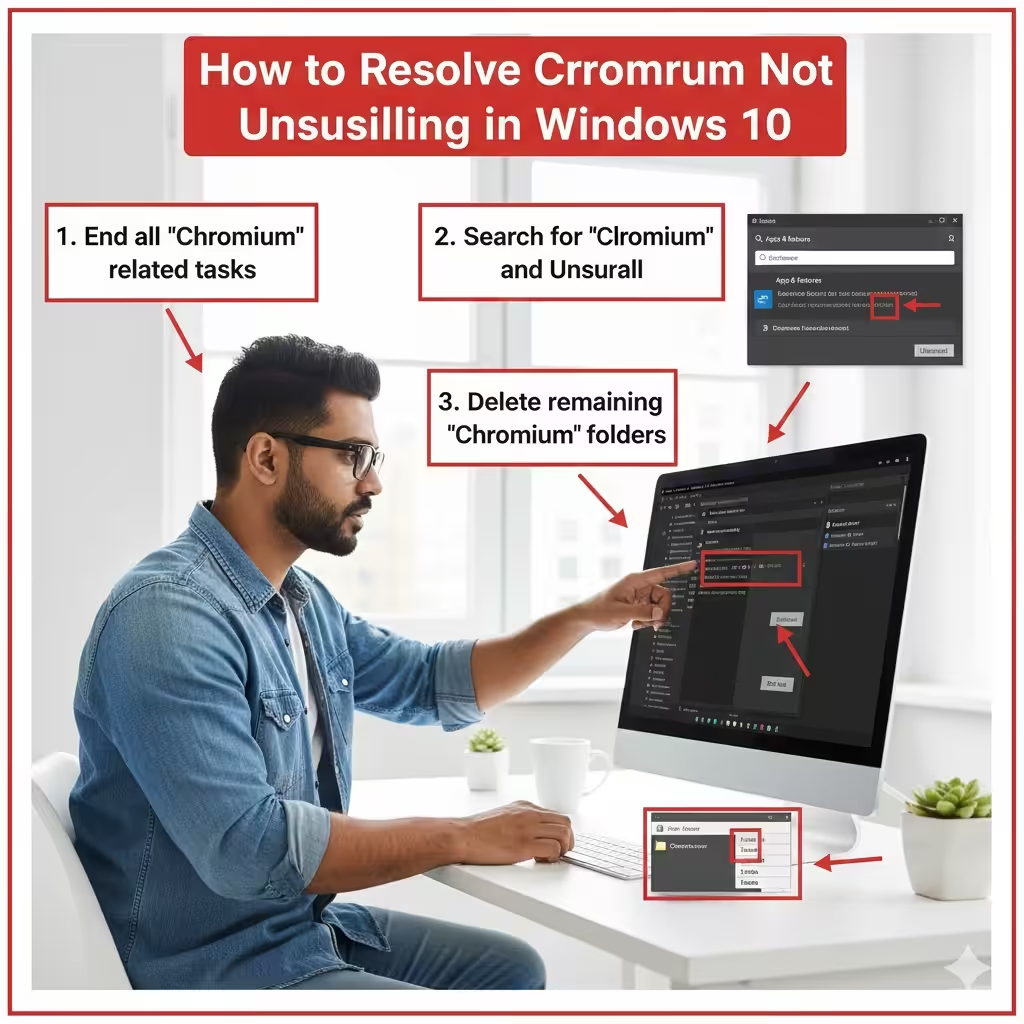
How to Resolve Chromium Not Uninstalling in Windows 10
Chromium is an open-source browser project that forms the foundation of Google Chrome and other browsers. While many users install Chromium intentionally, it can also appear on Windows 10 systems bundled with other software or installed by potentially unwanted programs. When you try to uninstall it, you may notice that Chromium refuses to uninstall, reappears after removal, or continues running in the background. This issue can be frustrating, especially when Chromium becomes intrusive or behaves like malware.
Fortunately, several proven methods can help you remove Chromium completely and restore your system’s normal performance. This guide explains why Chromium may not uninstall and provides step-by-step solutions to permanently remove it from Windows 10.
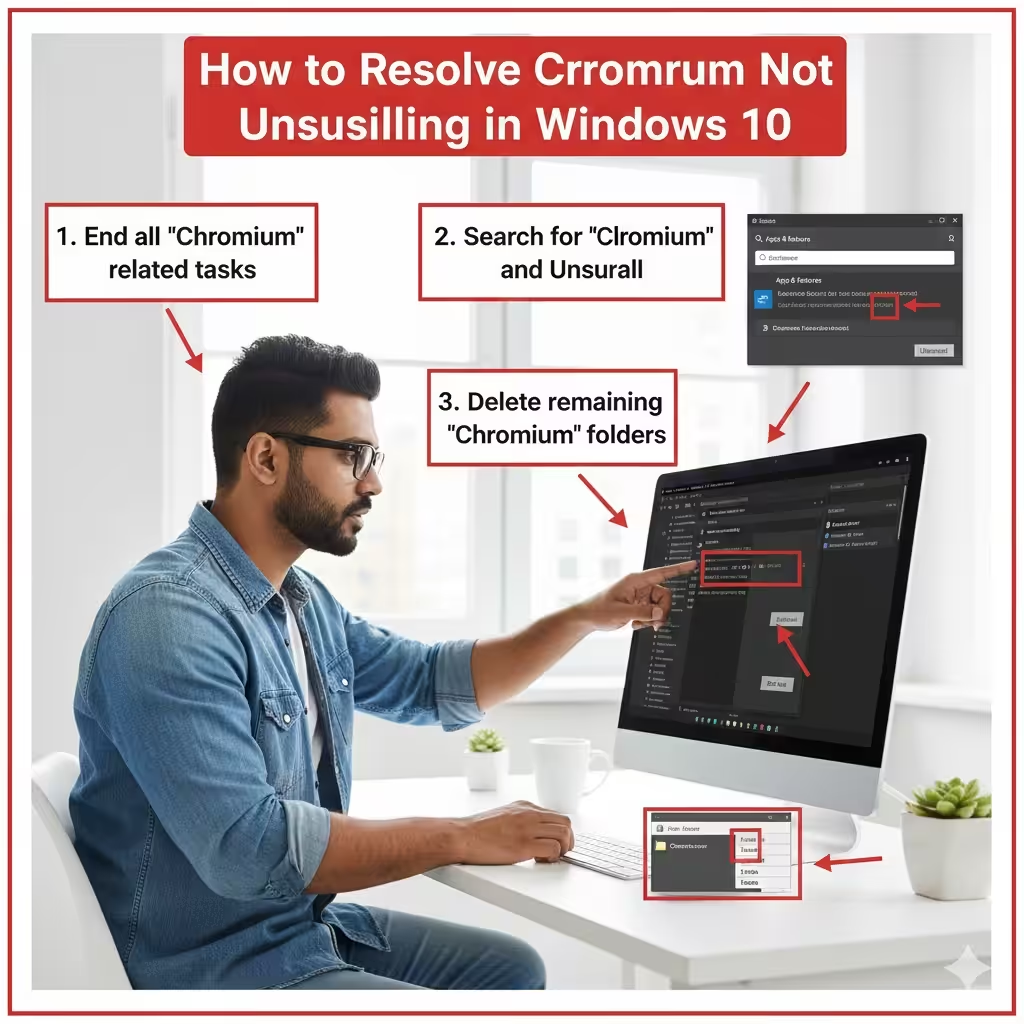
Why Chromium Won’t Uninstall
There are several reasons why you might be unable to remove Chromium:
Chromium Is Installed by Malware or Adware
Some versions of Chromium are modified and distributed by malicious software. These versions reinstall themselves, change your browser settings, and block uninstallation.
Chromium Processes Are Still Running
The uninstaller may fail if the browser’s background processes or services continue to run.
Multiple Chromium Folders Exist
Malicious Chromium versions install themselves in hidden folders, separate from the official installation directory.
Corrupted Installation Files
Damaged system files or corrupted Chromium components may block the uninstallation process.
Registry Entries Are Preventing Removal
Leftover registry entries can force Chromium to remain on your system.
Now let’s go through the steps to fix these issues.
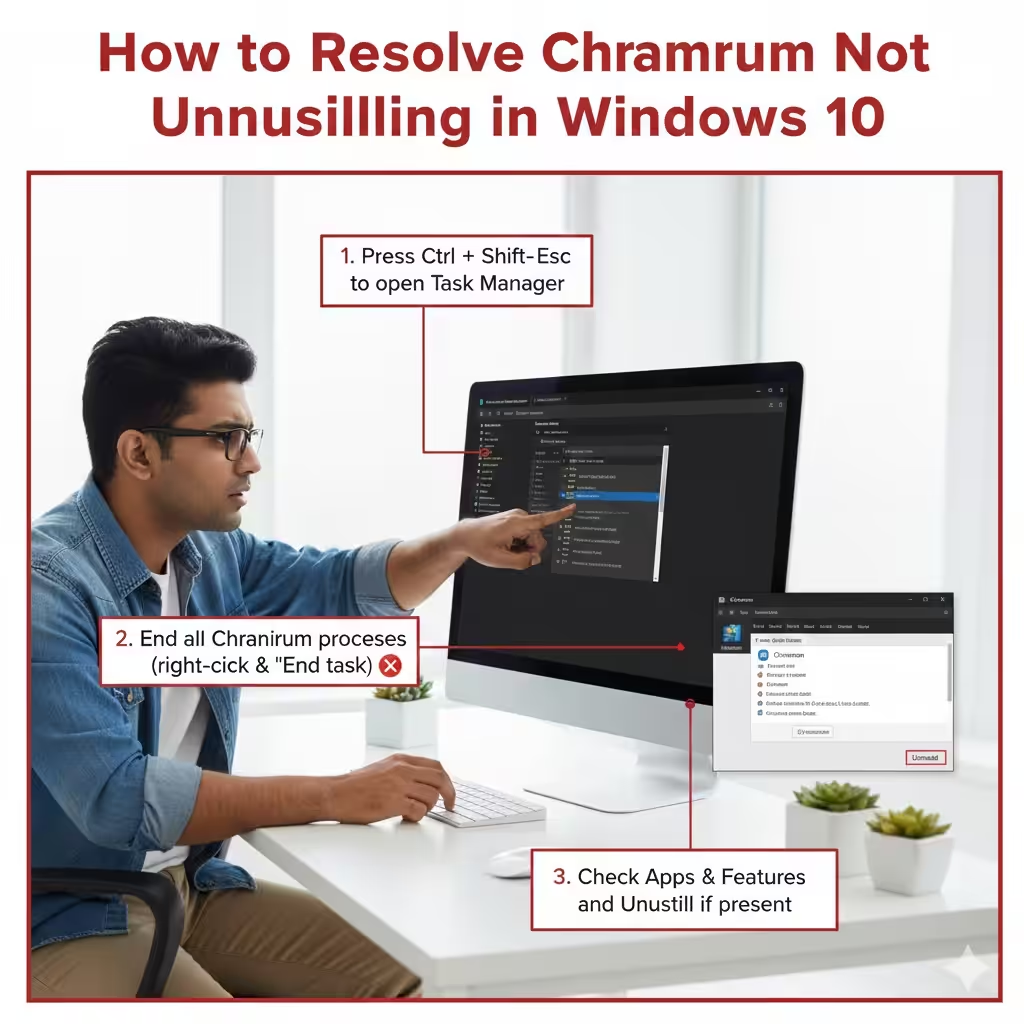
End All Chromium Processes in Task Manager
Before attempting to uninstall Chromium, ensure that it is not running in the background.
Steps to End Chromium Processes
-
Press Ctrl + Shift + Esc to open Task Manager
-
Go to the Processes tab
-
Look for Chromium.exe or suspicious browser processes
-
Select each process and click End Task
Once all Chromium processes are closed, try uninstalling it again.
Uninstall Chromium Through Settings
Attempt a normal uninstall using Windows Settings, especially if the installation is legitimate.
Uninstalling Chromium via Apps & Features
-
Open Settings
-
Select Apps
-
Click Apps & features
-
Scroll down and look for Chromium
-
Click Uninstall and confirm
If the uninstallation works, restart your PC to ensure the program is removed completely.
If Chromium reappears on the list after restarting, continue with the next steps.
Delete Chromium’s Installation Folder Manually
Even after uninstalling Chromium, leftover files may remain in the system. Removing them manually helps prevent reinstallation.
Steps to Delete the Installation Folder
-
Open File Explorer
-
Navigate to:
C:\Users[Your Username]\AppData\Local -
Look for a folder named Chromium
-
Delete the entire folder
If Windows says the folder is in use, return to Task Manager and stop all Chromium-related tasks, then try again.
Also check the following directories:
-
C:\Program Files (x86)
-
C:\Program Files
If you see any Chromium folders, delete them as well.
Remove Chromium from Startup Programs
Some Chromium versions configure themselves to start automatically with Windows, making them difficult to remove.
Disable Chromium at Startup
-
Press Ctrl + Shift + Esc to open Task Manager
-
Go to the Startup tab
-
Look for Chromium, “Chrome Update,” or unfamiliar entries
-
Select the item and click Disable
Restart your PC and attempt to uninstall or delete Chromium again.
Scan Your Computer for Malware
If Chromium continues reinstalling itself, malware is likely involved. Running a complete system scan can help eliminate malicious components.
Use Windows Security
-
Open Settings
-
Select Update & Security
-
Click Windows Security
-
Choose Virus & threat protection
-
Click Quick scan or Full scan
Run an Additional Malware Scanner
Some adware is not detected by Windows Security. You can use third-party tools such as Malwarebytes (free version) to detect Chromium-related malware.
-
Download Malwarebytes
-
Install and run a scan
-
Quarantine all detected threats
-
Restart your PC
After cleaning infections, attempt the uninstallation again.
Check Your Installed Programs for Unknown Entries
Some Chromium-based malware installs additional software that reinstalls Chromium even after removal.
Look for Suspicious Programs
-
Go to Settings → Apps → Apps & features
-
Sort the list by Install date
-
Look for recently installed unfamiliar programs
-
Uninstall anything suspicious
Names to watch out for include:
-
“Chromium Browser PRO”
-
“Search Protect”
-
“WebDiscover”
-
“MyBrowser”
-
“BrowserAir”
Removing these items can prevent Chromium from reinstalling automatically.
Remove Chromium from Your Browser Settings
If Chromium hijacked your web browser, you may need to remove malicious extensions or reset browser settings.
Reset Google Chrome
-
Open Chrome
-
Go to Settings
-
Click Advanced
-
Select Restore settings to their original defaults
-
Click Reset settings
Check Other Browsers Too
If you use Firefox, Edge, or Opera, reset them as well to remove Chromium-injected extensions.
Delete Chromium Registry Entries
If Chromium continues to reinstall, corrupted registry entries may be forcing it back onto the system.
Warning: Editing the registry can damage your system if done incorrectly. Proceed carefully.
Steps to Remove Chromium from the Registry
-
Press Windows + R
-
Type regedit and press Enter
-
Navigate to:
HKEY_CURRENT_USER\Software -
Look for Chromium folders and delete them
-
Also check:
HKEY_LOCAL_MACHINE\Software -
Delete any Chromium-related entries
-
Restart your PC
After doing this, attempt the manual folder removal again.
Use Safe Mode to Uninstall Chromium
Safe Mode prevents third-party apps and malware from running, allowing you to delete Chromium completely.
Boot Into Safe Mode
-
Open Settings
-
Select Update & Security
-
Click Recovery
-
Under Advanced startup, click Restart now
-
Choose:
Troubleshoot → Advanced options → Startup Settings → Restart -
Press 4 to enter Safe Mode
Once in Safe Mode:
-
Delete Chromium folders
-
Uninstall suspicious programs
-
Remove registry entries
Restart your PC normally afterward.
Create a New Windows User Profile
Sometimes user profile corruption prevents uninstallation.
Create a New User
-
Open Settings
-
Click Accounts
-
Select Family & other users
-
Click Add someone else to this PC
-
Create a new local account
-
Log in with the new account
If Chromium does not appear in the new profile, delete it from the old profile’s folders manually.
Conclusion
Chromium refusing to uninstall from Windows 10 can be caused by malware, corrupted files, or background processes preventing removal. By following the steps in this guide—ending tasks, deleting folders, scanning for malware, cleaning the registry, and using Safe Mode—you can permanently remove Chromium from your computer.