


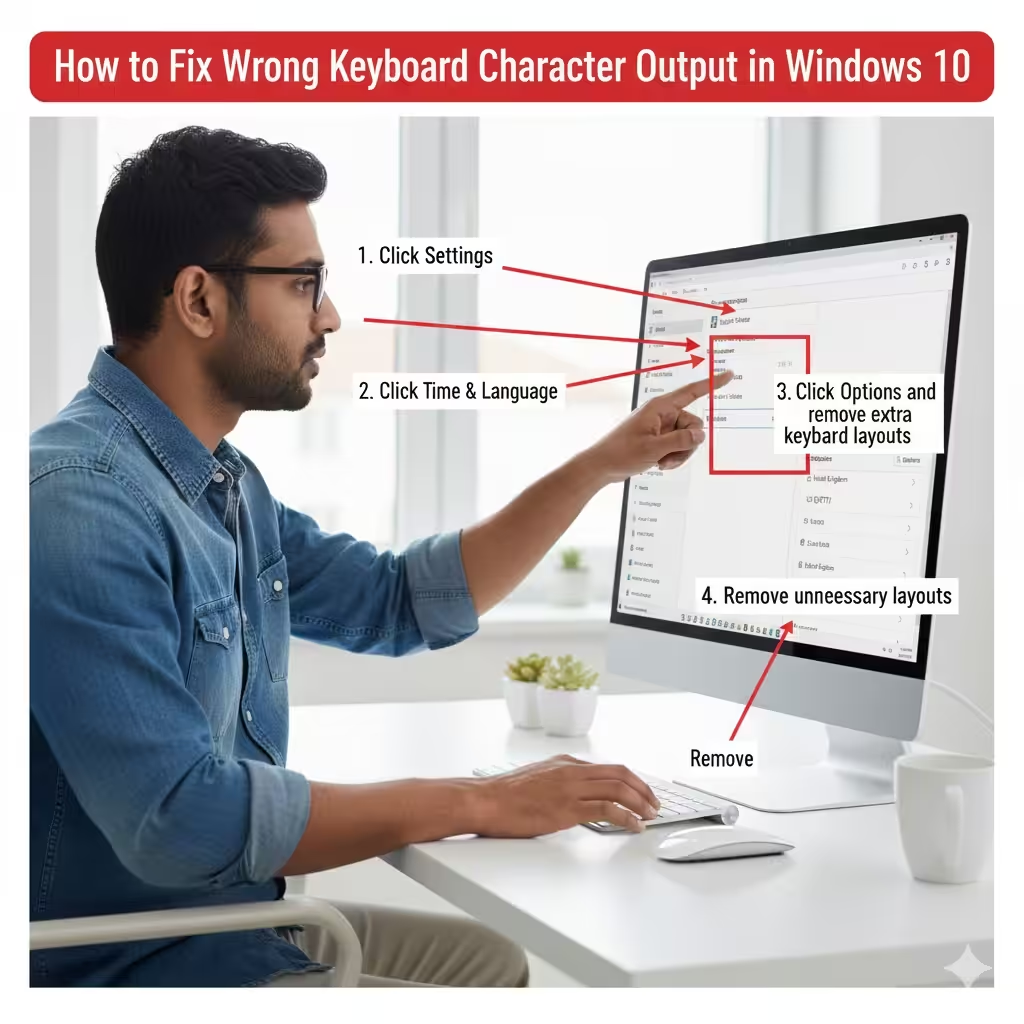
How to Fix Wrong Keyboard Character Output in Windows 10
A keyboard typing incorrect characters is a common problem on Windows 10, and it can be extremely frustrating—especially when you need to work quickly, type passwords, or enter important data. This issue can occur due to incorrect language settings, outdated drivers, hardware faults, or even accidentally enabled features like Num Lock or Sticky Keys. Fortunately, there are several reliable ways to diagnose and fix the problem.
This guide covers all the major causes and provides step-by-step solutions to help you restore your keyboard to normal.
Common Reasons Why Your Keyboard Types Wrong Characters
Before jumping into the fixes, it helps to understand why the issue happens. The most common causes include:
Incorrect Keyboard Layout
Windows might be using a different input language, causing mismatched keys.
Enabled Num Lock
If you’re using a laptop without a numeric keypad, Num Lock can assign numbers to certain letter keys.
AutoCorrect or Text Replacement Settings
Some programs modify text automatically, causing unexpected output.
Driver Problems
Faulty or outdated keyboard drivers may cause input errors.
Hardware Issues
Dust, spills, or mechanical faults can lead to incorrect keystrokes.
Understanding the cause will help you choose the right solution.
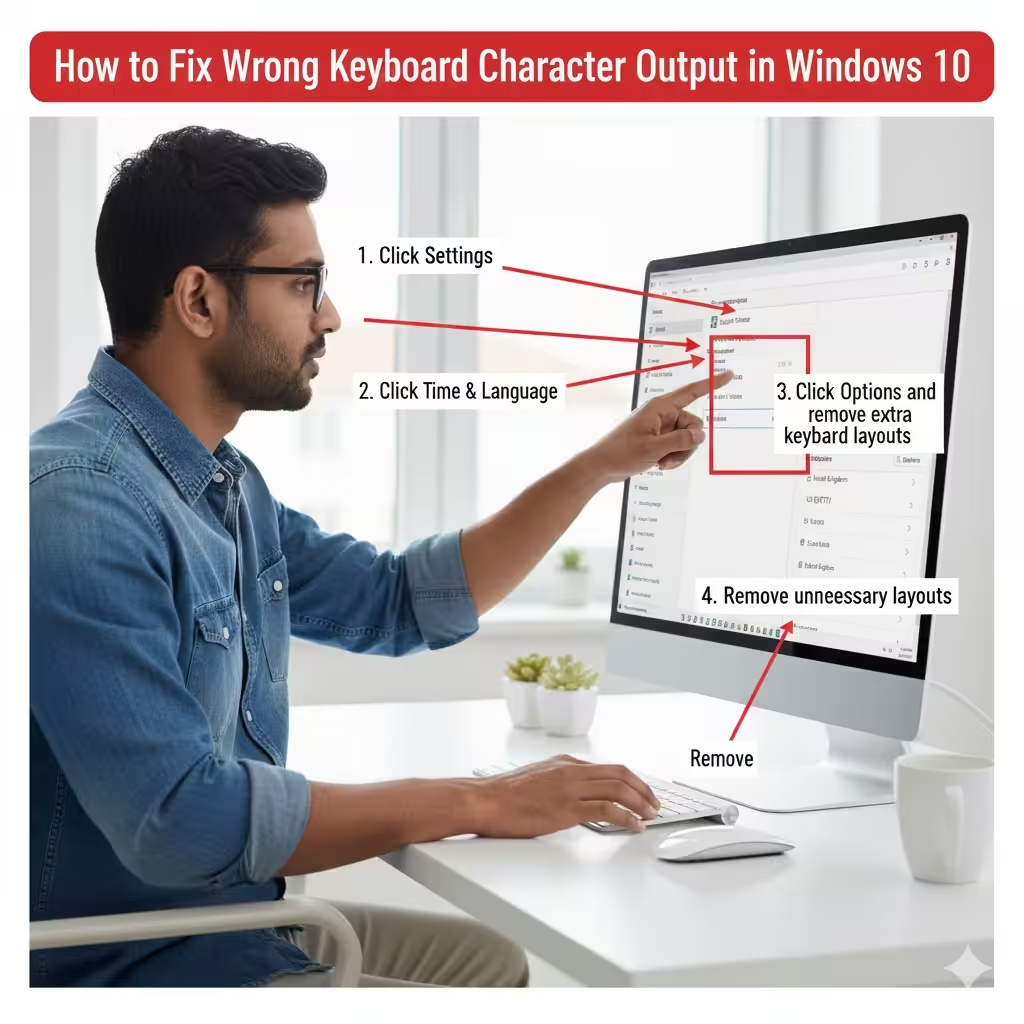
Check Your Keyboard Layout in Windows
Windows 10 often switches keyboard layouts accidentally when users press shortcut keys such as Shift + Alt or Windows + Space.
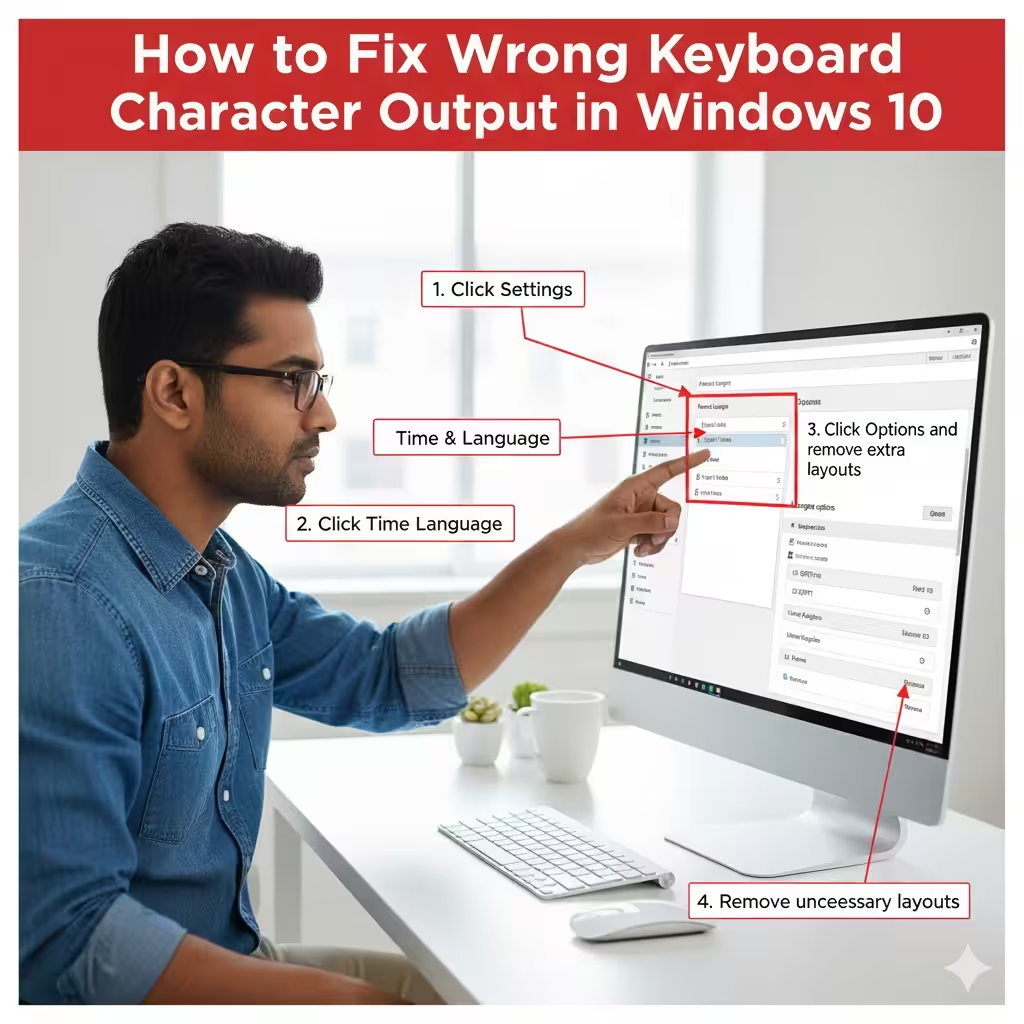
How to Verify Your Keyboard Layout
-
Click Start
-
Open Settings
-
Go to Time & Language
-
Select Language
-
Under Preferred Languages, click your language (e.g., English)
-
Click Options
-
Check the installed keyboard layouts
You should only keep the layout you use, such as US QWERTY.
Remove Extra Keyboard Layouts
-
Go again to Time & Language → Language
-
Click the language
-
Select Options
-
Remove any keyboard layout you don’t need
If the wrong layout is selected, certain keys—such as quotation marks, brackets, or special symbols—may produce unexpected characters.
Disable or Adjust AutoCorrect Features
Some programs, especially Microsoft Word or messaging apps, may replace characters automatically.
To Disable AutoCorrect in Word
-
Open Word
-
Go to File → Options
-
Select Proofing
-
Click AutoCorrect Options
-
Turn off unwanted automatic replacements
This helps if the issue happens inside Word but not other programs.
Check Num Lock and Other Modifier Keys
Num Lock, Caps Lock, Sticky Keys, or Filter Keys can all affect how your keyboard behaves.
Check Num Lock
If your laptop lacks a numeric keypad, enabling Num Lock may map letters to numbers. For example:
-
M → 0
-
J → 1
-
K → 2
-
L → 3
To fix this, simply press Num Lock again. Some laptops require pressing Fn + Num Lock.
Disable Sticky Keys and Filter Keys
-
Open Settings
-
Click Ease of Access
-
Choose Keyboard
-
Turn off Sticky Keys, Toggle Keys, and Filter Keys
These accessibility features can cause Windows to misinterpret keystrokes.
Update or Reinstall Keyboard Drivers
A corrupted or outdated driver can cause characters to display incorrectly.
How to Update Keyboard Drivers
-
Right-click the Start button
-
Select Device Manager
-
Expand Keyboards
-
Right-click your keyboard
-
Choose Update driver
-
Select Search automatically for drivers
Reinstall Keyboard Drivers
If updating doesn’t work:
-
Open Device Manager
-
Right-click your keyboard
-
Select Uninstall device
-
Restart your computer
Windows will reinstall the keyboard driver automatically.
Check Your Keyboard for Physical Problems
Sometimes the problem is hardware-related rather than software-based.
What to Inspect
-
Dust under the keys
-
Keys stuck due to debris
-
Water or liquid spills
-
Worn-out membrane or loose switches
Try Another Keyboard
If possible:
-
Plug in a USB keyboard
-
Try typing on it
If the second keyboard works fine, your original keyboard may need repair or replacement.
Run the Windows Keyboard Troubleshooter
Windows 10 includes a built-in troubleshooter that can detect and fix input issues automatically.
How to Run It
-
Open Settings
-
Go to Update & Security
-
Click Troubleshoot
-
Select Additional troubleshooters
-
Choose Keyboard
-
Click Run the troubleshooter
Follow the instructions and allow Windows to fix any detected problems.
Reset Your Keyboard Settings
If multiple settings have been changed, resetting the keyboard layout may solve the problem.
Reset Language Settings
-
Open Settings
-
Go to Time & Language
-
Remove your current language
-
Add it again
-
Restart your PC
Reset Keyboard Dictionary (If Using Touch Keyboard)
-
Open Settings
-
Select Devices
-
Choose Typing
-
Click Clear typing data
This helps if the issue is related to predictive text.
Change the Keyboard Input Method
Advanced users may want to adjust the input method to ensure compatibility.
Switch Input Method Manually
Press:
-
Windows + Space
-
Or Alt + Shift
Cycle through available keyboard layouts until the correct one is selected.
Scan for Malware or Suspicious Software
In rare cases, malware can intercept keyboard input and cause incorrect characters.
To Scan Your System
-
Open Settings
-
Select Update & Security
-
Click Windows Security
-
Choose Virus & threat protection
-
Run a Full Scan
This ensures no malicious program is affecting your keyboard.
Check Regional Format Settings
Sometimes incorrect region settings cause confusion with symbols like commas, periods, or currency.
How to Adjust Region Formats
-
Open Settings
-
Select Time & Language
-
Click Region
-
Choose your correct country or region
This is especially important for date, number, and currency formatting.
Perform a System Restore (Last Resort)
If the problem started recently after a system change, a restore can revert your PC to a previous working state.
How to Perform System Restore
-
Search for Create a restore point
-
Open System Restore
-
Click Next
-
Select a restore point
-
Confirm and restart
Use this only when all other options fail.
Conclusion
A keyboard typing the wrong characters in Windows 10 can be caused by incorrect layouts, accessibility settings, driver issues, or even hardware problems. By checking layouts, updating drivers, testing hardware, and correcting system settings, you can quickly restore normal typing behavior. Most issues can be fixed in just a few minutes, but more complex cases may require driver reinstalls or system restore.