


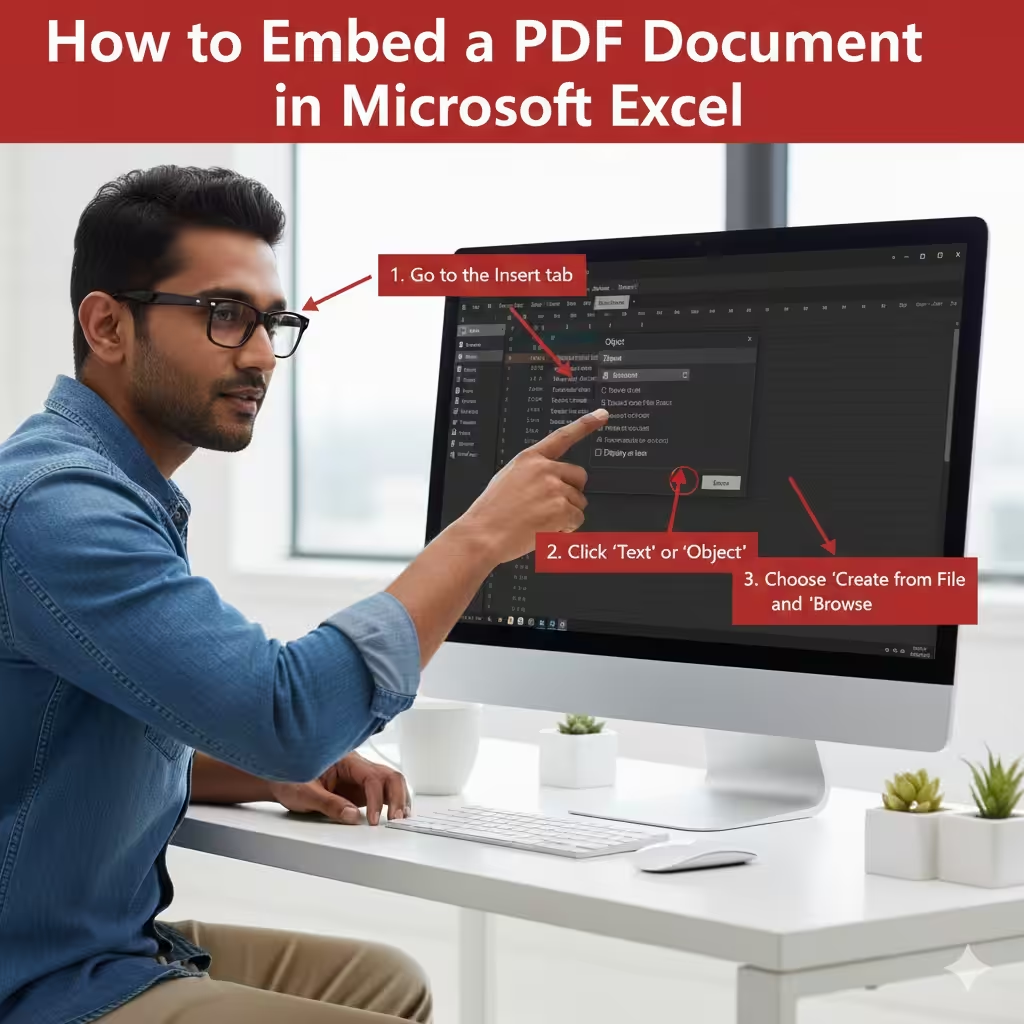
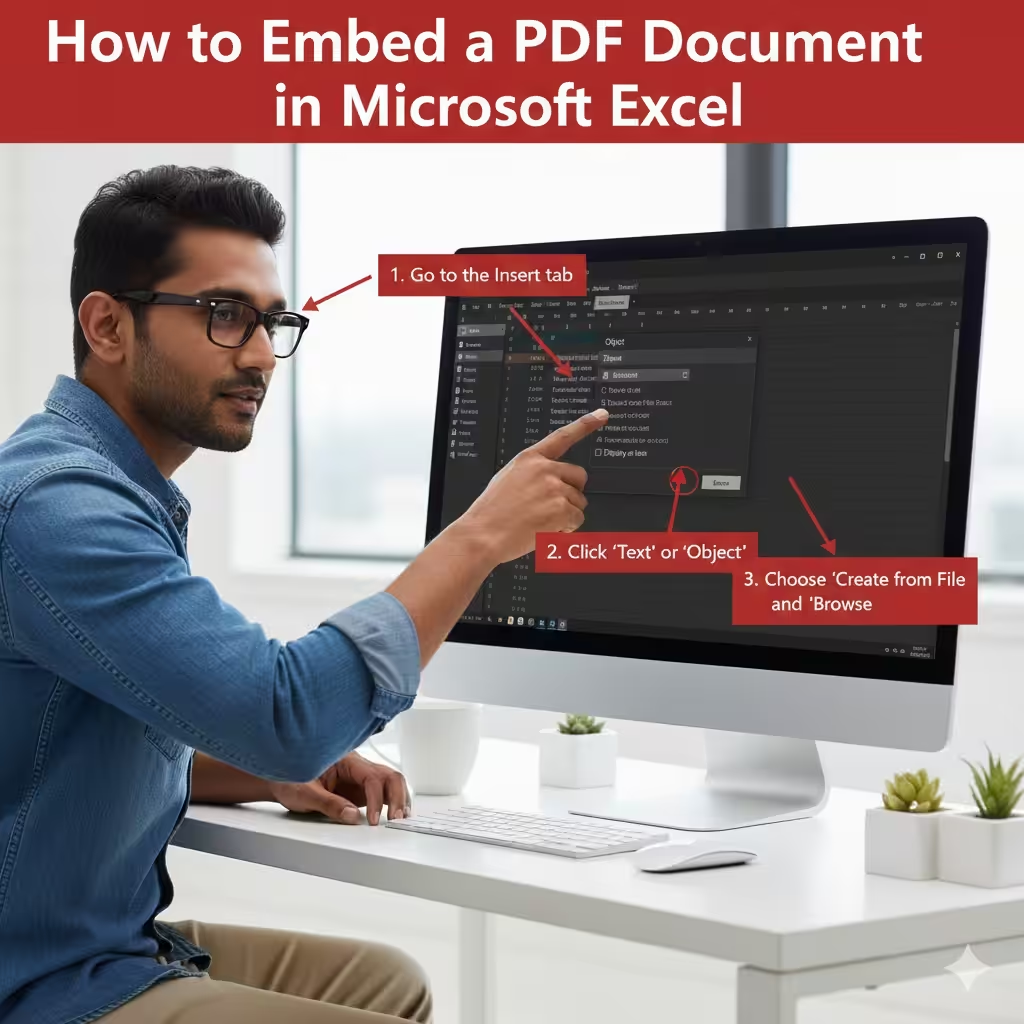
How to Embed a PDF Document in Microsoft Excel
Working with Excel often involves importing different types of data, including documents like PDFs. Whether you want to attach a PDF for reference, extract data from it, or display it directly on your spreadsheet, Excel provides several options for inserting PDF files. Understanding these methods will help you organize your data more effectively and enhance productivity when dealing with multiple file formats.
This guide explains various methods to insert a PDF into Excel, how each option works, and when to use them. These include inserting a PDF as an object, displaying it as an icon, embedding it directly, linking to the PDF, and converting PDF data into editable Excel tables.
Why Insert a PDF Into Excel?
There are several reasons users insert PDFs into Excel:
Reference or Documentation
PDFs often contain contracts, instructions, forms, or reports that need to be attached to a spreadsheet for quick access.
Data Collection
Some PDF files contain tables or structured information that you may want to use directly inside Excel.
Project or Research Handling
Users working on complex projects may need to embed research data, charts, or related documents inside Excel.
Record Keeping
Excel sheets can function as centralized databases, making PDF attachment convenient for storage.
Now let’s explore how to insert a PDF file using different methods.
Insert a PDF as an Object in Excel
The most common method is embedding a PDF file into Excel as an object. This preserves the document and makes it available directly from the worksheet.
Steps to Insert a PDF as an Object
-
Open your Excel workbook
-
Go to the Insert tab
-
Click Text or Object (depending on your Excel version)
-
In the dialog box, select Create from File
-
Click Browse and select your PDF file
-
Choose whether you want to display it as an icon
-
Click OK
The PDF will appear in your worksheet as either an icon or a preview image.
When to Use This Method
-
When you want to keep the document attached for reference
-
When you prefer the file to remain in one place
-
If you are sharing the Excel file with others and want them to access the PDF easily
Note that embedding a PDF increases the Excel file size.
Insert a PDF as an Icon
If you want a cleaner layout in your worksheet, you can insert the PDF as a small icon rather than a full preview.
Steps to Insert a PDF as an Icon
-
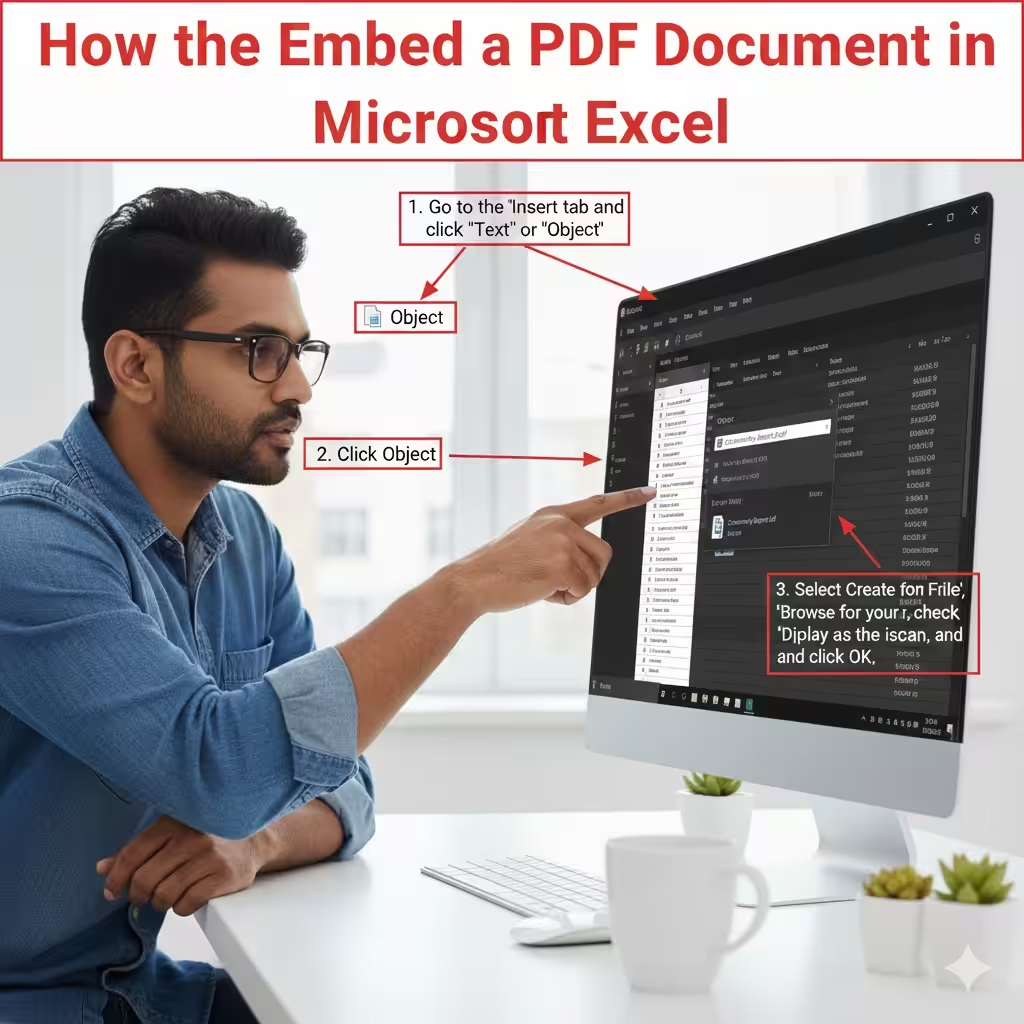
Go to the Insert tab
-
Click Object
-
Select Create from File
-
Choose your PDF
-
Check Display as icon
-
Click OK
This method is ideal when you need PDFs to be accessible but want to conserve space.
Benefits of Using Icons
-
Organizes your sheet neatly
-
Makes multiple PDFs easy to arrange
-
Reduces clutter
Insert a PDF as a Linked File
If you do not want to embed the PDF into Excel (which increases file size), you can insert it as a link. This means the Excel file will reference the PDF stored on your computer instead of storing it internally.
How to Insert a Linked PDF
-
Open the Insert → Object dialog
-
Click Create from File
-
Browse for your PDF
-
Check Link to file
-
Click OK
Pros of Linking
-
Keeps Excel file size small
-
PDF updates automatically if you replace it with a newer version
Important Considerations
-
The linked PDF must not be moved from its original folder
-
The link will break if the file path changes
-
Sharing the Excel file without the PDF will cause “file not found” errors
Insert PDF Pages as Images
If your goal is to display the content of the PDF in Excel visually, converting PDF pages into images is a useful method. This works especially well if you only need to show part of the PDF, such as charts, tables, or forms.
How to Insert a PDF as an Image
-
Open the PDF and take a screenshot using Snipping Tool, Snip & Sketch, or Print Screen
-
Save the screenshot as an image
-
Open your Excel sheet
-
Go to Insert → Pictures
-
Select the image and click Insert
Advantages
-
The PDF content becomes visible inside the sheet
-
You can resize the image without affecting PDF quality
-
Allows flexible placement in your sheet layout
Convert PDF Data Into Editable Excel Tables
Sometimes the goal is not just to insert a PDF, but also to extract data from it.
Excel includes a powerful feature called Get Data From File → From PDF, which extracts tables directly from PDF content.
How to Extract PDF Data into Excel
-
Open Excel
-
Click the Data tab
-
Select Get Data
-
Choose From File → From PDF
-
Browse and select your PDF file
-
Excel will analyze available tables
-
Select the table you want to import
-
Click Load
The PDF table will now appear as editable rows and columns.
When This Method Is Useful
-
Converting invoices into spreadsheets
-
Importing financial tables
-
Editing tabular data from PDF reports
Insert a PDF Using Drag and Drop
If your Excel version supports object embedding through drag-and-drop, you can directly drag a PDF file into your worksheet.
Steps
-
Open the folder containing the PDF
-
Drag the PDF into the Excel window
-
Drop it at the desired location
This usually embeds the file as an object or icon, depending on your version of Excel.
Troubleshooting PDF Insertion Problems
Sometimes, errors can occur while inserting PDF files into Excel. Here’s how to fix common issues.
The PDF Won’t Display
-
Ensure Adobe Reader or your default PDF viewer is installed
-
Choose Display as icon instead of preview
-
Check if the file is corrupted
Excel Freezes When Inserting the PDF
-
Reduce the PDF file size
-
Restart Excel
-
Try inserting in a new blank sheet
Linked PDFs Don’t Open
-
Verify the file path
-
Ensure the PDF has not been moved or renamed
-
Relink the PDF by reinserting it
PDF Displays Blank or Distorted
-
Convert the PDF to an image instead
-
Extract pages and insert only what you need
Conclusion
Inserting a PDF into Excel can be done in multiple ways depending on what you need—whether it’s a simple reference, a visually displayed page, or fully editable table data. You can embed the PDF as an object, display it as an icon, link to it, convert PDF data into tables, or insert images captured from the PDF. Each method serves a different purpose and can help you work more efficiently with mixed document formats.