



Guide to Deleting Residual Program Files in Windows 10/11
When you uninstall a program on Windows 10 or Windows 11, you might expect it to be gone completely. However, in many cases, traces of the software remain. These leftovers include files, folders, registry entries, and cached data that can clutter your system, take up valuable disk space, or even cause conflicts when you install a newer version of the same program.
If you want your PC to stay clean and optimized, learning how to remove these software leftovers is essential. This guide will explain what software leftovers are, why they matter, and how you can safely get rid of them.

What Are Software Leftovers?
Software leftovers are residual files and settings left behind after you uninstall an application. They may include:
-
Registry keys and entries.
-
Configuration files saved in hidden folders.
-
User data stored under AppData.
-
Empty or hidden program folders in Program Files.
-
Temporary files created during usage.
Although these leftovers are usually harmless, they can gradually accumulate, affecting system performance and making your PC less organized.

Why Should You Remove Software Leftovers?
Leaving software leftovers may not always create problems, but over time, they can:
-
Consume disk space unnecessarily.
-
Slow down your computer’s performance.
-
Cause conflicts with newer versions of software.
-
Expose sensitive data if the leftover files contain personal information.
-
Make your system registry bloated and unstable.
Regularly cleaning up ensures your Windows system runs smoothly and prevents hidden issues from appearing later.

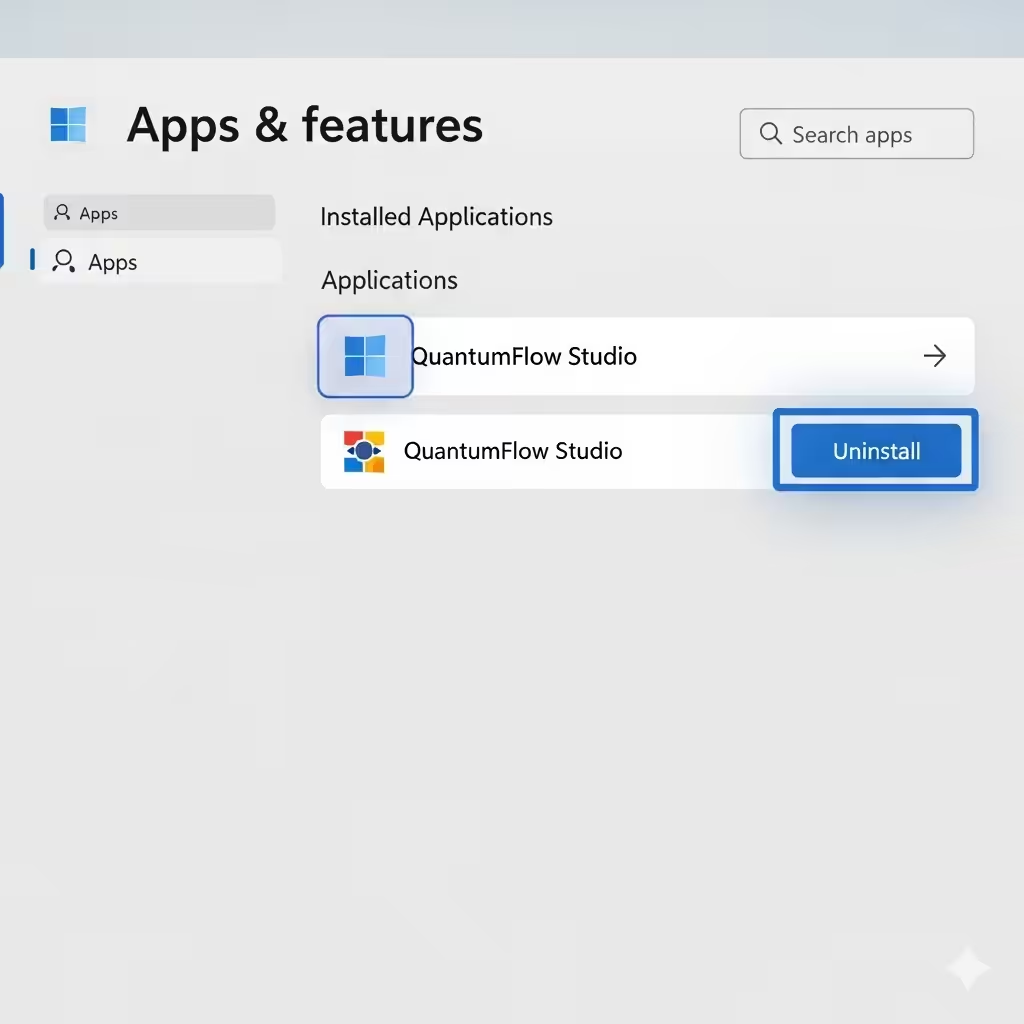
Method 1: Use Windows Built-in Uninstaller
The first step is always to uninstall programs using the proper Windows method.
Steps to Uninstall:
-
Press Windows + I to open Settings.
-
Go to Apps > Installed apps (Windows 11) or Apps & features (Windows 10).
-
Scroll through the list, select the program you want to remove, and click Uninstall.
-
Follow the prompts to complete the uninstallation.
While this method doesn’t remove all leftovers, it ensures the base program is gone before you proceed with manual cleanup.
Method 2: Delete Leftover Files and Folders
After uninstalling, some folders remain on your hard drive. These are usually located in:
-
C:\Program Files
-
C:\Program Files (x86)
-
C:\Users[Your Username]\AppData\Local
-
C:\Users[Your Username]\AppData\Roaming
Steps:
-
Open File Explorer.
-
Navigate to the folders above.
-
Look for any leftover folders named after the uninstalled program.
-
Delete them manually.
Make sure to empty your Recycle Bin afterward to fully remove the files.

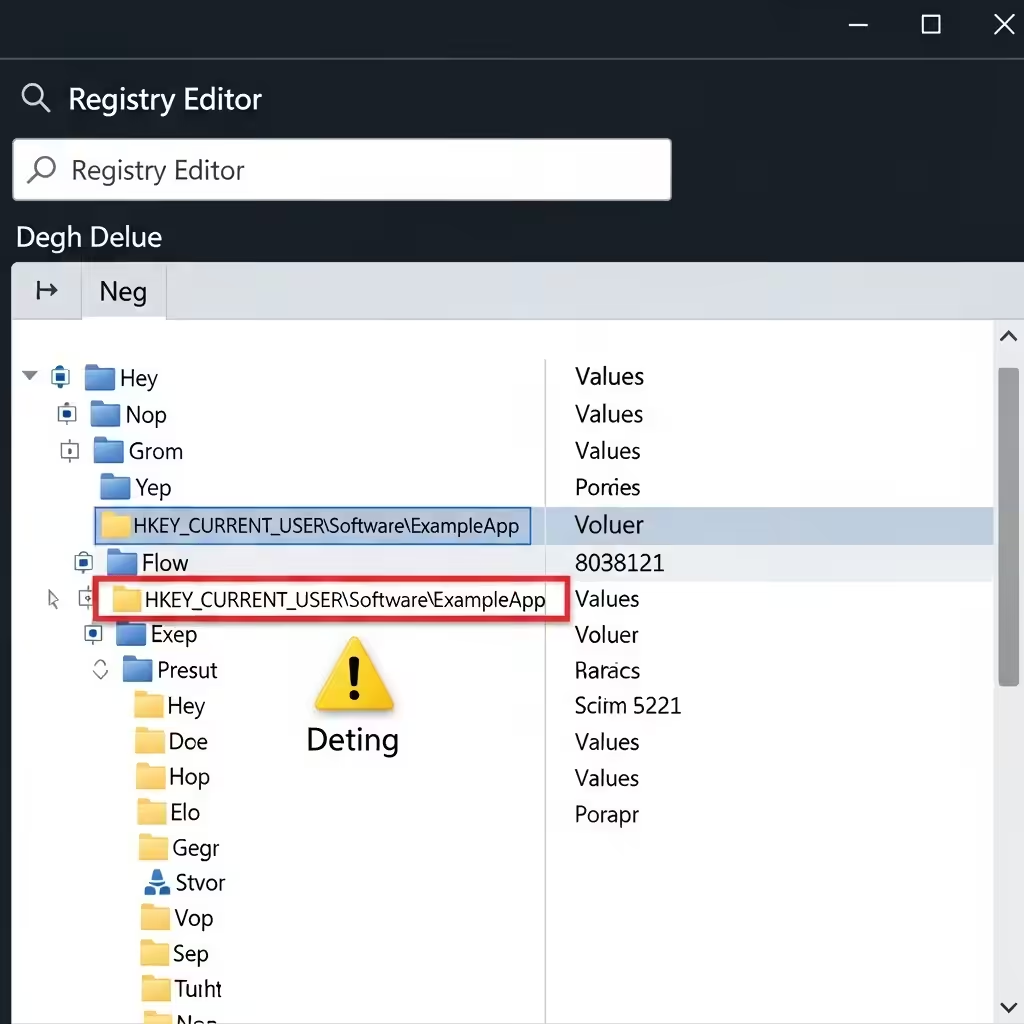
Method 3: Clean the Windows Registry
The Windows Registry often holds leftover keys even after uninstalling software. Cleaning it can prevent system errors and improve performance.
Steps:
-
Press Windows + R, type
regedit, and press Enter. -
Before making changes, click File > Export to back up your registry.
-
Use Ctrl + F to search for the program’s name.
-
Delete any related keys or folders.
-
Press F3 to continue searching and remove other entries.
Caution: Editing the registry incorrectly can cause system issues. Always create a backup before making changes.
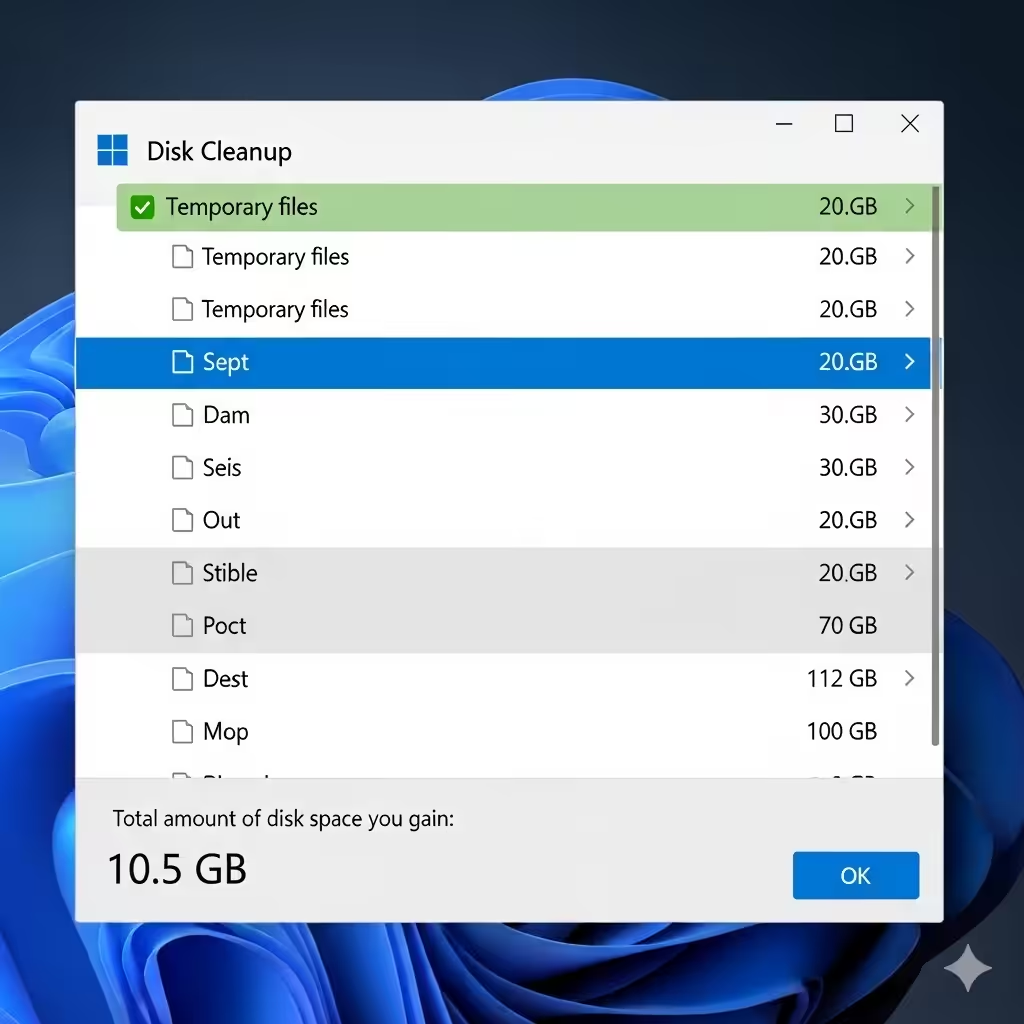
Method 4: Use Disk Cleanup
Windows Disk Cleanup can help remove temporary files that are sometimes left behind after uninstallations.
How to Run It:
-
Press Windows + S and search for Disk Cleanup.
-
Select your system drive (usually C:).
-
Check options like Temporary files, System cache, and Downloaded Program Files.
-
Click OK to delete them.
This method won’t clear registry entries, but it helps clean up temporary leftovers.
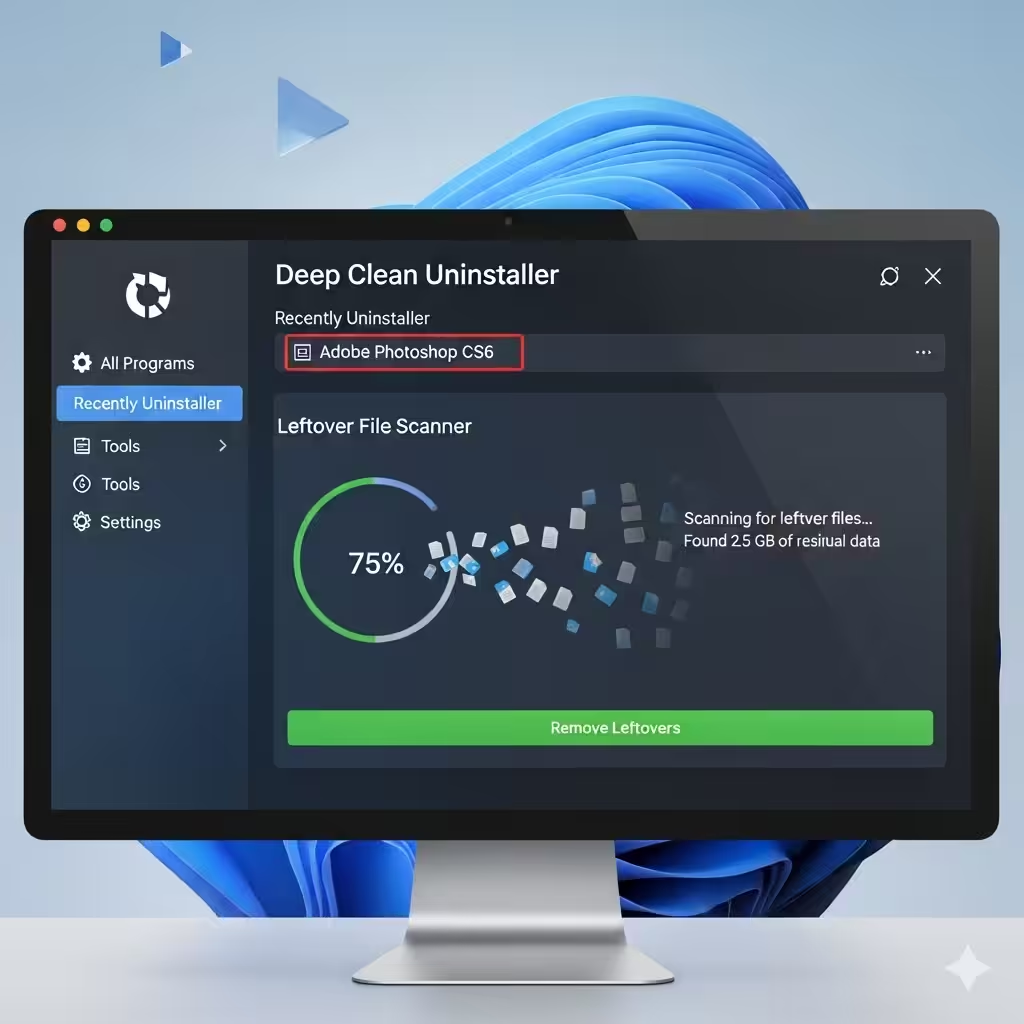
Method 5: Use Third-Party Uninstallers
If you want a faster and safer way to remove leftovers, third-party uninstaller tools are very effective. These programs go beyond the default uninstaller by scanning for and deleting leftover files and registry entries.
Popular Tools Include:
-
Revo Uninstaller
-
IObit Uninstaller
-
Geek Uninstaller
How They Work:
-
Download and install your preferred uninstaller.
-
Use the tool to uninstall the program.
-
Allow it to scan for leftover files and registry entries.
-
Delete everything it finds.
Third-party uninstallers are especially useful for stubborn programs that refuse to uninstall properly.
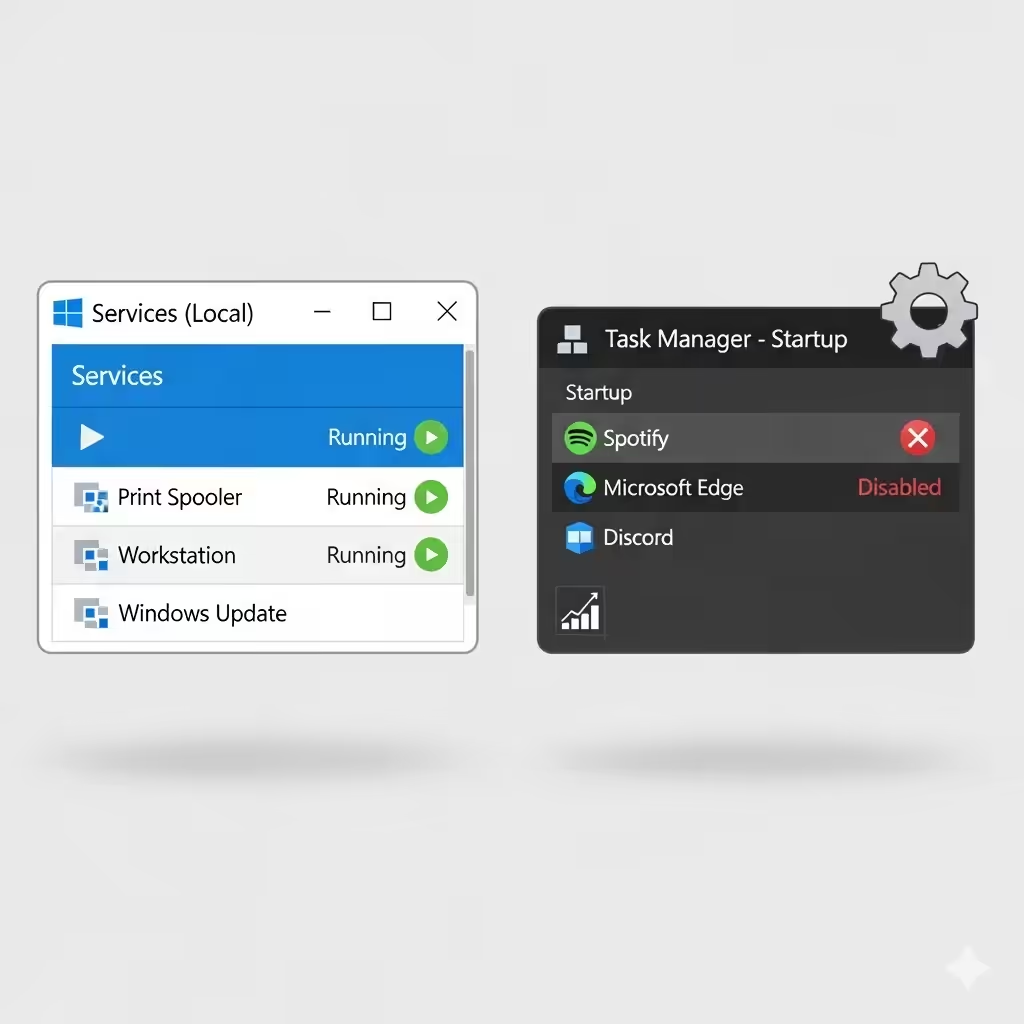
Method 6: Remove Services and Startup Entries
Some software installs background services or startup entries that remain active even after uninstallation.
To Check Services:
-
Press Windows + R, type
services.msc, and press Enter. -
Look for services related to the uninstalled program.
-
If found, right-click and select Disable or Delete (if possible).
To Check Startup Programs:
-
Press Ctrl + Shift + Esc to open Task Manager.
-
Go to the Startup tab.
-
Disable any leftover entries from the program.
This ensures no unnecessary processes keep running.
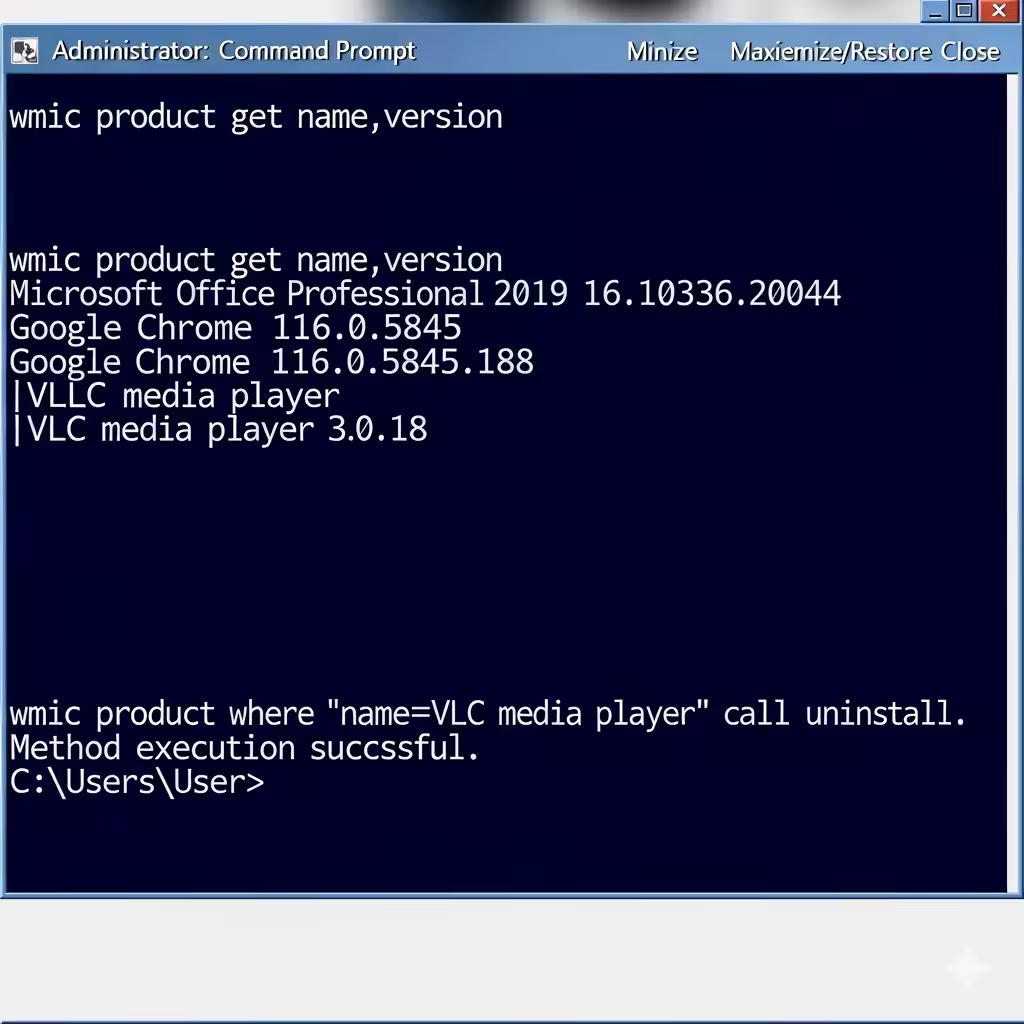
Method 7: Use Command Prompt for Stubborn Programs
Sometimes, uninstalled programs leave behind wp-signup.phped packages. Using Command Prompt can help.
Steps:
-
Open Command Prompt as administrator.
-
Type the following command:
This lists installed programs.
-
If you find the leftover program, remove it by typing:
-
Press Enter and wait for the process to finish.
This is particularly useful when a program doesn’t appear in Windows Settings but is still installed.
Tips for Keeping Your PC Clean
-
Always use the program’s built-in uninstaller first.
-
Avoid installing unnecessary software to minimize clutter.
-
Regularly use tools like Disk Cleanup or third-party uninstallers.
-
Back up your registry before making changes.
-
Periodically check your AppData folder for hidden leftovers.

Conclusion
Removing software leftovers in Windows 10/11 is crucial for keeping your system clean, fast, and organized. While the built-in uninstaller only removes the main program, manual cleanup, registry editing, and third-party uninstallers can help you fully eliminate every trace.
Whether you prefer the manual method for full control or rely on trusted uninstallers for convenience, making this a regular habit will keep your PC performing at its best.