


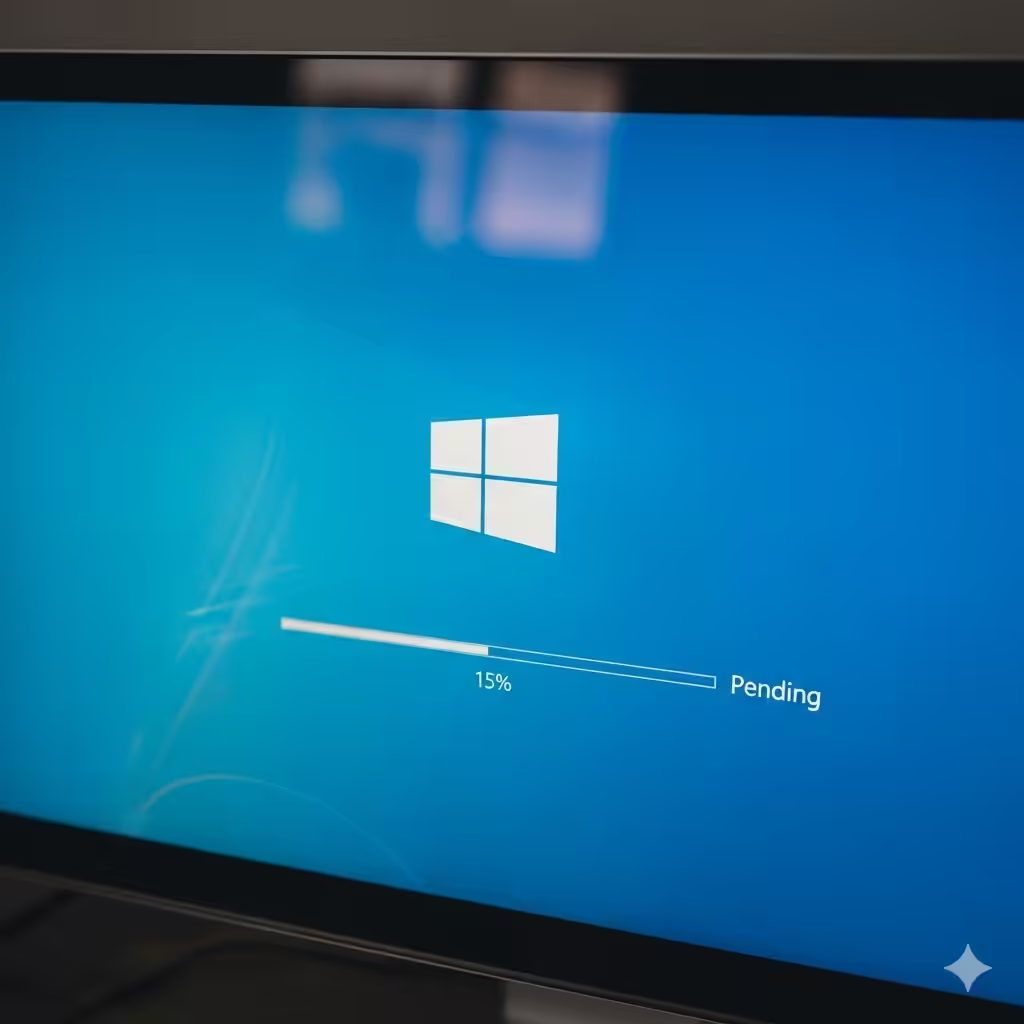
How to Resolve Windows 10 Update Remaining on Pending
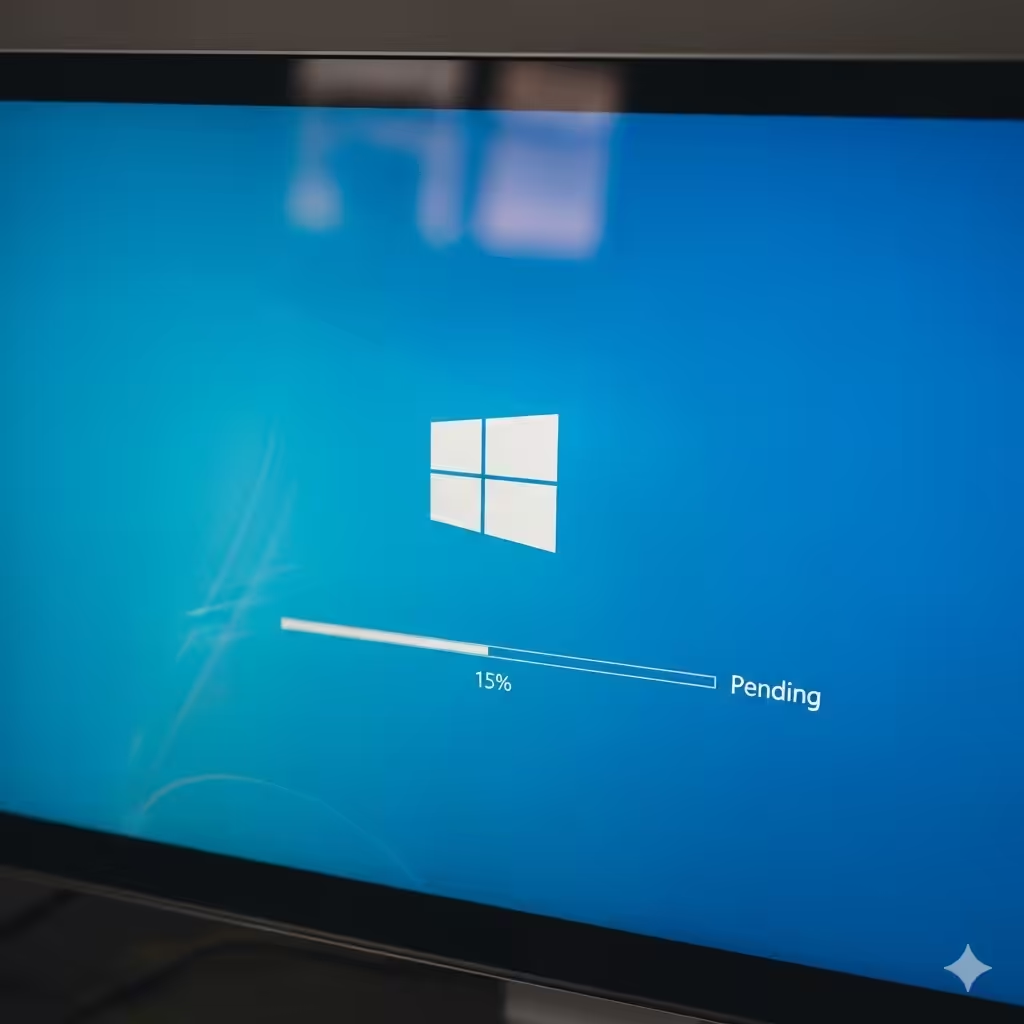
Windows 10 updates are essential for security, performance, and stability. However, many users encounter a frustrating issue where the update status remains stuck on “Pending”. This prevents important updates from being installed, leaving your system vulnerable or outdated.
If you’re experiencing this problem, don’t worry. In this guide, we’ll explore why updates get stuck and provide step-by-step solutions to fix the issue effectively.
Why Does Windows 10 Update Get Stuck on Pending?
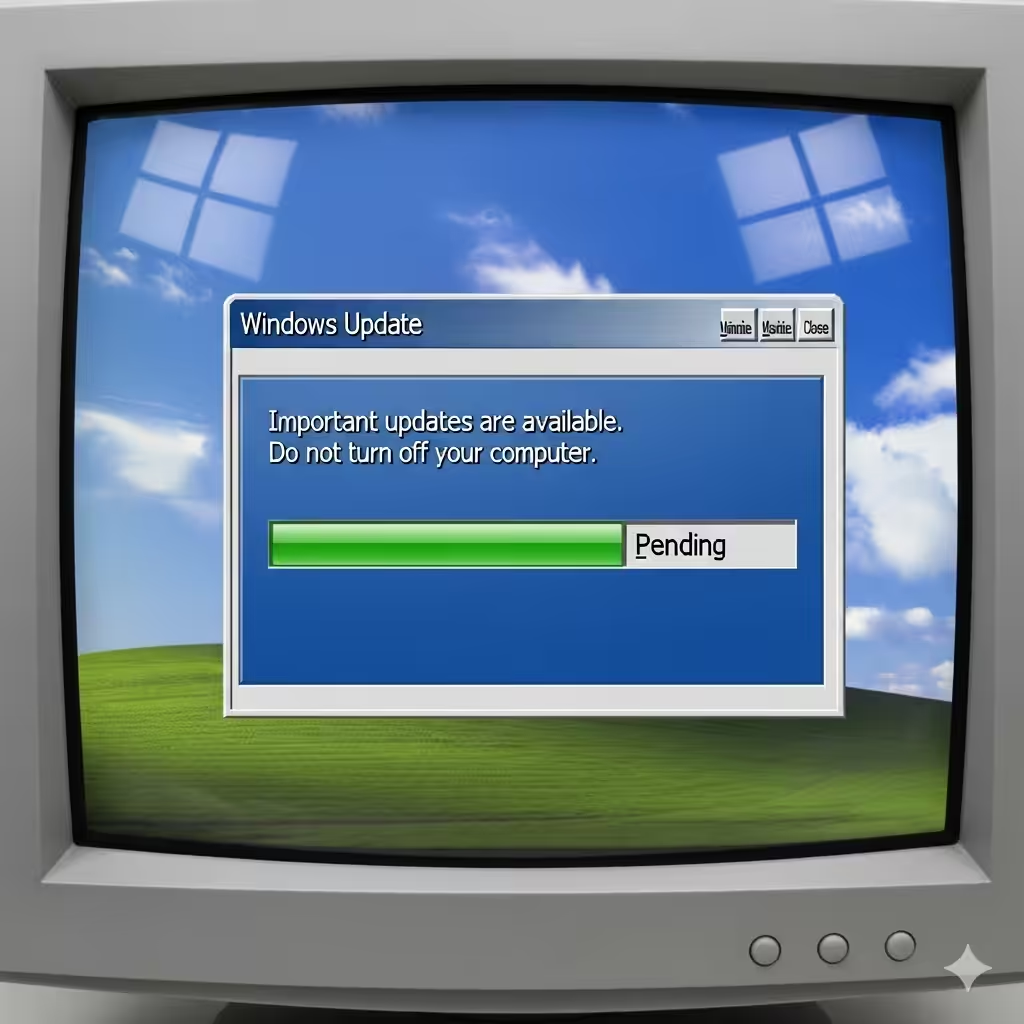
There are several reasons why Windows 10 updates may remain in a pending state:
-
Slow or unstable internet connection
-
Corrupt Windows Update cache
-
Insufficient disk space
-
Conflicts with antivirus or firewall software
-
Background services not running properly
-
Errors in Windows Update components
Understanding the cause can help you apply the right fix.
Method 1: Restart Your Computer
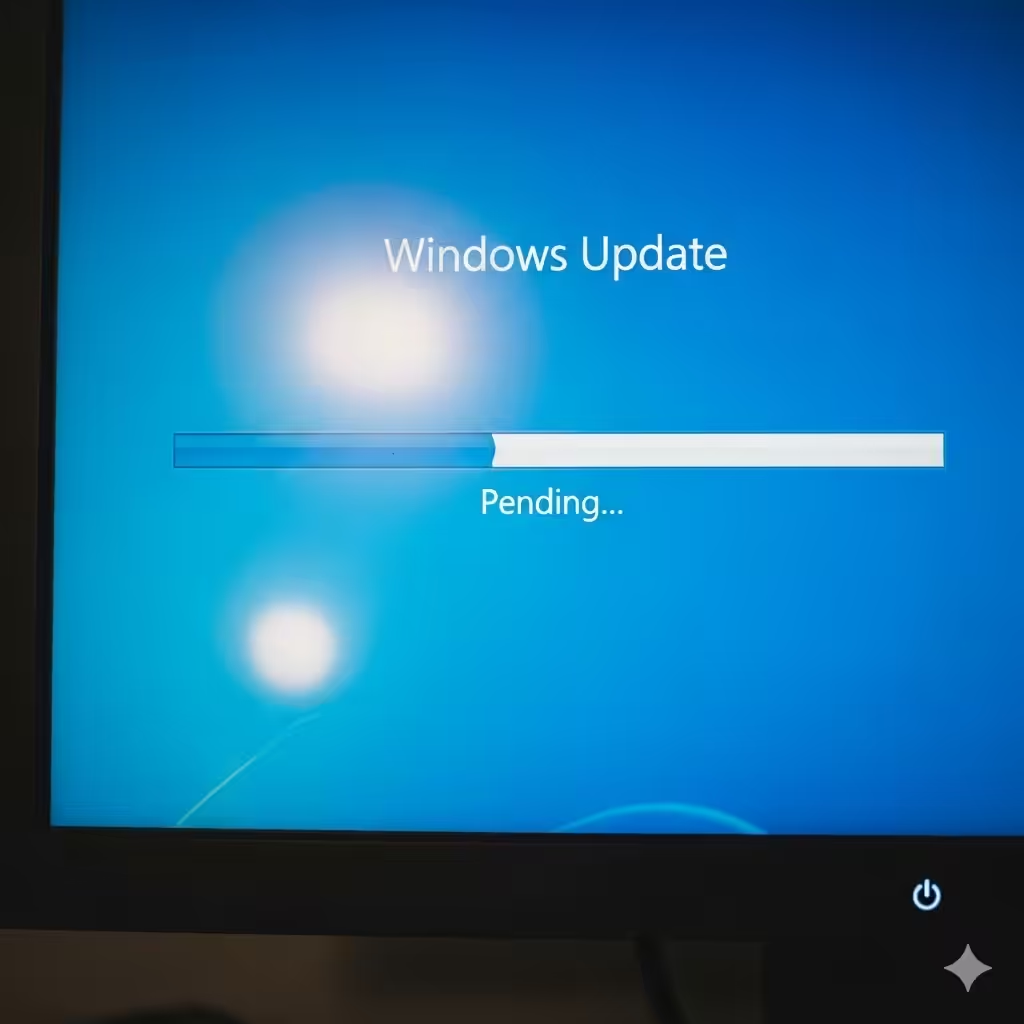
Sometimes, the simplest solution is the most effective. Restarting your PC can resolve temporary glitches and allow updates to continue.
Steps:
-
Click the Start menu.
-
Select Power > Restart.
-
Once the system restarts, check Settings > Update & Security > Windows Update to see if the pending update resumes.
Method 2: Check Your Internet Connection
Windows updates require a stable and fast internet connection. If your internet is unstable, updates may stay pending.
What to Do:
-
Restart your router or modem.
-
Switch to a wired connection if possible.
-
Avoid downloading large files while updating.
-
Run the Windows Network Troubleshooter by going to Settings > Network & Internet > Troubleshooter.
Method 3: Free Up Disk Space
If your system drive (C:) is running out of space, Windows may fail to install updates.
Steps to Free Space:
-
Open File Explorer and check space on the C: drive.
-
Delete unnecessary files, temporary files, or old downloads.
-
Use Disk Cleanup:
-
Press Windows + S, type Disk Cleanup, and open it.
-
Select your system drive and check items like Temporary files, Recycle Bin, and System cache.
-
Click OK to remove them.
-
Make sure at least 10 GB of free space is available for smooth updates.
Method 4: Run the Windows Update Troubleshooter
Windows has a built-in troubleshooter that automatically detects and fixes update-related issues.
Steps:
-
Press Windows + I to open Settings.
-
Go to Update & Security > Troubleshoot.
-
Click Additional troubleshooters.
-
Select Windows Update > Run the troubleshooter.
-
Follow the on-screen instructions and apply any suggested fixes.
Method 5: Restart Windows Update Services
Windows relies on background services to handle updates. If these services are stopped or stuck, updates may remain pending.
Steps:
-
Press Windows + R, type
services.msc, and press Enter. -
In the list, locate these services:
-
Windows Update
-
Background Intelligent Transfer Service (BITS)
-
Cryptographic Services
-
Windows Installer
-
-
Right-click each service and select Restart.
-
Try updating again.
Method 6: Clear Windows Update Cache
A corrupted update cache can cause the pending issue. Deleting it forces Windows to download updates again.
Steps:
-
Press Windows + R, type
services.msc, and press Enter. -
Stop the Windows Update and BITS services.
-
Open File Explorer and navigate to:
-
Delete all files inside this folder.
-
Restart the services you stopped earlier.
-
Check for updates again in Settings > Update & Security.
Method 7: Temporarily Disable Antivirus or Firewall
Sometimes, third-party antivirus software or firewalls interfere with updates.
What to Do:
-
Disable your antivirus temporarily (check your antivirus manual for instructions).
-
Disable the firewall:
-
Go to Control Panel > System and Security > Windows Defender Firewall.
-
Select Turn Windows Defender Firewall on or off.
-
Turn it off temporarily.
-
-
Try updating again.
Remember to re-enable both after completing the update.
Method 8: Use the Windows Update Assistant
If updates are still stuck, you can use the official Windows Update Assistant to force updates manually.
Steps:
-
Visit the Microsoft Update Assistant page.
-
Download and install the tool.
-
Run it and follow the instructions to update Windows.
This method is often the fastest way to bypass stuck updates.
Method 9: Reset Windows Update Components Manually
If nothing works, you can reset the update components.
Steps:
-
Open Command Prompt as administrator.
-
Type the following commands one by one, pressing Enter after each:
-
Close the Command Prompt and restart your PC.
-
Try running Windows Update again.
Method 10: Perform a System Restore or Repair
If updates are still stuck, there may be deeper system issues.
Options:
-
System Restore: Roll back your system to a point before the issue started.
-
Repair Installation: Use Windows 10 installation media to repair your OS without losing data.
These methods are last-resort solutions but can fix stubborn update errors.
Conclusion
When Windows 10 updates are stuck on “Pending,” it can be frustrating and risky for your system’s health. Fortunately, there are multiple ways to resolve the issue. From simple steps like restarting your computer and checking your internet connection to advanced fixes like clearing the update cache or resetting components, these methods can help you get updates working again.
Keeping your system updated ensures better performance, enhanced security, and access to the latest features. By following the solutions in this guide, you can overcome the pending update problem and keep Windows 10 running smoothly.