


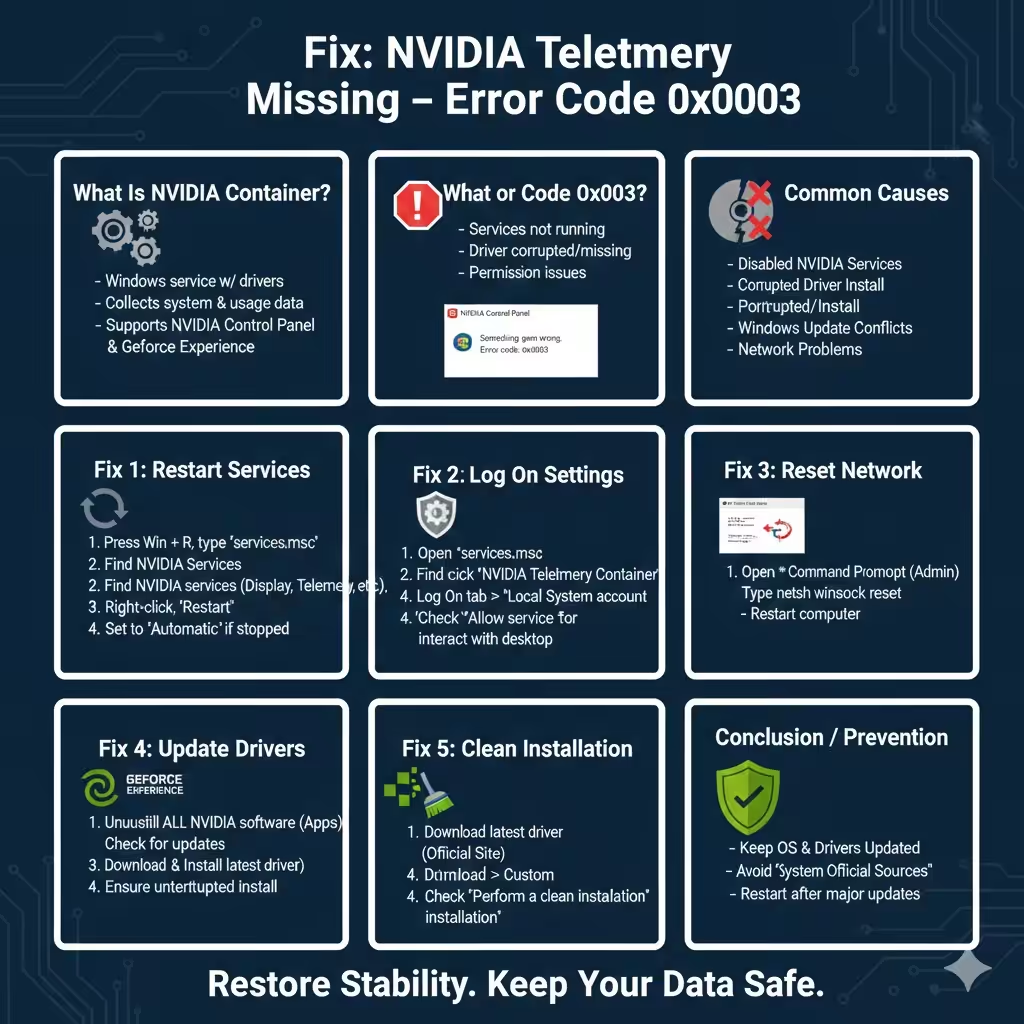
Fix: Nvidia Telemetry Container Missing – Error Code 0x0003
NVIDIA graphics cards are widely used by gamers, designers, and professionals who rely on high‑performance graphics. To manage drivers, updates, and system optimization, NVIDIA provides software such as NVIDIA Control Panel and GeForce Experience. However, some users encounter a frustrating issue where these tools fail to open and display Error Code 0x0003, often accompanied by messages indicating that the NVIDIA Telemetry Container service is missing or not running.
This error prevents access to important NVIDIA features and can impact gaming performance, display settings, and driver management. In this step‑by‑step guide, you will learn what NVIDIA Telemetry Container is, why Error Code 0x0003 occurs, and how to fix it safely and effectively.
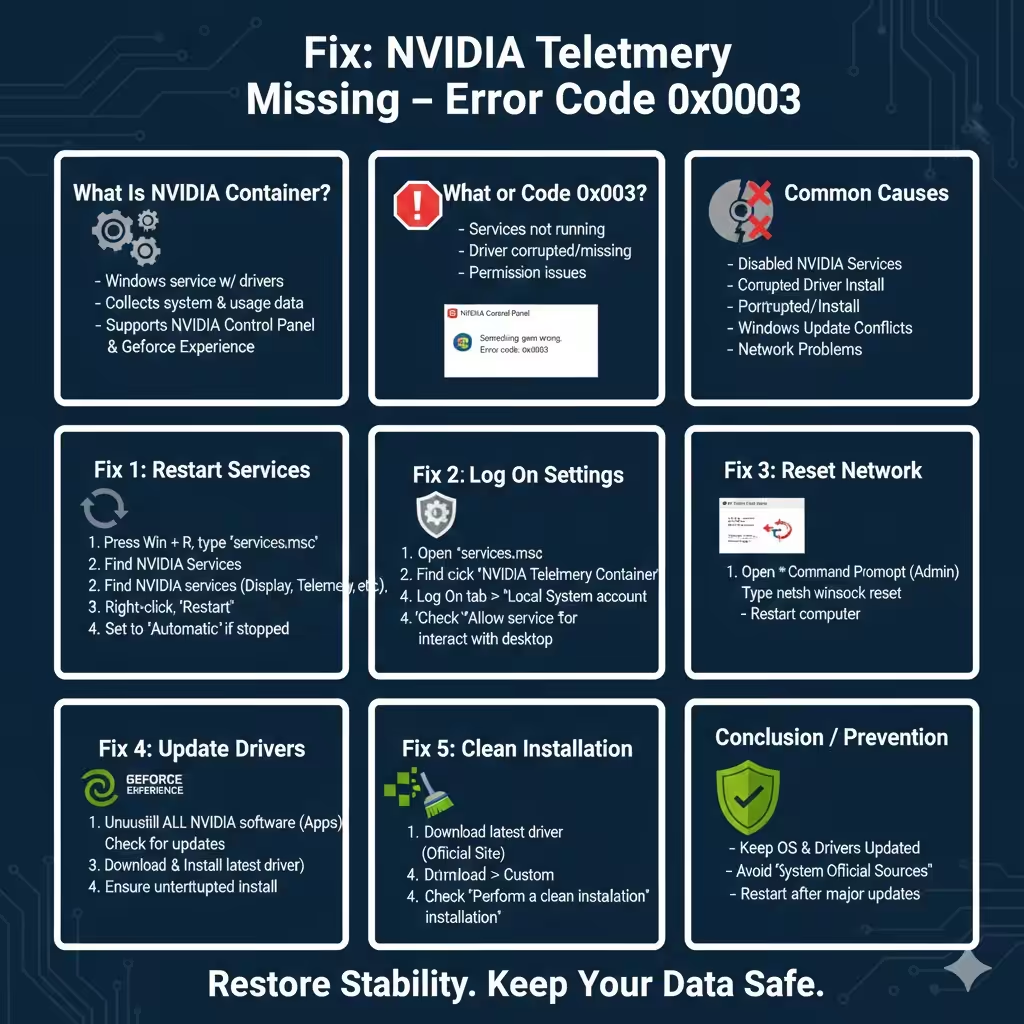
What Is NVIDIA Telemetry Container?
NVIDIA Telemetry Container is a Windows service installed with NVIDIA drivers. Its primary purpose is to collect system and usage data related to NVIDIA software and hardware.
Key functions include:
- Supporting NVIDIA Control Panel functionality
- Enabling communication between NVIDIA services
- Assisting GeForce Experience features
Although telemetry focuses on data collection, the service is closely tied to other NVIDIA components. If it is missing, disabled, or misconfigured, related applications may fail to launch.
What Is Error Code 0x0003?
Error Code 0x0003 typically appears when opening NVIDIA Control Panel or GeForce Experience. The error message usually states that something went wrong and suggests restarting the system.
This error commonly indicates:
- NVIDIA services are not running
- The Telemetry Container service is disabled or missing
- Driver installation is corrupted
- Windows permissions or networking services are misconfigured
Restarting alone rarely resolves the issue permanently, making manual troubleshooting necessary.
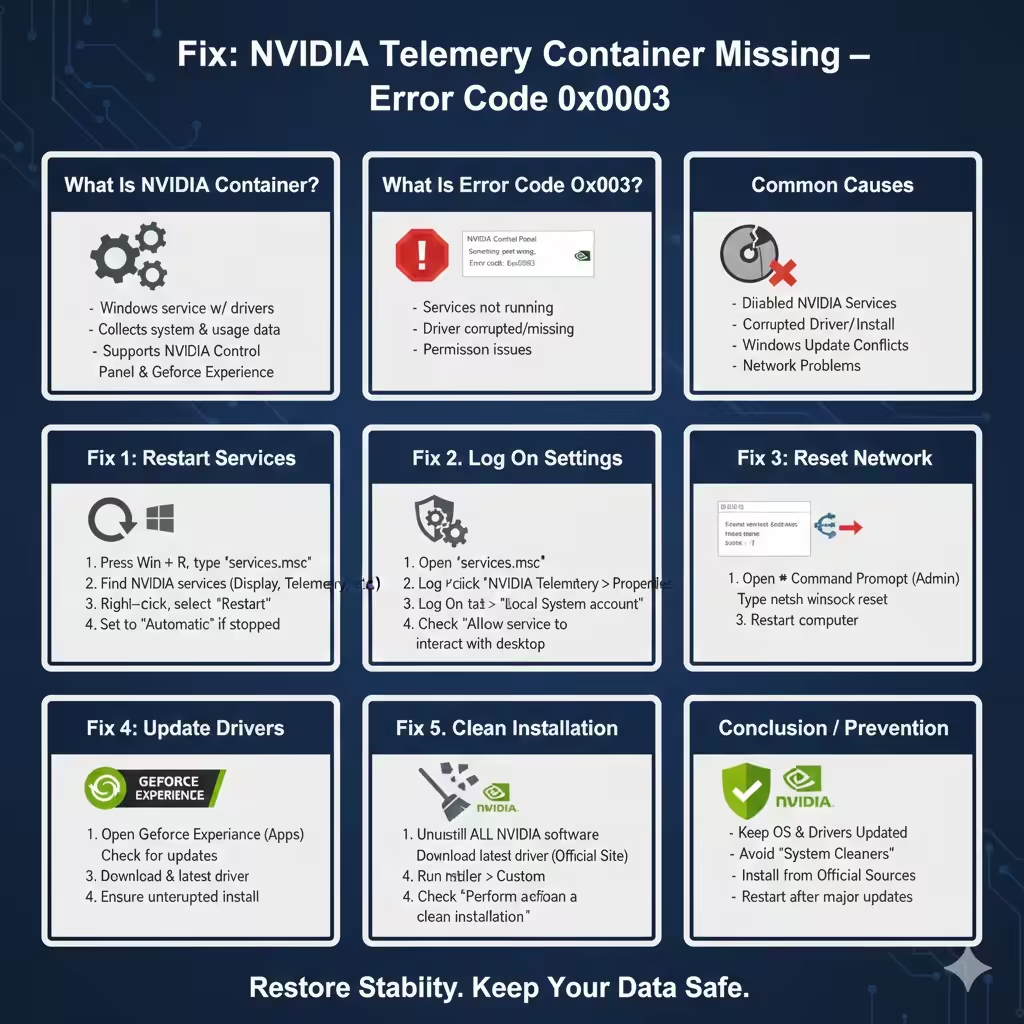
Common Causes of NVIDIA Telemetry Container Missing
Understanding the root causes helps choose the correct fix.
Disabled NVIDIA Services
Some NVIDIA services may be disabled manually, by system optimization tools, or after a Windows update.
Corrupted NVIDIA Driver Installation
Incomplete or corrupted driver installations can remove or damage required services.
Windows Update Conflicts
Major Windows updates can reset service permissions or interfere with NVIDIA components.
Network and Permission Issues
NVIDIA Control Panel relies on certain Windows services and permissions. If these are blocked, Error Code 0x0003 may appear.
Fix 1: Restart NVIDIA Services
The simplest solution is to ensure all NVIDIA services are running.
Steps to Restart NVIDIA Services
- Press Windows + R and type services.msc
- Press Enter
- Locate the following services:
- NVIDIA Display Container LS
- NVIDIA LocalSystem Container
- NVIDIA NetworkService Container
- NVIDIA Telemetry Container
- Right‑click each service and choose Restart
If any service is stopped, start it and set its startup type to Automatic.
Fix 2: Enable NVIDIA Telemetry Container Log On Settings
Sometimes the Telemetry Container service is running but lacks proper permissions.
Adjust Log On Settings
- Open services.msc
- Right‑click NVIDIA Telemetry Container
- Select Properties
- Open the Log On tab
- Select Local System account
- Check Allow service to interact with desktop
- Click Apply and OK
Restart the service and check if the error is resolved.
Fix 3: Reset Windows Network Services
Error Code 0x0003 may be related to network services used by NVIDIA software.
Reset Network via Command Prompt
- Open Command Prompt as administrator
- Enter network reset commands one by one
- Restart your computer after completion
This restores default networking behavior and can resolve communication errors between NVIDIA components.
Fix 4: Update NVIDIA Drivers
Outdated drivers may lack required services or compatibility with your Windows version.
Update Through NVIDIA Official Software
- Open GeForce Experience
- Check for driver updates
- Install the latest available version
Ensure the installation completes without interruption.
Fix 5: Perform a Clean NVIDIA Driver Installation
If standard updates do not work, a clean installation is often the most effective solution.
Why Clean Installation Helps
A clean install:
- Removes corrupted files
- Restores missing services
- Resets NVIDIA settings to default
Clean Installation Steps
- Uninstall all NVIDIA components from Apps & Features
- Restart the computer
- Download the latest NVIDIA driver from the official website
- Choose Custom Installation
- Select Perform a clean installation
After installation, restart your system and test NVIDIA Control Panel.
Fix 6: Check Windows Services Dependencies
Some Windows services must be running for NVIDIA services to work correctly.
Ensure these services are enabled:
- Windows Management Instrumentation
- Windows Event Log
- Remote Procedure Call
If any are disabled, set them to Automatic and restart.
Fix 7: Disable Third‑Party Optimization Tools
System optimizer or antivirus tools may block NVIDIA services.
What to Do
- Temporarily disable optimization software
- Add NVIDIA services to the exclusion list
- Restart the computer
If the error disappears, adjust the software settings permanently.
Preventing Error Code 0x0003 in the Future
To avoid recurring NVIDIA errors:
- Keep Windows and NVIDIA drivers updated
- Avoid aggressive system cleaning tools
- Restart your system after major updates
- Install drivers only from official sources
These practices help maintain stable NVIDIA service operation.
Frequently Asked Questions
Is NVIDIA Telemetry Container Required?
Yes. While it collects data, it also supports core NVIDIA software functionality.
Can I Disable Telemetry Safely?
Disabling telemetry may cause NVIDIA Control Panel to fail. It is not recommended if you rely on NVIDIA features.
Does Error Code 0x0003 Affect Gaming Performance?
Indirectly, yes. Without access to NVIDIA settings, optimal performance and display tuning may be unavailable.
Conclusion
The “NVIDIA Telemetry Container Missing” issue and Error Code 0x0003 can prevent access to essential NVIDIA tools, but the problem is usually fixable without reinstalling Windows. In most cases, restarting NVIDIA services, correcting Telemetry permissions, or performing a clean driver installation resolves the error completely.
By following the step‑by‑step solutions in this guide, you can restore NVIDIA Control Panel functionality and ensure your graphics drivers operate smoothly. If the issue persists, checking Windows services and avoiding third‑party system interference are critical next steps.