


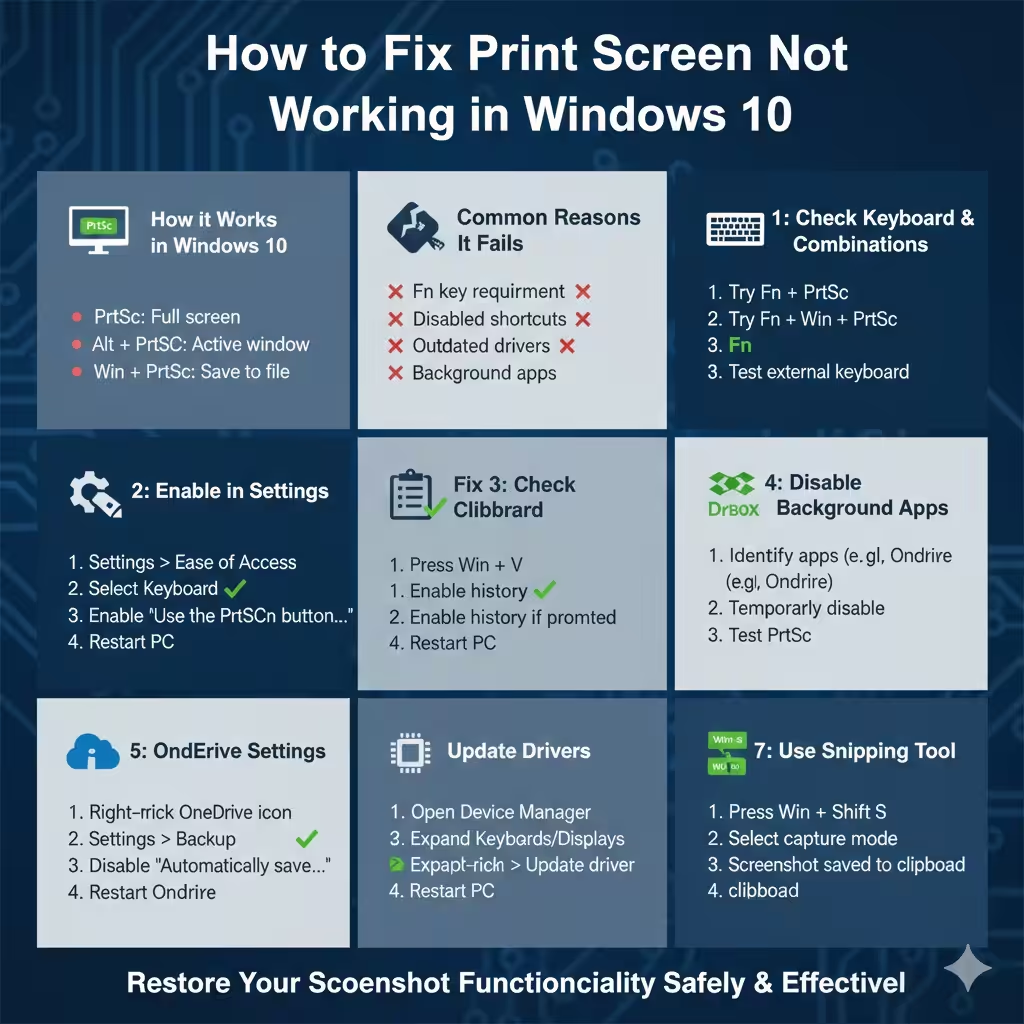
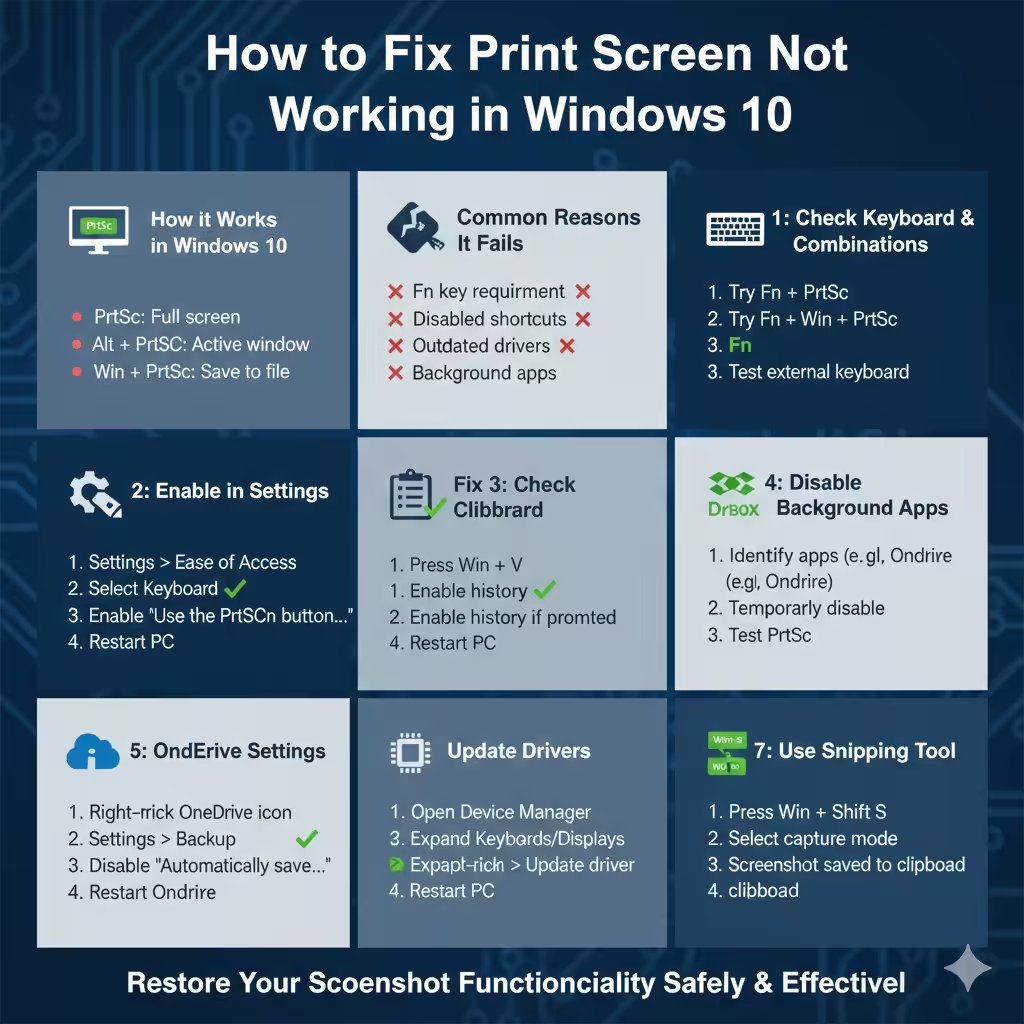
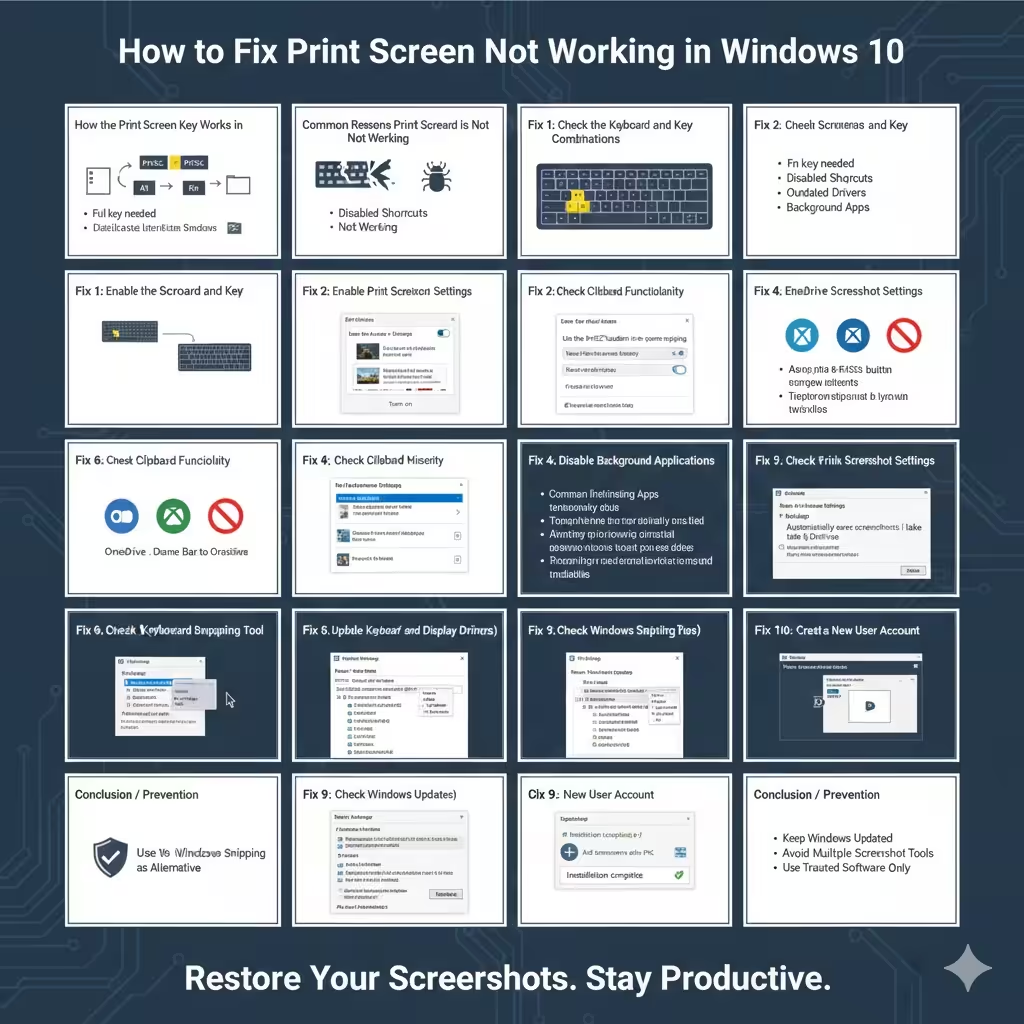
How to Fix Print Screen Not Working in Windows 10
The Print Screen key has long been one of the simplest and most useful tools on Windows computers. With a single press, users can capture screenshots for documentation, troubleshooting, tutorials, or personal use. On Windows 10, however, many users encounter situations where the Print Screen key suddenly stops working or does not behave as expected.
When Print Screen fails, it can disrupt daily workflows, especially for students, office workers, and IT professionals who rely on screenshots regularly. This guide provides a complete step‑by‑step explanation of why Print Screen may not work on Windows 10 and how to fix it using safe and effective methods.
How the Print Screen Key Works in Windows 10
Before troubleshooting, it helps to understand how Print Screen functions.
Depending on how it is used, the Print Screen key can:
- Capture the entire screen to the clipboard
- Capture only the active window
- Save screenshots automatically to a folder
Common key combinations include:
- Print Screen: Copies the entire screen to the clipboard
- Alt + Print Screen: Captures the active window
- Windows + Print Screen: Saves the screenshot automatically to Pictures > Screenshots
If none of these combinations work, a system or settings issue is likely involved.
Common Reasons Print Screen Is Not Working
Several factors can prevent the Print Screen key from working properly.
Keyboard‑Related Issues
Some keyboards require the Fn key to activate Print Screen, especially on laptops or compact keyboards.
Disabled Screenshot Shortcuts
Windows settings or third‑party software may override or disable screenshot shortcuts.
Outdated or Corrupted Drivers
Keyboard or display driver issues can interfere with screenshot functionality.
Background Applications Interfering
Programs such as cloud storage tools, screen recording software, or gaming overlays may block Print Screen.
Fix 1: Check the Keyboard and Key Combinations
Start with the simplest solution.
Try the Fn Key
If you are using a laptop:
- Press Fn + Print Screen
- Try Fn + Windows + Print Screen
Some manufacturers map Print Screen as a secondary function.
Test the Keyboard
Try using an external keyboard or test the Print Screen key on another computer to rule out hardware failure.
Fix 2: Enable Print Screen Shortcut in Windows Settings
Windows 10 includes settings that affect how Print Screen behaves.
Enable Snip & Sketch Shortcut
- Open Settings
- Go to Ease of Access
- Select Keyboard
- Enable Use the PrtScn button to open screen snipping
Restart your computer and test the Print Screen key again.
Fix 3: Check Clipboard Functionality
Print Screen copies screenshots to the clipboard by default.
Verify Clipboard History
- Press Windows + V
- Enable clipboard history if prompted
If the clipboard is disabled or malfunctioning, screenshots may appear to fail even though they are captured.
Fix 4: Disable Background Applications
Some applications take control of the Print Screen key.
Common Interfering Apps
- OneDrive
- Dropbox
- Game overlays (NVIDIA, Xbox Game Bar)
- Screenshot or screen recording tools
Temporarily disable these programs and test Print Screen again.
Fix 5: Check OneDrive Screenshot Settings
OneDrive can automatically save screenshots, which may cause confusion.
Adjust OneDrive Settings
- Right‑click the OneDrive icon in the system tray
- Open Settings
- Go to the Backup tab
- Disable automatic screenshot saving
Restart OneDrive and test the Print Screen key.
Fix 6: Update Keyboard and Display Drivers
Driver issues are a common cause of keyboard shortcut problems.
Update Drivers Using Device Manager
- Open Device Manager
- Expand Keyboards and Display adapters
- Right‑click each device and select Update driver
Restart your computer after updating.
Fix 7: Use the Windows Snipping Tool as an Alternative
If Print Screen continues to fail, Windows offers built‑in alternatives.
Snipping Tool and Snip & Sketch
- Press Windows + Shift + S
- Select the capture mode
- Screenshot is copied to the clipboard
This method works independently of the Print Screen key.
Fix 8: Check Windows Registry (Advanced Users)
In rare cases, registry settings affect screenshot behavior.
Screenshot Folder Registry Key
Ensure that Windows has permission to save screenshots to the default folder. Incorrect registry values can prevent screenshots from being stored properly.
This method should only be used by experienced users.
Fix 9: Check for Windows Updates
Windows updates often fix bugs related to input and shortcuts.
- Open Settings
- Go to Update & Security
- Install all available updates
Restart your system afterward.
Fix 10: Create a New User Account
If Print Screen works on another account, the issue may be profile‑specific.
- Create a new Windows user account
- Log in and test Print Screen
This helps determine whether user settings are causing the problem.
Preventing Print Screen Issues in the Future
To avoid future screenshot problems:
- Keep Windows and drivers updated
- Avoid installing multiple screenshot tools
- Check keyboard shortcuts after major updates
- Use trusted software only
These habits help maintain stable keyboard functionality.
Frequently Asked Questions
Where Do Print Screen Screenshots Go?
Screenshots saved using Windows + Print Screen appear in Pictures > Screenshots.
Does Print Screen Work on All Keyboards?
Most keyboards support Print Screen, but key placement and activation vary by manufacturer.
Can Malware Disable Print Screen?
Yes. Some malicious programs block screenshot functionality. Running a security scan is recommended if issues persist.
Conclusion
When the Print Screen key stops working on Windows 10, the problem is usually caused by keyboard settings, software conflicts, or outdated drivers rather than hardware failure. By following the step‑by‑step solutions in this guide, most users can restore screenshot functionality quickly and safely.
If Print Screen still does not work, Windows provides reliable alternatives like Snip & Sketch to ensure you can continue capturing your screen without interruption. With proper system maintenance and careful software management, Print Screen issues can be prevented in the future.