


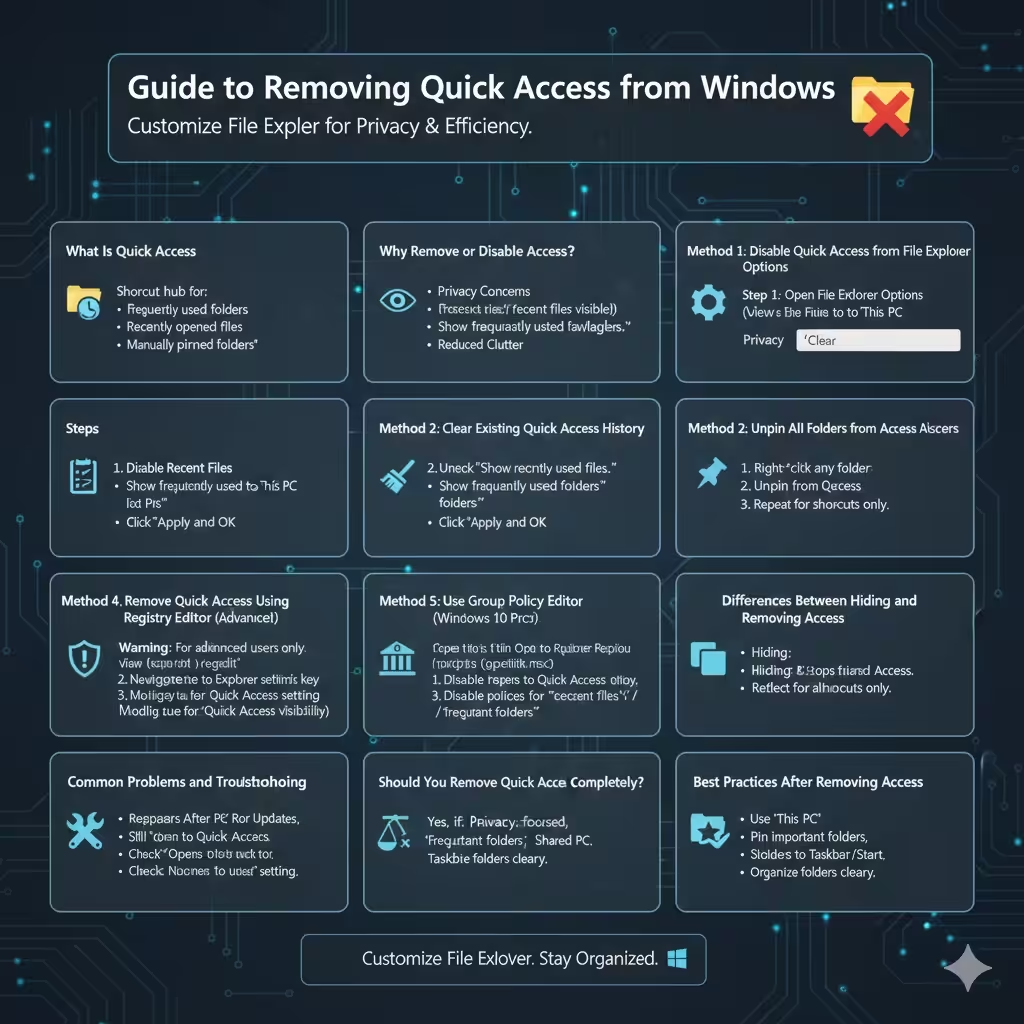
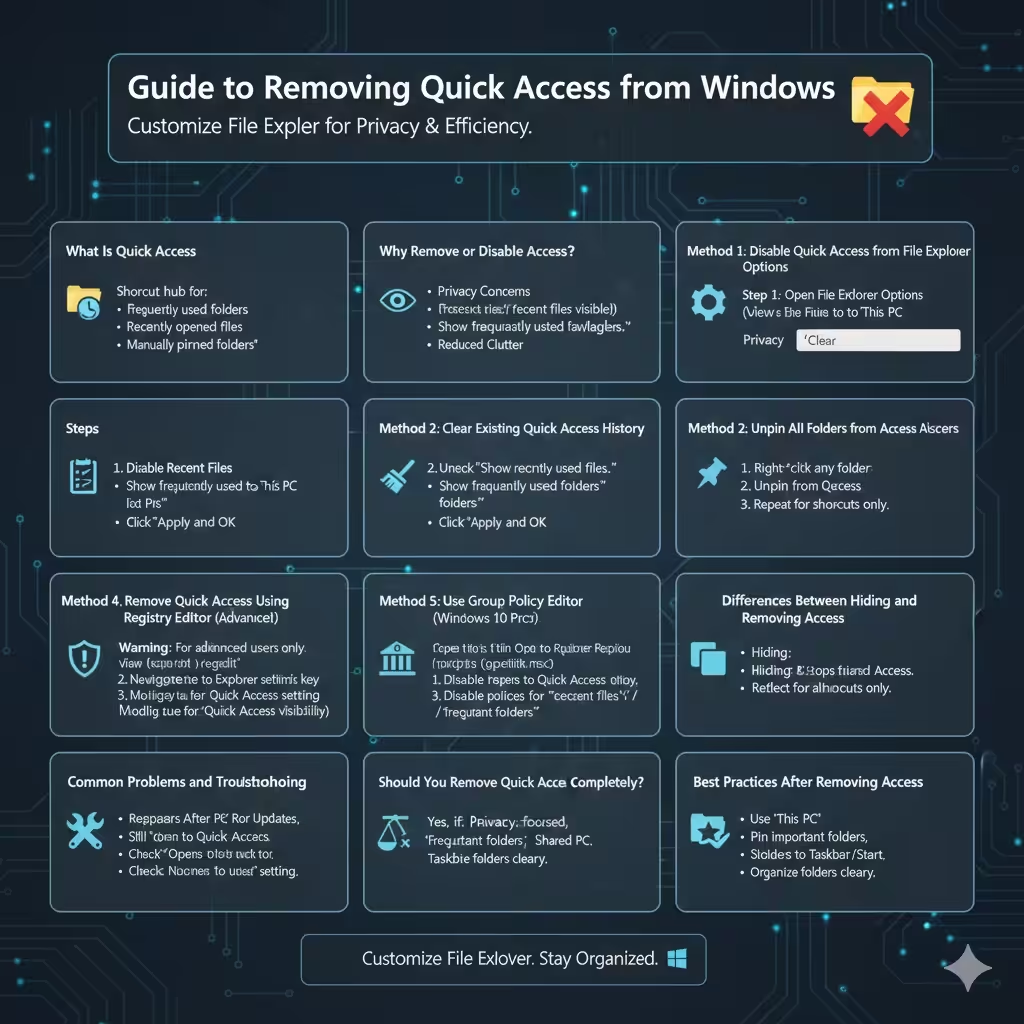
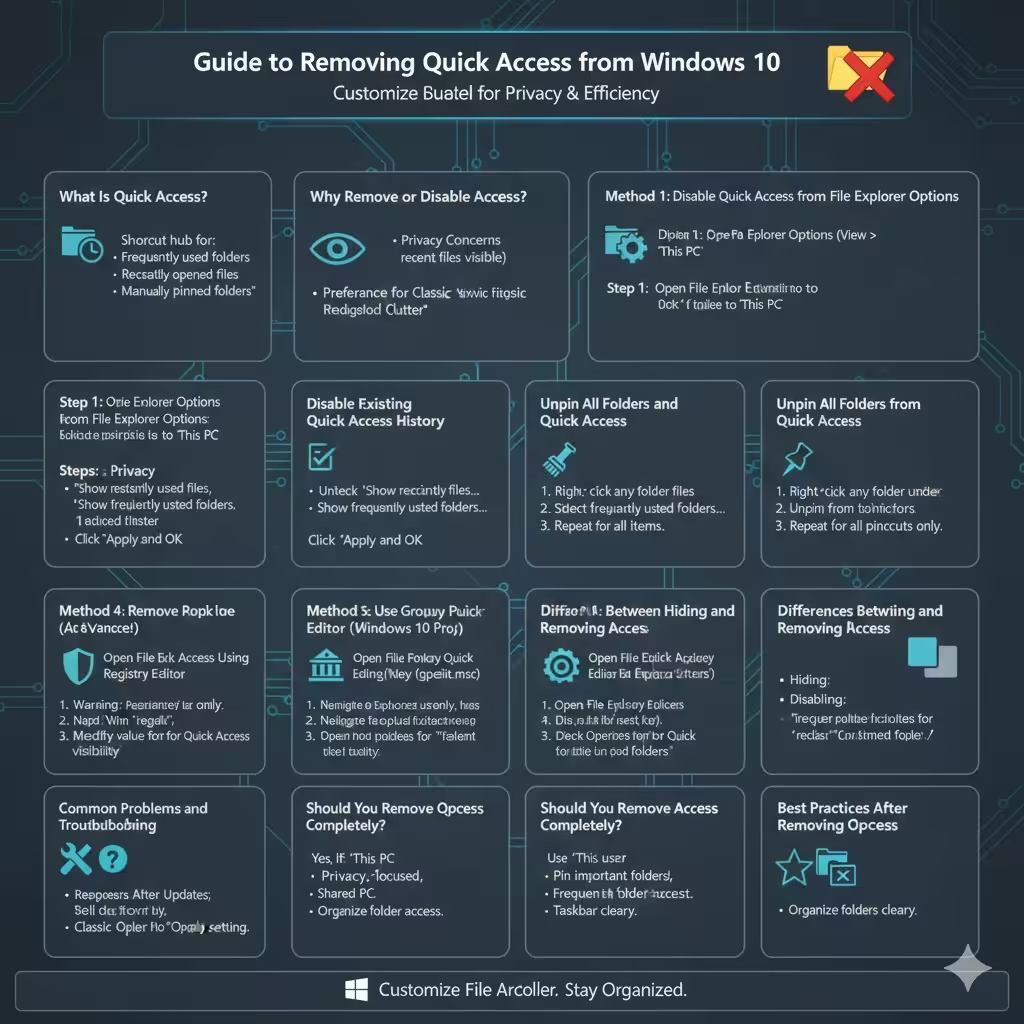
Guide to Removing Quick Access from Windows 10
Quick Access is a feature in Windows 10 File Explorer designed to help users quickly reach frequently used folders and recently opened files. By default, Quick Access appears at the top of the navigation pane and replaces the traditional “This PC” view when File Explorer opens.
While some users find Quick Access convenient, others consider it unnecessary, distracting, or a privacy concern—especially in shared or work environments where recently opened files should not be visible. Fortunately, Windows 10 provides several ways to hide, disable, or completely remove Quick Access behavior.
This guide explains what Quick Access is, why you might want to remove it, and step‑by‑step methods to disable or hide Quick Access safely and effectively.
What Is Quick Access in Windows 10?
Quick Access is a File Explorer shortcut hub that automatically displays:
- Frequently used folders
- Recently opened files
- Manually pinned folders
Its purpose is to reduce navigation time by predicting which locations you access most often. However, Quick Access continuously updates based on usage, which may not align with every user’s workflow.
Why Remove or Disable Quick Access?
There are several reasons users choose to remove Quick Access.
Privacy Concerns
Quick Access displays recently opened files, which may expose sensitive documents when others use the same computer.
Preference for Classic Navigation
Many users prefer opening File Explorer directly to This PC, where drives and system folders are clearly displayed.
Reduced Clutter
Quick Access can feel cluttered, especially when it fills with folders that are no longer relevant.
Method 1: Disable Quick Access from File Explorer Options
The easiest and safest way to remove Quick Access behavior is through File Explorer settings.
Step 1: Open File Explorer Options
- Open File Explorer
- Click the View tab
- Select Options
Step 2: Change File Explorer Default View
- In the General tab
- Find Open File Explorer to
- Change the option from Quick Access to This PC
Step 3: Disable Recent Files and Frequent Folders
- Uncheck Show recently used files in Quick Access
- Uncheck Show frequently used folders in Quick Access
- Click Apply and OK
This method prevents Quick Access from displaying new content while keeping File Explorer clean.
Method 2: Clear Existing Quick Access History
Even after disabling Quick Access features, old data may still appear.
Clear File Explorer History
- Open File Explorer Options
- Under the Privacy section
- Click Clear
This removes previously stored files and folders from Quick Access.
Method 3: Unpin All Folders from Quick Access
If you want to keep Quick Access but remove all pinned items, unpinning is a quick solution.
How to Unpin Folders
- Right‑click any folder under Quick Access
- Select Unpin from Quick Access
Repeat for all pinned items until Quick Access is empty.
Method 4: Remove Quick Access Using Registry Editor (Advanced)
For users who want to hide Quick Access entirely from the navigation pane, the Windows Registry provides a deeper customization option.
Important Warning
Editing the registry incorrectly can cause system issues. This method is recommended for advanced users only.
Steps to Hide Quick Access
- Press Windows + R, type regedit, and press Enter
- Navigate to the appropriate Explorer settings key
- Modify the value controlling Quick Access visibility
After restarting File Explorer, Quick Access will no longer appear in the navigation pane.
Method 5: Use Group Policy Editor (Windows 10 Pro)
Users running Windows 10 Pro or higher can manage Quick Access using Group Policy.
Configure File Explorer Policies
- Open Group Policy Editor
- Navigate to File Explorer policies
- Disable policies related to recent files and frequent folders
This approach is commonly used in business and shared computer environments.
Differences Between Hiding and Removing Quick Access
It is important to understand the distinction.
- Hiding Quick Access removes it from view
- Disabling features stops it from collecting data
- Unpinning folders only removes shortcuts
Windows does not offer a single toggle to completely delete Quick Access, but these methods achieve similar results.
Common Problems and Troubleshooting
Quick Access Reappears After Updates
Some Windows updates may reset File Explorer settings. Re‑apply your preferred configuration if this happens.
File Explorer Still Opens to Quick Access
Double‑check that the Open File Explorer to setting is set to This PC.
Should You Remove Quick Access Completely?
Whether to remove Quick Access depends on how you use Windows.
Users Who Benefit from Removing It
- Privacy‑focused users
- Office and shared PC environments
- Users who prefer classic navigation
Users Who May Keep It Enabled
- Casual users
- Users who frequently access the same folders
Windows allows flexibility so you can choose what works best.
Best Practices After Removing Quick Access
Once Quick Access is disabled:
- Use This PC for structured navigation
- Pin important folders to Taskbar or Start Menu
- Organize folders clearly for faster access
These habits improve productivity without relying on Quick Access.
Frequently Asked Questions
Can Quick Access Be Completely Uninstalled?
No. Quick Access is a built‑in Windows feature, but it can be hidden and disabled.
Does Removing Quick Access Affect Files?
No. Removing or disabling Quick Access does not delete any files or folders.
Will This Work on Windows 11?
The steps are similar, but menus and settings may differ slightly.
Conclusion
Removing Quick Access in Windows 10 is a simple way to regain control over File Explorer, improve privacy, and reduce visual clutter. Whether you choose to disable recent files, change the default view to This PC, or hide Quick Access using advanced tools, Windows provides enough flexibility to match your preferences.
By following the step‑by‑step methods in this guide, you can customize File Explorer to better suit your workflow and create a cleaner, more organized Windows experience.