


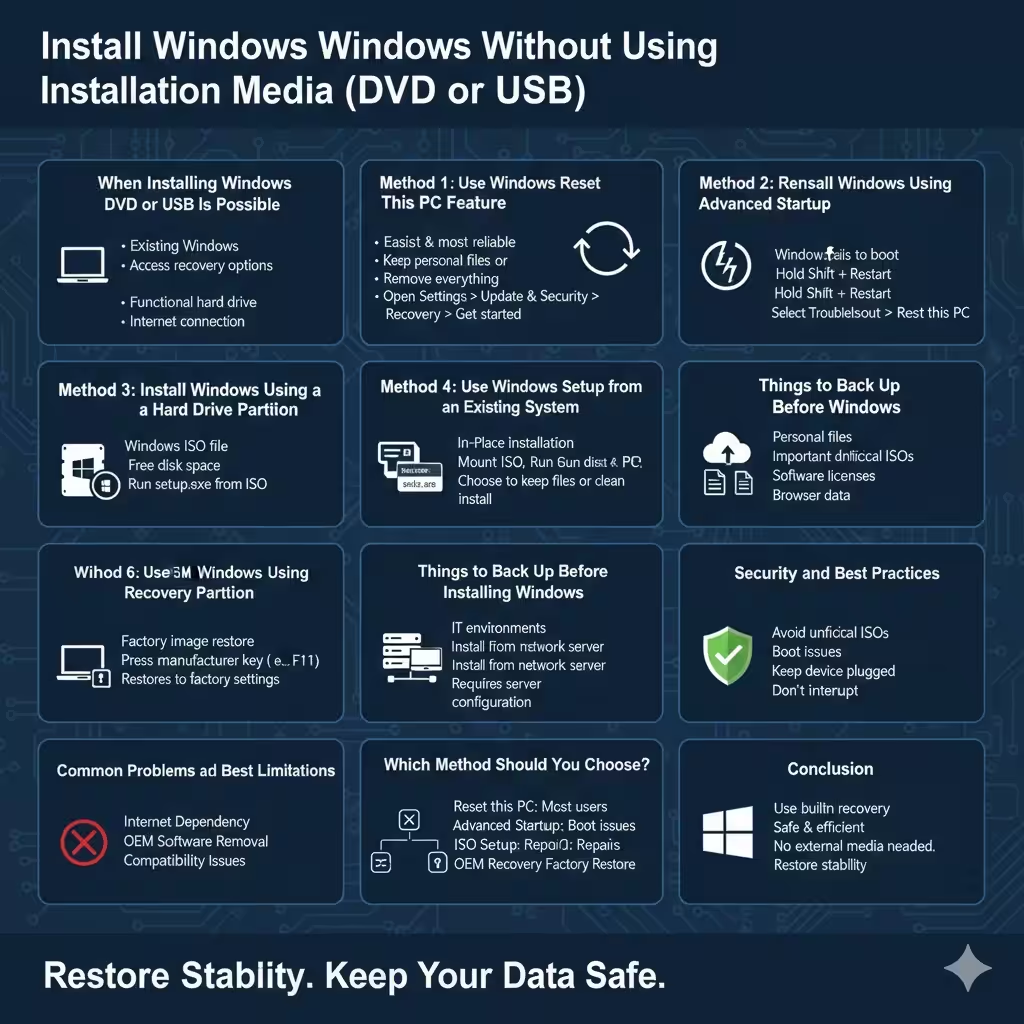
Install Windows Without Using Installation Media (DVD or USB)
Installing Windows traditionally requires a bootable DVD or USB flash drive. However, there are situations where these options are not available. You may be using a laptop without an optical drive, have no spare USB drive, or need to reinstall Windows remotely or quickly without creating external installation media.
Fortunately, Windows provides several legitimate ways to install or reinstall the operating system without using a DVD or USB drive. These methods rely on existing system features, hard drive partitions, or network-based tools. This guide explains when these methods are appropriate and provides step-by-step instructions to help you install Windows safely and effectively without external media.
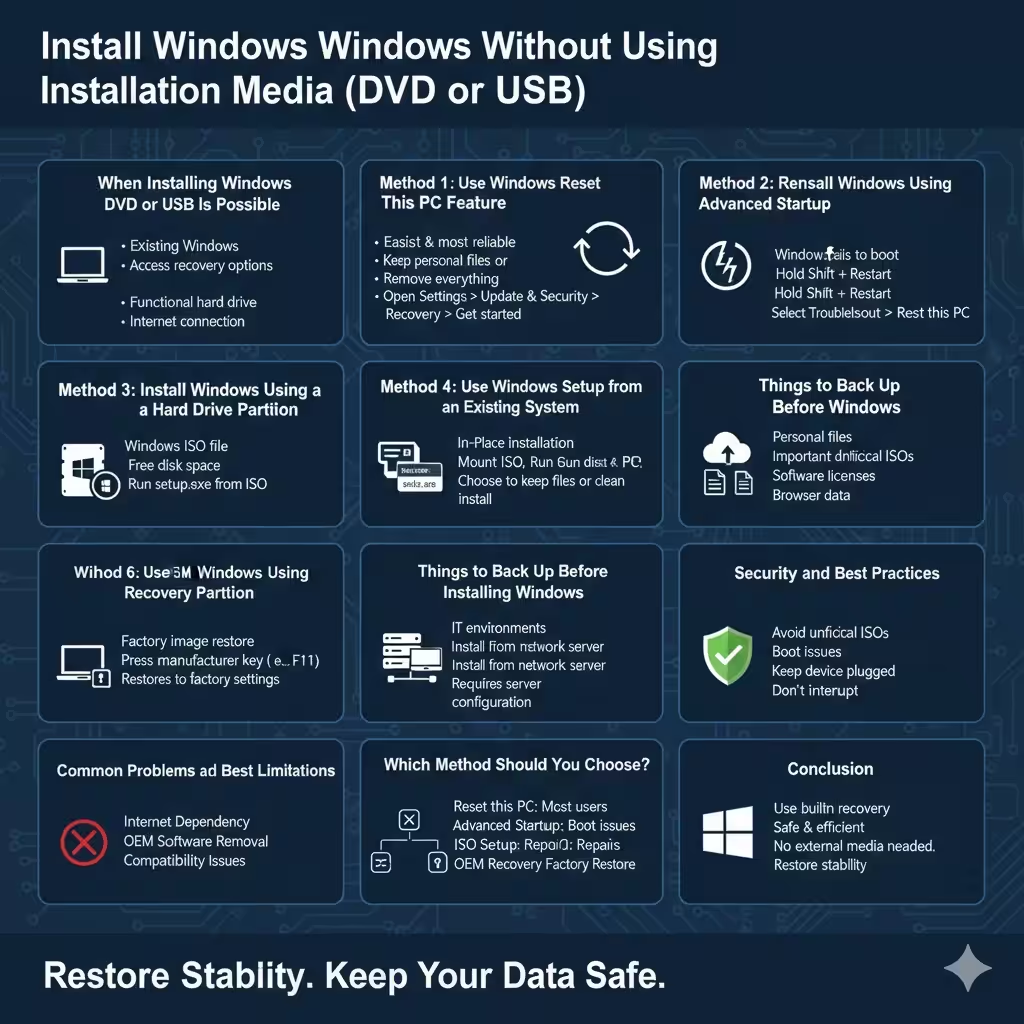
When Installing Windows Without DVD or USB Is Possible
Not every scenario supports a media-free installation. Understanding the requirements is essential.
You can install Windows without a DVD or USB if:
- Your computer already has Windows installed
- You can still access Windows settings or recovery options
- Your hard drive is functional
- You have a stable internet connection (for some methods)
If your hard drive has completely failed or the system cannot access recovery tools, external installation media may still be required.
Method 1: Use Windows Reset This PC Feature
The easiest and most reliable way to reinstall Windows without external media is using the built-in Reset this PC feature.
What Reset This PC Does
This feature reinstalls Windows using system files stored on your computer or downloads fresh files from Microsoft servers.
You can choose to:
- Keep personal files
- Remove everything and perform a clean installation
Step-by-Step Instructions
- Open Settings
- Go to Update & Security
- Select Recovery
- Under Reset this PC, click Get started
- Choose Keep my files or Remove everything
- Follow on-screen instructions
Windows will reinstall automatically without requiring a DVD or USB drive.
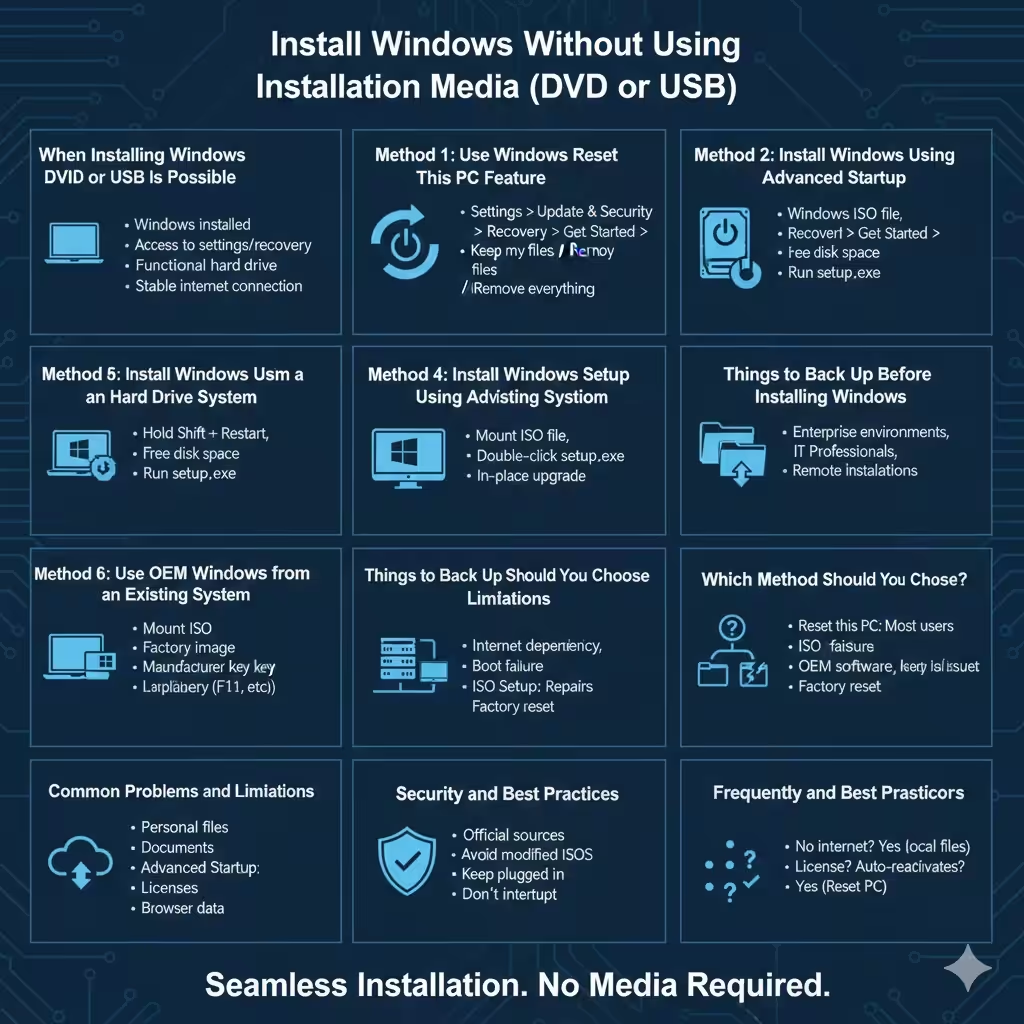
Method 2: Reinstall Windows Using Advanced Startup
If Windows does not boot normally but recovery options are still accessible, Advanced Startup can be used.
Access Advanced Startup
- Hold Shift and select Restart from the Start menu
- Or interrupt startup multiple times to trigger recovery mode
Reinstall Windows from Recovery
- Select Troubleshoot
- Choose Reset this PC
- Select your preferred reset option
This method is especially useful when Windows is unstable or corrupted.
Method 3: Install Windows Using a Hard Drive Partition
Advanced users can install Windows from a setup file stored on the internal hard drive.
Requirements
- A Windows ISO file
- Enough free disk space
- Access to Windows or Command Prompt
Basic Concept
Instead of booting from USB or DVD, the system launches the Windows installer directly from a hard drive partition.
General Steps Overview
- Download the official Windows ISO
- Mount the ISO inside Windows
- Run the setup file
- Choose installation options
This method upgrades or reinstalls Windows while keeping or removing files, depending on your selection.
Method 4: Use Windows Setup from an Existing System
If Windows is still functional, running the setup directly is an effective approach.
In-Place Installation
- Mount the Windows ISO file
- Double-click setup.exe
- Choose whether to keep files, apps, or perform a clean install
This method repairs system files and reinstalls Windows components without external media.
Method 5: Install Windows Using Network Boot (PXE)
In business or IT environments, Windows can be installed over a network.
What Is PXE Boot?
PXE (Preboot Execution Environment) allows a computer to boot and install an operating system from a network server.
When PXE Is Used
- Enterprise environments
- System administrators managing multiple computers
- Remote installations
This method requires a properly configured server and is not recommended for beginners.
Method 6: Use OEM Recovery Partition
Many laptops and prebuilt PCs include a hidden recovery partition.
How OEM Recovery Works
The recovery partition contains a factory image of Windows and preinstalled drivers.
Accessing OEM Recovery
- Press the manufacturer-specific recovery key during startup
- Follow on-screen instructions to restore Windows
This restores the system to factory settings without external media.
Things to Back Up Before Installing Windows
Before reinstalling Windows, protect your data.
Always back up:
- Personal files
- Important documents
- Software licenses
- Browser data
Even when choosing “Keep my files,” backups are strongly recommended.
Common Problems and Limitations
Installing Windows without DVD or USB has some limitations.
Internet Dependency
Some methods require downloading Windows files, which may take time depending on connection speed.
OEM Software Removal
Factory-installed software may be removed during clean installations.
Compatibility Issues
Older systems may not support advanced recovery features.
Which Method Should You Choose?
Choosing the right method depends on your situation.
- Reset this PC: Best for most users
- Advanced Startup: Ideal when Windows fails to boot
- ISO Setup: Suitable for repairs and upgrades
- PXE Boot: Best for IT professionals
- OEM Recovery: Ideal for restoring factory settings
Understanding your system condition helps determine the safest option.
Security and Best Practices
To ensure a smooth installation:
- Use official Windows sources only
- Avoid modified or unofficial ISO files
- Keep your device plugged into power
- Do not interrupt the installation process
These practices prevent data loss and installation errors.
Frequently Asked Questions
Can I Install Windows Without Any Internet Connection?
Yes, if system files or recovery partitions are available locally. Otherwise, an internet connection is required.
Will My Windows License Be Preserved?
Most modern systems automatically reactivate Windows after reinstallation.
Is This Method Safe for Beginners?
Yes, especially Reset this PC, which is designed for non-technical users.
Conclusion
Installing Windows without using a DVD or USB drive is entirely possible in many situations thanks to built-in recovery features and modern installation tools. Whether you use Reset this PC, Advanced Startup, or a hard drive-based setup, Windows provides flexible options that eliminate the need for external media.
By following the step-by-step methods in this guide and choosing the approach that best fits your situation, you can reinstall or repair Windows safely, efficiently, and without additional hardware.