


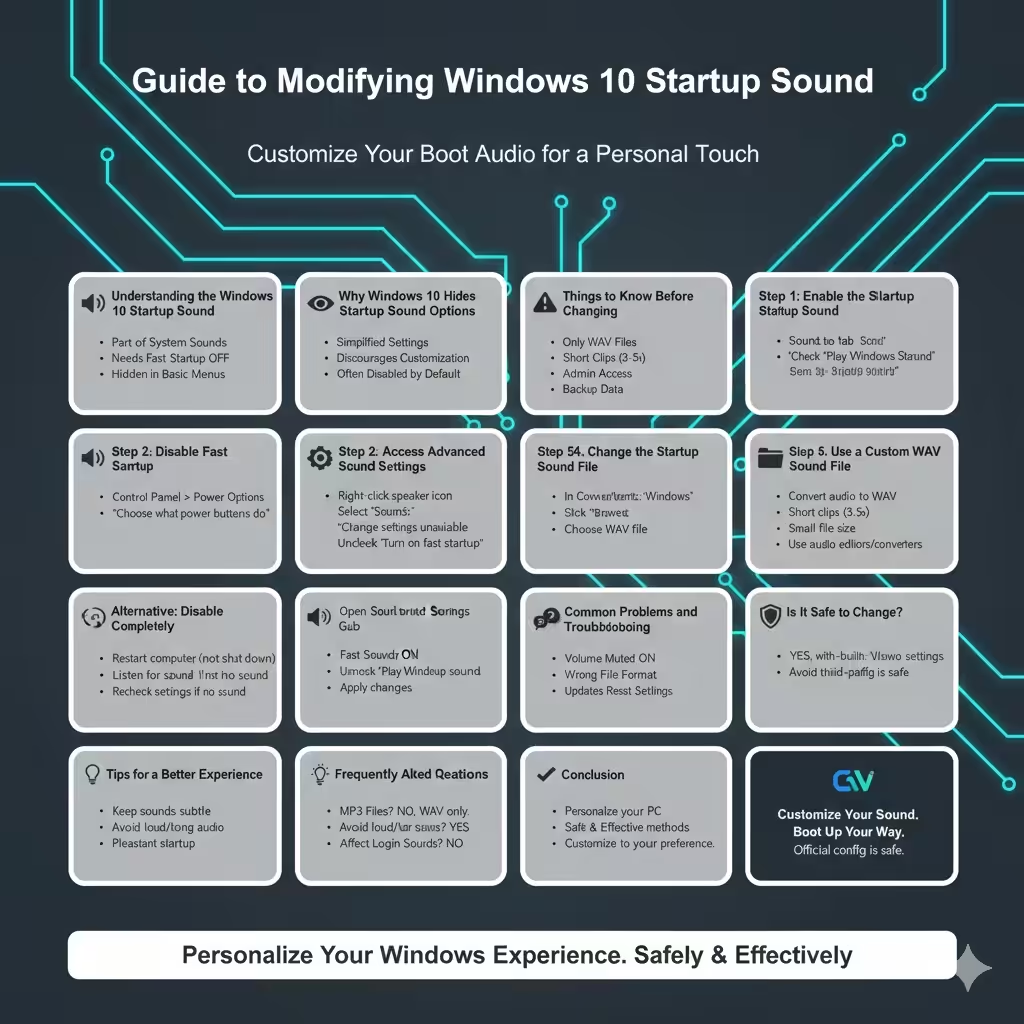
Guide to Modifying Windows 10 Startup Sound
Windows 10 includes a familiar startup sound that plays when the system boots successfully. For some users, this sound is nostalgic and reassuring, while for others it may feel outdated or simply unwanted. Unlike earlier versions of Windows, Microsoft does not provide a clear, built‑in option to change the startup sound directly, which often leads users to believe customization is impossible.
In reality, Windows 10 still allows you to change or disable the startup sound through system settings and configuration options. This guide explains how the Windows 10 startup sound works, why it is hidden by default, and step‑by‑step methods to change it safely without damaging system files.
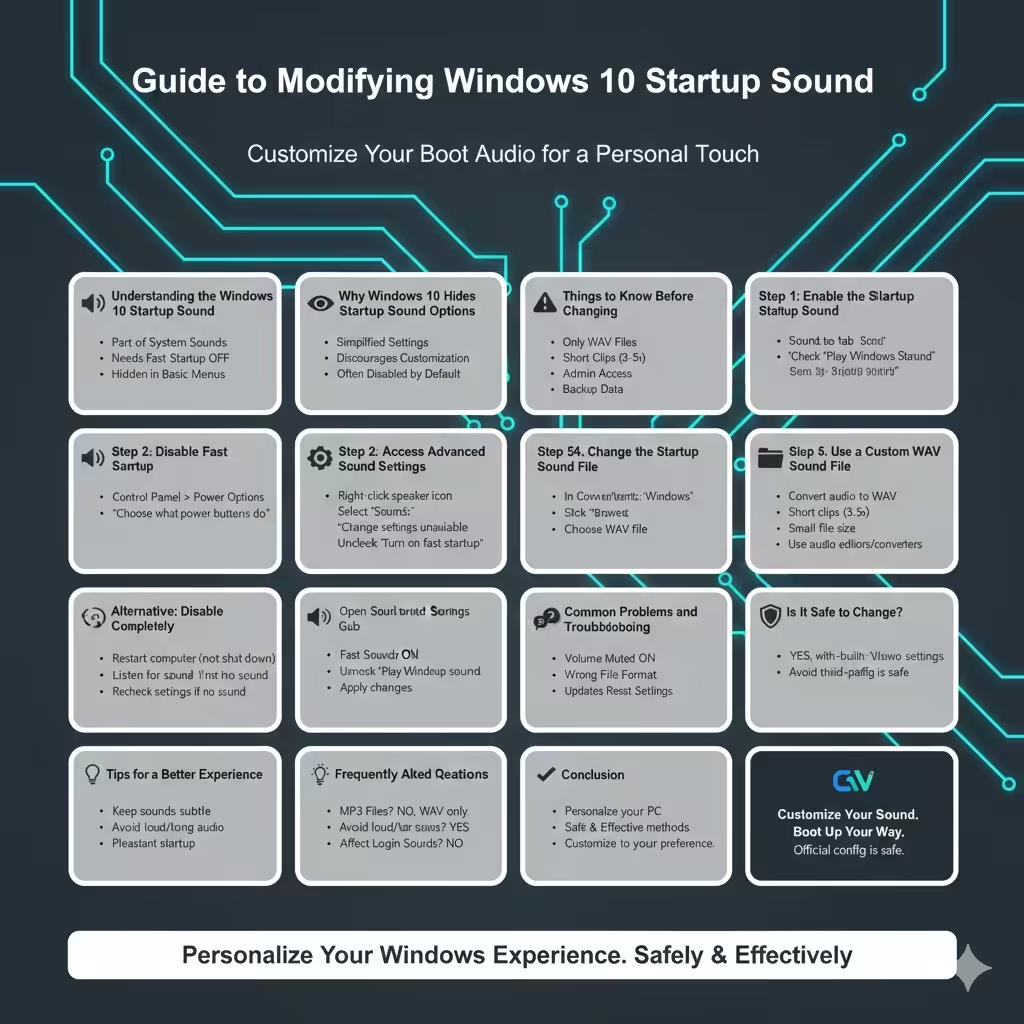
Understanding the Windows 10 Startup Sound
The startup sound is the audio cue played when Windows finishes loading and reaches the login screen or desktop. It is controlled by system sound settings rather than application-level audio.
Key points to understand:
- The startup sound is part of Windows system sounds
- It plays only when Fast Startup is disabled
- It cannot be changed through basic sound menus
Knowing these limitations helps ensure the steps below work correctly.
Why Windows 10 Hides Startup Sound Options
Microsoft simplified Windows 10 settings to reduce complexity for most users. As part of this design choice:
- The option to change startup sound is hidden
- Custom system sounds are discouraged
- Startup sound is disabled on many systems by default
Despite this, Windows still supports custom startup sounds through advanced configuration.
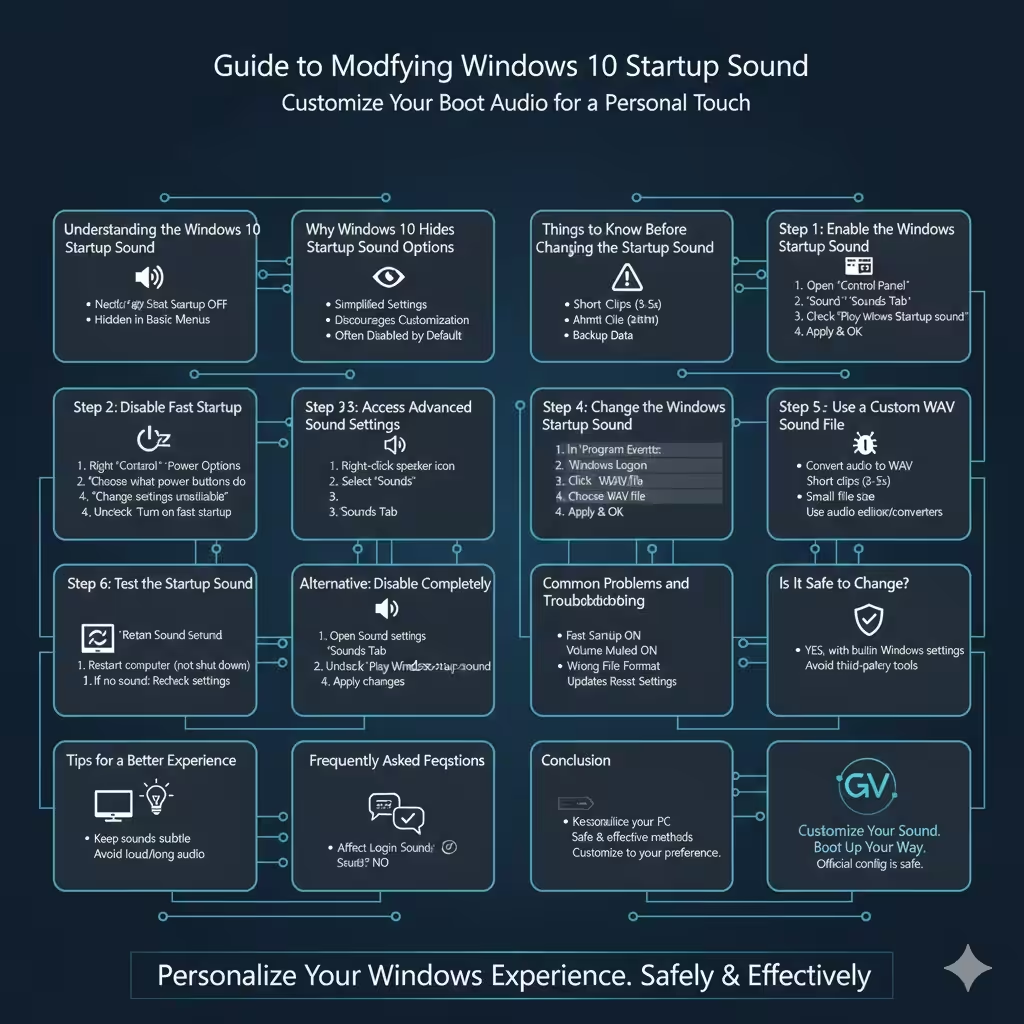
Things to Know Before Changing the Startup Sound
Before making changes, keep the following in mind:
- Only WAV audio files are supported
- Short sounds work best
- Loud or long sounds may be disruptive
- Administrative access may be required
It is also recommended to back up important data before modifying system settings.
Step 1: Enable the Windows Startup Sound
On many Windows 10 systems, the startup sound is disabled by default.
How to Enable Startup Sound
- Open Control Panel
- Select Hardware and Sound
- Click Sound
- Open the Sounds tab
- Check Play Windows Startup sound
- Click Apply and OK
This ensures Windows is allowed to play a startup sound.
Step 2: Disable Fast Startup
Fast Startup prevents the startup sound from playing.
Disable Fast Startup in Power Options
- Open Control Panel
- Go to Power Options
- Click Choose what the power buttons do
- Select Change settings that are currently unavailable
- Uncheck Turn on fast startup
- Click Save changes
Restart your computer to apply the change.
Step 3: Access Advanced Sound Settings
To change the startup sound, you must use the classic sound control panel.
Open Advanced Sound Settings
- Right‑click the speaker icon in the taskbar
- Select Sounds
- Switch to the Sounds tab
This menu allows customization of system sounds.
Step 4: Change the Windows Startup Sound
Windows does not label the startup sound clearly, but it is tied to system sound schemes.
Assign a Custom Sound
- In the Program Events list, locate Windows Logon
- Select it
- Click Browse
- Choose a WAV sound file
- Click Apply and OK
Your selected sound will now play at startup.
Step 5: Use a Custom WAV Sound File
Not all audio formats work as startup sounds.
Best Practices for Custom Sounds
- Convert audio to WAV format
- Use short clips (3–5 seconds)
- Keep file size small
Audio editors or online converters can help prepare suitable sound files.
Step 6: Test the Startup Sound
After configuring the sound:
- Restart your computer (not shut down)
- Listen for the new startup sound
If no sound plays, recheck Fast Startup and sound settings.
Alternative: Disable the Startup Sound Completely
Some users prefer a silent boot.
Disable Startup Sound
- Open Sound settings
- Go to the Sounds tab
- Uncheck Play Windows Startup sound
- Apply changes
This prevents any sound from playing during startup.
Common Problems and Troubleshooting
Startup Sound Still Not Playing
Possible causes include:
- Fast Startup still enabled
- System volume muted
- Incorrect sound file format
Double‑check each setting carefully.
Custom Sound Resets After Updates
Major Windows updates may reset sound schemes. Reapply your custom sound if needed.
Is It Safe to Change Windows Startup Sound?
Yes, when done using built‑in Windows settings. Avoid third‑party tools that modify system files directly, as they may cause instability or security issues.
Using official configuration menus ensures system integrity remains intact.
Tips for a Better Startup Sound Experience
To avoid annoyance:
- Keep sounds subtle
- Avoid loud or long audio
- Test volume levels
These practices ensure a pleasant startup experience.
Frequently Asked Questions
Can I Use MP3 Files?
No. Windows requires WAV files for system sounds.
Does This Work on All Windows 10 Versions?
Yes, though menus may appear slightly different depending on updates.
Will This Affect Login Sounds?
Only the startup sound is changed. Other system sounds remain unaffected.
Conclusion
Changing the Windows 10 startup sound is possible with the right configuration, even though Microsoft hides the option by default. By enabling the startup sound, disabling Fast Startup, and assigning a custom WAV file through advanced sound settings, you can personalize your Windows experience safely and effectively.
Whether you prefer a classic Windows chime, a custom sound, or complete silence, Windows 10 provides enough flexibility to match your preference when configured correctly.