


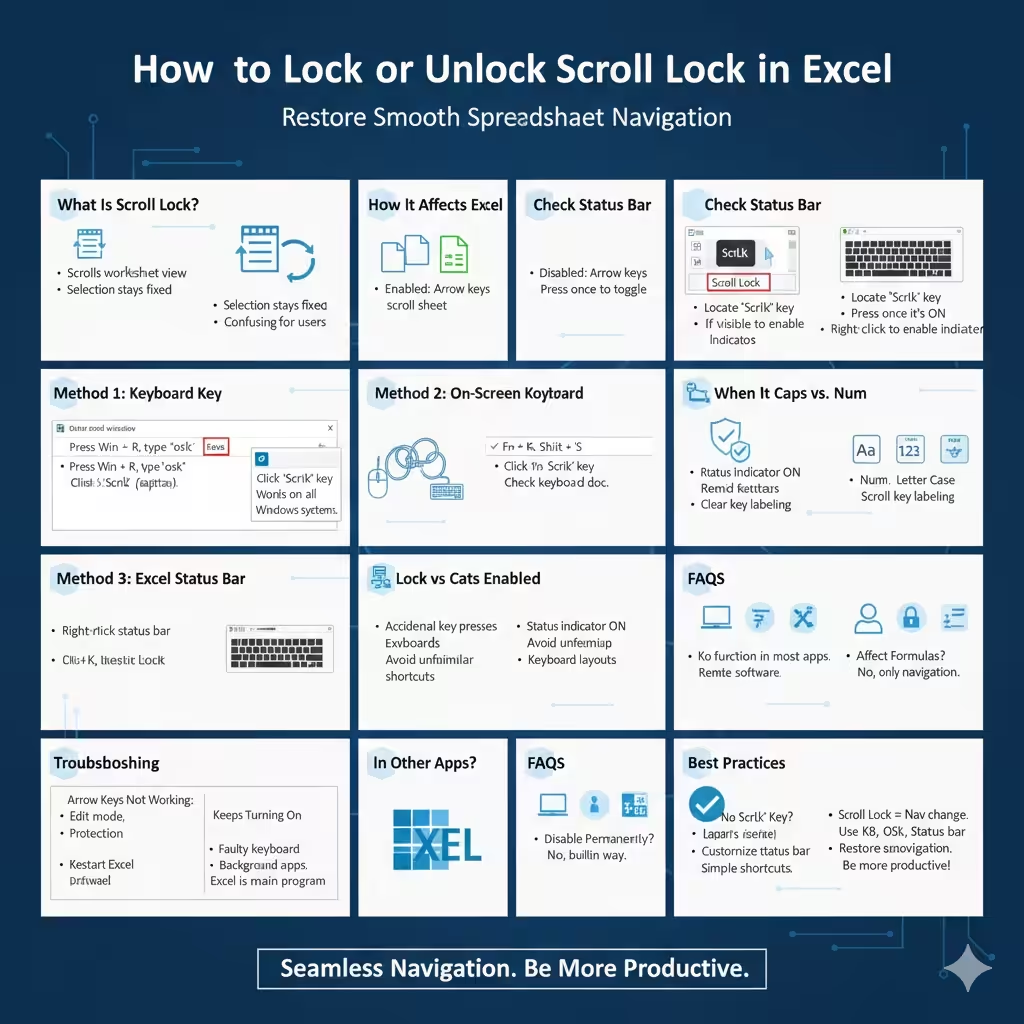
How to Lock or Unlock Scroll Lock in Excel
Microsoft Excel is one of the most widely used spreadsheet applications in the world. It is powerful, flexible, and packed with features designed to make data analysis easier. However, many users occasionally encounter a confusing issue where the arrow keys stop moving the active cell and instead scroll the worksheet. When this happens, the most common cause is that Scroll Lock has been enabled.
The Scroll Lock feature often causes frustration, especially for users who are unaware that it exists or how it was activated. This guide explains what Scroll Lock is, how it affects Excel, and provides step-by-step instructions to lock and unlock Scroll Lock on different keyboards and systems.
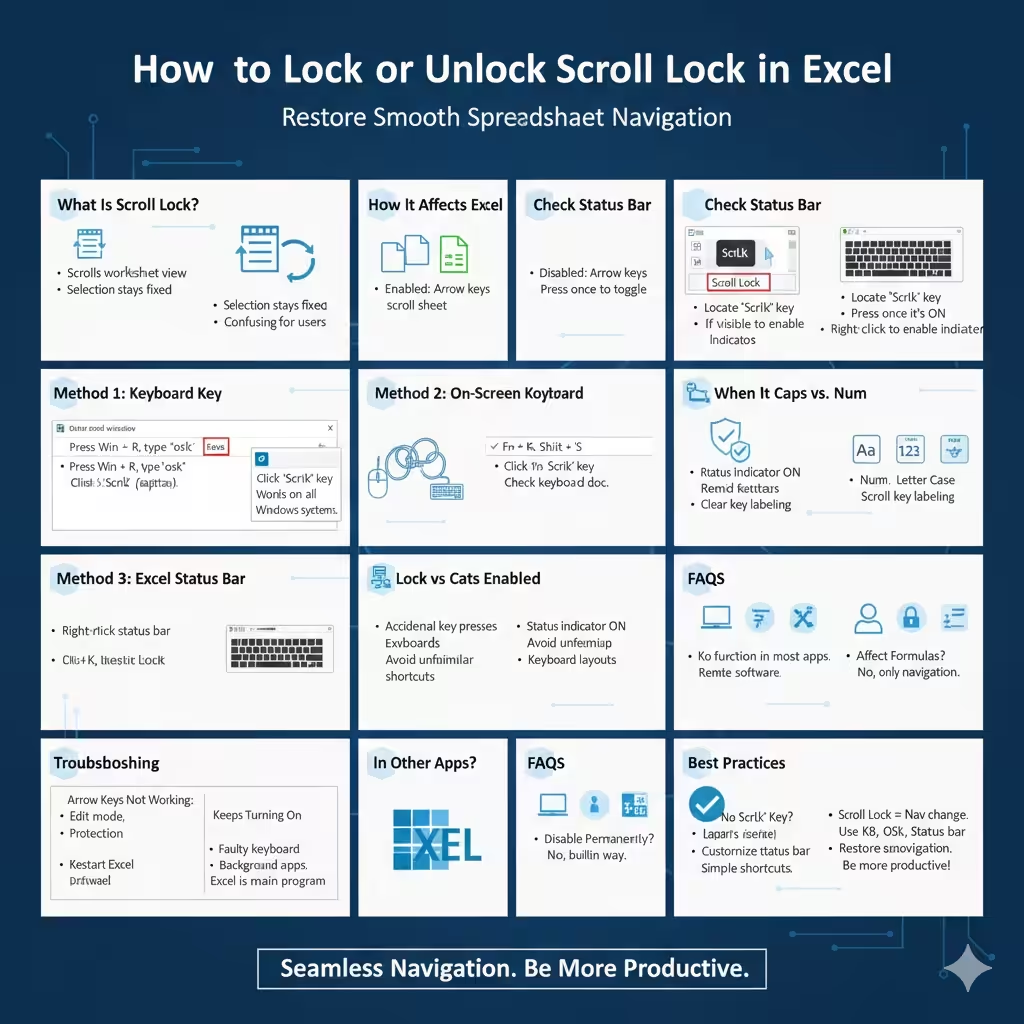
What Is Scroll Lock in Excel?
Scroll Lock is a keyboard toggle key originally designed to change how arrow keys behave. When Scroll Lock is turned on, the arrow keys scroll the worksheet instead of moving the selected cell.
In Excel, this means:
- Arrow keys move the view instead of the active cell
- The selection stays fixed while the worksheet scrolls
- Data entry becomes slower and confusing
Unlike Caps Lock or Num Lock, Scroll Lock often does not provide a clear visual indicator, making it harder to identify.
How Scroll Lock Affects Excel Navigation
When Scroll Lock is disabled:
- Arrow keys move the active cell
- Excel behaves normally
- Navigation is smooth and predictable
When Scroll Lock is enabled:
- Arrow keys scroll the worksheet
- The active cell remains unchanged
- Users may think Excel is malfunctioning
Understanding this behavior helps quickly diagnose the issue.
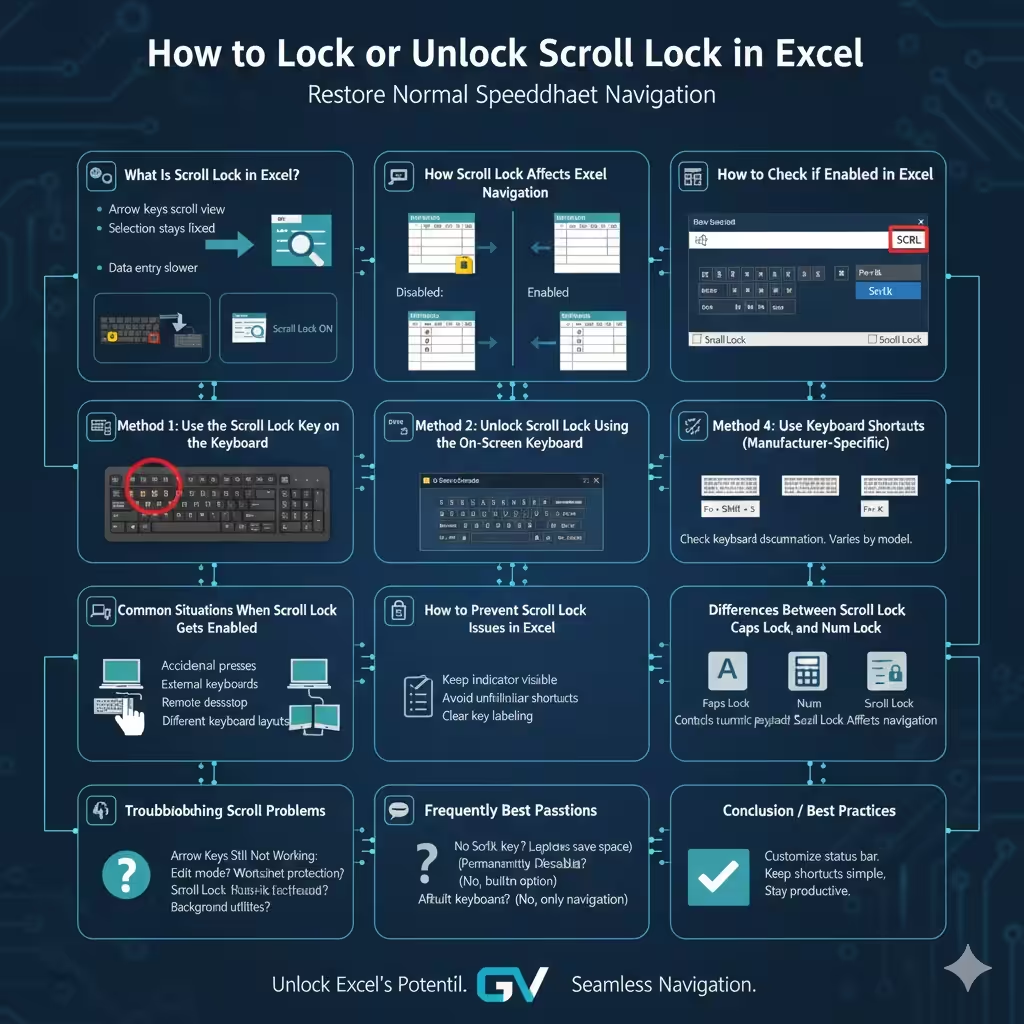
How to Check if Scroll Lock Is Enabled in Excel
Excel provides a simple way to check Scroll Lock status.
Check the Excel Status Bar
- Look at the bottom of the Excel window
- If you see Scroll Lock displayed, it is enabled
If the indicator is not visible, you may need to customize the status bar.
Enable Scroll Lock Indicator
- Right-click the Excel status bar
- Ensure Scroll Lock is checked
This makes it easier to identify the problem in the future.
Method 1: Use the Scroll Lock Key on the Keyboard
The fastest way to toggle Scroll Lock is using the keyboard.
Standard Keyboards
- Locate the Scroll Lock key (often labeled ScrLk)
- Press it once to enable or disable Scroll Lock
On many full-size keyboards, Scroll Lock is near the Pause/Break key.
Compact or Laptop Keyboards
Some laptops do not have a dedicated Scroll Lock key.
Common combinations include:
- Fn + Scroll Lock
- Fn + S
- Fn + C
The exact combination depends on the keyboard manufacturer.
Method 2: Unlock Scroll Lock Using the On-Screen Keyboard
If your keyboard lacks a Scroll Lock key, Windows provides an alternative.
Steps to Use On-Screen Keyboard
- Press Windows + R
- Type osk and press Enter
- The On-Screen Keyboard will appear
- Click the ScrLk key to toggle Scroll Lock
This method works reliably on all Windows systems.
Method 3: Turn Scroll Lock On or Off Using Excel Settings
Excel does not directly control Scroll Lock, but it reflects its status.
Use Excel Status Bar for Confirmation
After toggling Scroll Lock using any method, verify the change in the Excel status bar to ensure it is disabled.
Method 4: Use Keyboard Shortcuts (Manufacturer-Specific)
Some keyboards assign Scroll Lock to a function key combination.
Examples include:
- Fn + K
- Fn + Shift + S
Check your keyboard documentation if standard methods do not work.
Common Situations When Scroll Lock Gets Enabled
Scroll Lock is often enabled accidentally.
Common causes include:
- Pressing nearby keys unintentionally
- Using external keyboards
- Remote desktop sessions
- Switching between different keyboard layouts
Knowing these scenarios can help prevent future issues.
How to Prevent Scroll Lock Issues in Excel
To minimize frustration:
- Keep the Scroll Lock indicator visible
- Avoid unfamiliar keyboard shortcuts
- Use keyboards with clear key labeling
These simple habits help maintain smooth Excel navigation.
Differences Between Scroll Lock, Caps Lock, and Num Lock
Understanding these keys prevents confusion.
- Caps Lock affects letter case
- Num Lock controls numeric keypad behavior
- Scroll Lock affects navigation behavior
Scroll Lock is the least commonly used, which is why it often causes confusion.
Troubleshooting Scroll Lock Problems
Arrow Keys Still Not Working
If disabling Scroll Lock does not help:
- Check if Excel is in Edit mode
- Verify worksheet protection settings
- Restart Excel
Scroll Lock Keeps Turning On
Possible causes include:
- Faulty keyboard
- Background utilities
- Remote desktop software
Testing with a different keyboard can help identify hardware issues.
Scroll Lock in Other Applications
Scroll Lock behavior varies outside Excel.
In many modern applications:
- Scroll Lock has no function
- The key is ignored
- No visual indicator is shown
Excel remains one of the few programs where Scroll Lock significantly affects usability.
Frequently Asked Questions
Why Doesn’t My Laptop Have a Scroll Lock Key?
Many modern laptops remove rarely used keys to save space. Function key combinations replace them.
Can I Disable Scroll Lock Permanently?
There is no built-in Windows option to permanently disable Scroll Lock, but careful usage prevents accidental activation.
Does Scroll Lock Affect Excel Formulas?
No. It only affects navigation, not calculations or data.
Best Practices for Excel Users
To avoid workflow interruptions:
- Learn common keyboard indicators
- Customize the Excel status bar
- Keep navigation shortcuts simple
These practices improve productivity and reduce confusion.
Conclusion
Scroll Lock is a small but impactful feature that can significantly change how Excel behaves. When enabled, it causes arrow keys to scroll the worksheet instead of moving between cells, often leading users to believe Excel is malfunctioning.
By understanding what Scroll Lock is and using the step-by-step methods in this guide—whether through the keyboard, On-Screen Keyboard, or Excel status bar—you can quickly lock or unlock Scroll Lock and restore normal navigation. With this knowledge, Excel becomes easier, faster, and far less frustrating to use.