
![ABBYY FineReader PDF for Mac [1 Mac,1 Year] by SOFTWAREHUBS](https://www.softwarehubs.com/storage/2022/08/ABBYY-FineReader-PDF-for-Mac-1-Mac1-Year-by-SOFTWAREHUBS-350x350.png)

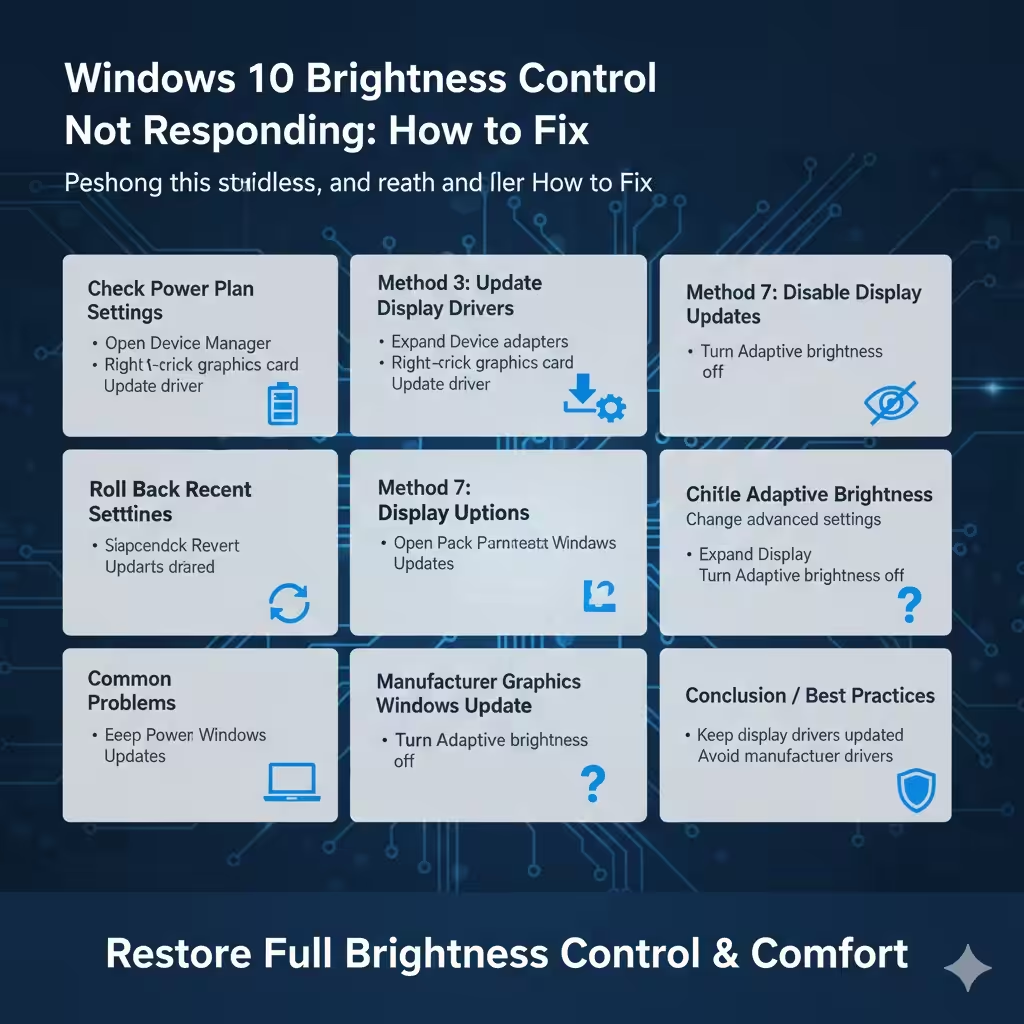
Windows 10 Brightness Control Not Responding: How to Fix
Brightness control is an essential feature in Windows 10 that helps users adjust screen visibility, reduce eye strain, and save battery life. When brightness control stops working, it can make the screen too dim or painfully bright, especially on laptops and tablets.
Many Windows 10 users encounter issues where the brightness slider is missing, stuck, or simply does not respond. This problem is usually caused by driver issues, incorrect settings, or conflicts after Windows updates. This guide provides a complete, step-by-step explanation of how to fix brightness control not working on Windows 10 using safe and reliable methods.
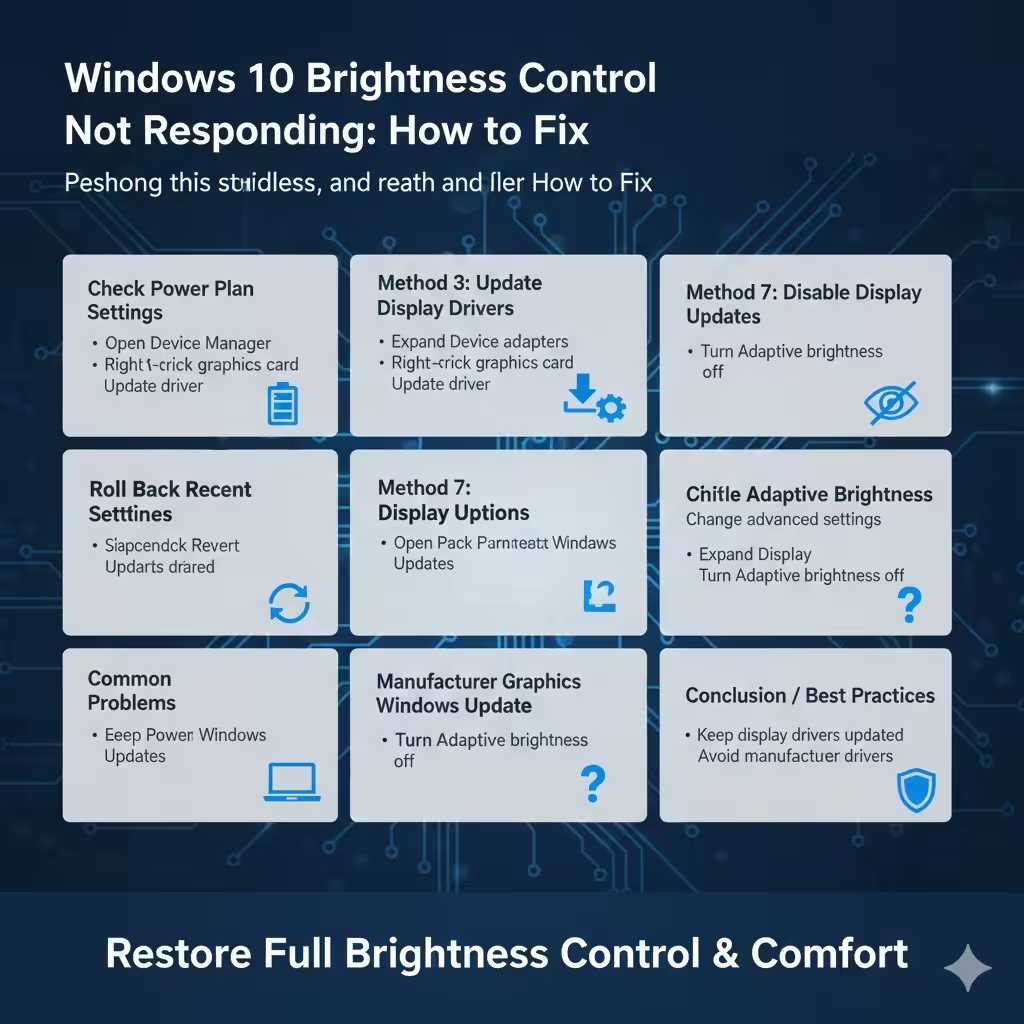
Why Brightness Control Stops Working on Windows 10
Understanding the cause makes troubleshooting easier.
Common reasons include:
- Missing or outdated display drivers
- Incorrect power settings
- Disabled generic monitor drivers
- Windows update conflicts
- Graphics driver compatibility issues
Most brightness problems are software-related and can be resolved without reinstalling Windows.
Check If Brightness Control Is Actually Disabled
Before applying fixes, confirm the issue.
Symptoms of Brightness Control Problems
- Brightness slider missing from Settings
- Brightness slider not responding
- Function keys not working
- Screen stuck at maximum or minimum brightness
If any of these apply, continue with the solutions below.
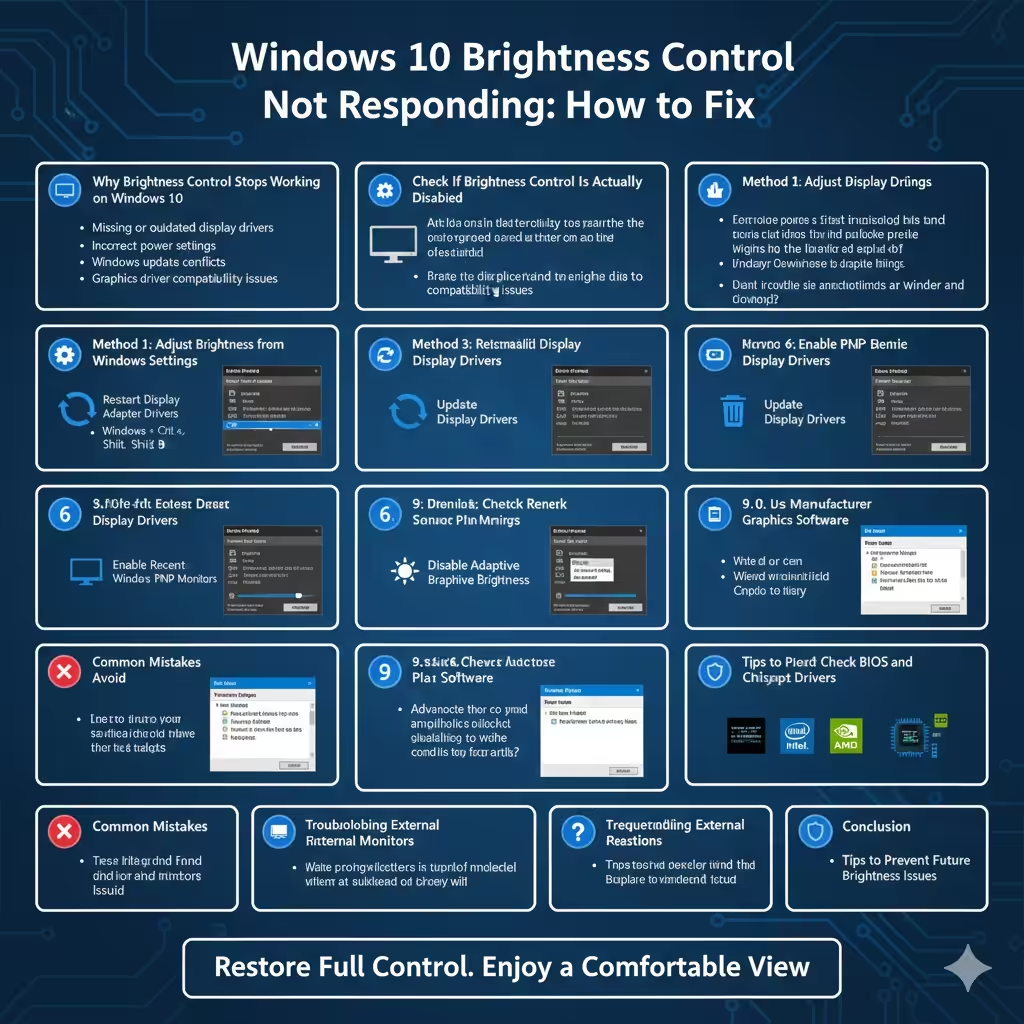
Method 1: Adjust Brightness from Windows Settings
Sometimes the issue is simply a settings glitch.
Steps to Check Brightness Settings
- Press Windows + I to open Settings
- Go to System
- Select Display
- Adjust the Brightness and color slider
If the slider is missing or unresponsive, proceed to the next method.
Method 2: Restart Display Adapter Drivers
Restarting the graphics driver can instantly fix brightness issues.
Restart Display Driver
- Press Windows + Ctrl + Shift + B
- The screen may flicker briefly
- Check if brightness control works
This shortcut refreshes the display driver without restarting Windows.
Method 3: Update Display Drivers
Outdated or corrupted drivers are the most common cause of brightness problems.
Update Drivers via Device Manager
- Right-click the Start button
- Select Device Manager
- Expand Display adapters
- Right-click your graphics card
- Choose Update driver
- Select Search automatically for drivers
Restart the computer after updating.
Method 4: Reinstall Display Drivers
If updating does not work, reinstalling the driver may help.
Reinstall Graphics Driver
- Open Device Manager
- Expand Display adapters
- Right-click the graphics driver
- Select Uninstall device
- Restart the computer
Windows will reinstall the correct driver automatically.
Method 5: Enable Generic PnP Monitor
The Generic PnP Monitor is required for brightness control.
Enable Generic Monitor Driver
- Open Device Manager
- Expand Monitors
- Right-click Generic PnP Monitor
- Select Enable device
If missing, scan for hardware changes.
Method 6: Check Power Plan Settings
Incorrect power settings can disable brightness control.
Adjust Power Settings
- Open Control Panel
- Go to Power Options
- Select Change plan settings
- Click Change advanced power settings
- Expand Display
- Adjust brightness options
Apply changes and restart.
Method 7: Disable Adaptive Brightness
Adaptive brightness can interfere with manual control.
Turn Off Adaptive Brightness
- Open Power Options
- Click Change advanced power settings
- Expand Display
- Turn Adaptive brightness off
This gives full manual control over brightness.
Method 8: Roll Back Recent Windows Updates
Some updates introduce compatibility issues.
Uninstall Recent Updates
- Open Settings
- Go to Update & Security
- Click View update history
- Select Uninstall updates
Restart after removal.
Method 9: Use Manufacturer Graphics Software
Laptop manufacturers often provide custom drivers.
Examples include:
- Intel Graphics Command Center
- NVIDIA Control Panel
- AMD Radeon Software
Install the latest version from the manufacturer website.
Method 10: Check BIOS and Chipset Drivers
Brightness control depends on chipset drivers.
- Update chipset drivers
- Reset BIOS to default settings
- Avoid changing advanced BIOS options unless necessary
This step is recommended for advanced users.
Common Mistakes to Avoid
Avoid these actions:
- Installing drivers from untrusted sources
- Using outdated third-party driver tools
- Disabling system display services
Stick to official drivers for stability.
Troubleshooting External Monitors
Brightness control behaves differently on external displays.
- Use monitor physical buttons
- Check monitor menu settings
- Update monitor drivers if available
Windows brightness slider usually controls internal displays only.
Frequently Asked Questions
Why Is the Brightness Slider Missing?
This usually indicates a driver or monitor detection issue.
Does This Affect Desktop PCs?
Brightness issues mainly affect laptops, but desktops can experience driver-related problems.
Will Reinstalling Windows Fix This?
In most cases, reinstalling Windows is unnecessary.
Tips to Prevent Future Brightness Issues
To maintain stable brightness control:
- Keep display drivers updated
- Avoid skipping Windows updates
- Use manufacturer-recommended drivers
Preventive maintenance reduces recurring problems.
Conclusion
Brightness control not working on Windows 10 is a common issue, but it is rarely serious. Most problems are caused by display drivers, power settings, or Windows updates and can be resolved using safe troubleshooting steps.
By following the methods in this guide—from updating drivers to adjusting power settings—you can restore full brightness control and enjoy a comfortable viewing experience on your Windows 10 device.