


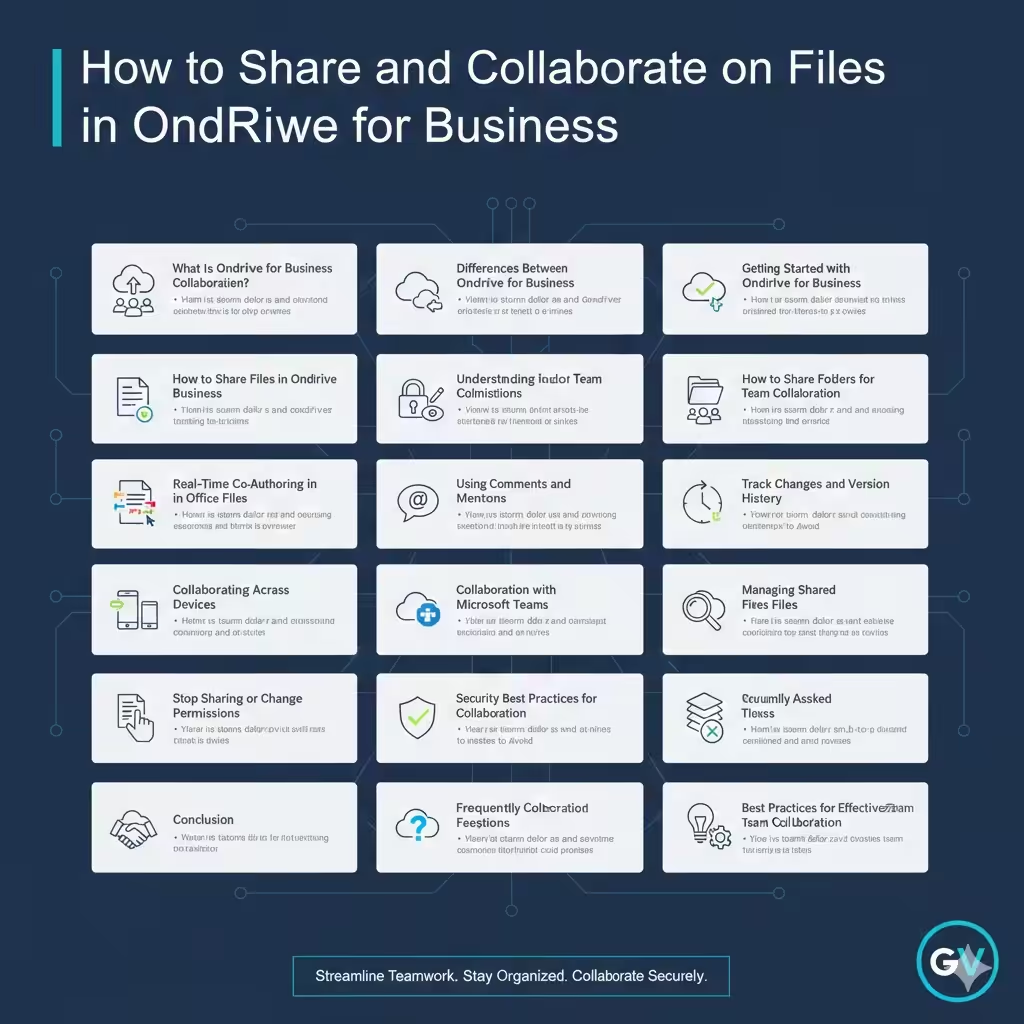
How to Share and Collaborate on Files in OneDrive for Business
OneDrive for Business is a powerful cloud storage and collaboration service included with Microsoft 365. It allows individuals and teams to store files securely, access them from anywhere, and work together in real time. Unlike personal OneDrive, OneDrive for Business is designed specifically for professional environments, offering stronger security, sharing controls, and integration with Microsoft apps such as Word, Excel, PowerPoint, and Teams.
Effective collaboration in OneDrive for Business can significantly improve productivity, reduce version conflicts, and simplify teamwork. This guide explains how collaboration works, how to share files and folders correctly, and how to use built-in tools to work with others efficiently.
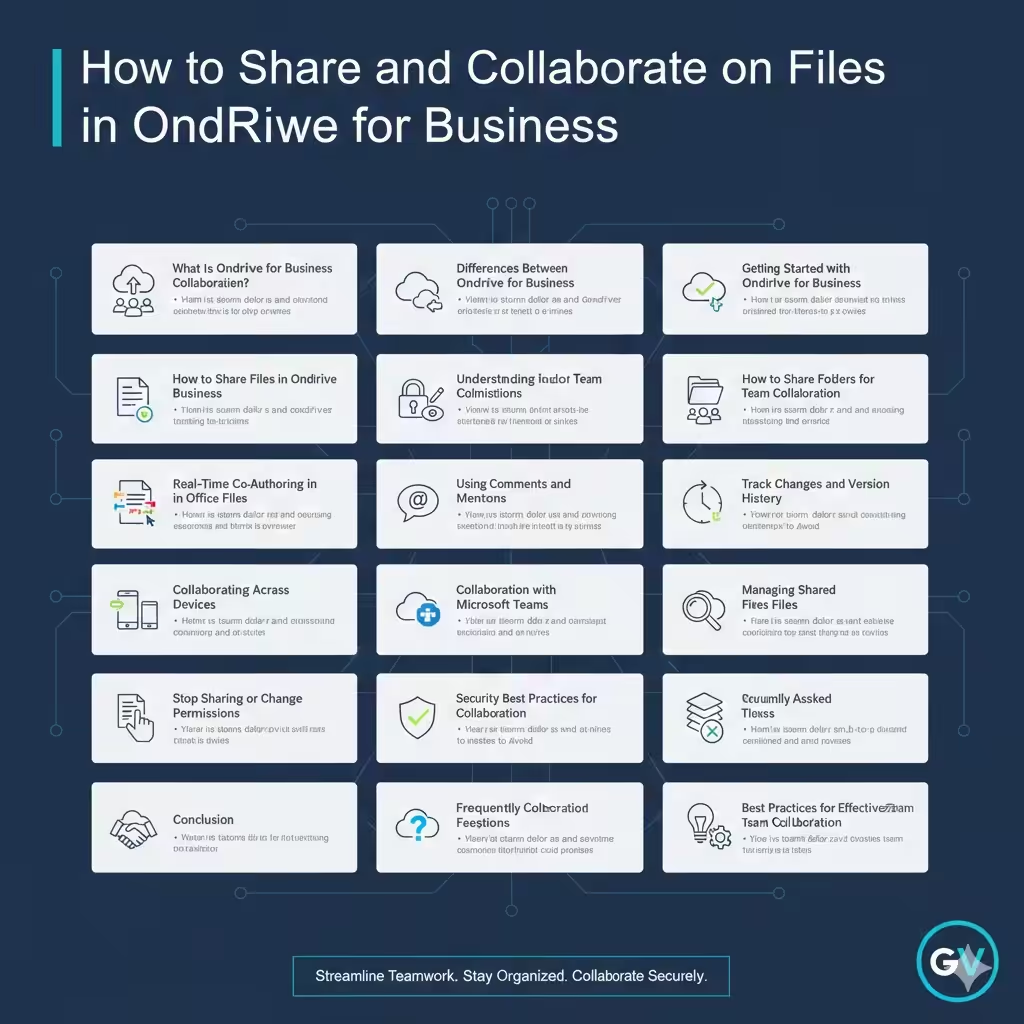
What Is OneDrive for Business Collaboration?
Collaboration in OneDrive for Business means multiple users can access, edit, comment on, and manage the same files without constantly sending email attachments.
Key collaboration features include:
- Real-time co-authoring
- File and folder sharing
- Version history
- Comments and mentions
- Permission management
These features make OneDrive for Business suitable for both small teams and large organizations.
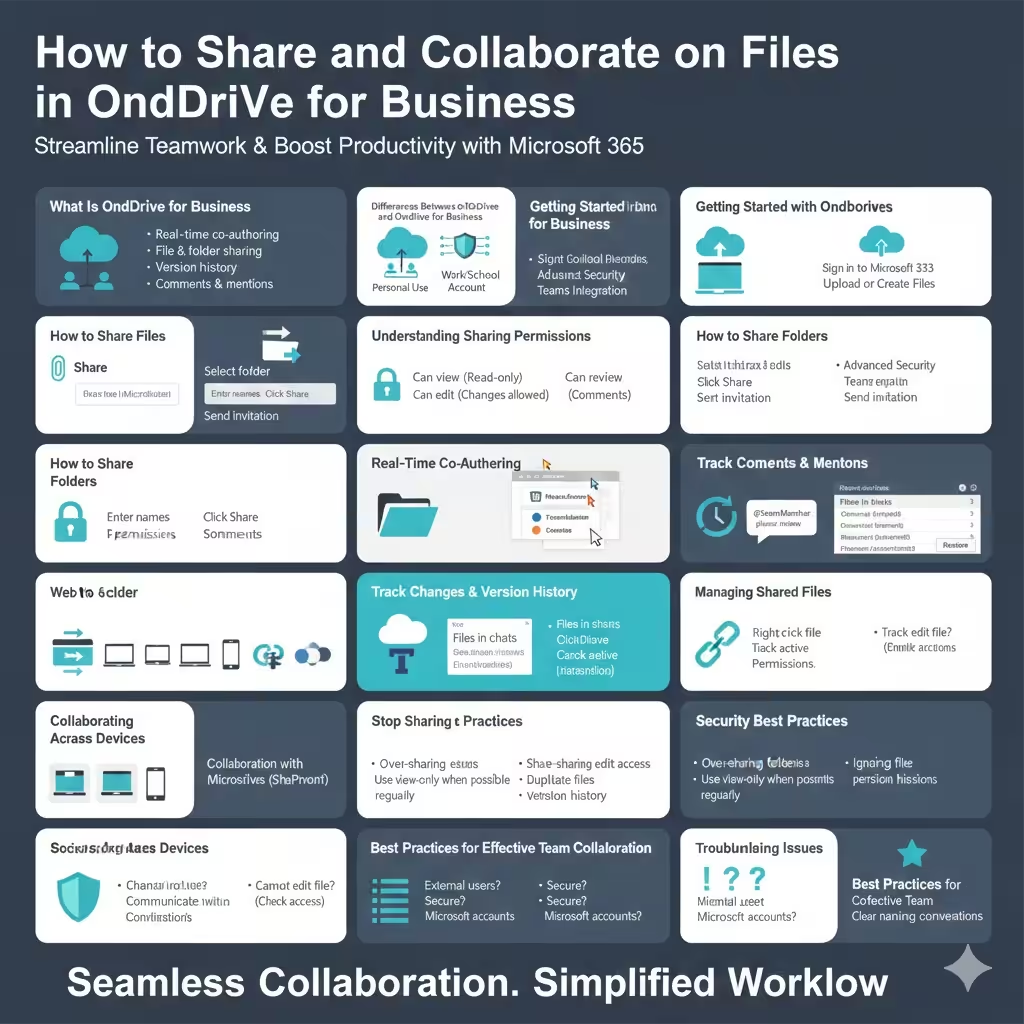
Differences Between OneDrive and OneDrive for Business
Understanding the difference helps avoid confusion.
- OneDrive is for personal use
- OneDrive for Business is linked to a work or school account
- Business version includes advanced security and admin controls
- Integration with SharePoint and Microsoft Teams
While both platforms look similar, collaboration features are more robust in OneDrive for Business.
Getting Started with OneDrive for Business
Before collaborating, ensure your account is ready.
Access OneDrive for Business
- Sign in to Microsoft 365 using your work account
- Select OneDrive from the app launcher
- Upload or create files
Your files are now stored securely in the cloud and ready to share.
How to Share Files in OneDrive for Business
Sharing files is the foundation of collaboration.
Share a File Step by Step
- Select a file
- Click Share
- Enter names or email addresses
- Choose permission level
- Click Send
Recipients receive a link to access the file.
Understanding Sharing Permissions
Permissions control what others can do.
Common permission options:
- Can view: Read-only access
- Can edit: Allows changes
- Can review: Add comments without editing
Always choose the least permissive option needed.
How to Share Folders for Team Collaboration
Sharing folders is ideal for ongoing projects.
Folder Sharing Steps
- Select a folder
- Click Share
- Set permissions
- Send the invitation
Any files added to the folder inherit the same permissions.
Real-Time Co-Authoring in Office Files
OneDrive for Business allows multiple users to edit the same document simultaneously.
How Co-Authoring Works
- Open a shared Word, Excel, or PowerPoint file
- Changes appear in real time
- Colored cursors show who is editing
This eliminates the need for multiple file versions.
Using Comments and Mentions
Comments improve communication without altering content.
Add Comments
- Select text or cell
- Click New Comment
- Type your message
Use Mentions
- Type @ followed by a name
- The person receives a notification
Mentions help draw attention to specific feedback.
Track Changes and Version History
Mistakes happen, and OneDrive makes recovery easy.
View Version History
- Right-click a file
- Select Version history
- Restore a previous version if needed
Version history protects against accidental deletions or overwrites.
Collaborating Across Devices
OneDrive for Business works across multiple platforms.
- Web browser
- Windows and macOS apps
- Mobile devices
Changes sync automatically, ensuring everyone sees the latest version.
Collaboration with Microsoft Teams
OneDrive for Business integrates seamlessly with Teams.
How Teams Uses OneDrive
- Files shared in chats are stored in OneDrive
- Channel files are stored in SharePoint
This integration centralizes file access and collaboration.
Managing Shared Files
Over time, shared files can accumulate.
View Shared Files
- Go to Shared in OneDrive
- See files shared with you and by you
This helps track active collaborations.
Stop Sharing or Change Permissions
You remain in control of your files.
Modify Sharing Settings
- Right-click the file
- Select Manage access
- Change or remove permissions
This is useful when projects end.
Security Best Practices for Collaboration
Protecting data is essential.
Best practices include:
- Share only with trusted users
- Use view-only access when possible
- Review sharing permissions regularly
Security settings help prevent data leaks.
Common Collaboration Mistakes to Avoid
Avoid these issues:
- Sharing files with edit access unnecessarily
- Creating duplicate files instead of co-authoring
- Ignoring version history
Proper habits improve teamwork.
Troubleshooting Collaboration Issues
Changes Not Syncing
- Check internet connection
- Refresh the browser
- Confirm permissions
Cannot Edit a File
- Verify edit access
- Ensure the file is not checked out
Most issues are resolved quickly.
Frequently Asked Questions
Can External Users Collaborate?
Yes, if allowed by your organization’s policies.
Is Collaboration Secure?
Yes, OneDrive for Business uses enterprise-grade security.
Do Collaborators Need Microsoft Accounts?
External users may need to verify identity depending on settings.
Best Practices for Effective Team Collaboration
To maximize productivity:
- Use shared folders for projects
- Communicate with comments
- Maintain clear naming conventions
Organization improves efficiency.
Conclusion
Collaborating in OneDrive for Business is a simple yet powerful way to work together on documents, spreadsheets, and presentations in real time. With features like file sharing, permission control, co-authoring, comments, and version history, teams can collaborate efficiently without confusion or duplication.
By following the steps and best practices in this guide, you can confidently use OneDrive for Business to streamline teamwork, improve communication, and keep your files secure and organized.