


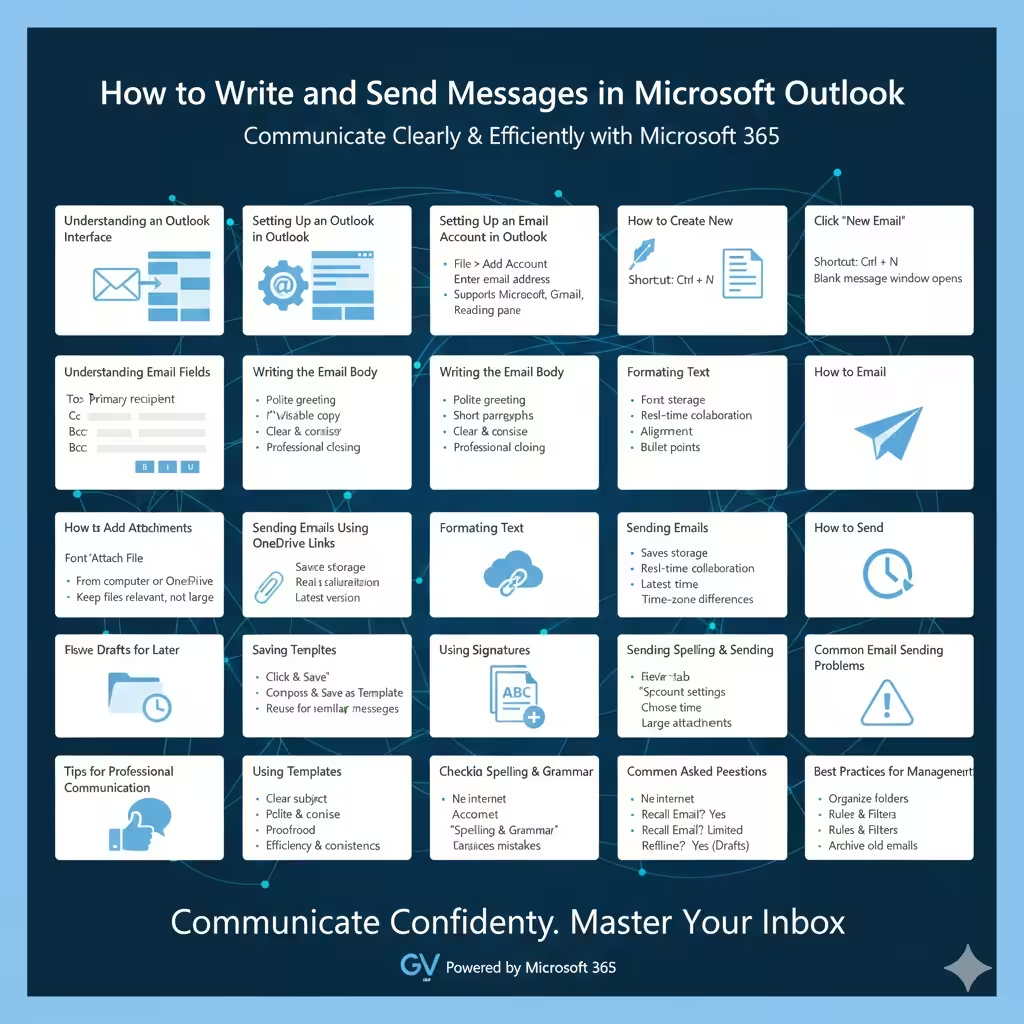
How to Write and Send Messages in Microsoft Outlook
Microsoft Outlook is one of the most widely used email clients in the world, especially in business and professional environments. It is part of the Microsoft 365 suite and provides powerful tools not only for email communication but also for calendar management, contacts, and task organization.
Knowing how to properly create and send emails in Outlook is an essential skill for students, office workers, and anyone who relies on email for daily communication. This guide explains everything you need to know—from composing a basic email to using advanced options—so you can communicate clearly, professionally, and efficiently.
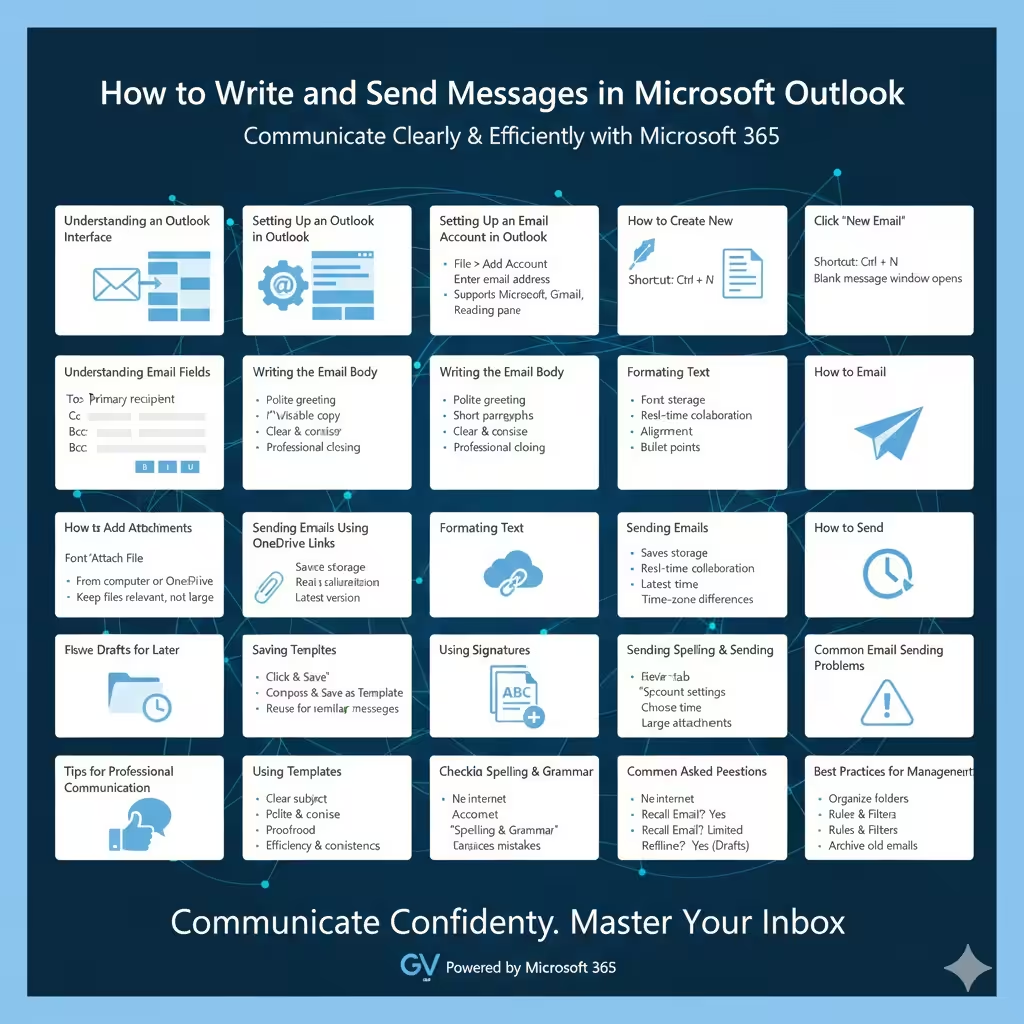
Understanding the Outlook Interface
Before sending emails, it helps to understand Outlook’s layout.
Key components include:
- Navigation pane for Mail, Calendar, and Contacts
- Folder list such as Inbox, Sent Items, and Drafts
- Reading pane to view messages
- Ribbon menu with email tools
Familiarity with the interface makes email creation faster and easier.
Setting Up an Email Account in Outlook
To send emails, Outlook must be connected to an email account.
Add an Email Account
- Open Outlook
- Go to File
- Select Add Account
- Enter your email address
- Follow the on-screen instructions
Outlook supports Microsoft, Gmail, Yahoo, and many business email providers.
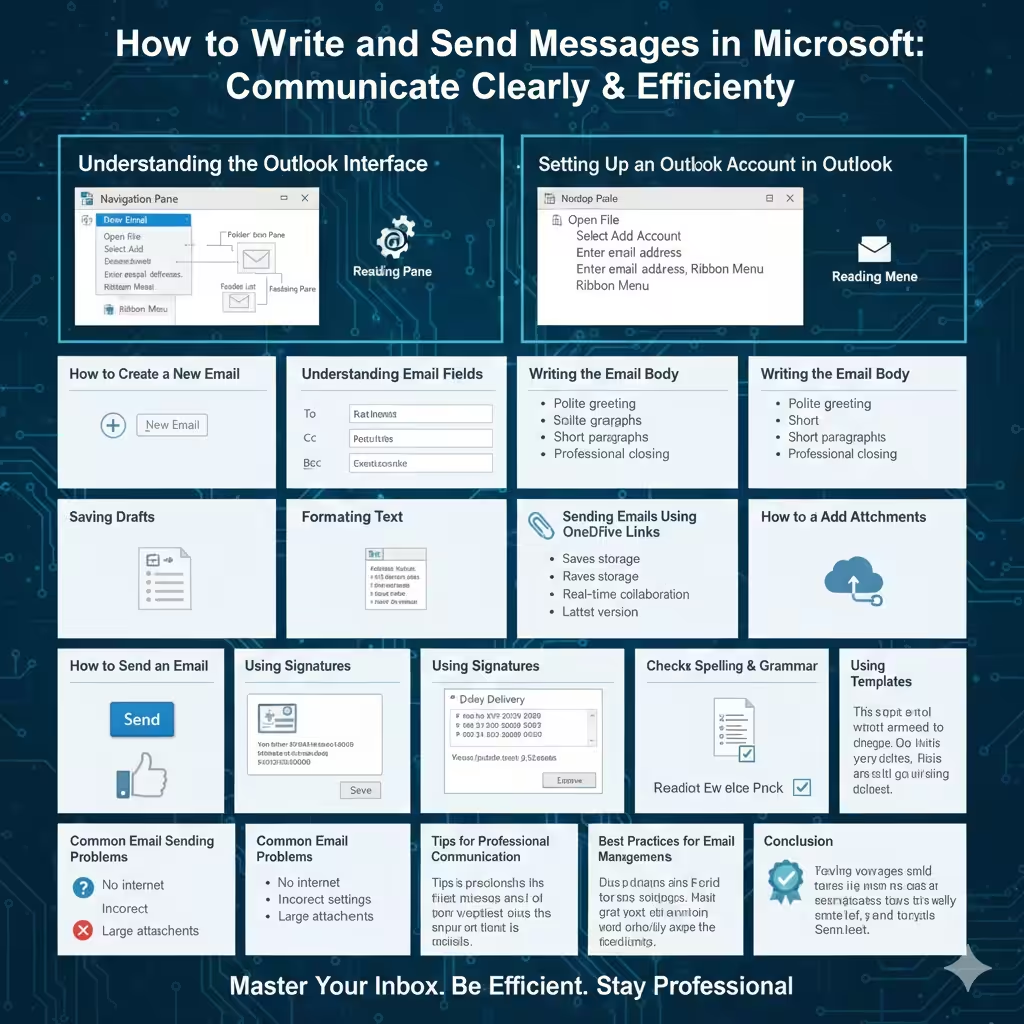
How to Create a New Email in Outlook
Creating a new email is simple.
Start a New Email Message
- Click New Email on the Home tab
- Or press Ctrl + N
A blank message window will open, ready for editing.
Understanding Email Fields in Outlook
Each email contains important fields.
To Field
This is where you enter the recipient’s email address.
Cc and Bcc Fields
- Cc sends a visible copy to others
- Bcc sends a hidden copy
These fields are useful for group communication.
Subject Line
The subject summarizes the email content. Clear subject lines improve readability and response rates.
Writing the Email Body
The body is where your message is written.
Best Practices for Writing Emails
- Start with a polite greeting
- Keep paragraphs short
- Be clear and concise
- End with a professional closing
Outlook supports rich text formatting for better presentation.
Formatting Text in Outlook Emails
Outlook provides formatting tools similar to Microsoft Word.
Common Formatting Options
- Change font and size
- Apply bold or italic text
- Adjust alignment
- Use bullet points
Proper formatting improves readability.
How to Add Attachments to an Email
Attachments allow you to send files along with messages.
Attach a File
- Click Attach File
- Choose a file from your computer or OneDrive
Ensure attachments are relevant and not excessively large.
Sending Emails Using OneDrive Links
Instead of attaching large files, you can share links.
Benefits of OneDrive Attachments
- Saves storage space
- Allows real-time collaboration
- Ensures recipients access the latest version
This is especially useful for business documents.
How to Send an Email in Outlook
Once the message is ready:
- Review content and recipients
- Click Send
The email will appear in the Sent Items folder.
Saving Drafts for Later
If you are not ready to send:
- Click Save
- Close the message window
Drafts are stored automatically and can be edited later.
Using Signatures in Outlook Emails
Signatures add professionalism and consistency.
Create an Email Signature
- Go to File > Options
- Select Mail
- Click Signatures
- Create and save your signature
Signatures can include names, titles, and contact details.
Scheduling Emails to Send Later
Outlook allows delayed delivery.
Schedule an Email
- Click Options in the message window
- Select Delay Delivery
- Choose a delivery time
This feature is useful for time-zone differences.
Using Templates for Repeated Emails
Templates save time when sending similar messages.
Create an Email Template
- Compose an email
- Save it as a template
- Reuse it when needed
Templates improve efficiency and consistency.
Checking Spelling and Grammar
Outlook includes built-in spelling tools.
- Click Review
- Use Spelling & Grammar
Reviewing emails reduces mistakes and miscommunication.
Common Email Sending Problems
Emails Not Sending
Possible causes include:
- No internet connection
- Incorrect account settings
- Large attachments
Check the Outbox for unsent messages.
Emails Going to Spam
Use clear subject lines and avoid excessive formatting.
Tips for Professional Email Communication
To communicate effectively:
- Use a clear subject
- Be polite and concise
- Avoid unnecessary attachments
- Proofread before sending
Professional habits build credibility.
Frequently Asked Questions
Can I Send Emails from Multiple Accounts?
Yes. Outlook supports multiple accounts in one interface.
Can I Recall a Sent Email?
Email recall is limited and only works in certain environments.
Does Outlook Work Offline?
You can draft emails offline and send them once connected.
Best Practices for Outlook Email Management
Good habits improve productivity.
- Organize folders
- Use rules and filters
- Archive old emails
Organization helps manage large inboxes.
Conclusion
Creating and sending emails in Outlook is a fundamental skill that supports professional and personal communication. With features such as rich formatting, attachments, signatures, templates, and scheduling, Outlook provides everything you need to write clear and effective emails.
By following the steps and best practices in this guide, you can confidently create, format, and send emails in Outlook while maintaining professionalism and efficiency in every message.