


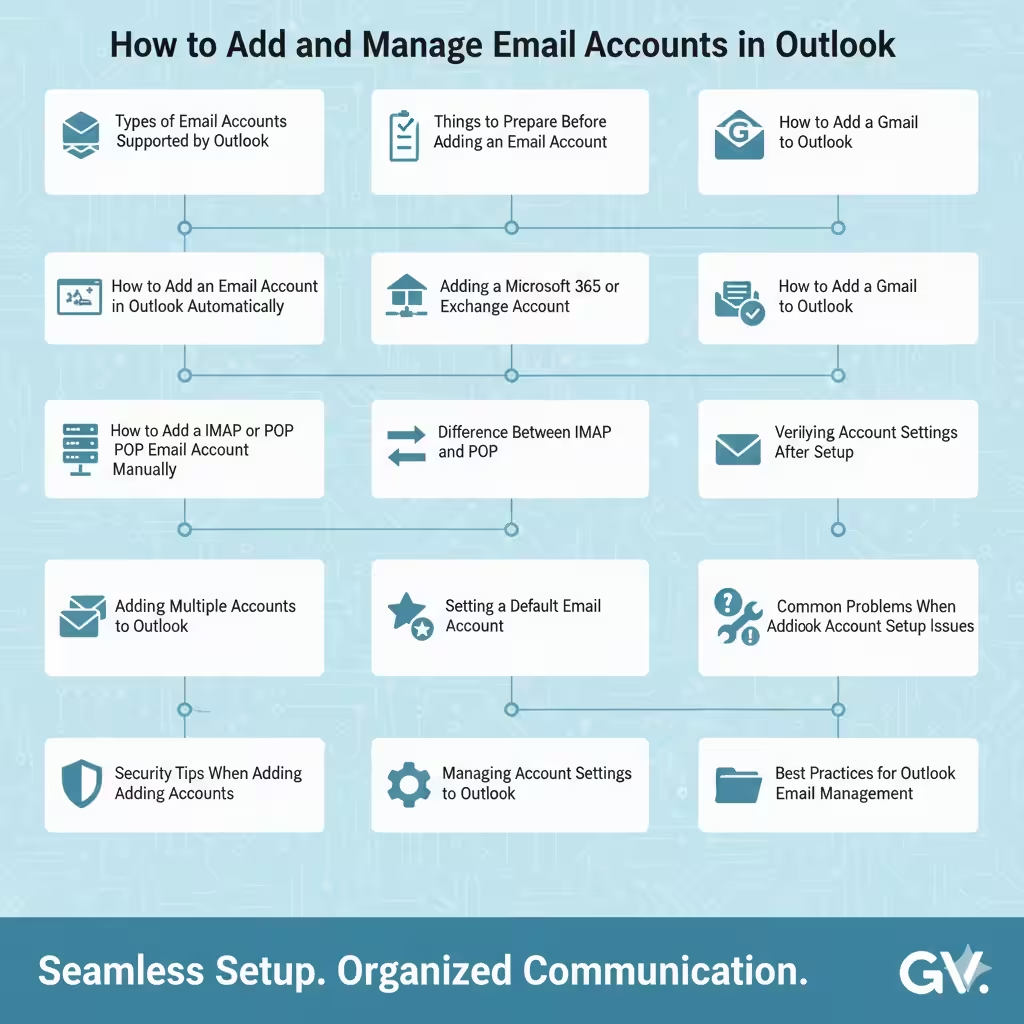
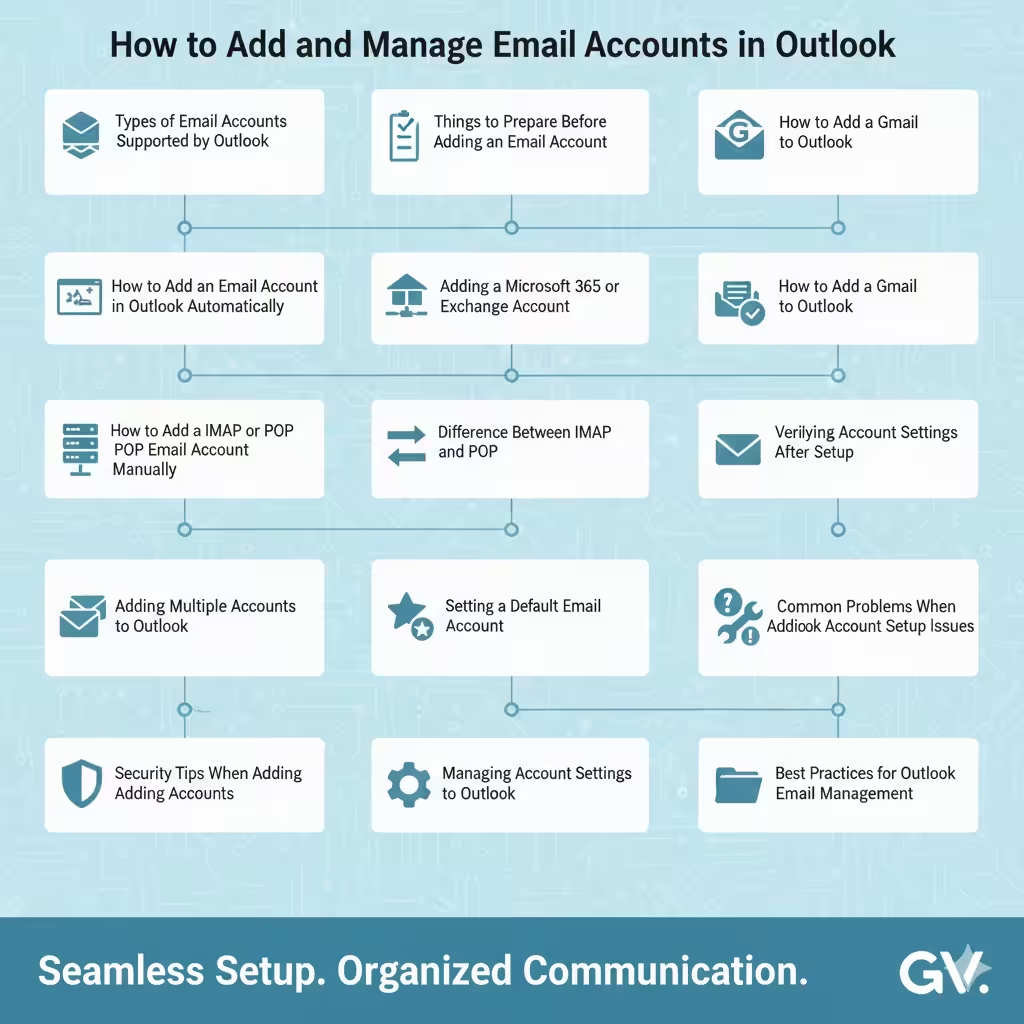
How to Add and Manage Email Accounts in Outlook
Microsoft Outlook is a powerful email client widely used in both personal and professional environments. It supports multiple email services and allows users to manage emails, calendars, contacts, and tasks in one centralized application. Before you can send or receive emails in Outlook, you must first add and configure an email account.
Adding an email account to Microsoft Outlook is usually straightforward, but the exact steps may vary depending on the email provider, Outlook version, and account type. This guide provides a complete, step-by-step explanation of how to add an email account to Outlook, covering common scenarios and troubleshooting tips to ensure a smooth setup experience.
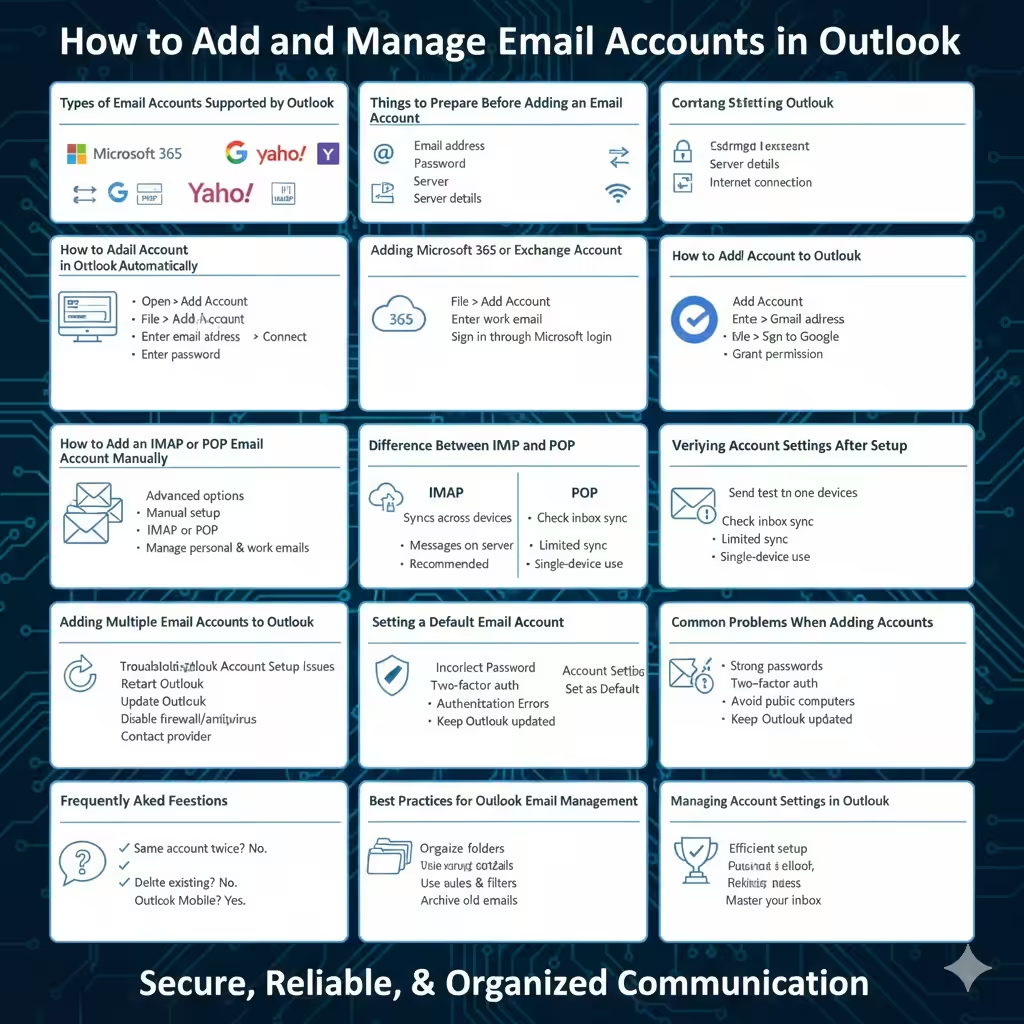
Types of Email Accounts Supported by Outlook
Outlook supports a wide range of email account types, making it flexible for different users.
Common account types include:
- Microsoft Exchange accounts
- Microsoft 365 work or school accounts
- Outlook.com and Hotmail accounts
- Gmail accounts
- Yahoo Mail accounts
- POP and IMAP email accounts
Understanding your account type helps Outlook configure the correct settings automatically.
Things to Prepare Before Adding an Email Account
Before starting the setup process, make sure you have the necessary information.
You may need:
- Your email address
- Your email password
- Incoming and outgoing mail server details (for POP/IMAP)
- Stable internet connection
Most modern email providers allow automatic configuration, but manual details may be required in some cases.
How to Add an Email Account in Outlook Automatically
Automatic setup is the easiest and most common method.
Steps to Add an Account Automatically
- Open Microsoft Outlook
- Click File in the top-left corner
- Select Add Account
- Enter your email address
- Click Connect
- Enter your password when prompted
- Follow the on-screen instructions
Outlook will automatically detect server settings and complete the setup.
Adding a Microsoft 365 or Exchange Account
Microsoft 365 and Exchange accounts integrate seamlessly with Outlook.
Setup Process
- Open Outlook
- Go to File > Add Account
- Enter your work or school email address
- Sign in through the Microsoft login page
Once added, Outlook automatically syncs emails, calendars, and contacts.
How to Add a Gmail Account to Outlook
Outlook supports Gmail accounts with secure authentication.
Add Gmail to Outlook
- Open Outlook
- Click Add Account
- Enter your Gmail address
- Sign in to your Google account
- Grant permission for Outlook access
Your Gmail messages will begin syncing automatically.
How to Add an IMAP or POP Email Account Manually
Some email providers require manual configuration.
When Manual Setup Is Needed
- Custom domain email
- Older email services
- Providers without automatic detection
Manual Setup Steps
- Open Outlook
- Click File > Add Account
- Choose Advanced options
- Select Let me set up my account manually
- Choose IMAP or POP
- Enter server information
- Click Next and complete setup
Manual setup gives you full control over server settings.
Difference Between IMAP and POP
Choosing the right protocol is important.
IMAP
- Syncs emails across devices
- Messages remain on the server
- Recommended for most users
POP
- Downloads emails to one device
- Limited synchronization
- Suitable for single-device use
IMAP is generally the better option for modern workflows.
Verifying Account Settings After Setup
Once the account is added, verify that it works correctly.
Test Email Sending and Receiving
- Send a test email
- Check inbox synchronization
- Confirm folders appear correctly
Early testing helps identify issues before daily use.
Adding Multiple Email Accounts to Outlook
Outlook allows multiple accounts in one profile.
Add Another Account
- Go to File > Add Account
- Repeat the setup process
You can manage personal and work emails together efficiently.
Setting a Default Email Account
When multiple accounts are added, choose a default.
Set Default Account
- Go to Account Settings
- Select Account Settings again
- Choose an account
- Click Set as Default
This account will be used for new emails by default.
Common Problems When Adding Email Accounts
Incorrect Password
Ensure the password is correct and check for caps lock.
Authentication Errors
Some providers require app-specific passwords or security approvals.
Server Connection Issues
Verify server addresses and ports for POP/IMAP accounts.
Most issues can be resolved by double-checking account details.
Troubleshooting Outlook Account Setup Issues
If problems persist:
- Restart Outlook
- Update Outlook to the latest version
- Temporarily disable firewall or antivirus software
- Contact your email provider or IT administrator
These steps often resolve configuration conflicts.
Security Tips When Adding Email Accounts
Protect your account and data.
Best practices include:
- Use strong passwords
- Enable two-factor authentication
- Avoid public computers for setup
- Keep Outlook updated
Security measures help prevent unauthorized access.
Managing Account Settings in Outlook
After setup, Outlook allows customization.
You can:
- Change sync frequency
- Adjust server settings
- Remove or re-add accounts
These options provide flexibility as needs change.
Frequently Asked Questions
Can I Add the Same Email Account Twice?
Outlook does not support duplicate accounts in the same profile.
Will Adding an Account Delete Existing Emails?
No. Existing emails remain intact.
Can I Add Accounts to Outlook Mobile?
Yes. Outlook mobile supports similar setup steps.
Best Practices for Outlook Email Management
To maintain efficiency:
- Label accounts clearly
- Organize folders
- Archive old messages
Good organization improves productivity.
Conclusion
Adding an email account to Microsoft Outlook is an essential step toward efficient email management. Whether you are setting up a Microsoft 365 account, Gmail, or a custom IMAP or POP account, Outlook provides flexible options to accommodate different email services.
By following the step-by-step instructions and best practices in this guide, you can confidently add and manage one or multiple email accounts in Outlook while ensuring secure, reliable, and organized communication.