


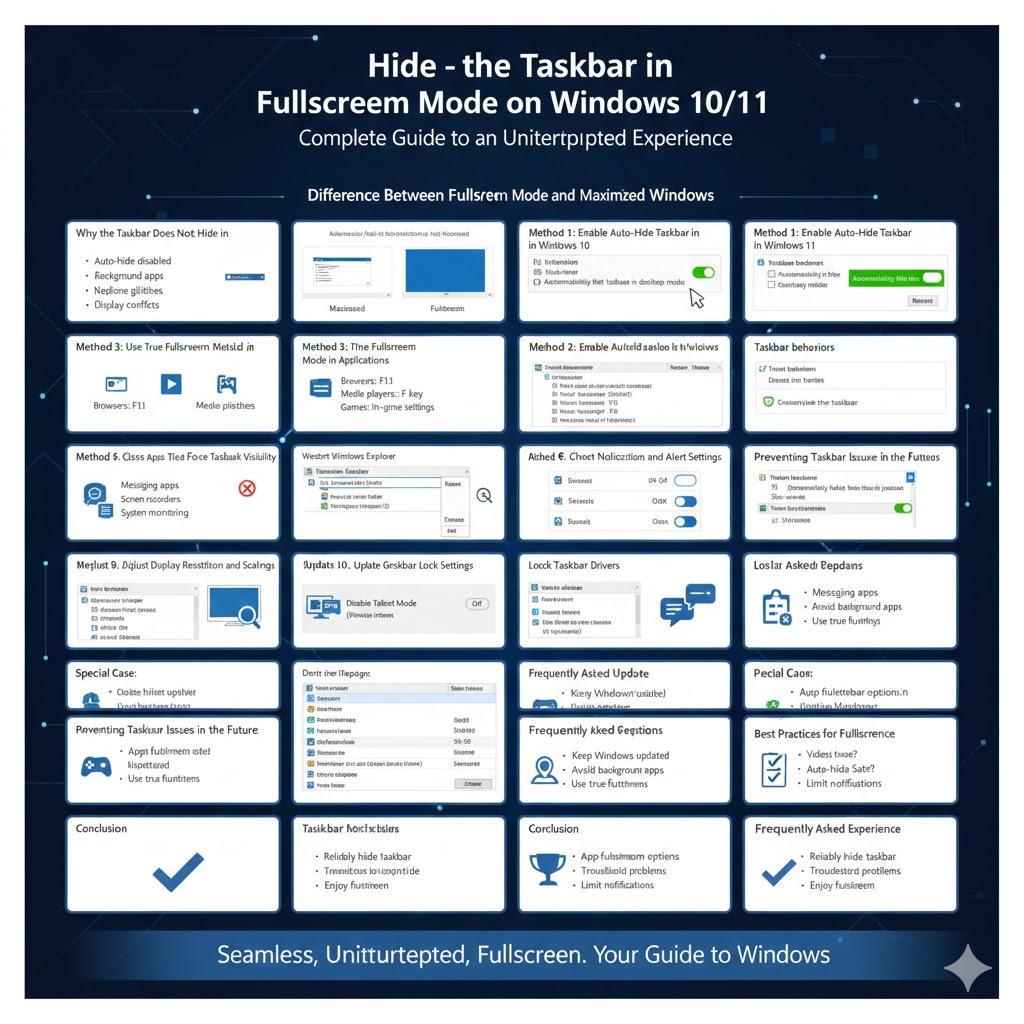
Hide the Taskbar in Fullscreen Mode on Windows 10/11 (Complete Guide)
The Windows taskbar is an essential part of the operating system, providing quick access to apps, system icons, and notifications. However, there are many situations where the taskbar becomes distracting, especially when watching videos, playing games, giving presentations, or working in fullscreen applications.
Many users experience an issue where the taskbar refuses to hide in fullscreen mode, even though an app is running in full display. This guide explains how to hide the taskbar properly in fullscreen on both Windows 10 and Windows 11. It covers built-in settings, common problems, and effective fixes to ensure an uninterrupted fullscreen experience.
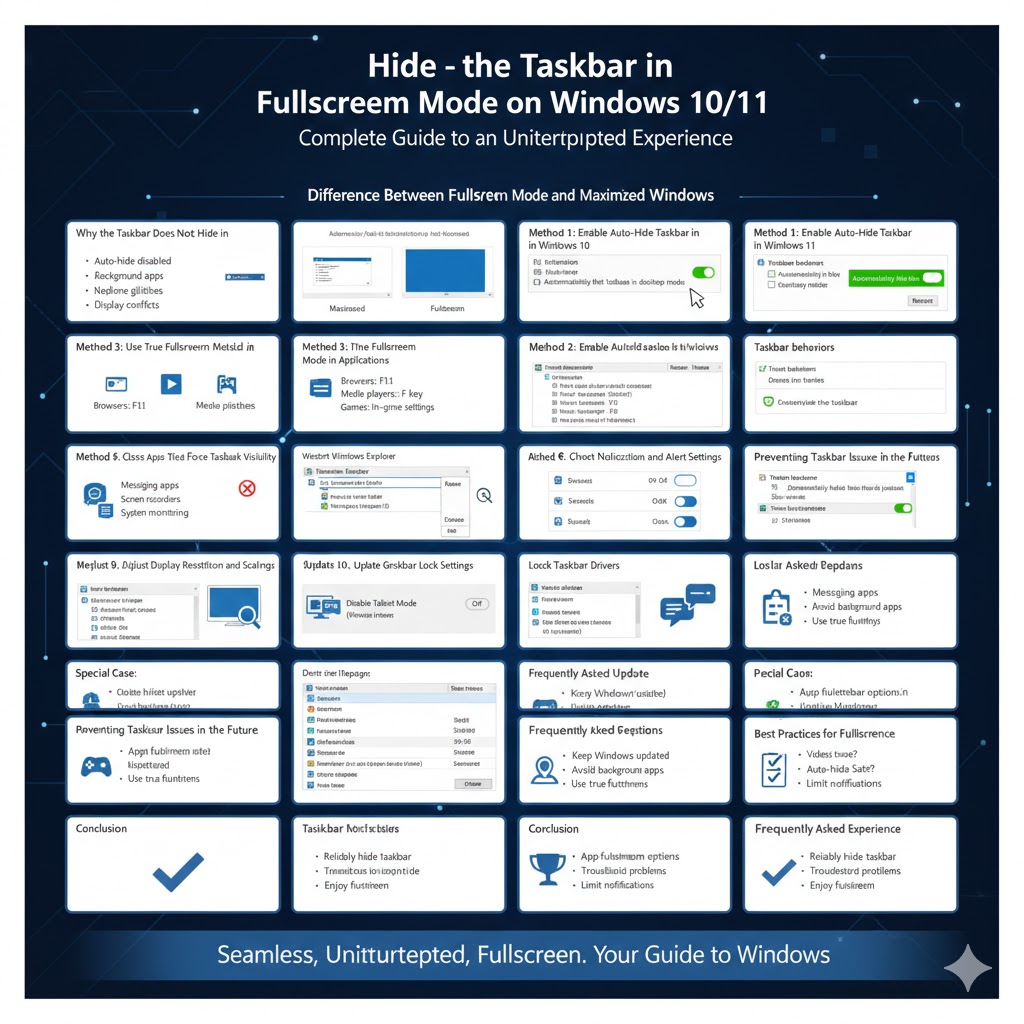
Why the Taskbar Does Not Hide in Fullscreen
Before applying fixes, it is helpful to understand why the taskbar may stay visible.
Common reasons include:
- Auto-hide taskbar option is disabled
- Background apps forcing taskbar visibility
- Windows Explorer glitches
- Notification pop-ups or system alerts
- Display or resolution conflicts
Identifying the cause makes troubleshooting faster and more effective.
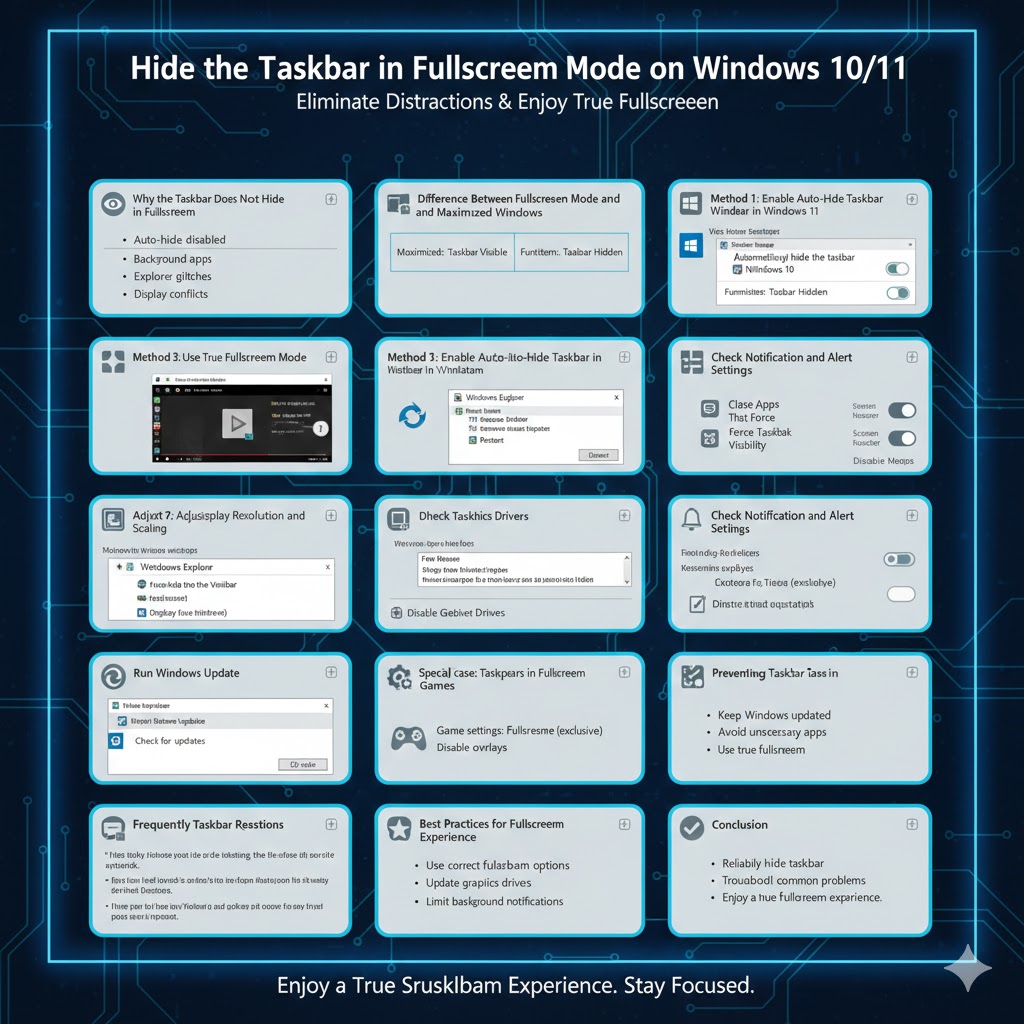
Difference Between Fullscreen Mode and Maximized Windows
Not all fullscreen views behave the same way.
A maximized window fills the screen but still allows the taskbar to remain visible. True fullscreen mode hides the taskbar entirely. Some apps, browsers, and games use maximized windows instead of real fullscreen.
Understanding this distinction helps determine whether the issue is a system problem or an application limitation.
Method 1: Enable Auto-Hide Taskbar in Windows 10
Auto-hide is the simplest way to hide the taskbar.
Steps to Enable Auto-Hide in Windows 10
- Right-click on the taskbar
- Select Taskbar settings
- Turn on Automatically hide the taskbar in desktop mode
- If using a tablet, enable tablet mode option as well
The taskbar will now hide and appear only when you move the mouse to the screen edge.
Method 2: Enable Auto-Hide Taskbar in Windows 11
Windows 11 uses a slightly different interface.
Steps to Enable Auto-Hide in Windows 11
- Right-click the taskbar
- Choose Taskbar settings
- Expand Taskbar behaviors
- Check Automatically hide the taskbar
This setting applies instantly without requiring a restart.
Method 3: Use True Fullscreen Mode in Applications
Some apps require a dedicated fullscreen command.
Common Fullscreen Shortcuts
- Browsers: Press F11
- Media players: Use fullscreen icon or F key
- Games: Check in-game display settings
Using true fullscreen ensures the taskbar stays hidden.
Method 4: Restart Windows Explorer
A frozen Explorer process can prevent the taskbar from hiding.
Restart Explorer Process
- Press Ctrl + Shift + Esc to open Task Manager
- Find Windows Explorer
- Right-click and select Restart
This refreshes the taskbar and resolves temporary glitches.
Method 5: Close Apps That Force Taskbar Visibility
Some applications keep the taskbar active.
Common culprits include:
- Messaging apps
- Screen recording software
- System monitoring tools
Close unnecessary background apps and test fullscreen again.
Method 6: Check Notification and Alert Settings
Persistent notifications can block auto-hide.
Reduce Notification Interruptions
- Open Settings
- Go to System > Notifications
- Disable notifications for unnecessary apps
Fewer alerts mean fewer interruptions to fullscreen mode.
Method 7: Adjust Display Resolution and Scaling
Incorrect display settings may affect fullscreen behavior.
Check Display Settings
- Open Settings
- Go to System > Display
- Use recommended resolution and scaling
Incorrect scaling can cause the taskbar to overlap apps.
Method 8: Update Graphics Drivers
Outdated drivers may cause display issues.
Update Graphics Drivers
- Right-click Start
- Select Device Manager
- Expand Display adapters
- Update your graphics driver
Updated drivers improve fullscreen compatibility.
Method 9: Disable Tablet Mode (Windows 10)
Tablet mode can affect taskbar behavior.
Turn Off Tablet Mode
- Open Settings
- Go to System > Tablet mode
- Disable tablet mode
Switching back to desktop mode often fixes taskbar issues.
Method 10: Check Taskbar Lock Settings
Locked taskbars may behave differently.
Unlock Taskbar
- Right-click the taskbar
- Ensure Lock the taskbar is unchecked
This allows Windows to manage taskbar behavior correctly.
Method 11: Run Windows Update
System bugs may affect fullscreen functionality.
Update Windows
- Open Settings
- Go to Windows Update
- Click Check for updates
Installing updates fixes known bugs and improves stability.
Special Case: Taskbar Appears in Fullscreen Games
Games sometimes run in borderless window mode.
Fix for Games
- Change display mode to Fullscreen (exclusive)
- Disable overlays (game launchers, screen recorders)
Exclusive fullscreen prevents taskbar overlap.
Preventing Taskbar Issues in the Future
Good habits reduce recurring problems.
- Keep Windows updated
- Avoid unnecessary background apps
- Use true fullscreen modes
Prevention ensures consistent behavior.
Frequently Asked Questions
Why Does the Taskbar Show Over Videos?
The video player may not be in true fullscreen mode.
Is Auto-Hide Safe to Use?
Yes. It does not affect system performance.
Does This Work on Multiple Monitors?
Yes, but taskbar settings apply individually per display.
Best Practices for Fullscreen Experience
For smooth fullscreen usage:
- Use correct app fullscreen options
- Keep display drivers updated
- Limit background notifications
These steps improve focus and usability.
Conclusion
Hiding the taskbar in fullscreen on Windows 10 and Windows 11 enhances productivity, immersion, and visual clarity. While the auto-hide feature usually works well, issues can arise due to background apps, system glitches, or incorrect display settings.
By following the methods outlined in this guide, you can reliably hide the taskbar, troubleshoot common problems, and enjoy a true fullscreen experience across apps, videos, and games. With proper configuration and maintenance, taskbar issues can be easily resolved and prevented.