


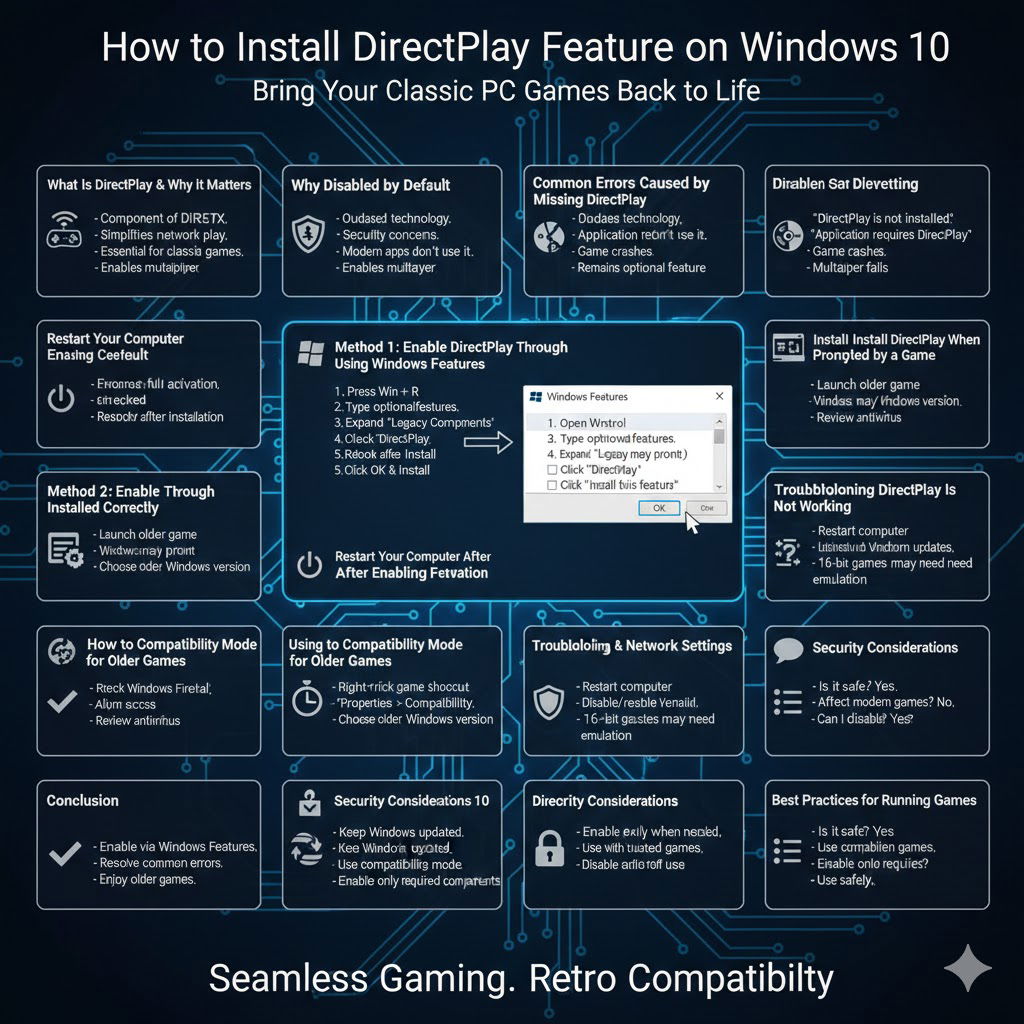
How to Install DirectPlay Feature on Windows 10
DirectPlay is a legacy Microsoft technology that many classic PC games still rely on to run correctly. If you have ever tried to launch an older game on Windows 10 and received an error message saying that DirectPlay is missing or not installed, you are not alone. This is a common issue, especially with games released in the late 1990s and early 2000s.
Although DirectPlay is no longer enabled by default, Windows 10 still includes it as an optional feature. This guide explains what DirectPlay is, why it is disabled, and how to get DirectPlay on Windows 10 safely and correctly. You will also learn how to troubleshoot common problems and improve compatibility when running older games.
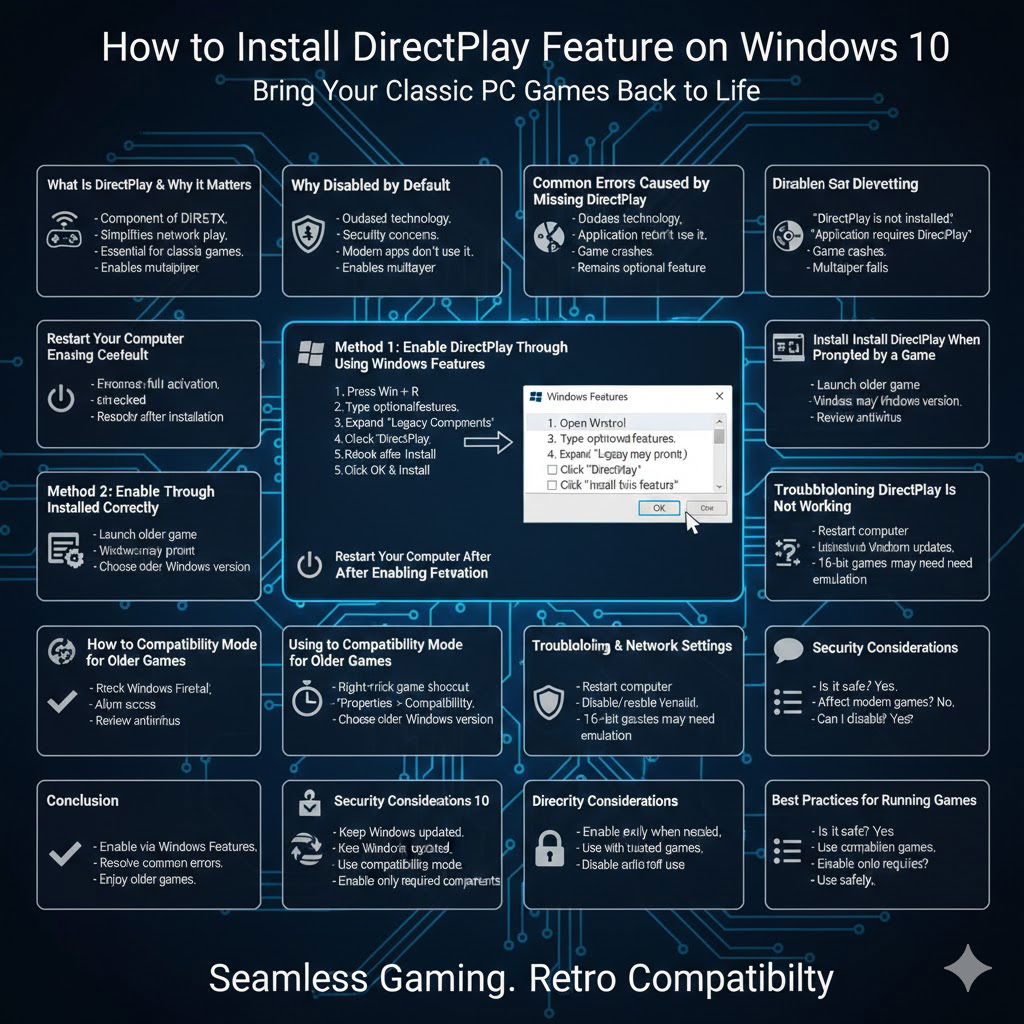
What Is DirectPlay and Why It Matters
DirectPlay is a component of Microsoft DirectX that was originally designed to simplify network communication for multiplayer games. It handled tasks such as session creation, player discovery, and data transmission over local networks or the internet.
Many classic games were built entirely around DirectPlay. Without it, these games cannot establish network connections or may fail to start at all. Even single-player games may require DirectPlay because it was deeply integrated into their game engines.
Why DirectPlay Is Disabled by Default in Windows 10
Microsoft disabled DirectPlay by default starting with newer versions of Windows for several important reasons.
First, DirectPlay is outdated and no longer actively maintained. Second, it relies on older networking technologies that are not aligned with modern security standards. Finally, most modern applications and games no longer depend on it.
Despite this, Microsoft kept DirectPlay available as an optional Windows feature to maintain backward compatibility with legacy software.
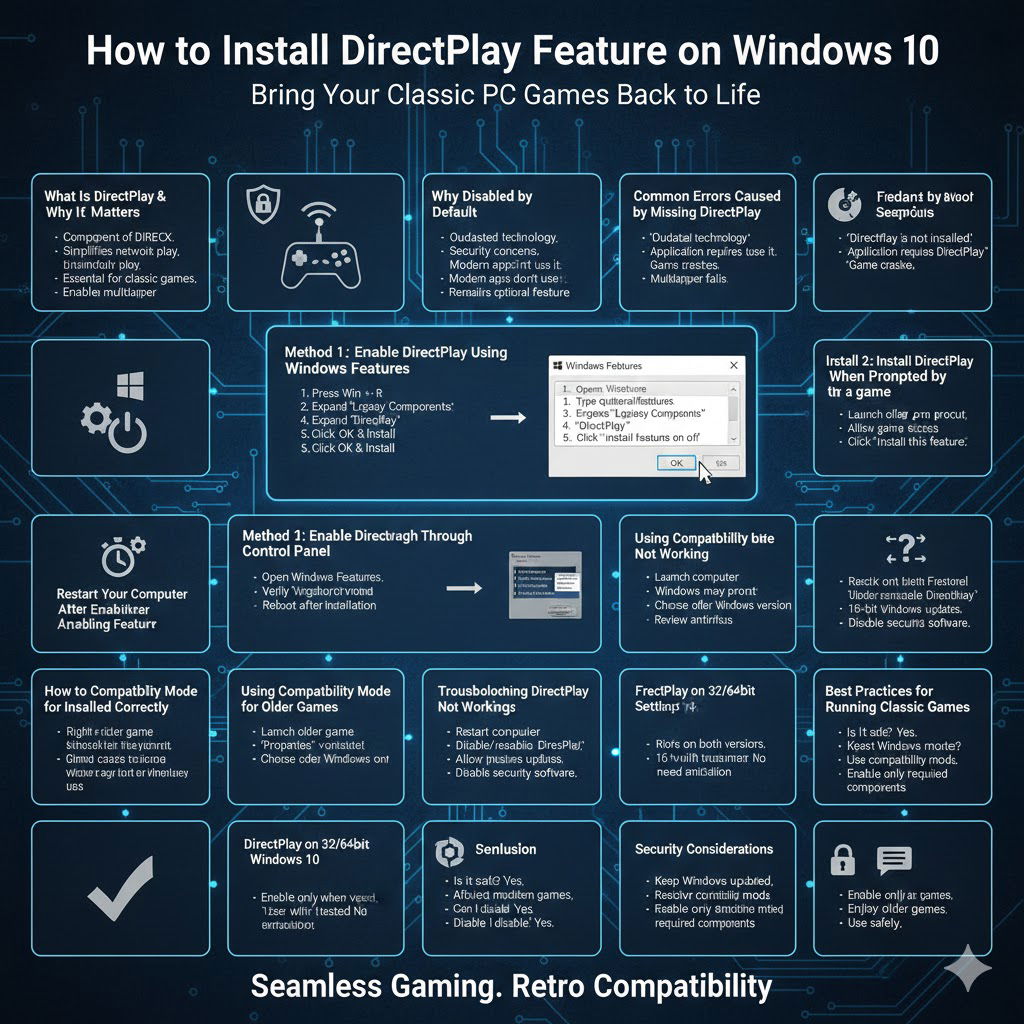
Common Errors Caused by Missing DirectPlay
When DirectPlay is not enabled, you may encounter various error messages.
Common examples include:
- “DirectPlay is not installed”
- “This application requires DirectPlay”
- Game crashes immediately after launch
- Multiplayer features not working
These errors typically appear when starting older games on Windows 10.
Method 1: Enable DirectPlay Using Windows Features
The easiest and most reliable way to get DirectPlay on Windows 10 is by enabling it through Windows Features.
Steps to Enable DirectPlay
- Press Windows + R to open the Run dialog
- Type optionalfeatures and press Enter
- In the Windows Features window, expand Legacy Components
- Check the box next to DirectPlay
- Click OK and wait for Windows to install the feature
Windows will automatically download and configure the necessary files.
Restart Your Computer After Enabling DirectPlay
While Windows does not always require a restart, rebooting your computer ensures that DirectPlay is fully activated and recognized by all applications.
After restarting, try launching your game again to confirm that the issue has been resolved.
Method 2: Enable DirectPlay Through Control Panel
If you prefer using the Control Panel, you can enable DirectPlay there as well.
Steps Using Control Panel
- Open Control Panel
- Select Programs
- Click Turn Windows features on or off
- Expand Legacy Components
- Enable DirectPlay
- Click OK
This method produces the same result as using the Run command.
Method 3: Install DirectPlay When Prompted by a Game
Some older games automatically detect that DirectPlay is missing.
When launching the game, Windows may display a prompt asking if you want to install DirectPlay. Simply click Install this feature, and Windows will enable it for you.
This is a convenient option if you prefer not to change system settings manually.
How to Check If DirectPlay Is Installed Correctly
After installation, you may want to confirm that DirectPlay is enabled.
- Open Windows Features again
- Expand Legacy Components
- Verify that DirectPlay remains checked
If it is selected, DirectPlay is active on your system.
Using Compatibility Mode for Older Games
Even with DirectPlay enabled, some games may still experience issues.
Enable Compatibility Mode
- Right-click the game’s executable file
- Select Properties
- Open the Compatibility tab
- Choose an older version of Windows, such as Windows XP or Windows 7
- Apply the changes
Compatibility mode helps older games run more smoothly on modern systems.
Run Games as Administrator
Permission restrictions can interfere with DirectPlay-based games.
Running the game as an administrator allows it to access required system components and network features.
- Right-click the game shortcut
- Select Run as administrator
This simple step often resolves launch issues.
Firewall and Network Settings for DirectPlay
DirectPlay uses network communication, especially for multiplayer games.
If you experience connection problems:
- Check Windows Firewall settings
- Ensure the game is allowed through the firewall
- Review third-party antivirus or security software
Blocking network access can prevent DirectPlay from working properly.
Troubleshooting DirectPlay Not Working on Windows 10
If DirectPlay still does not work after enabling it, try the following troubleshooting steps.
- Restart your computer
- Disable and re-enable DirectPlay
- Install the latest Windows updates
- Temporarily disable third-party security software
Most DirectPlay issues can be resolved with these actions.
DirectPlay on 32-bit and 64-bit Windows 10
DirectPlay works on both 32-bit and 64-bit versions of Windows 10. However, some extremely old games designed for 16-bit systems may not work regardless of DirectPlay availability.
In such cases, using emulation software or virtual machines may be necessary.
Security Considerations When Using DirectPlay
Because DirectPlay is a legacy component, it should be used with care.
Best practices include:
- Enable DirectPlay only when needed
- Use it only with trusted games
- Disable it again if you no longer require it
These precautions help minimize potential security risks.
Frequently Asked Questions
Is DirectPlay Safe to Enable on Windows 10?
Yes, it is generally safe when used for trusted legacy games.
Does DirectPlay Affect Modern Games?
No, modern games do not rely on DirectPlay and are unaffected.
Can I Disable DirectPlay After Using It?
Yes, you can disable it at any time through Windows Features.
Best Practices for Running Classic Games on Windows 10
To improve compatibility and stability:
- Keep Windows updated
- Use compatibility mode
- Enable only required legacy components
These steps help ensure older games run smoothly.
Conclusion
DirectPlay may be an outdated technology, but it remains essential for running many classic PC games on Windows 10. Although it is disabled by default, Windows makes it easy to enable DirectPlay through built-in features.
By following the step-by-step instructions in this guide, you can successfully get DirectPlay on Windows 10, resolve common errors, and enjoy older games without frustration. With proper configuration and basic security awareness, DirectPlay continues to be a valuable compatibility feature for legacy software.