


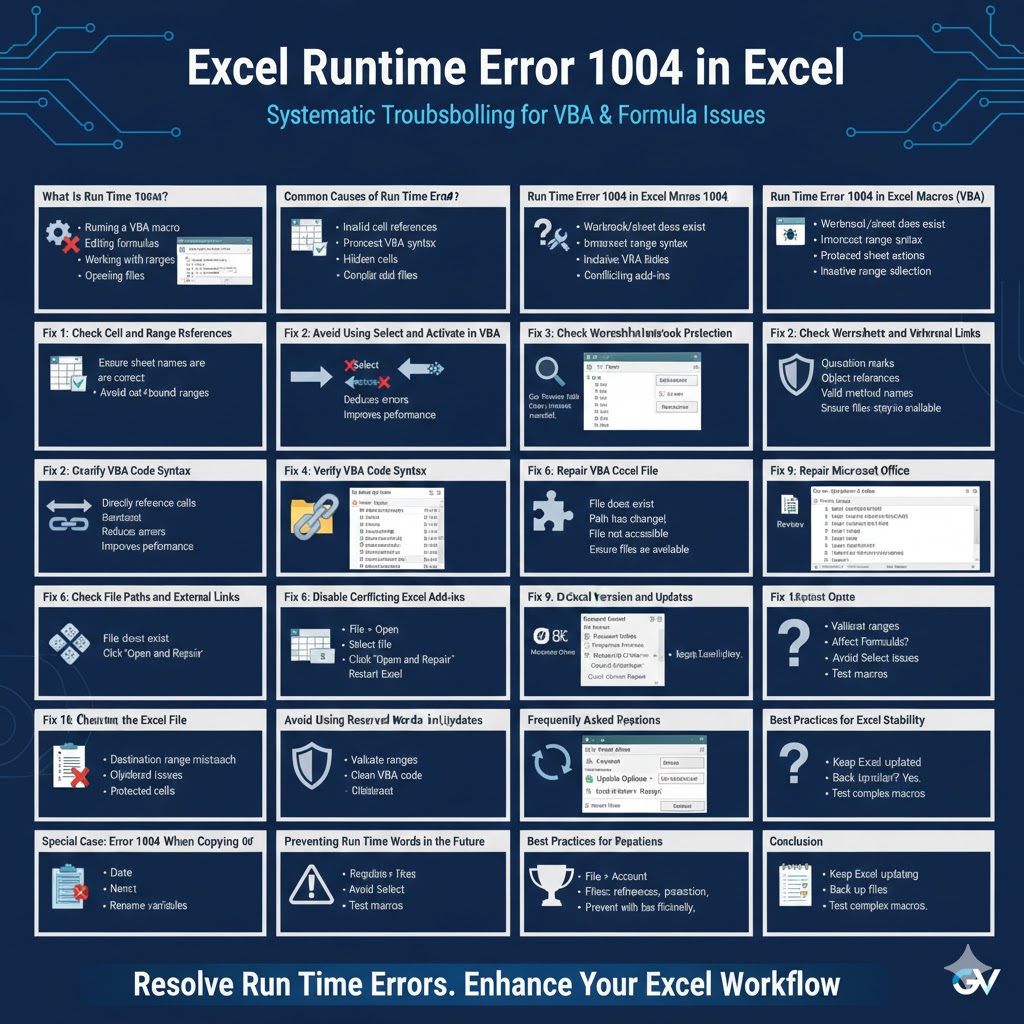
Excel Runtime Error 1004: Causes and Solutions
Microsoft Excel is a powerful tool for data analysis, automation, and reporting. However, users sometimes encounter errors that interrupt their workflow. One of the most common and frustrating issues is Run Time Error 1004. This error usually appears when working with formulas, macros (VBA), charts, ranges, or external data.
Run Time Error 1004 does not always have a single clear cause, which makes it confusing for both beginners and advanced users. This troubleshooting guide explains what Run Time Error 1004 is, why it occurs, and how to fix it using clear, practical solutions. Whether you are using Excel for daily tasks or advanced automation, this guide will help you resolve the issue effectively.
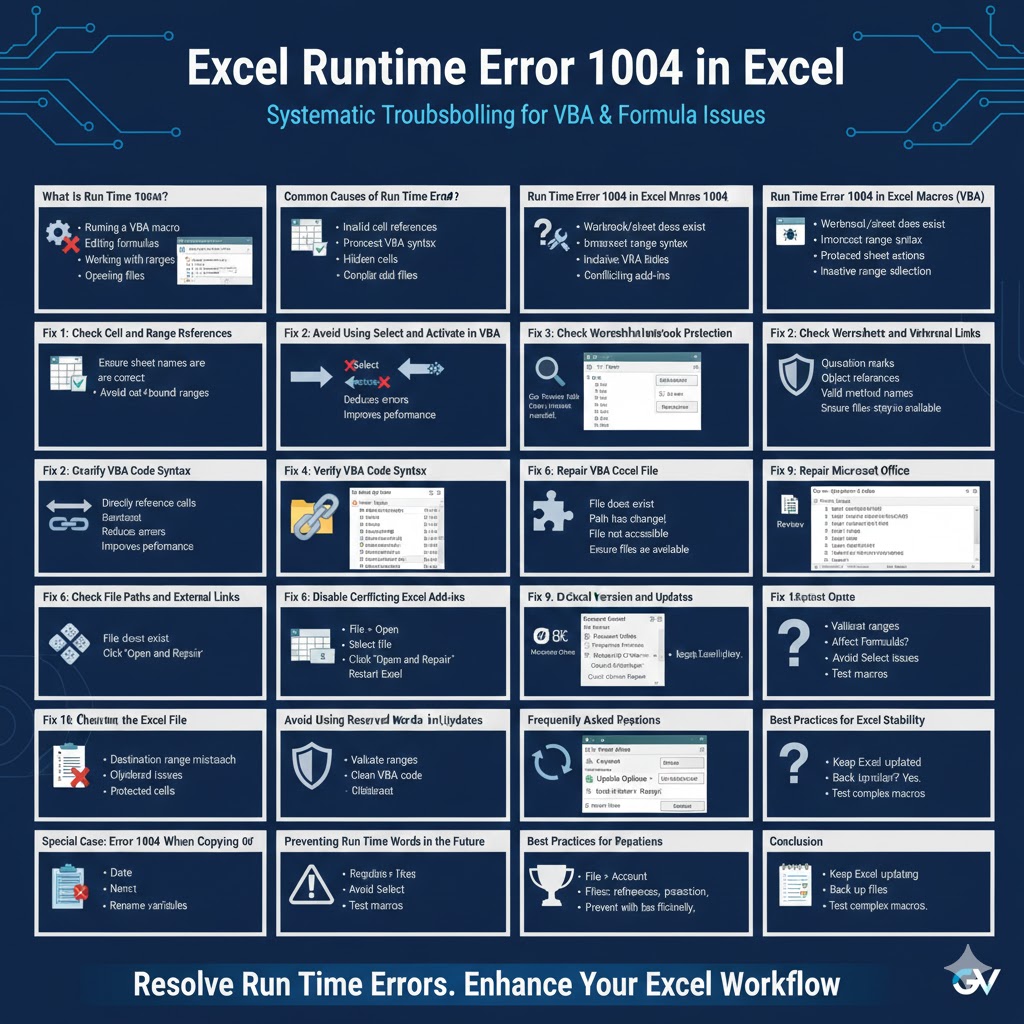
What Is Run Time Error 1004 in Excel?
Run Time Error 1004 is a general Excel error related to invalid operations or incorrect references. It often occurs when Excel cannot properly execute a command, formula, or macro.
This error can appear when:
- Running a VBA macro
- Editing formulas
- Working with ranges or cells
- Creating or modifying charts
- Opening or saving files
The error message usually does not clearly explain the root cause, which is why troubleshooting is required.
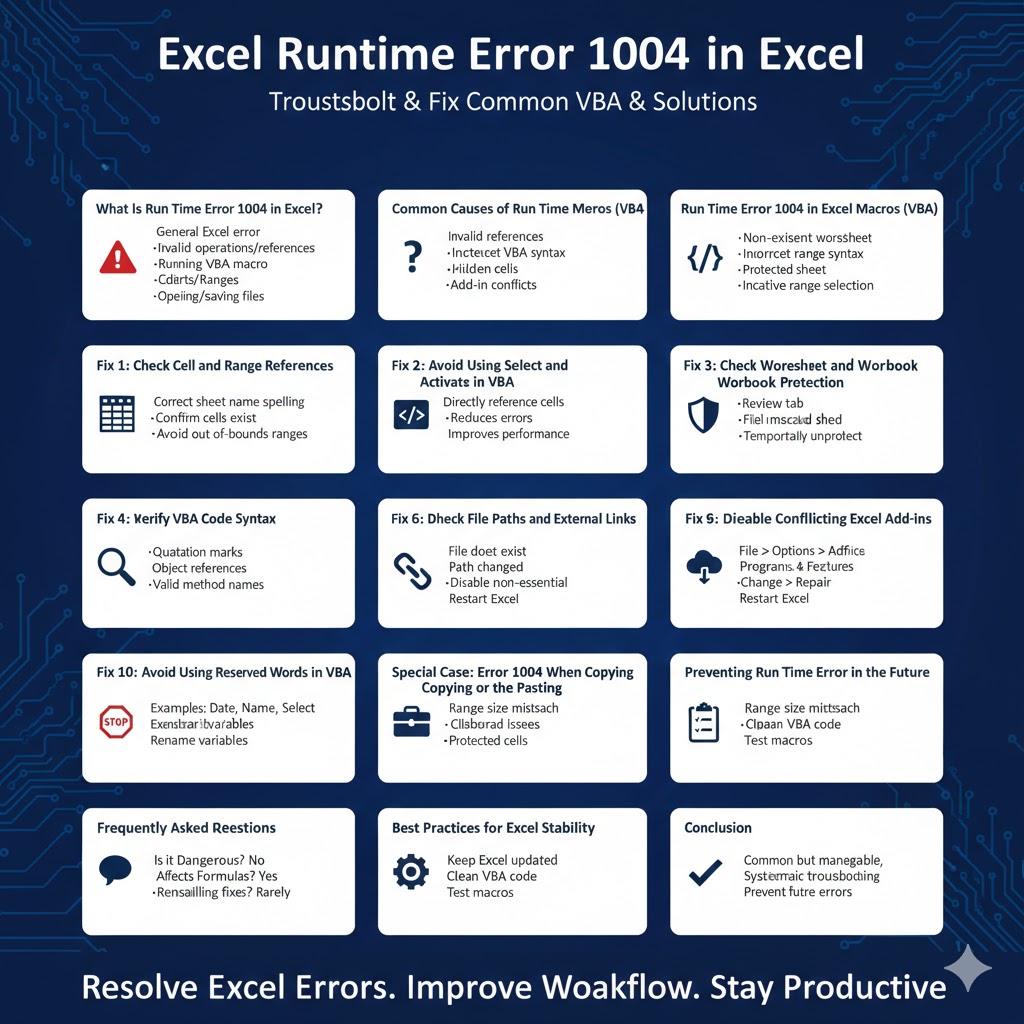
Common Causes of Run Time Error 1004
Understanding the possible causes helps narrow down the solution.
Common reasons include:
- Invalid cell or range references
- Protected or locked worksheets
- Incorrect VBA syntax
- Attempting to select or modify hidden cells
- Corrupted Excel files
- Conflicts with add-ins
Different scenarios may trigger the same error, even though the underlying problem is different.
Run Time Error 1004 in Excel Macros (VBA)
Macros are one of the most common sources of this error.
Typical VBA-Related Causes
- Referring to a worksheet or workbook that does not exist
- Using incorrect range syntax
- Trying to write data to a protected sheet
- Selecting a range that is not active
Even a small mistake in VBA code can result in Run Time Error 1004.
Fix 1: Check Cell and Range References
Incorrect references are a frequent cause.
How to Fix Reference Issues
- Ensure worksheet names are spelled correctly
- Confirm the referenced cells exist
- Avoid selecting ranges that are out of bounds
Always verify that the range you are working with is valid.
Fix 2: Avoid Using Select and Activate in VBA
Using Select and Activate often leads to errors.
Recommended Practice
Instead of selecting cells, directly reference them.
This approach:
- Reduces errors
- Improves performance
- Makes code more reliable
Direct references are safer and more efficient.
Fix 3: Check Worksheet and Workbook Protection
Protected sheets can block certain actions.
Steps to Check Protection
- Go to the Review tab
- Check if Protect Sheet or Protect Workbook is enabled
- Temporarily unprotect if necessary
If a macro tries to modify a protected area, Error 1004 may occur.
Fix 4: Verify VBA Code Syntax
Syntax errors can trigger runtime issues.
Things to Review in VBA
- Proper use of quotation marks
- Correct object references
- Valid method names
Running the code step by step can help identify the problem.
Fix 5: Check File Paths and External Links
External references often cause errors.
Common Path Issues
- File does not exist
- File path has changed
- File is not accessible
Ensure external files are available and paths are correct.
Fix 6: Disable Conflicting Excel Add-ins
Add-ins can interfere with Excel operations.
Disable Add-ins Temporarily
- Go to File > Options
- Select Add-ins
- Disable non-essential add-ins
Restart Excel and test again.
Fix 7: Repair the Excel File
Corrupted files can produce unexpected errors.
How to Repair an Excel File
- Open Excel
- Go to File > Open
- Select the file
- Click Open and Repair
This can fix internal file issues.
Fix 8: Repair Microsoft Office
If the problem affects multiple files, Office itself may be damaged.
Repair Office Installation
- Open Control Panel
- Go to Programs and Features
- Select Microsoft Office
- Click Change
- Choose Quick Repair or Online Repair
After repair, restart your computer.
Fix 9: Check Excel Version and Updates
Outdated Excel versions may contain bugs.
Update Excel
- Open Excel
- Go to File > Account
- Click Update Options
- Select Update Now
Keeping Excel updated reduces errors.
Fix 10: Avoid Using Reserved Words in VBA
Using reserved words as variable names can cause issues.
Examples of Reserved Words
- Date
- Name
- Select
Rename variables to avoid conflicts.
Special Case: Error 1004 When Copying or Pasting
Copy-paste operations may also trigger the error.
Possible causes:
- Destination range size mismatch
- Clipboard issues
- Protected destination cells
Ensure source and destination ranges are compatible.
Preventing Run Time Error 1004 in the Future
Good practices reduce the chance of errors.
- Validate ranges before use
- Write clean and clear VBA code
- Avoid unnecessary Select statements
- Test macros in small steps
Prevention saves time and frustration.
Frequently Asked Questions
Is Run Time Error 1004 Dangerous?
No. It does not damage your system, but it can interrupt work.
Does This Error Affect Excel Formulas?
Yes. Incorrect formulas or references can also trigger it.
Will Reinstalling Excel Fix the Issue?
Only if the installation is corrupted. Most issues are file or code related.
Best Practices for Excel Stability
To maintain stable performance:
- Keep Excel updated
- Back up important files
- Avoid complex macros without testing
These habits reduce long-term issues.
Conclusion
Run Time Error 1004 in Excel is a common but manageable problem. It usually occurs due to invalid references, protected sheets, VBA mistakes, or corrupted files. While the error message itself is often vague, systematic troubleshooting can quickly identify and fix the underlying issue.
By following the step-by-step solutions in this guide and applying best practices for Excel usage and VBA coding, you can resolve Run Time Error 1004 efficiently and prevent it from disrupting your workflow in the future.