


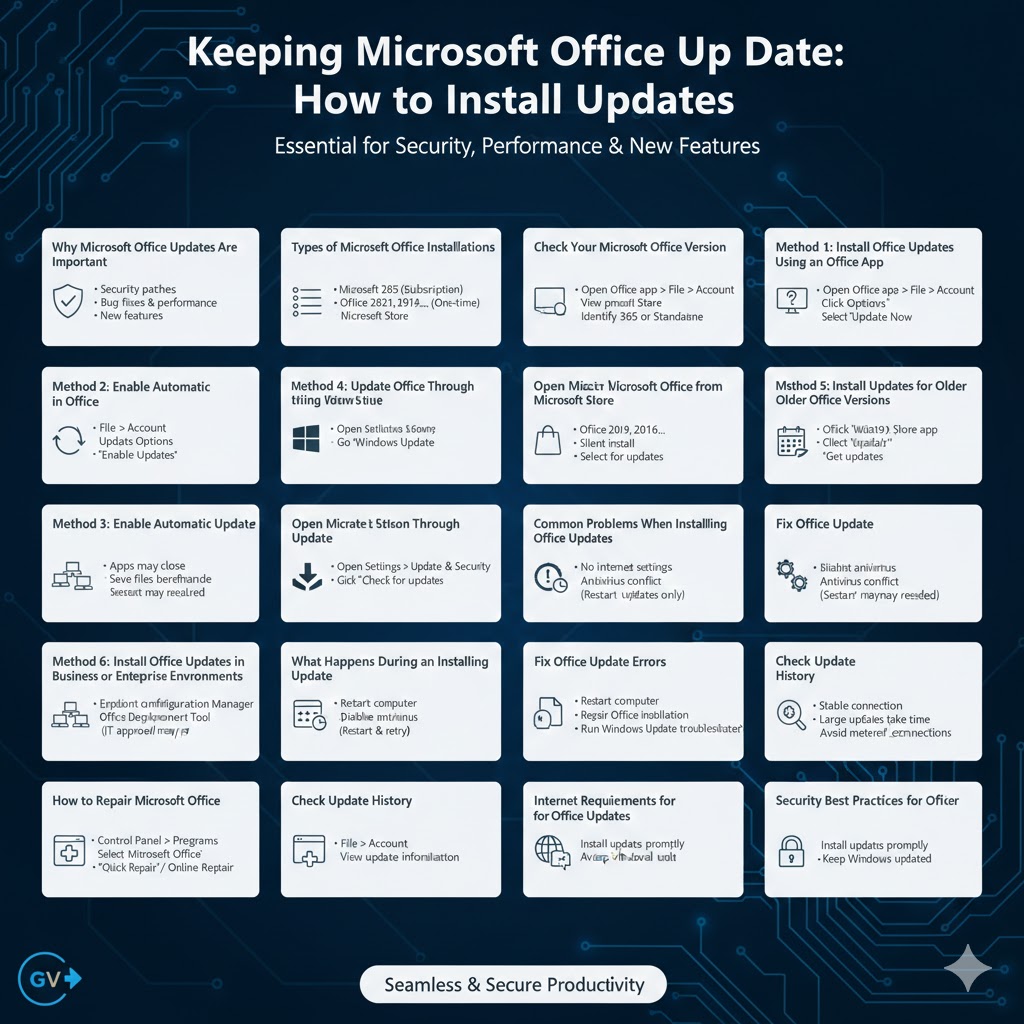
Keeping Microsoft Office Up to Date: How to Install Updates
Keeping Microsoft Office up to date is essential for security, performance, and access to the latest features. Office updates fix bugs, close security vulnerabilities, and improve compatibility with Windows and cloud services. Without regular updates, Office applications such as Word, Excel, PowerPoint, and Outlook may become unstable or exposed to security risks.
Microsoft provides several ways to install Office updates depending on your version, license type, and environment. This guide explains how Office updates work and provides step-by-step instructions to install updates using different methods, whether you are a home user or part of an organization.
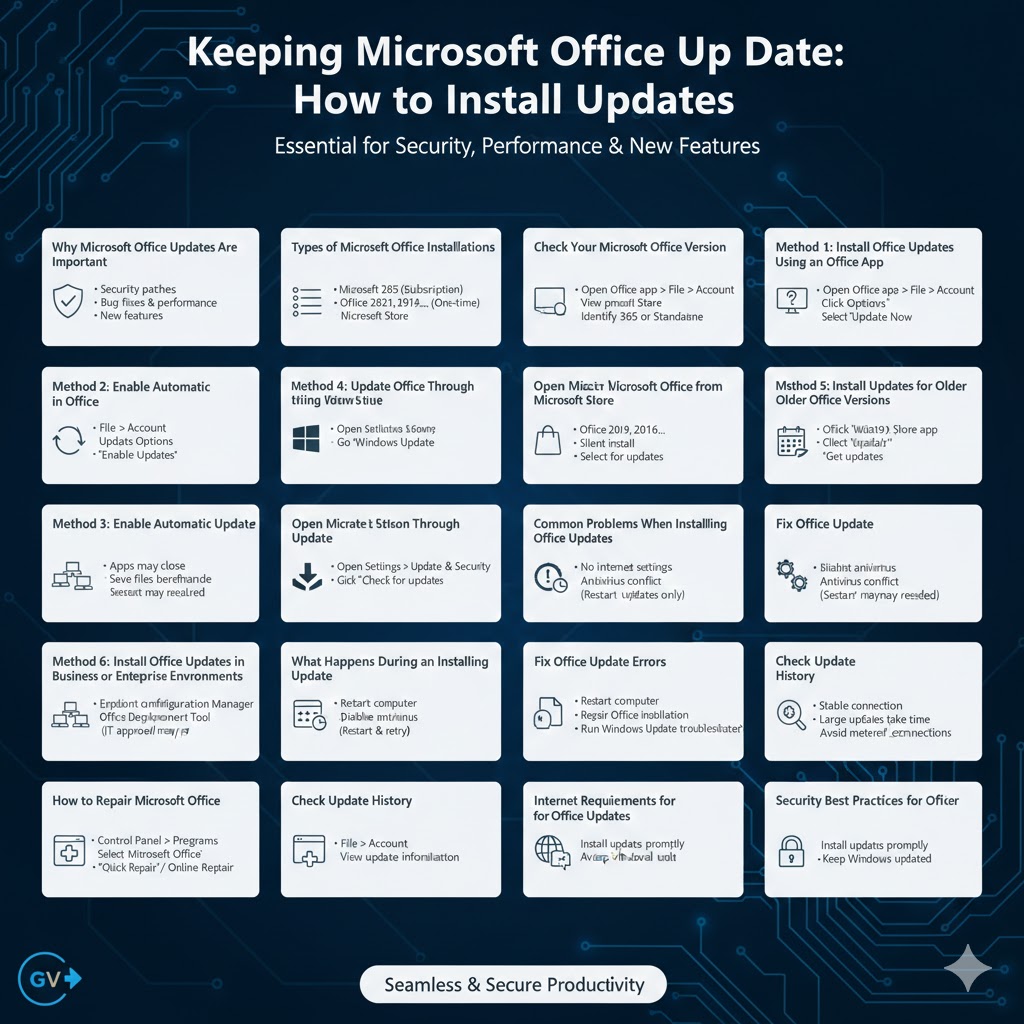
Why Microsoft Office Updates Are Important
Office updates are more than just feature additions. They play a critical role in maintaining system stability and data security.
Key benefits of installing updates include:
- Security patches against malware and exploits
- Bug fixes and performance improvements
- New features and usability enhancements
- Compatibility with Windows updates and cloud services
Regular updates ensure Office continues to work reliably.
Types of Microsoft Office Installations
Before installing updates, it is important to know which Office version you are using.
Common installation types include:
- Microsoft 365 (subscription-based)
- Office 2021, 2019, or 2016 (one-time purchase)
- Office installed via Microsoft Store
- Office installed through enterprise deployment tools
Each installation type uses a slightly different update process.
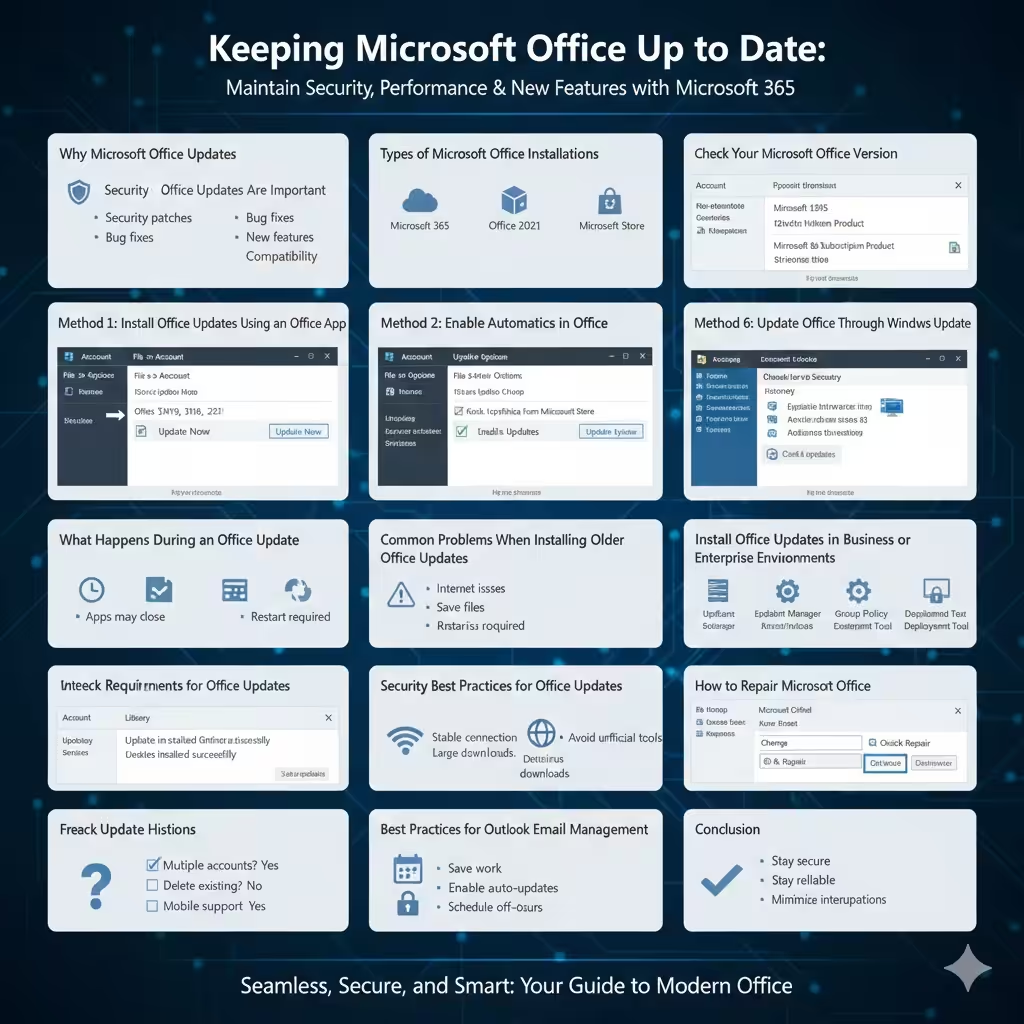
Check Your Microsoft Office Version
Knowing your version helps choose the correct update method.
How to Check Office Version
- Open any Office app (Word or Excel)
- Click File
- Select Account
- View product information
You will see whether your Office is Microsoft 365 or a standalone version.
Method 1: Install Office Updates Using an Office App
This is the most common and easiest method for individual users.
Steps to Update Office Manually
- Open Word, Excel, or another Office app
- Click File
- Select Account
- Click Update Options
- Choose Update Now
Office will check for updates and install them automatically.
Method 2: Enable Automatic Updates in Office
Automatic updates ensure Office stays current without manual checks.
Turn On Automatic Updates
- Open an Office app
- Go to File > Account
- Click Update Options
- Select Enable Updates
Once enabled, Office downloads updates in the background.
Method 3: Update Office Through Windows Update
Some Office installations rely on Windows Update.
Use Windows Update
- Open Settings
- Go to Update & Security
- Click Windows Update
- Select Check for updates
Office updates may install alongside Windows updates.
Method 4: Update Microsoft Office from Microsoft Store
Office installed via the Microsoft Store updates differently.
Update Office Store Apps
- Open Microsoft Store
- Click Library
- Select Get updates
This updates Office and other Store apps.
Method 5: Install Updates for Older Office Versions
Standalone versions still receive updates, though less frequently.
Update Office 2019, 2016, or 2021
- Open an Office app
- Go to File > Account
- Click Update Options > Update Now
Security updates are still provided during the support period.
Method 6: Install Office Updates in Business or Enterprise Environments
Organizations often control Office updates centrally.
Common enterprise update methods include:
- Microsoft Endpoint Configuration Manager
- Group Policy
- Office Deployment Tool
Users may need IT approval before updates install.
What Happens During an Office Update
Understanding the process helps avoid confusion.
During an update:
- Office applications may close
- Files should be saved beforehand
- Updates install silently or with minimal prompts
Restarting the computer may be required.
Common Problems When Installing Office Updates
Some users encounter issues during updates.
Updates Not Installing
Possible causes include:
- Internet connection issues
- Disabled update settings
- Conflicting antivirus software
Restarting and retrying often resolves the issue.
Fix Office Update Errors
If updates fail repeatedly, try these steps.
Troubleshooting Steps
- Restart your computer
- Temporarily disable antivirus software
- Repair Office installation
- Run Windows Update troubleshooter
These actions resolve most update errors.
How to Repair Microsoft Office
Repairing Office can fix update-related problems.
Repair Office Installation
- Open Control Panel
- Go to Programs and Features
- Select Microsoft Office
- Click Change
- Choose Quick Repair or Online Repair
After repair, try updating again.
Check Update History
Reviewing update history helps confirm installation.
View Office Update History
- Open an Office app
- Go to File > Account
- Check update information
This confirms whether updates were applied successfully.
Internet Requirements for Office Updates
Office updates require a stable internet connection.
- Large updates may take time
- Metered connections may delay updates
Connect to a reliable network for best results.
Security Best Practices for Office Updates
To stay secure:
- Install updates promptly
- Avoid unofficial update tools
- Keep Windows updated
Security patches protect sensitive documents and data.
Frequently Asked Questions
Can I Use Office Without Installing Updates?
Yes, but it is not recommended due to security risks.
Do Updates Change My Settings?
Most updates do not affect user settings.
How Often Does Office Receive Updates?
Microsoft 365 receives frequent updates, while standalone versions receive periodic updates.
Best Practices for Managing Office Updates
To avoid disruptions:
- Save work before updating
- Enable automatic updates
- Schedule updates outside work hours
Planning ensures a smooth update process.
Conclusion
Installing Microsoft Office updates is essential for maintaining security, stability, and access to the latest features. Whether you use Microsoft 365, a standalone Office version, or Office from the Microsoft Store, Microsoft provides reliable update methods for every setup.
By following the step-by-step instructions in this guide and enabling automatic updates when possible, you can keep Microsoft Office running smoothly and securely while minimizing interruptions to your work.