


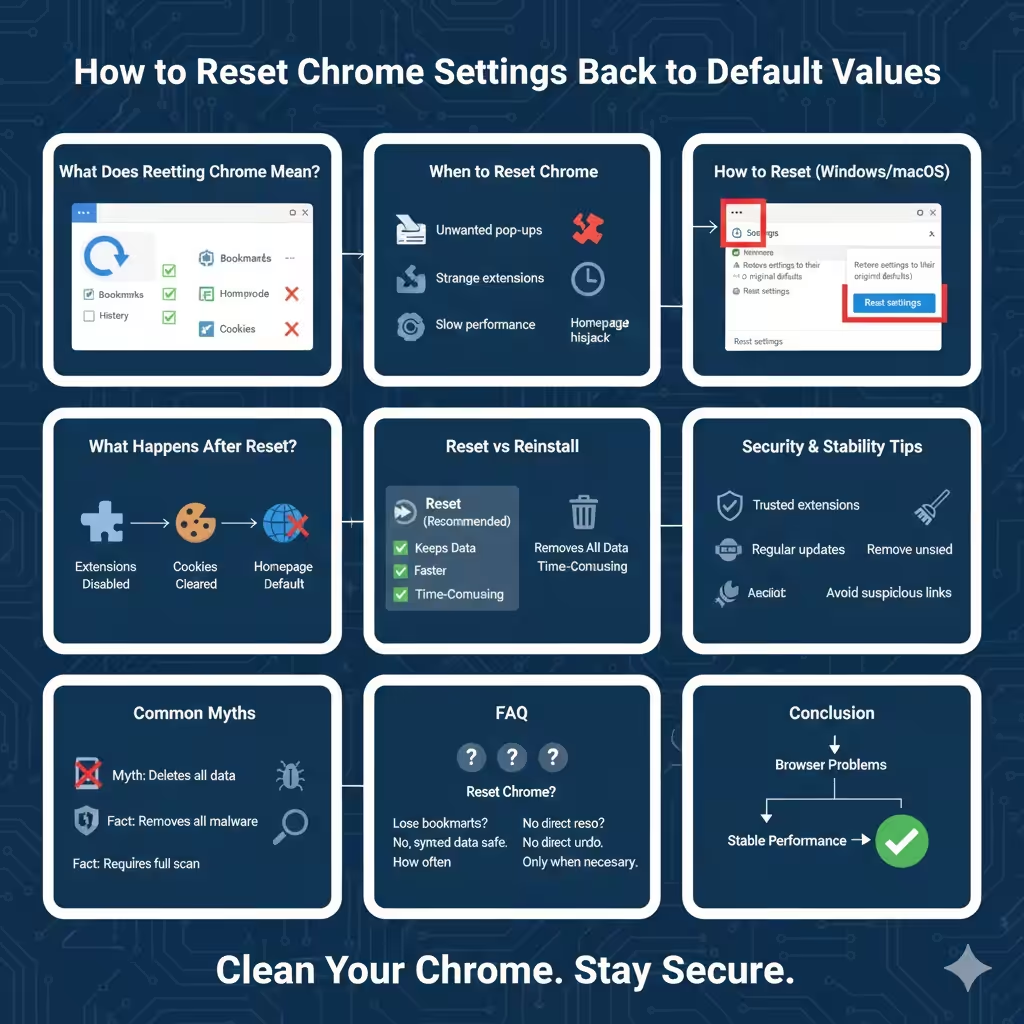
How to Reset Chrome Settings Back to Default Values
Google Chrome is known for its speed, simplicity, and flexibility. Over time, however, installing extensions, changing settings, or encountering unwanted software can cause Chrome to behave unexpectedly. Common problems include slow performance, frequent crashes, homepage changes, intrusive ads, or redirects to unfamiliar websites.
Resetting Google Chrome settings to their default state is one of the most effective ways to fix these issues without reinstalling the browser. This guide explains exactly what happens when you reset Chrome, when you should do it, and how to reset Chrome settings step by step on different platforms.
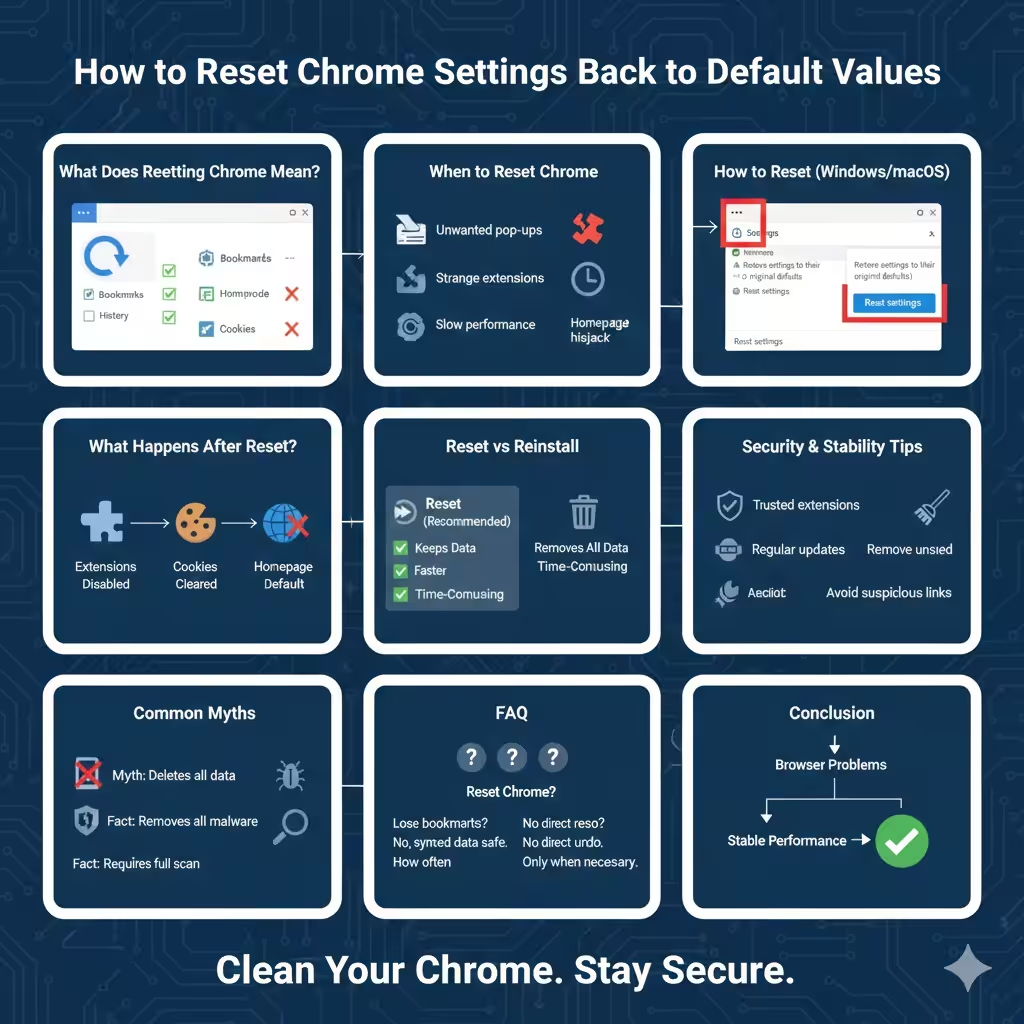
What Does Resetting Chrome Settings Mean?
Resetting Chrome does not remove the browser itself. Instead, it restores many settings to their original default values while keeping your essential data intact.
When you reset Chrome:
- Startup page, new tab page, and search engine are restored to default
- Pinned tabs are removed
- Extensions are disabled
- Temporary data such as cookies is cleared
However, the following items are not deleted:
- Bookmarks
- Saved passwords
- Browsing history
- Autofill data
This makes a reset a safe first step when troubleshooting browser problems.
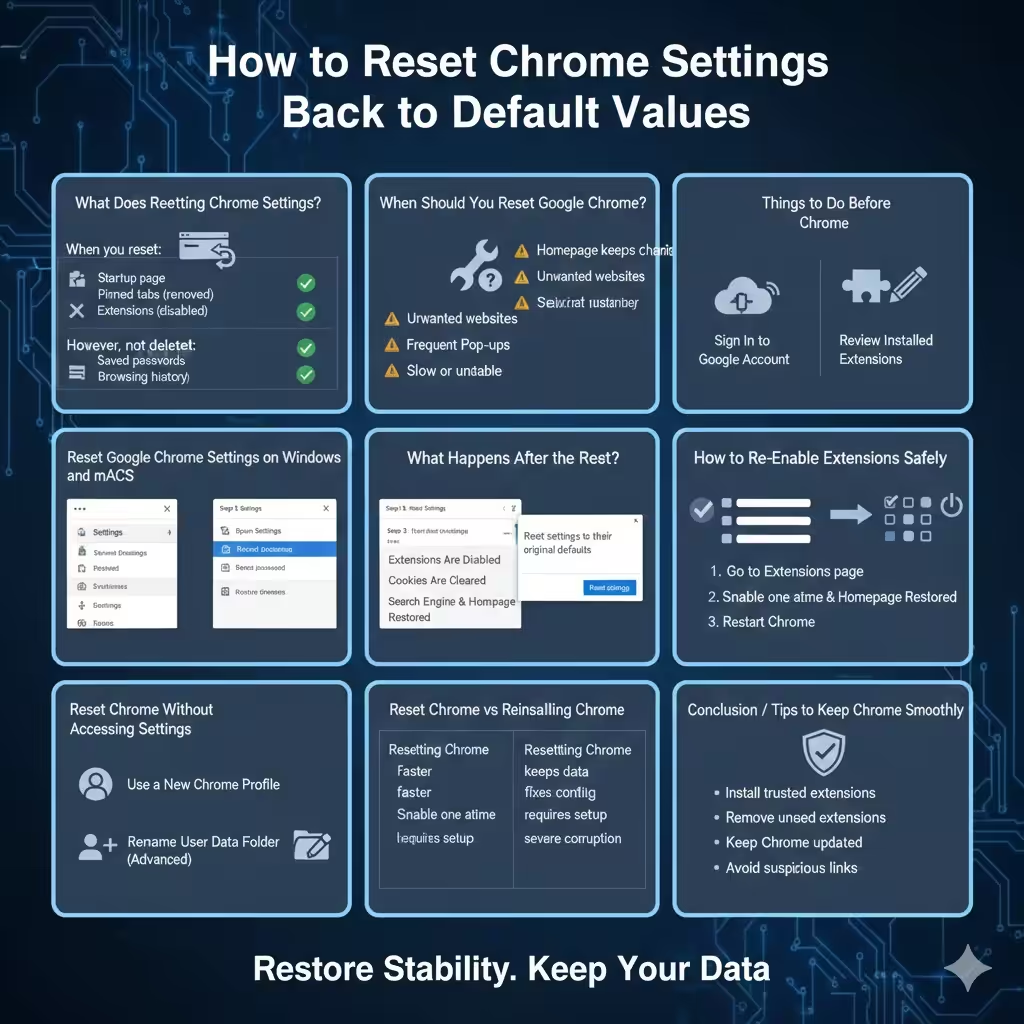
When Should You Reset Google Chrome?
Resetting Chrome is helpful in many situations.
You should consider resetting Chrome if:
- Your homepage or search engine keeps changing
- Chrome opens unwanted websites on startup
- Pop‑up ads appear frequently
- Extensions behave strangely or stop working
- Chrome feels slow or unstable
A reset helps eliminate misconfigured settings and disables problematic extensions without affecting your personal data.
Things to Do Before Resetting Chrome
Although resetting Chrome is generally safe, a few preparations can help avoid inconvenience.
Sign In to Your Google Account
Make sure you are signed in to Chrome with your Google account. This ensures your bookmarks, passwords, and settings are synced and can be restored easily if needed.
Review Installed Extensions
Resetting Chrome disables all extensions. If you rely on specific extensions, note their names so you can re‑enable them later.
Reset Google Chrome Settings on Windows and macOS
The reset process is nearly identical on Windows and macOS.
Step 1: Open Chrome Settings
- Launch Google Chrome
- Click the three‑dot menu in the top‑right corner
- Select “Settings”
Step 2: Access Advanced Settings
- Scroll down to the bottom of the Settings page
- Click “Reset settings”
Step 3: Reset Settings to Default
- Click “Restore settings to their original defaults”
- A confirmation dialog will appear
- Click “Reset settings” to confirm
Chrome will immediately reset its settings. You do not need to restart the browser, but doing so is recommended.
Reset Google Chrome Settings on Linux
Chrome on Linux follows the same steps as Windows and macOS.
- Open Chrome
- Go to Settings
- Scroll to “Reset settings”
- Choose “Restore settings to their original defaults”
The reset takes effect instantly across Linux distributions.
What Happens After the Reset?
After resetting Chrome, you may notice several changes.
Extensions Are Disabled
All extensions are turned off. You can re‑enable trusted extensions manually by visiting the Extensions page.
Cookies and Temporary Data Are Cleared
You may be logged out of websites and need to sign in again. This helps remove tracking data and corrupted cookies.
Search Engine and Homepage Are Restored
Chrome returns to its default search engine and new tab page, eliminating unwanted redirects.
How to Re‑Enable Extensions Safely
After a reset, re‑enable extensions carefully to avoid repeating the same problems.
- Go to the Extensions page
- Enable one extension at a time
- Restart Chrome after enabling each extension
If problems return, the last enabled extension may be the cause.
Reset Chrome Without Accessing Settings
In rare cases, Chrome may crash or fail to open properly, making it difficult to access settings.
Use a New Chrome Profile
Creating a new Chrome profile can act as a soft reset.
- Open Chrome
- Click the profile icon
- Add a new profile
This creates a clean browsing environment without altering your original profile.
Reset Chrome by Renaming the User Data Folder
Advanced users can reset Chrome by renaming its user data folder. This forces Chrome to create a fresh profile on the next launch.
This method should only be used if Chrome cannot be opened normally.
Reset Chrome vs Reinstalling Chrome
Many users wonder whether reinstalling Chrome is better than resetting it.
Resetting Chrome
- Faster and easier
- Keeps bookmarks and passwords
- Fixes most configuration‑related issues
Reinstalling Chrome
- Removes all local data
- Requires re‑sign‑in and setup
- Useful only for severe corruption
In most cases, resetting Chrome is sufficient.
Common Myths About Resetting Chrome
Resetting Deletes All Data
This is false. Bookmarks, passwords, and history remain intact.
Resetting Removes Malware Completely
While resetting Chrome disables malicious extensions and clears settings, it does not replace a full system security scan.
Tips to Keep Chrome Running Smoothly
After resetting Chrome, good habits can help prevent future issues.
- Install extensions only from trusted sources
- Remove unused extensions regularly
- Keep Chrome updated
- Avoid clicking suspicious links or pop‑ups
These steps reduce the likelihood of settings being altered without your consent.
Frequently Asked Questions
Will I Lose My Bookmarks?
No. Your bookmarks remain safe after a reset.
Can I Undo a Chrome Reset?
No direct undo option exists, but synced data can be restored by signing in again.
How Often Should I Reset Chrome?
Only when necessary. Frequent resets are not required for normal use.
Conclusion
Resetting Google Chrome settings to default is a simple yet powerful way to fix browser problems, remove unwanted changes, and restore stable performance. It is safer and faster than reinstalling the browser and preserves your essential data.
By following the step‑by‑step instructions in this guide, you can reset Chrome confidently and get back to a clean, reliable browsing experience. If issues persist after a reset, further investigation into extensions or system security may be required.