


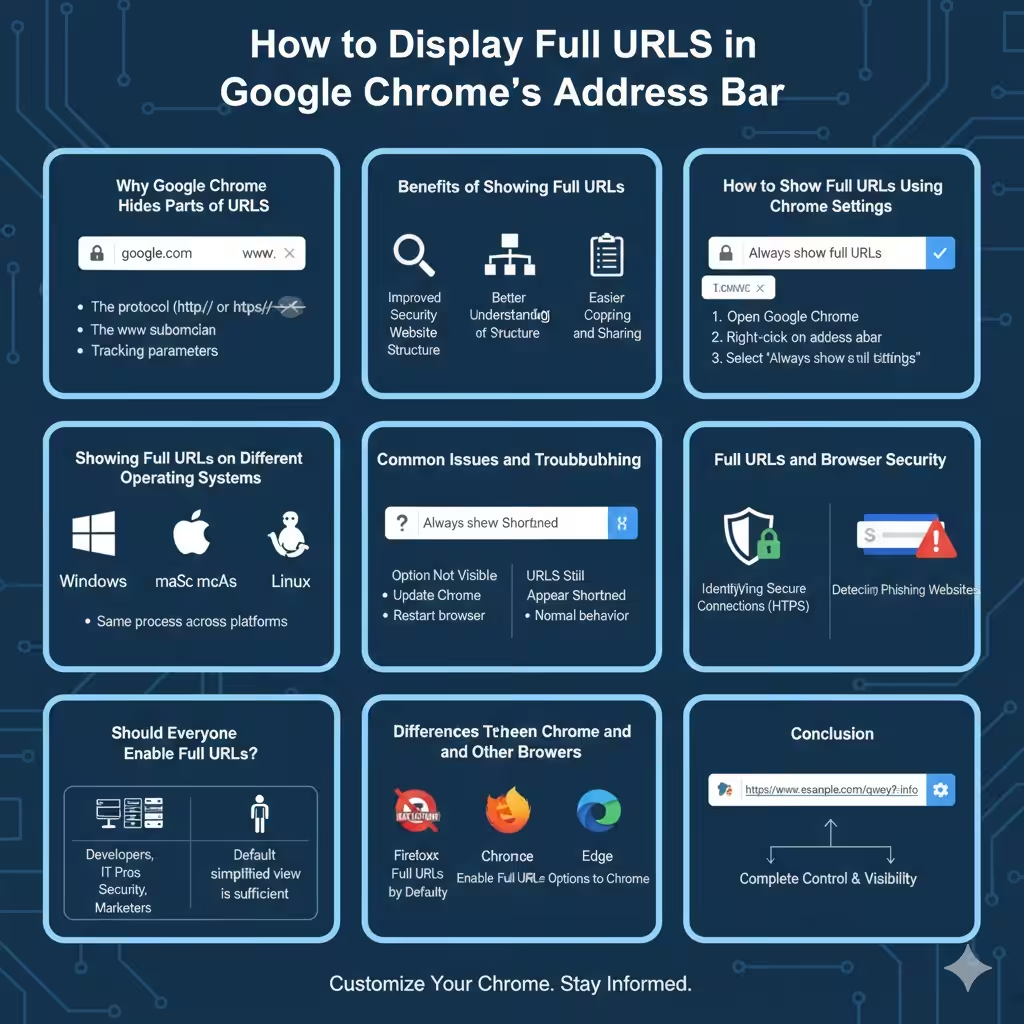
How to Display Full URLs in Google Chrome’s Address Bar
Google Chrome is one of the most widely used web browsers in the world, known for its clean interface and focus on simplicity. To maintain a minimal design, Chrome hides certain parts of website addresses by default, such as the protocol (https://) and sometimes subdomains like www. While this approach makes the address bar look cleaner, it can be inconvenient or confusing for users who want to see the complete URL.
For developers, IT professionals, and security‑conscious users, seeing the full URL is important. It helps identify phishing attempts, verify secure connections, and understand website structure more clearly. This article explains why Chrome hides full URLs, how to show them again, and when displaying full URLs is most useful.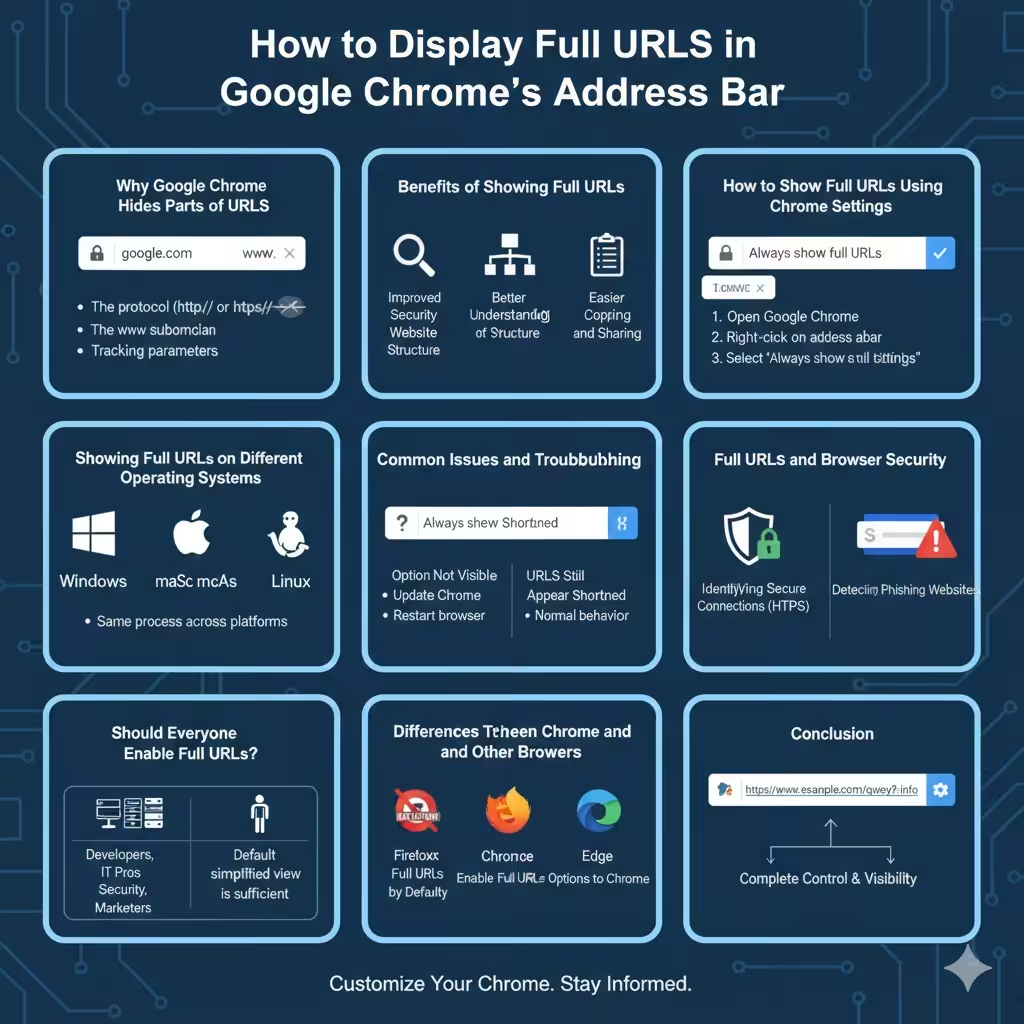
Why Google Chrome Hides Parts of URLs
Google introduced URL simplification to improve readability and reduce visual clutter. The idea was that most users do not need to see technical details like protocols or subdomains during everyday browsing.
Chrome may hide:
- The protocol (http:// or https://)
- The www subdomain
- Certain tracking parameters
Instead, Chrome emphasizes the domain name to help users quickly recognize the website they are visiting. While well‑intentioned, this design choice is not ideal for everyone.
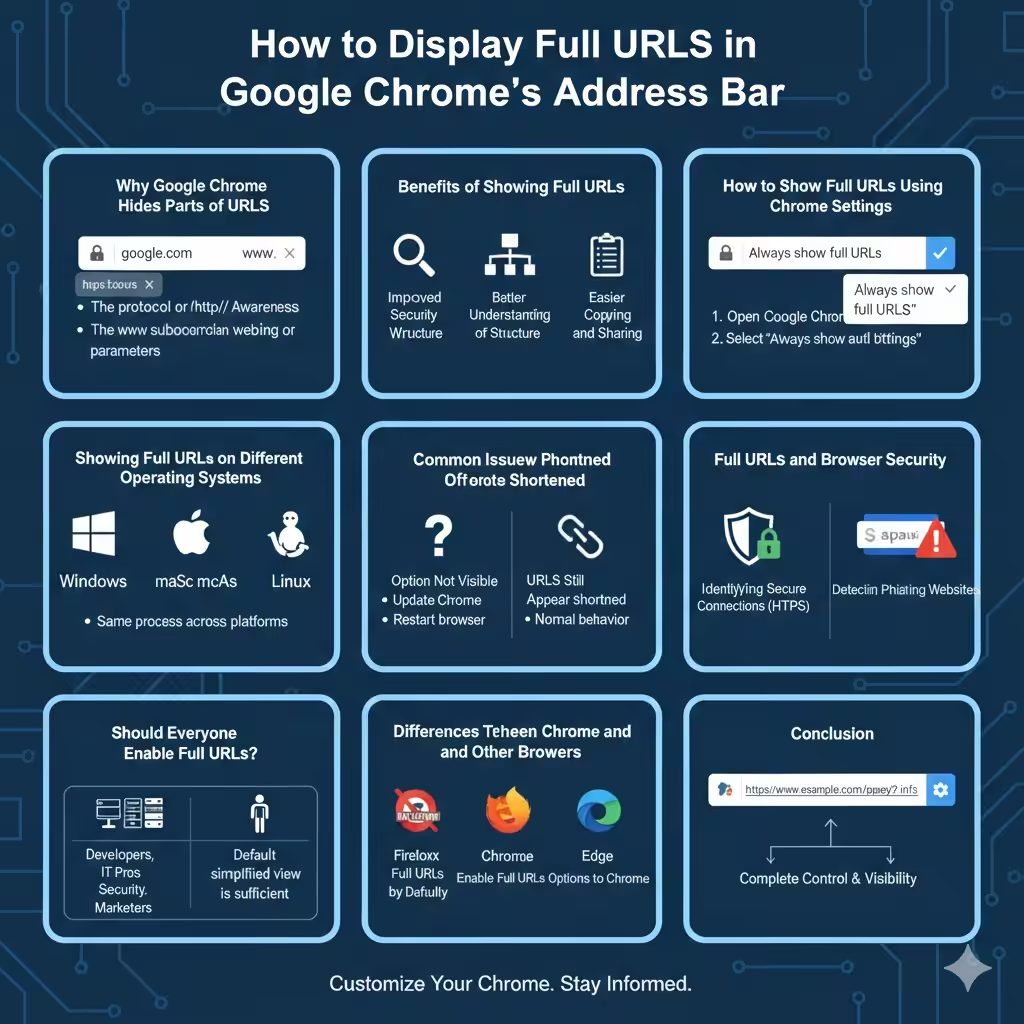
Benefits of Showing Full URLs
Displaying full URLs provides several practical advantages.
Improved Security Awareness
Seeing the complete address helps users identify suspicious websites. Small differences in URLs, such as misspelled domains or unusual subdomains, are easier to spot when the full address is visible.
Better Understanding of Website Structure
Full URLs show the exact path, parameters, and structure of a webpage. This is especially useful for developers, content managers, and SEO specialists who analyze links regularly.
Easier Copying and Sharing
When the full URL is visible, users can copy the complete address without worrying about missing important components.
How to Show Full URLs Using Chrome Settings
Google Chrome provides a simple built‑in option to display full URLs in the address bar.
Enable Full URLs from the Address Bar Menu
This is the easiest method and works in modern versions of Chrome.
Steps:
- Open Google Chrome
- Right‑click on the address bar
- Select “Always show full URLs”
Once enabled, Chrome will immediately display the complete website address, including the protocol and subdomains.
Disable the Option If Needed
If you later decide to return to the simplified view:
- Right‑click the address bar again
- Uncheck “Always show full URLs”
The change takes effect instantly without restarting the browser.
Show Full URLs Using Chrome Flags (Older Versions)
In older versions of Chrome, the option to show full URLs was controlled through experimental settings known as Chrome Flags.
Access Chrome Flags
To open the flags page:
- Type chrome://flags in the address bar
- Press Enter
Locate URL‑Related Flags
Look for flags related to URL handling or omnibox behavior. These flags allowed users to disable URL truncation and restore full address visibility.
Note that Chrome Flags are experimental and may be removed or changed in future updates. For most users, the standard address bar setting is now sufficient.
Showing Full URLs on Different Operating Systems
The process for enabling full URLs is the same across operating systems.
Windows and macOS
Right‑clicking the address bar provides the “Always show full URLs” option on both Windows and macOS.
Linux
Linux users will find the same option available in Chrome, regardless of desktop environment.
Chrome maintains consistent behavior across platforms, making it easy to apply this setting everywhere.
Common Issues and Troubleshooting
While enabling full URLs is straightforward, some users may encounter minor issues.
Option Not Visible
If you do not see the “Always show full URLs” option:
- Make sure Chrome is updated to the latest version
- Restart the browser
- Check if you are using a managed or enterprise version of Chrome
URLs Still Appear Shortened
In some cases, Chrome may still hide parts of the URL until you click inside the address bar. This behavior is normal and does not affect copying or viewing the full address.
Full URLs and Browser Security
Showing full URLs plays an important role in online safety.
Identifying Secure Connections
With full URLs visible, users can clearly see whether a site uses HTTPS. This helps confirm that data is encrypted during transmission.
Detecting Phishing Websites
Phishing sites often rely on deceptive URLs that look legitimate at a glance. Viewing the full address makes it easier to detect unusual domain structures or suspicious paths.
Should Everyone Enable Full URLs?
Whether to show full URLs depends on personal preference and usage habits.
Users Who Benefit Most
- Web developers and designers
- IT professionals and system administrators
- Security‑focused users
- Content managers and marketers
Casual Browsers
For casual users who value a clean interface, the default simplified view may be sufficient. Chrome allows flexibility so each user can choose what works best.
Differences Between Chrome and Other Browsers
Other browsers handle URL visibility differently.
- Firefox typically shows full URLs by default
- Edge offers similar options to Chrome
- Safari uses a simplified view but allows customization
Understanding these differences can help users choose the browser that best fits their workflow.
Conclusion
Showing full URLs in the Google Chrome address bar is a simple yet powerful customization that improves transparency, security awareness, and usability. While Chrome hides parts of URLs by default to create a cleaner interface, enabling full URL display gives users complete control and visibility over the websites they visit.
With just a right‑click and a single setting change, you can restore full URLs instantly. Whether you are a professional user or simply want more clarity while browsing, this option allows Chrome to better match your needs and preferences.