


Excel UNIQUE Function Tutorial: What It Is and How to Use It
The UNIQUE function is one of Excel’s most powerful dynamic array formulas, allowing you to quickly extract distinct values from a range or array. Whether you’re working with lists of names, product IDs, or other datasets that contain repeated entries, this function helps clean and organize your data efficiently.
Introduced in Excel 365 and Excel 2019, the UNIQUE function is a real game changer, especially when combined with other dynamic array functions like SORT, FILTER, or SEQUENCE.
This article will walk you through everything you need to know about using the UNIQUE function, including syntax, examples, common use cases, and helpful tips to avoid mistakes.
What Is the UNIQUE Function?
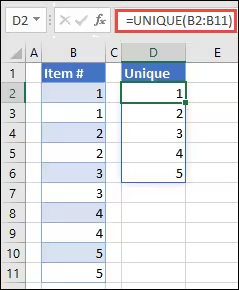
The UNIQUE function returns a list of unique values from a range or array. It can filter out duplicates in both vertical and horizontal arrays and even return unique rows when required.
This function is dynamic, meaning it automatically spills the result into neighboring cells without needing to drag the formula down.
Syntax of the UNIQUE Function
Arguments
-
array (required): The range or array from which to extract unique values.
-
by_col (optional): A logical value (TRUE/FALSE) that indicates whether to compare values by row (default) or by column.
-
FALSE (or omitted): Compare by rows (vertical lists).
-
TRUE: Compare by columns (horizontal arrays).
-
-
exactly_once (optional): A logical value that returns only values that appear exactly once.
-
FALSE (default): Returns all distinct values.
-
TRUE: Returns only items that appear once.
-
Example 1: Extract Unique Values from a List
Suppose you have a list of names in cells A2:A10, some of which are repeated:
To get a list of unique names:
Excel will spill the result downward and show each name only once.
Result:
Example 2: Return Unique Rows from a Table
If you have a two-column range (e.g., A2:B6), where rows may be repeated:
Use:
This returns only distinct combinations of Name and Score:
Example 3: Use “exactly_once” to Return Truly Unique Values
Let’s say you only want values that appear exactly once in a list. For example, in A2:A8:
Use:
Result:
These are the only colors that appear once.
Example 4: Unique Values by Column
If your data is arranged horizontally (in one row), like:
Use:
This returns:

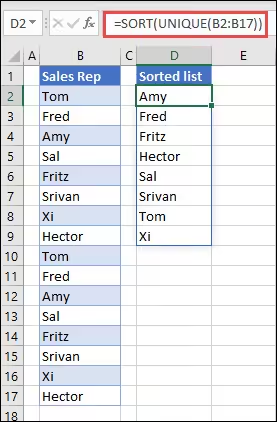
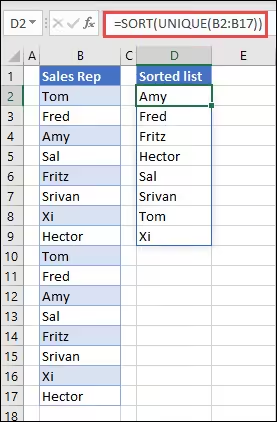
Example 5: Combine UNIQUE with SORT
You can make the result more readable by sorting it:
This gives you a list of unique values in ascending order.
You can also use SORT(UNIQUE(...), , , TRUE) for descending order.
Using UNIQUE with FILTER
Suppose you want to extract a list of unique values that meet a certain condition. For example, in a sales dataset, you might want to find unique products sold in a specific region.
Let’s say:
-
A2:A100 = Product Names
-
B2:B100 = Region
To get unique products sold in “North”:
Advantages of Using UNIQUE
-
Automatically updates when new data is added.
-
Reduces need for helper columns or complex pivot tables.
-
Supports dynamic arrays without requiring Ctrl+Shift+Enter.
-
Great for dashboards and summaries.
Limitations and Compatibility
-
Only available in Excel 365 and Excel 2019 (not supported in Excel 2016 or older).
-
Doesn’t work with merged cells.
-
May return a #SPILL! error if there’s no space for results.
Troubleshooting Common Errors
#SPILL! Error
This happens when the result doesn’t have enough empty space to display. Clear any content blocking the spill range.
Wrong Results Due to Formatting
Make sure your data types are consistent (text vs number). 123 is not the same as "123" in Excel.
Incorrect Output with Merged Cells
Avoid using merged cells in the input array.
Practical Use Cases
-
Remove duplicates from lists.
-
Summarize customer names, product SKUs, or categories.
-
Count how many unique items exist with
=COUNTA(UNIQUE(...)). -
Filter unique entries per condition for sales reports or student databases.
-
Build dynamic dropdowns using Data Validation and UNIQUE.
Conclusion
The UNIQUE function in Excel offers a streamlined and highly flexible way to clean, filter, and analyze data. It saves time, reduces manual effort, and works perfectly in combination with other functions like SORT, FILTER, and COUNTA.
Whether you’re working on a student attendance tracker, an inventory system, or financial analysis, mastering UNIQUE can help you simplify your workflow and enhance the clarity of your reports.
Practice with sample data and experiment with different combinations to make the most of this modern Excel tool.