


Set Up Multiple Rules for Conditional Formatting in Excel
Conditional Formatting in Excel is a powerful feature that helps you automatically highlight cells based on certain conditions. It allows you to apply different formatting—such as colors, font styles, icons, and more—depending on the values in a cell or a group of cells. But what if you want to apply formatting based on multiple conditions?
In this detailed guide, you’ll learn how to use Conditional Formatting with multiple conditions using both built-in rules and custom formulas. We’ll also explore practical examples and tips to make your spreadsheets more dynamic and visually informative.
What Is Conditional Formatting?
Conditional Formatting allows Excel to apply specific formatting—like bold text, background color, or icon sets—based on the data in your spreadsheet. You can find this feature by going to:
Home tab > Conditional Formatting
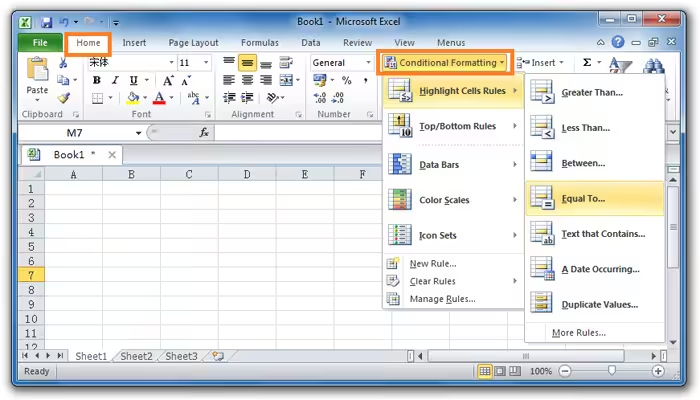
There are several built-in options:
-
Highlight Cell Rules
-
Top/Bottom Rules
-
Data Bars
-
Color Scales
-
Icon Sets
-
New Rule (for formulas)
Why Use Multiple Conditions?
Sometimes a single condition isn’t enough. For example:
-
You want to highlight high performers who score above 90 and submitted their project on time.
-
You want to mark overdue invoices that are both unpaid and older than 30 days.
-
You want to apply a different color for different value ranges.
To handle such tasks, you need to apply multiple rules or combine logical conditions using formulas.
Using Multiple Built-In Rules
You can layer several built-in rules on the same range. Here’s how:
-
Select the cells you want to format.
-
Go to Home > Conditional Formatting > Highlight Cell Rules.
-
Choose a rule (e.g., Greater Than).
-
Set the condition and format.
-
Repeat the steps to add another rule (e.g., Less Than).
-
Excel will evaluate each rule independently and apply formatting accordingly.
For example, you can:
-
Color scores over 90 green.
-
Color scores below 60 red.
These rules will coexist and update dynamically as values change.
Using Formulas for More Control
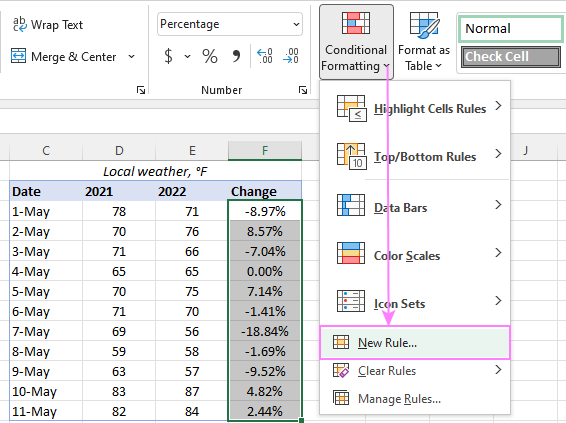
If you want Excel to apply formatting only when multiple conditions are met, you need to use a custom formula.
To do this:
-
Select your cell range.
-
Go to Home > Conditional Formatting > New Rule.
-
Choose Use a formula to determine which cells to format.
-
Enter your formula.
-
Click Format and choose your style.
-
Press OK.
Example 1: Highlight rows where Score > 90 and Attendance > 80%
Assume:
-
Column A = Name
-
Column B = Score
-
Column C = Attendance (%)
Use this formula for the range A2:C10:
This formula checks both conditions for each row. The dollar sign $ locks the column references to keep the formula consistent.
Example 2: Highlight overdue tasks
If:
-
Column D = Status
-
Column E = Days Overdue
You want to highlight rows where Status = “Not Completed” AND Days Overdue > 30.
Use:
Now format with red fill or bold text to make these entries stand out.
Applying Conditional Formatting to Entire Rows
You can apply formatting to an entire row if a certain condition is true.
-
Select the full range (e.g., A2:D100).
-
Use a formula like:
This highlights the entire row when column B contains “Late”.
Use of OR in Conditional Formatting
You can also highlight cells that meet any one of multiple conditions using the OR function.
Example 3: Highlight scores below 50 or above 90
This highlights cells where the score is either too low or very high.
Color Scale and Icon Sets with Multiple Conditions
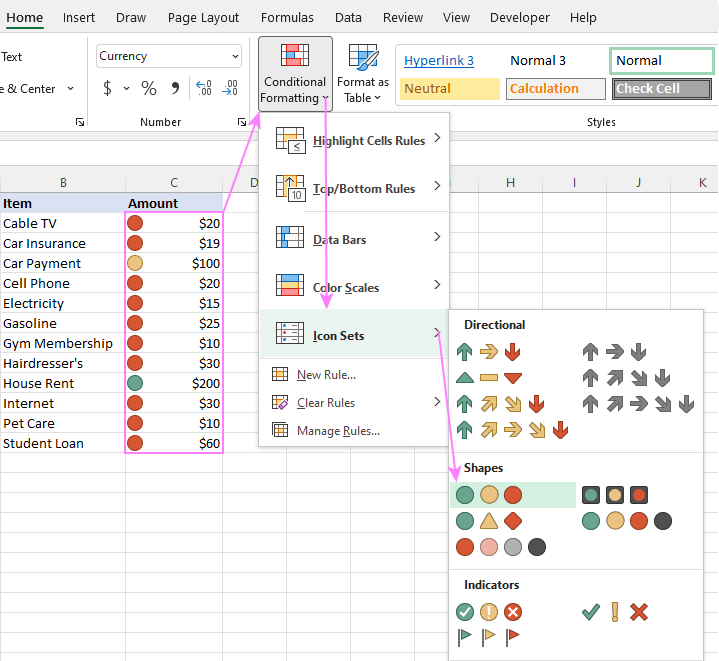
Excel’s built-in color scales and icon sets are an easy way to visualize multiple levels of data.
Color Scales
-
Select a range.
-
Go to Home > Conditional Formatting > Color Scales.
-
Choose a gradient to show low, medium, and high values in different colors.
Icon Sets
-
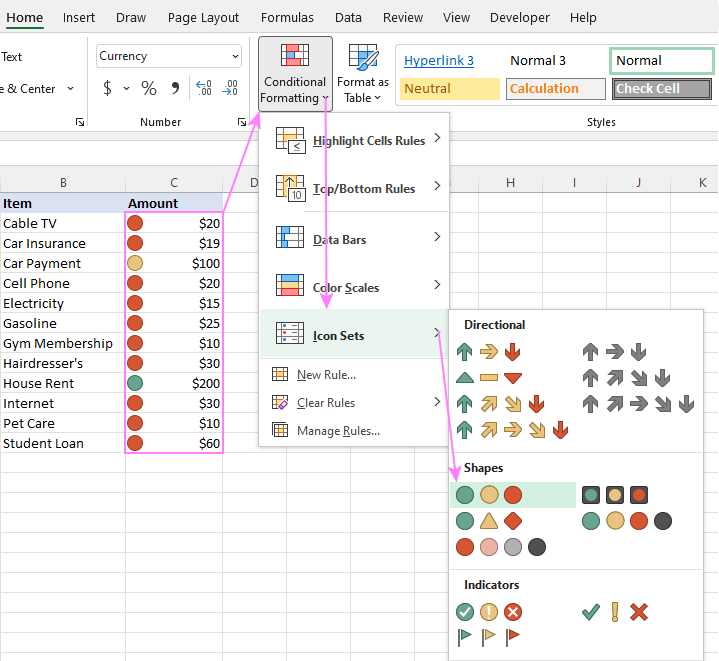
Choose Conditional Formatting > Icon Sets.
-
Excel applies icons like arrows or flags based on value thresholds.
-
You can customize the value ranges under Manage Rules > Edit Rule.
Managing and Prioritizing Multiple Rules
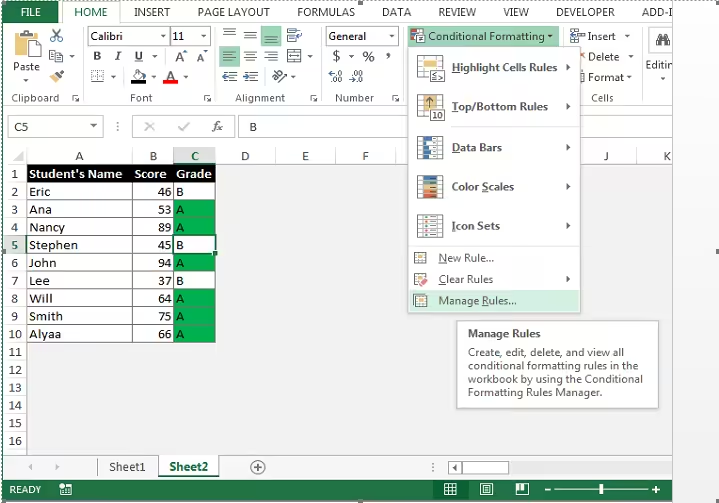
To view or change existing rules:
-
Go to Home > Conditional Formatting > Manage Rules.
-
Use the dropdown to view rules for the current worksheet or selection.
-
Reorder rules using the arrows.
-
Check or uncheck Stop If True if you want one rule to override the others.
Tips for Using Conditional Formatting Effectively
Keep formulas relative
Use relative references (like B2 instead of $B$2) to apply formatting across rows properly.
Use named ranges
Naming your ranges can simplify complex formulas and make them easier to maintain.
Avoid too many rules
Too many overlapping rules can slow down Excel or cause visual clutter. Try to consolidate where possible.
Test your formulas
Before applying, use a few test cases to make sure your logic is working as expected.
Use “Evaluate Formula” tool
Go to Formulas > Evaluate Formula to step through your custom condition if you’re not getting expected results.
Common Use Cases for Multiple Conditions
-
HR Dashboards: Highlight employees based on performance and attendance.
-
Finance: Color overdue invoices that are unpaid and past due.
-
Education: Flag students who meet both grade and behavior criteria.
-
Sales: Highlight top-performing products with high volume and margin.
Final Thoughts
Conditional Formatting for multiple conditions in Excel allows you to go beyond basic data highlighting. By using formulas like AND and OR, and combining rules, you can create highly dynamic, interactive spreadsheets that bring attention to what really matters.
Whether you’re building dashboards, cleaning data, or analyzing trends, mastering conditional formatting will make your work more insightful—and a lot more visually impressive.