


Learn How to Work with Percentages in Excel
Calculating percentages in Excel is a skill that almost everyone uses—whether you’re analyzing sales performance, calculating discounts, or understanding your grades. Fortunately, Excel makes working with percentages simple and powerful with its built-in formulas and formatting tools.
This step-by-step guide will teach you how to calculate percentages in different ways using Excel, including percent of total, increase or decrease, change over time, and more. Let’s explore everything you need to know.
Understanding How Percentages Work in Excel
In Excel, a percentage is just a number divided by 100. For example, if you write 50% in a cell, Excel stores it as 0.5. You can either format the number as a percentage using the toolbar or type it manually.
There are two main things you’ll need:
-
A formula to calculate the percentage.
-
The percentage number format to make it display correctly (with the
%symbol).
Basic Percentage Formula
If you want to calculate what percentage one number is of another, you can use a simple formula:
For example:
-
If cell A1 = 30 (part)
-
And cell B1 = 150 (total)
You can write:
Then format the result as a percentage, and you’ll get 20%.
How to Format as Percentage

After writing your formula, do the following to display it correctly:
-
Select the cell with the formula.
-
Go to the Home tab.
-
Click on the Percent Style button (
%icon) in the Number group.
Alternatively, you can right-click the cell, choose Format Cells, then select Percentage and set the desired number of decimal places.
Calculating Percentage of a Total
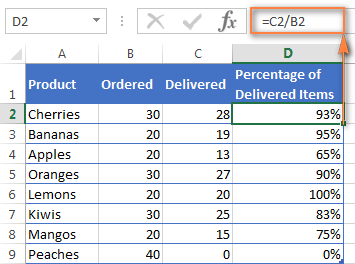
Let’s say you want to find what portion of a whole each value represents. Imagine a dataset with sales by product:
| Product | Sales |
|---|---|
| A | 200 |
| B | 300 |
| C | 500 |
To find each product’s percentage of total sales:
-
Sum all the values.
-
Divide each individual value by the total.
Assuming the sales values are in B2 to B4, and total is in B5:
Format each result as a percentage.
Calculating Percentage Change

To find how much a value has increased or decreased, use this formula:
For example:
-
Old value (A1) = 100
-
New value (B1) = 120
Then:
Format it as a percentage and you’ll get 20% increase.
If the result is negative, it indicates a decrease.
Calculating Percentage Increase Only
If you’re interested only in increase (and not decrease), and want to avoid negative values, use:
This is useful when reporting growth rates without highlighting declines.
Calculating Discounts and Sale Prices
Suppose you have a product that costs $80, and it’s on sale with a 25% discount. Here’s how to calculate:
To find the discount amount:
Result: 20
To find the final price:
Or simply:
Result: $60
Using Cell References for Percentage Calculations
Avoid hardcoding numbers like 25% into your formulas. Instead, use cell references:
-
If A1 contains the original value (e.g., 80)
-
And B1 contains the discount (e.g., 25%)
You can write:
This makes your spreadsheet dynamic and easier to update.
Cumulative Percentages
Cumulative percentage is helpful in charts or progressive analysis. For instance, to calculate the cumulative percentage in a sorted list of values:
-
Create a column with cumulative totals.
-
Divide the cumulative value by the grand total.
For example:
-
Cumulative total in column C
-
Grand total in B10
Use:
Drag the formula down the column and format as percentage.
Percentage Tips and Common Mistakes
Tip 1: Always Format Result Cells as Percentage
Even if the math is correct, the display may confuse you. Always check if the result cell has the proper percentage formatting.
Tip 2: Watch for Zero Divisions
If your total (denominator) is zero, Excel will return a #DIV/0! error. Always double-check the denominator.
Tip 3: Use Absolute References in Formulas
If you’re dividing each row by a total (like B$10), use absolute references to keep the formula from changing when you copy it.
Tip 4: Increase or Decrease a Number by a Percentage
To increase a number by 10%:
To decrease a number by 10%:
You can replace 10% with a cell reference for flexibility.
Real-Life Applications of Percentage in Excel
-
Budgeting: Compare actual vs. planned spending.
-
Sales Reports: Calculate revenue growth, commission, and discount analysis.
-
School Grading: Show student scores as percentages of total marks.
-
Data Visualization: Create charts that show part-to-whole relationships.
Final Thoughts
Learning how to calculate percentages in Excel opens the door to better data analysis, clearer reports, and faster decision-making. Whether you’re tracking growth, evaluating discounts, or managing a budget, Excel’s percentage formulas and formatting tools are your best friends.
Remember to format your results properly, double-check your formulas, and use references instead of fixed numbers. With a little practice, you’ll be handling percentage calculations like a pro.