


How to Retrieve an Unsaved Excel Document
We’ve all experienced that dreaded moment — working hard on an Excel spreadsheet only to lose it unexpectedly. Whether your computer crashed, Excel froze, or you simply closed the file without saving, the fear of losing hours of work can be frustrating. Fortunately, Excel comes equipped with built-in recovery features that can help you retrieve your unsaved work.
In this guide, we’ll walk you through step-by-step instructions on how to recover an unsaved Excel file, understand how AutoRecover works, and learn how to prevent future data loss.
Understanding Excel’s AutoRecover Feature
Microsoft Excel includes a feature called AutoRecover, which saves a backup copy of your work at regular intervals. By default, it is enabled and saves your files every 10 minutes. This is incredibly useful in case Excel closes unexpectedly or your computer restarts.
Where AutoRecover Files Are Stored
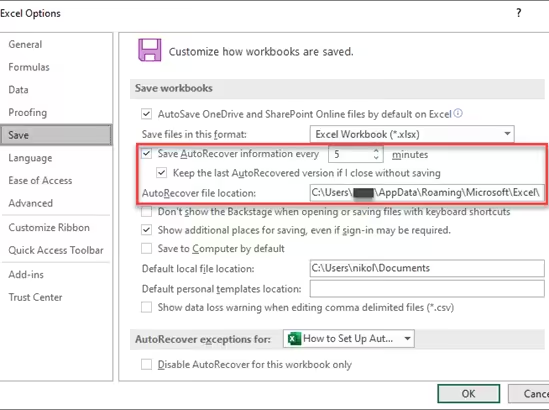
By default, AutoRecover files are saved in the following location:
You can check or change the AutoRecover location by going to:
-
File > Options
-
Click on Save
-
Look under AutoRecover file location
Now that you understand how AutoRecover works, let’s see how to use it to restore your lost file.
Step 1: Check the Document Recovery Pane
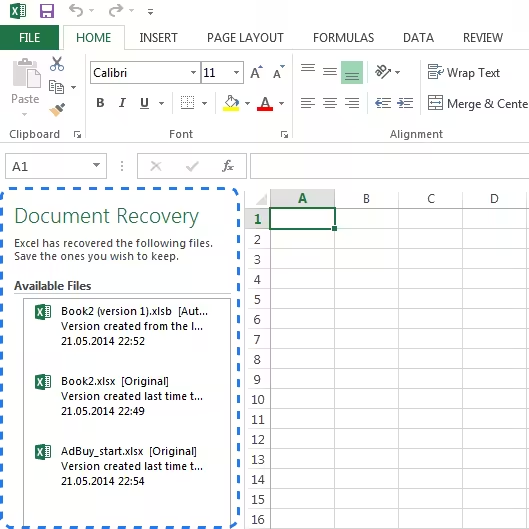
If Excel crashed or was closed improperly, the next time you open the application, you might see the Document Recovery pane on the left side of the screen.
Here’s what to do:
-
Launch Excel.
-
Look for the Document Recovery panel on the left.
-
Review the files listed — they are often labeled with [AutoRecovered] in the name.
-
Click to open and review each file.
-
Save the version you want to keep by selecting File > Save As.
If you don’t see this pane, move on to the next step.
Step 2: Use the Recover Unsaved Workbooks Option
If you accidentally closed a file without saving it, Excel gives you a second chance to retrieve it.
To do this:
-
Open Excel.
-
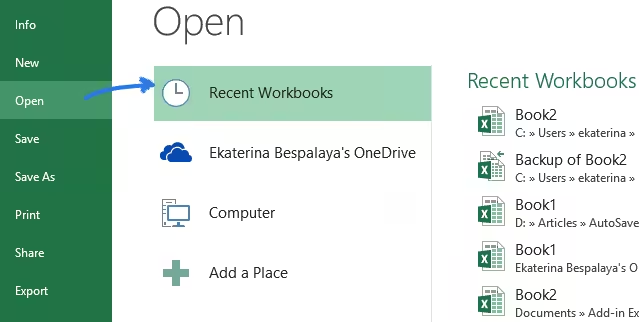
Go to File > Open.
-
Scroll to the bottom and click on Recover Unsaved Workbooks.
-
A window will open showing unsaved files stored in the AutoRecover folder.
-
Select the file you want, open it, and click Save As to store it permanently.
This is one of the easiest and most effective ways to get back a file that was never manually saved.
Step 3: Recover from the AutoRecover Folder Manually
If the previous options didn’t help, you can try navigating to the AutoRecover folder manually:
-
Press Windows + R to open the Run dialog.
-
Type this path:
-
Press Enter.
-
Look for files with extensions like
.asdor.xlsband names that resemble your lost workbook. -
Open them in Excel and save the one you need.
Note that these files might not have the original file name, so you may need to open and check multiple files.
Step 4: Use Temporary Files (.TMP)
Excel sometimes creates temporary backup files that may be useful in emergencies.
To find them:
-
Open File Explorer.
-
Go to:
-
You might find files with the
.tmpor.xlsbextensions. -
Right-click and open them with Excel.
-
Save your recovered file.
This method works best when the file was open for a while before the crash.
Step 5: Check OneDrive or SharePoint (if applicable)
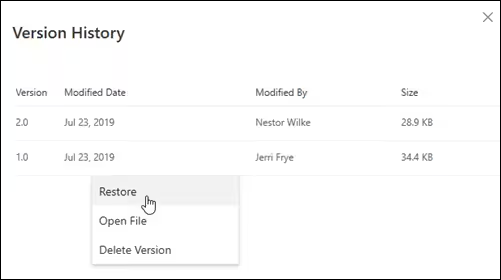
If you were working on a file saved in OneDrive or SharePoint, you may be able to recover a previous version from version history.
To do this:
-
Open your OneDrive folder in File Explorer or on the web.
-
Right-click the file > Version history.
-
Browse through older versions and restore the one you need.
This feature is only available if your Excel file was stored in the cloud.
Preventing Future Data Loss in Excel
While recovering a lost Excel file is often possible, prevention is always better. Here are some steps you can take to avoid losing work in the future:
Enable AutoSave (Office 365)
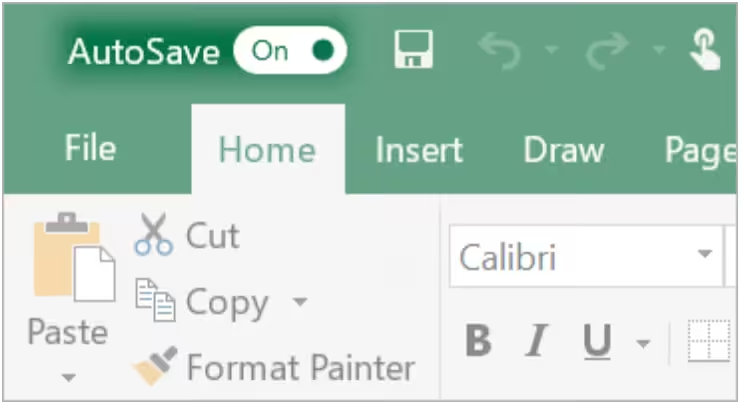
If you use Microsoft 365 and save files in OneDrive, turn on AutoSave:
-
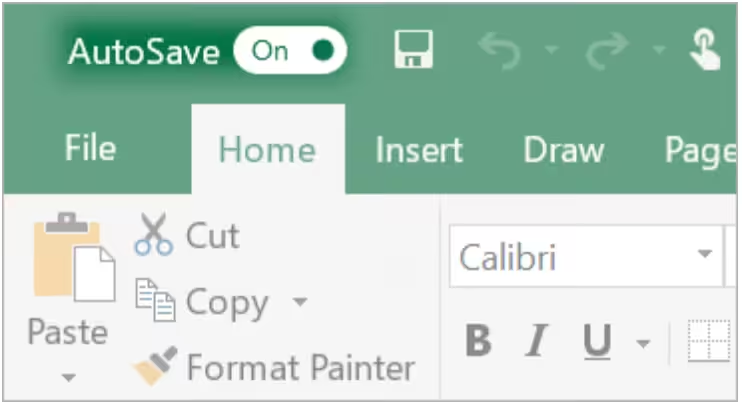
Simply toggle the AutoSave switch at the top-left corner of the Excel window.
-
This ensures your file saves every few seconds automatically.
Adjust AutoRecover Settings
You can make AutoRecover more effective by reducing the save interval:
-
Go to File > Options > Save.
-
Check that Save AutoRecover information every X minutes is enabled.
-
Change the time to something shorter, like 2 or 5 minutes.
-
Ensure Keep the last autosaved version if I close without saving is checked.
Regularly Save Your Work
Get into the habit of pressing Ctrl + S every few minutes, especially after making significant changes. Manual saves give you peace of mind and prevent data loss when unexpected errors happen.
Final Thoughts
Losing an unsaved Excel file can feel catastrophic, but as we’ve seen, Microsoft has built-in tools that make recovery possible in most situations. Whether it’s through AutoRecover, manual recovery from temp files, or cloud version history, you have multiple options to bring your data back.
The next time Excel crashes or you accidentally close a file, don’t panic. Follow these steps and you’ll likely be able to restore your work in just a few minutes. And to avoid the issue altogether, take advantage of AutoSave and make regular backups.