


Excel SUBSTITUTE Function Explained: Usage-Syntax-Examples
Working with text in Excel can be powerful and efficient—especially when you know how to use functions like SUBSTITUTE. Whether you’re cleaning up messy data, updating values in a list, or making mass replacements, the SUBSTITUTE function is a quick way to replace specific text within cells.
This guide will explain what the SUBSTITUTE function is, how it works, when to use it, and provide practical examples that can be applied to real-life tasks.
What Is the SUBSTITUTE Function in Excel?
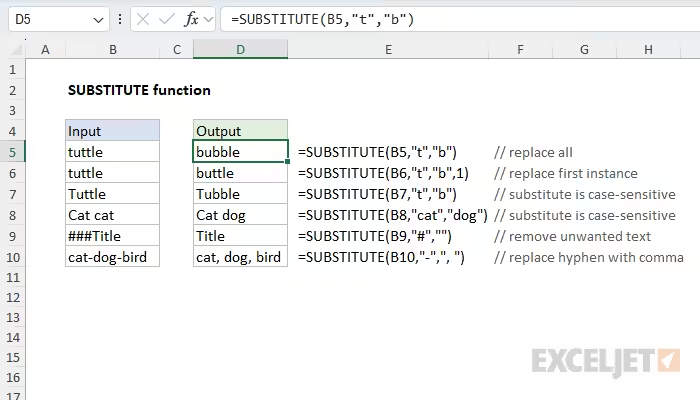
The SUBSTITUTE function is used to replace specific text in a string with another set of text. It’s especially useful when you’re trying to clean or modify text data in bulk.
For example, if you want to replace all instances of the word “Inc.” with “LLC”, SUBSTITUTE makes that easy without manual edits.
SUBSTITUTE Function Syntax
Here is the basic formula structure:
Arguments:
-
text: The original text or cell reference.
-
old_text: The text you want to replace.
-
new_text: The new text that will replace the old text.
-
instance_num (optional): Specifies which occurrence of old_text you want to replace. If omitted, all instances will be replaced.
Basic Usage Example
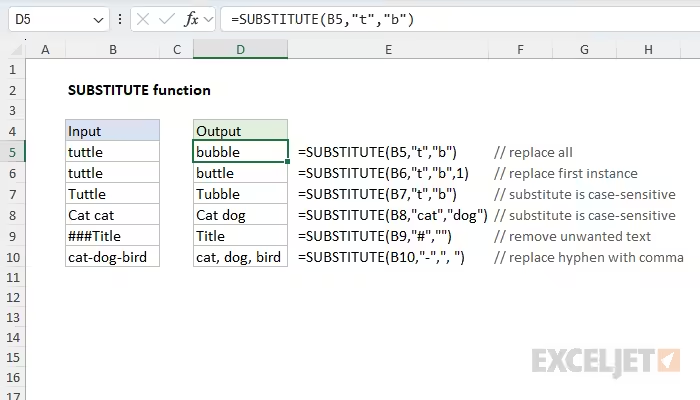
Suppose cell A1 contains the text:
If you use:
The result will be:
But if you only want to replace the first occurrence of “New York”, then:
Returns:
Practical Examples
Example 1: Replacing Commas with Semicolons
If you have a list like:
Use the formula:
You’ll get:
This is useful when preparing data for systems that require different delimiters.
Example 2: Removing All Spaces
To remove all spaces from a string (e.g., turning “John Doe” into “JohnDoe”):
Great for formatting usernames or concatenated values.
Example 3: Replace Only the Second Occurrence
Let’s say A1 contains:
To replace only the second occurrence of “Red”:
This gives you:
Difference Between SUBSTITUTE and REPLACE
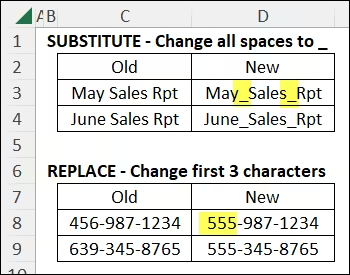
While SUBSTITUTE replaces based on text match, the REPLACE function works based on position within the string.
SUBSTITUTE:
REPLACE:
Use SUBSTITUTE when you know the text you want to change; use REPLACE when you know the position and length.
Nesting SUBSTITUTE with Other Functions
SUBSTITUTE works well in combination with other Excel functions. Here’s how:
With UPPER or LOWER
To replace text and convert the result to uppercase:
With TRIM
To clean and remove extra spaces before applying SUBSTITUTE:
This helps when dealing with inconsistent spacing in imported text files.
With LEN for Character Count Replacement
You can calculate the number of occurrences of a character before and after a SUBSTITUTE to count how many times a character appears.
To count the number of commas in a cell:
Limitations of the SUBSTITUTE Function
-
SUBSTITUTE is case-sensitive. For example, “Excel” is not the same as “excel”.
-
It doesn’t use wildcards. You must specify the exact text to replace.
-
It does not support pattern recognition like regular expressions. If you need complex replacements, Power Query or VBA may be better.
Use Cases in the Real World
Here are some real-world scenarios where SUBSTITUTE shines:
-
Cleaning product names: Replace trademark symbols or versions (e.g., “Pro 2021” to “Pro”).
-
Data transformation: Replace country codes with full names (e.g., “US” → “United States”).
-
Custom formatting: Replace dashes with slashes in dates or codes (e.g., “2023-04-01” to “2023/04/01”).
-
Email cleanup: Remove or replace special characters before uploading to CRM or email tools.
Tips for Better Results
-
Use nested SUBSTITUTE formulas when replacing multiple different words in the same cell.
Example:
-
Combine with IF statements to apply conditions before substitution.
-
Always keep a backup of original data when running large replacements.
-
Test on a few cells before applying to an entire column or dataset.
Final Thoughts
The SUBSTITUTE function in Excel is a simple yet powerful tool for anyone dealing with large amounts of text data. Its ability to target and replace specific words or characters across thousands of rows can save countless hours of manual editing.
Whether you’re preparing reports, cleaning imported data, or automating transformations, mastering SUBSTITUTE can significantly improve your efficiency.
Give it a try the next time you find yourself reaching for “Find and Replace” — you’ll be glad you did.