


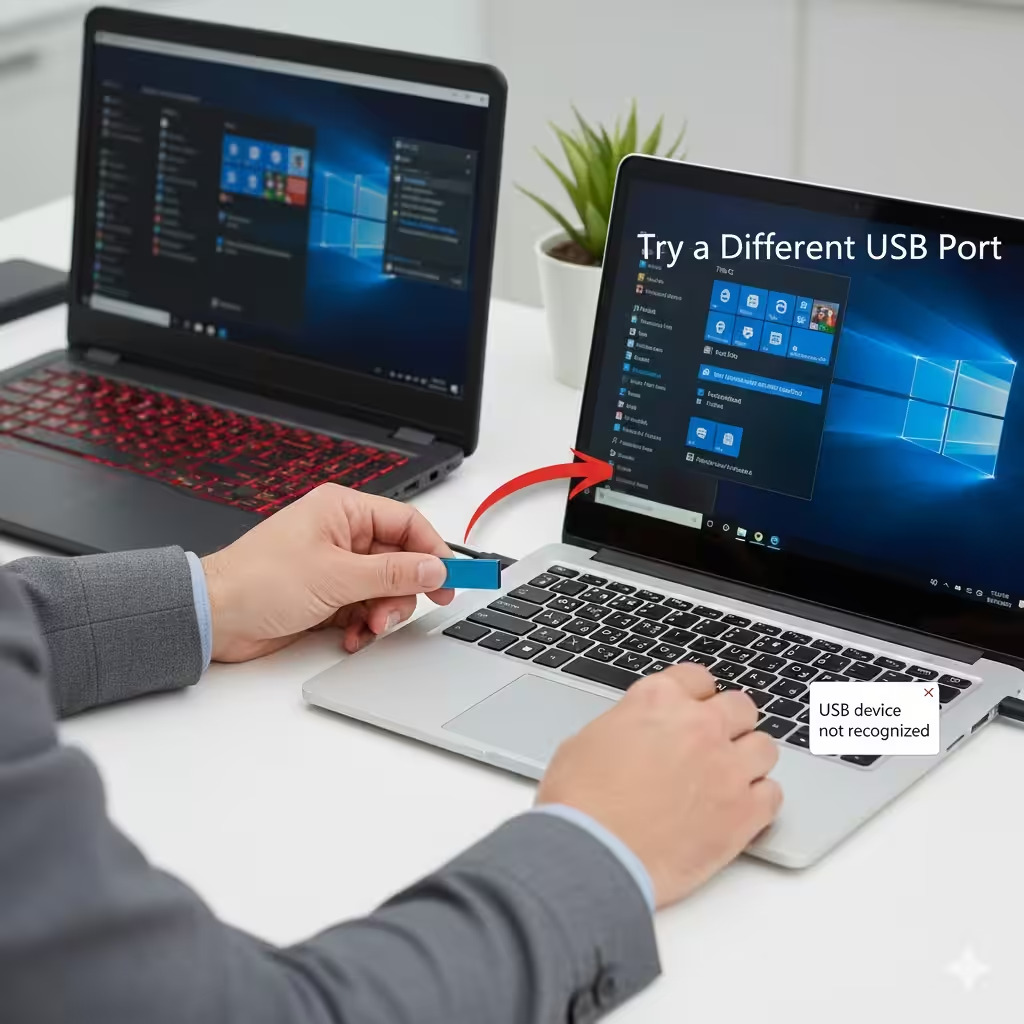
Steps to Fix Unrecognized USB Devices on Windows
A USB device not recognized error is one of the most common and frustrating problems Windows users encounter. Whether you’re connecting a flash drive, external hard drive, printer, keyboard, or other USB peripheral, this issue can prevent your device from functioning properly. Understanding the root causes and knowing how to troubleshoot them can save you time and prevent data loss.
This guide covers the most effective ways to fix a USB device not recognized error, including checking hardware, updating drivers, adjusting power settings, and using Windows troubleshooting tools.
Why a USB Device May Not Be Recognized
Before diving into solutions, it’s important to understand why this error occurs. Common causes include:
-
Faulty USB ports or connectors
-
Outdated or corrupt USB drivers
-
Power management settings interfering with USB devices
-
Corrupted Windows system files
-
Incompatible hardware or software
-
Issues with the USB device itself
Identifying the underlying cause helps choose the right solution.
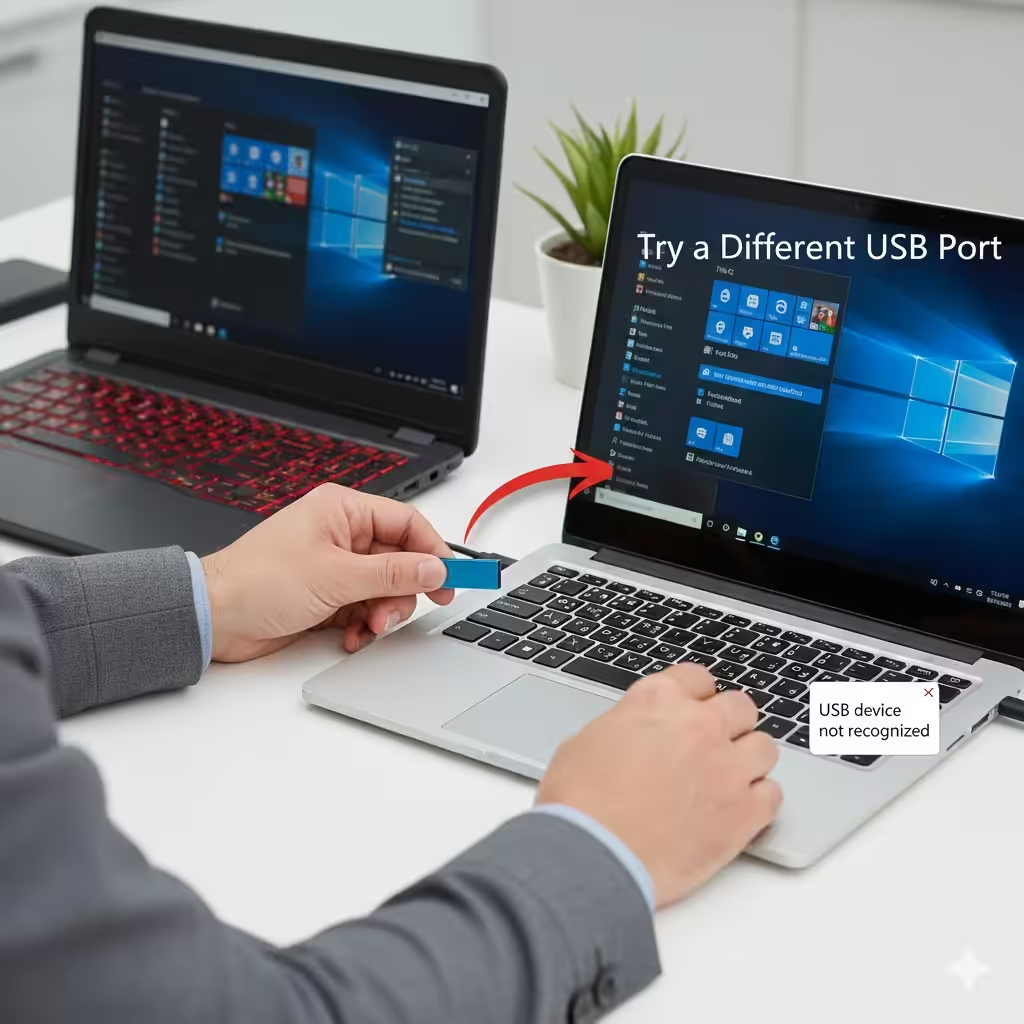
Step 1: Check the USB Device and Port
1. Test the Device on Another Computer
Sometimes the issue is with the USB device, not the PC. Connect the device to another computer to verify functionality.
2. Try a Different USB Port
-
Switch from USB 2.0 to USB 3.0 or vice versa
-
Avoid using hubs or extension cords initially
-
Ensure the port is free of dust or debris
3. Inspect the USB Device
-
Look for visible damage
-
Listen for unusual sounds (hard drives)
-
Replace cables if detachable
Hardware issues are common and should be ruled out first.
Step 2: Restart Your Computer
A simple restart can fix many USB recognition issues. Restarting helps reset the USB controllers and clears temporary glitches.
Tips
-
Unplug all USB devices before restarting
-
Boot into Safe Mode if the device is still unrecognized
-
Try connecting only the problematic device to minimize conflicts
Step 3: Update or Reinstall USB Drivers
Outdated, missing, or corrupt drivers are frequent causes of USB device errors.
Update Drivers
-
Press Windows + X → select Device Manager
-
Expand Universal Serial Bus controllers
-
Locate the device with a yellow warning icon
-
Right-click → Update driver → Search automatically
Reinstall Drivers
-
Open Device Manager
-
Right-click the device → Uninstall device
-
Disconnect the USB device
-
Restart your computer
-
Reconnect the device; Windows will reinstall the driver automatically
Updating drivers ensures compatibility with the latest Windows updates.
Step 4: Check USB Root Hub Power Settings
Windows may disable USB ports to save power, causing recognition problems.
Steps
-
Open Device Manager → expand Universal Serial Bus controllers
-
Right-click USB Root Hub → Properties
-
Go to the Power Management tab
-
Uncheck Allow the computer to turn off this device to save power
-
Click OK and repeat for all USB Root Hubs
This prevents Windows from turning off USB devices unexpectedly.
Step 5: Run the Hardware and Devices Troubleshooter
Windows includes a built-in troubleshooter that can identify and fix USB issues.
Steps
-
Press Windows + I → open Settings
-
Go to Update & Security → Troubleshoot → Additional troubleshooters
-
Select Hardware and Devices → click Run the troubleshooter
-
Follow the on-screen instructions
The tool can automatically detect and repair common USB problems.
Step 6: Disable USB Selective Suspend Setting
USB Selective Suspend is a power-saving feature that can sometimes prevent devices from being recognized.
Steps
-
Press Windows + S → type Edit power plan → select it
-
Click Change advanced power settings
-
Expand USB settings → USB selective suspend setting
-
Set both On battery and Plugged in to Disabled
-
Click Apply → OK
-
Restart your computer
Disabling this feature helps maintain continuous power to USB devices.
Step 7: Scan for Hardware Changes
Sometimes Windows fails to detect newly connected devices. Scanning for hardware changes can help.
Steps
-
Open Device Manager
-
Click Action → Scan for hardware changes
-
Wait for Windows to detect the USB device
This refreshes the USB controller and often resolves recognition issues.
Step 8: Check for Windows Updates
Windows updates can resolve bugs affecting USB functionality.
Steps
-
Press Windows + I → open Settings
-
Go to Update & Security → Windows Update
-
Click Check for updates
-
Install any available updates and restart
Keeping Windows up to date ensures driver and system compatibility.
Step 9: Repair Corrupted System Files
Corrupt system files may prevent USB devices from functioning correctly. The System File Checker (SFC) tool can help.
Steps
-
Press Windows + X → select Command Prompt (Admin) or Windows Terminal (Admin)
-
Type:
-
Press Enter
-
Wait for the scan to complete and follow any prompts
This restores missing or corrupted Windows files affecting USB functionality.
Step 10: Check for Conflicts With External Software
Antivirus programs or third-party utilities may block USB devices.
Recommendations
-
Temporarily disable antivirus software
-
Uninstall or update USB-related utilities
-
Retry connecting the device
Always re-enable security software after testing.
Step 11: Format or Reset the USB Device (Last Resort)
If the device works on other computers but not yours, formatting may help.
Caution
-
Formatting erases all data
-
Backup data before proceeding
Steps
-
Open This PC → right-click the USB device → Format
-
Choose a compatible file system (NTFS or exFAT)
-
Click Start and wait for completion
Resetting the device ensures it’s in a usable state for Windows.
Conclusion
A USB device not recognized error can result from hardware issues, driver problems, power settings, or corrupted system files. By following this comprehensive guide, you can troubleshoot and resolve most USB problems. Start with basic hardware checks, then update drivers, adjust settings, and use Windows tools to repair and reset devices. With careful troubleshooting, your USB device should be recognized and function properly.