


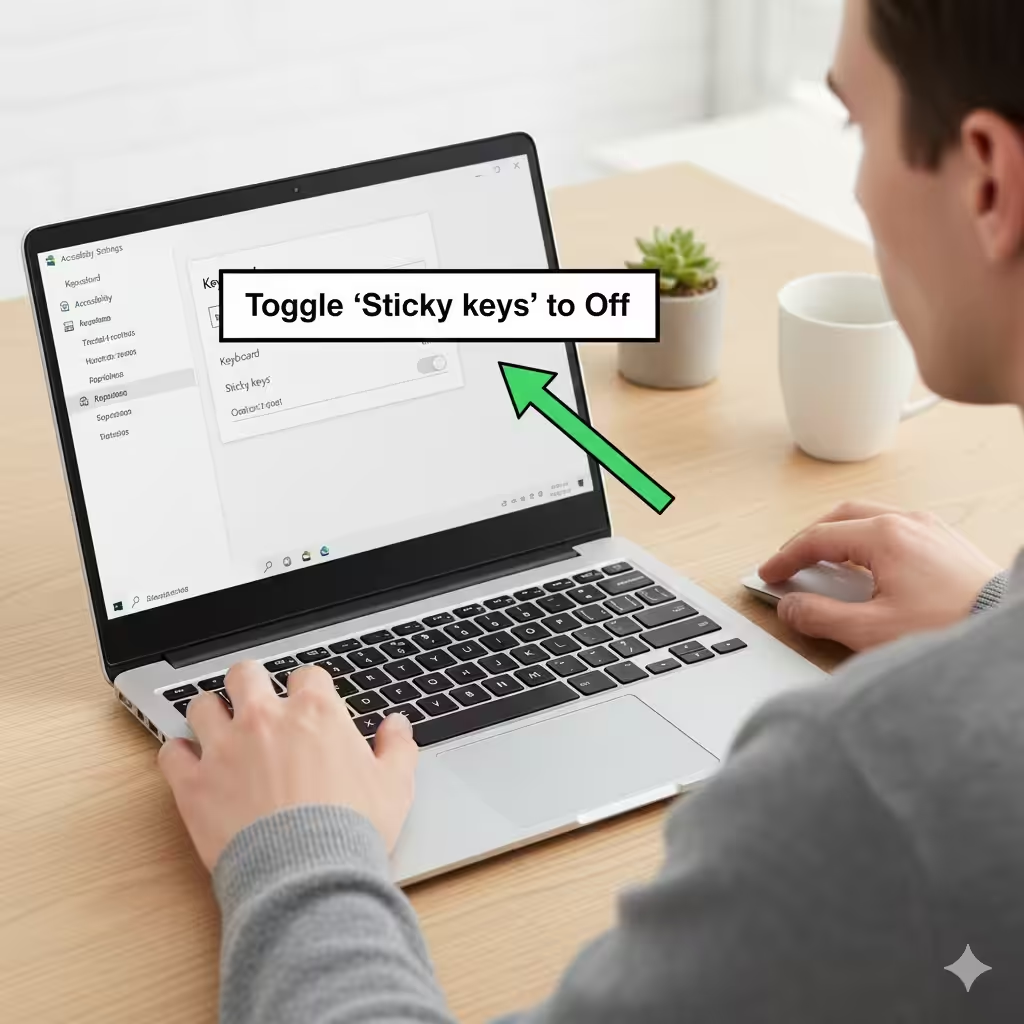
Steps to Turn Off Sticky Keys in Windows
Sticky Keys is a built-in accessibility feature in Windows designed to help users who have difficulty holding down multiple keys at once. When enabled, Sticky Keys allows you to press keys like Shift, Ctrl, Alt, or the Windows key one at a time instead of simultaneously. While this is extremely helpful for some users, it can be frustrating if it turns on accidentally—usually triggered by pressing the Shift key five times.
Many Windows users want to disable Sticky Keys permanently to avoid disruptions during gaming, typing, or daily computer use. This guide explains what Sticky Keys is, why it may turn on unexpectedly, and several reliable ways to turn it off across all modern versions of Windows.
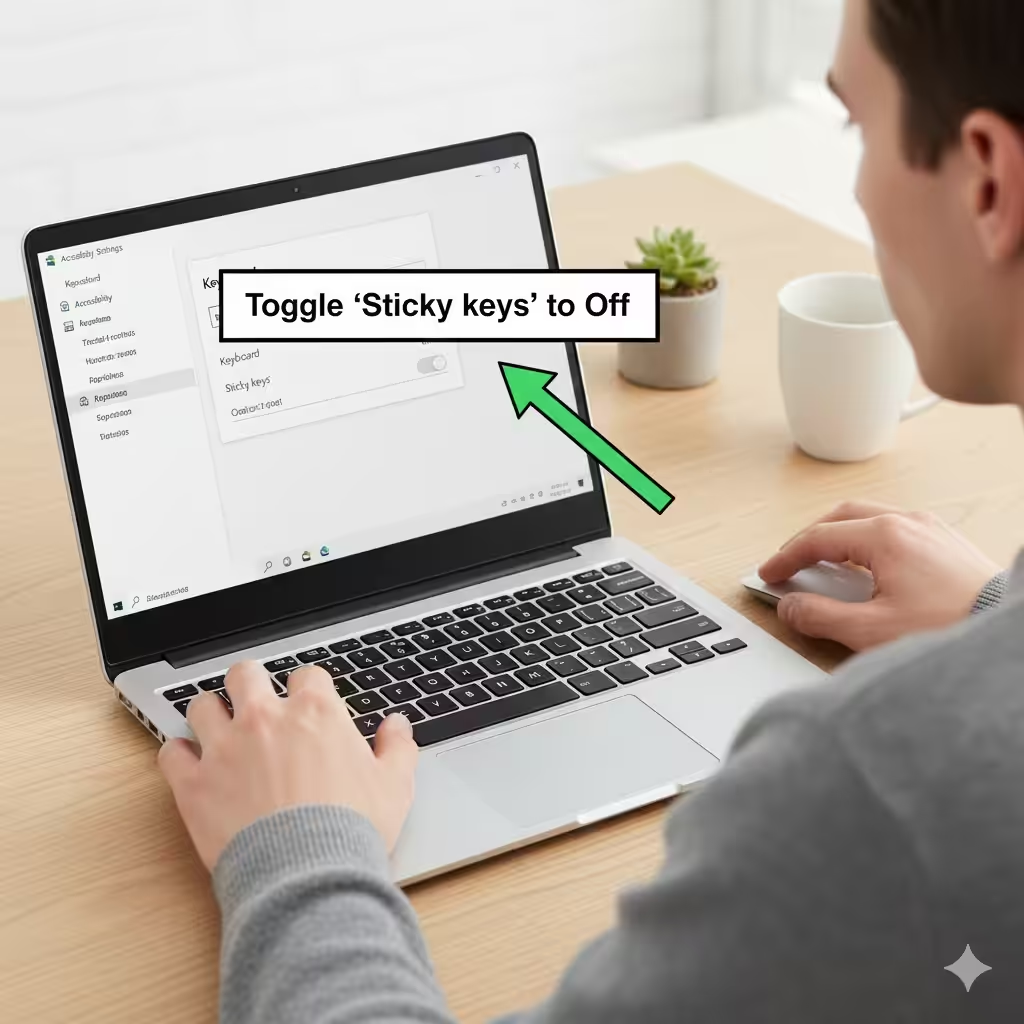
What Are Sticky Keys in Windows?
Sticky Keys is part of Windows Accessibility (Ease of Access) features. It was created to support users who struggle with key combinations because of motor or physical limitations.
How Sticky Keys Works
When enabled:
-
Pressing Shift, Ctrl, Alt, or Windows key locks the key
-
The system treats the next key press as a combination
-
Example: Press Shift → press A → results in a capital “A”
This eliminates the need to hold multiple keys down at once.
When Sticky Keys Turns On Accidentally
Sticky Keys often becomes active unintentionally when:
-
You press the Shift key five times in a row
-
You hold down Shift for several seconds
-
Certain games or software trigger repetitive key presses
If this happens repeatedly, turning off Sticky Keys permanently can prevent interruptions.
How to Turn Off Sticky Keys from Windows Settings
One of the simplest ways to disable Sticky Keys is through the Windows Settings menu.
Steps to Turn Off Sticky Keys
-
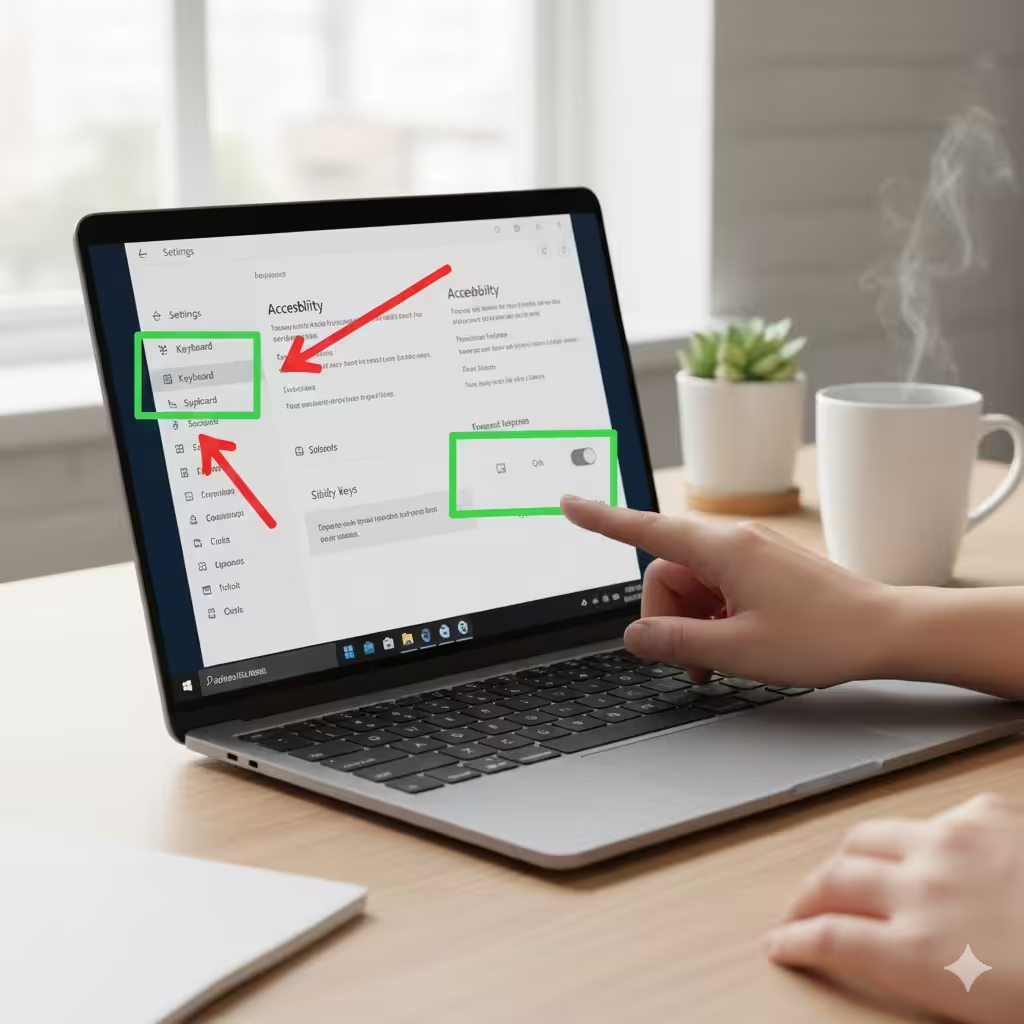
Press Windows + I to open Settings.
-
Select Accessibility (or Ease of Access in older versions).
-
Click Keyboard from the left sidebar.
-
Locate the Sticky Keys section.
-
Toggle Sticky Keys to Off.
This instantly disables the feature.
Disable All Related Shortcut Options
Under Sticky Keys settings, uncheck:
-
Allow the shortcut key to start Sticky Keys
-
Turn on Sticky Keys when Shift is pressed five times
-
Play a sound when modifier keys are pressed
This ensures Sticky Keys does not activate by accident.
How to Turn Off Sticky Keys Using the Control Panel
If you prefer the classic Windows interface, you can disable Sticky Keys through the Control Panel.
Steps
-
Press Windows + R → type control → press Enter.
-
Go to Ease of Access Center.
-
Select Make the keyboard easier to use.
-
Under Make it easier to type, find Turn on Sticky Keys.
-
Uncheck the box.
-
Click Apply → OK.
This method works on Windows 7, 8, 10, and 11.
Disable Sticky Keys Using the Shift Key Shortcut Prompt
If Sticky Keys was activated accidentally, Windows will show a popup.
Steps
-
Press Shift five times to trigger the Sticky Keys prompt window.
-
In the dialog box, click Disable this keyboard shortcut in Ease of Access keyboard settings.
-
Turn Sticky Keys off.
-
Uncheck shortcut options.
This is a fast way to disable Sticky Keys without opening menus manually.
How to Permanently Disable Sticky Keys in Windows
If Sticky Keys keeps turning on repeatedly—especially during gaming or long typing sessions—you can disable it permanently.
Permanently Turn Off Sticky Keys
-
Go to Settings → Accessibility → Keyboard.
-
Turn Sticky Keys off.
-
Expand Sticky Keys settings.
-
Disable:
-
Allow the shortcut key to start Sticky Keys
-
Allow modifier keys to remain active when pressed twice
-
Turn off Sticky Keys when two keys are pressed at once
-
These steps ensure Windows no longer triggers Sticky Keys.
Turn Off Sticky Keys from the Windows Registry (Advanced Users)
If the Settings menu does not disable Sticky Keys, Registry changes can force it off.
This method is intended for advanced users.
Warning
Modifying the Registry incorrectly can cause system problems. Follow steps carefully.
Steps
-
Press Windows + R → type regedit → press Enter.
-
Navigate to:
-
Find the entry Flags.
-
Double-click it and change the value to:
-
Click OK, then restart your computer.
This completely disables Sticky Keys at the system level.
Disable Sticky Keys via Group Policy (Windows Pro Edition)
For organizations, schools, or shared computers, disabling Sticky Keys via Group Policy ensures no user can accidentally enable it.
Steps
-
Press Windows + R → type gpedit.msc → press Enter.
-
Navigate to:
-
Find Turn off Sticky Keys.
-
Double-click → choose Enabled.
-
Click Apply → OK.
Group Policy settings override user actions, making Sticky Keys remain off permanently.
Fix Sticky Keys Stuck On After You Disable Them
Sometimes Sticky Keys may appear stuck even after turning them off. This may happen due to corrupted system files or a glitch.
Troubleshooting Steps
-
Restart your computer
-
Update Windows using Settings → Windows Update
-
Run the Keyboard Troubleshooter
-
Settings → Troubleshoot → Additional troubleshooters
-
Select Keyboard
-
-
Reset Ease of Access settings
-
Scan for system corruption
Run Command Prompt (Admin) and type:
A restart after the scan usually fixes the issue.
Why Sticky Keys May Reactivate After Restarting
Several conditions may cause Sticky Keys to re-enable itself:
-
Damaged Windows user profile
-
Third-party software overriding keyboard settings
-
Background accessibility tools
-
Corrupt system files
-
Windows updates reverting keyboard preferences
If the problem persists, consider creating a new Windows user profile and copying your files.
Conclusion
Sticky Keys is a valuable accessibility tool, but it can be disruptive when activated unintentionally. Whether you’re gaming, editing documents, or working on complex tasks, turning off Sticky Keys—or disabling it permanently—helps ensure a smoother experience. With multiple methods available, including Settings, Control Panel, Registry Editor, and Group Policy, you can choose the option that best fits your needs.