


Guide to Removing Default Apps on Windows 10 and Windows 11
Windows 10 and Windows 11 come with a variety of built-in apps (often called bloatware) that many users never use. These apps take up storage space, run background processes, and can clutter your Start menu. While some built-in apps are useful—such as Calculator, Photos, or Notepad—others may be unnecessary for your workflow. Fortunately, Windows provides multiple ways to remove or disable pre-installed apps, even though some require advanced tools like PowerShell.
This guide covers every method available, ranging from simple uninstallation to more advanced removal techniques. Whether you want to clean up unnecessary software, improve performance, or simply customize your Windows experience, this article will show you the most effective ways to remove pre-installed apps safely.
Why Windows Includes Pre-Installed Apps
Microsoft includes built-in apps to enhance user experience out of the box. Many apps are intended to help users get started quickly, such as Mail, Calendar, Photos, Groove Music, and Xbox. Additionally, some apps are part of Microsoft’s business model, promoting services like OneDrive or Microsoft Store apps.
Common Reasons Users Want to Remove Them
-
To free up storage space
-
To declutter the Start menu or taskbar
-
To stop unwanted background activity
-
To improve performance on slower devices
-
To reduce distractions and simplify Windows
Whatever your reason, you can safely remove most of these apps.
Which Windows Apps Can Be Removed
Not all system applications can be uninstalled. Some are essential to Windows and required for system stability.
Apps You Can Remove
-
Weather
-
Xbox apps (Xbox, Game Bar, Console Companion)
-
Groove Music
-
Movies & TV
-
3D Viewer
-
Paint 3D
-
Cortana (Windows 11 only)
-
OneNote
-
Skype
-
Your Phone (Phone Link)
-
Tips
-
Maps
Apps You Cannot Remove
These are core components:
-
Microsoft Store
-
Microsoft Edge (cannot be fully removed without complicated or unsafe methods)
-
Windows Security
-
Settings
-
File Explorer
-
.NET framework components
Windows may allow disabling some features, but complete removal is not recommended.
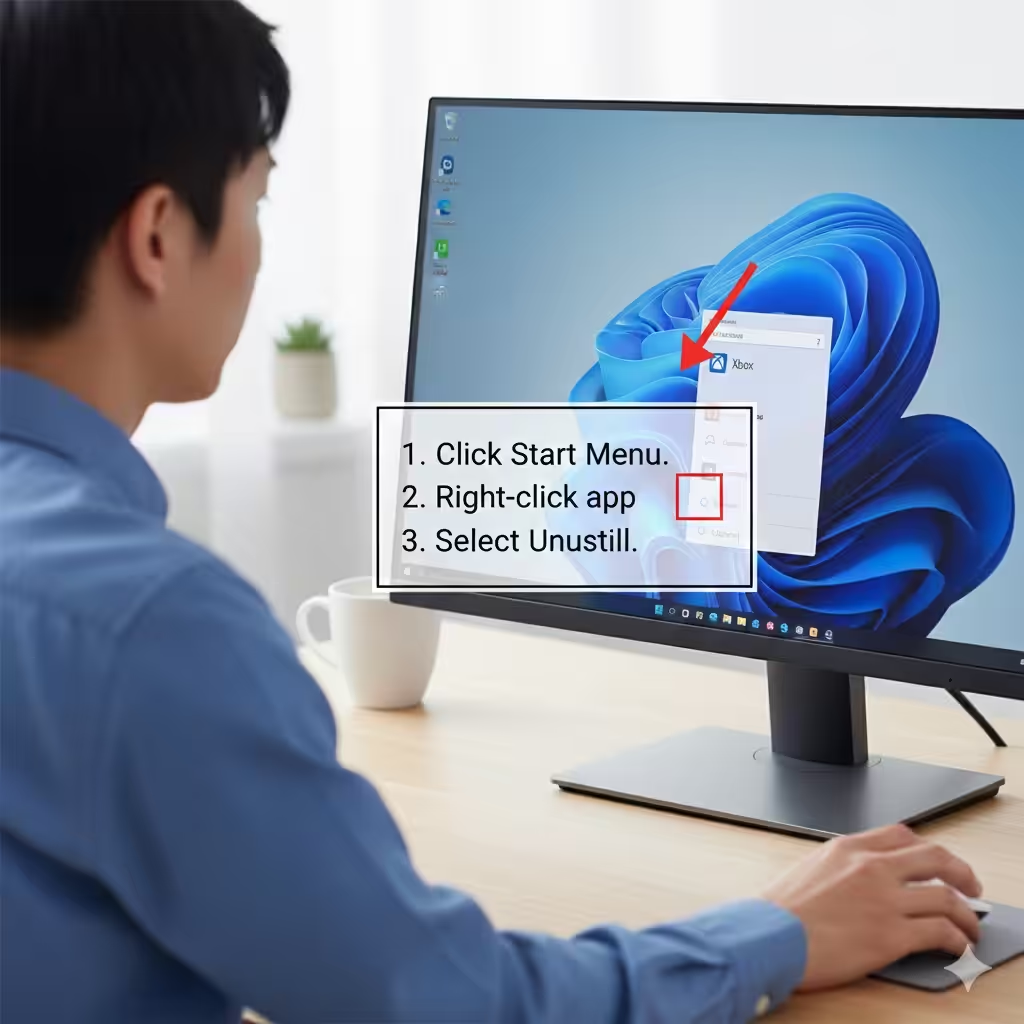
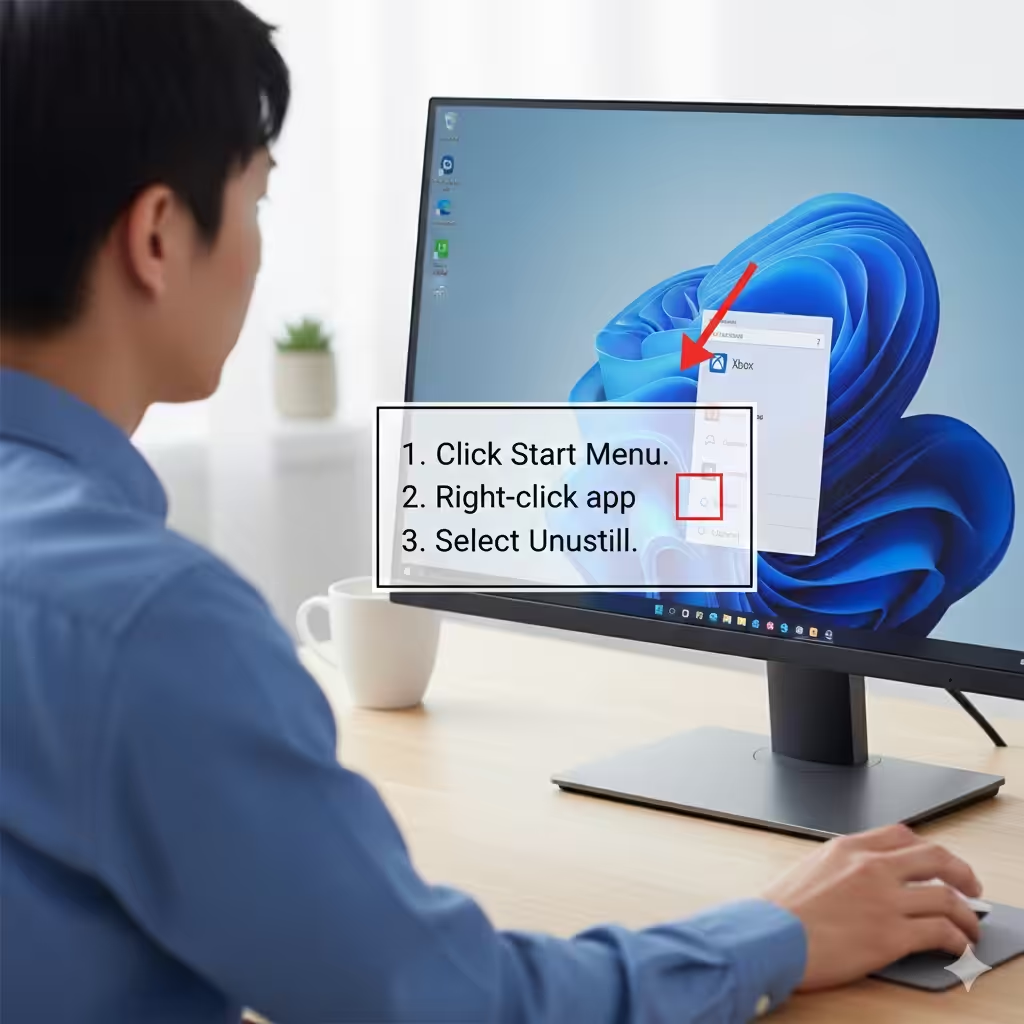
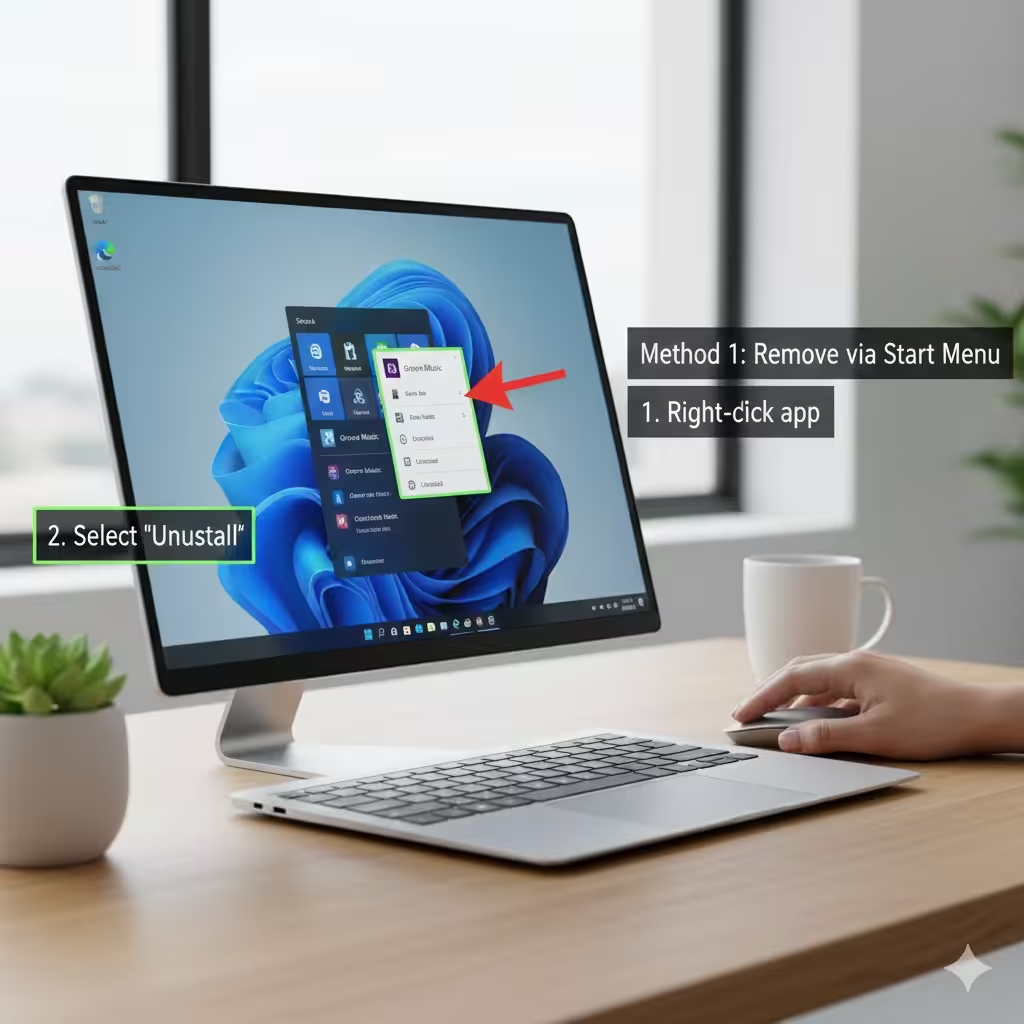
Method 1: Remove Pre-Installed Apps via Start Menu
This is the simplest way to uninstall apps.
Steps
-
Click the Start menu.
-
Right-click the app you want to remove.
-
Select Uninstall (if available).
-
Confirm the removal.
This works for many Microsoft Store apps but not all.
Method 2: Uninstall Apps from Settings
For more control and a full list of installed programs, use Windows Settings.
Steps
-
Press Windows + I to open Settings.
-
Go to Apps.
-
Select Apps & features.
-
Scroll and find the app you want to uninstall.
-
Click Uninstall.
-
Confirm your choice.
If the Uninstall button is grayed out, the app is considered a system component.
Method 3: Remove Pre-Installed Apps Using PowerShell
PowerShell provides deeper access to Windows components and allows removal of apps impossible to uninstall through the Start menu.
Warning
Removing certain apps can impact system features. Only remove apps you are sure you don’t need.
Steps
-
Press Start, type PowerShell, right-click Windows PowerShell, and choose Run as administrator.
-
To list all installed apps, enter:
-
Find the app you want to remove.
-
Run:
Examples
Remove Xbox:
Remove 3D Viewer:
Remove OneNote:
Remove All Pre-Installed Windows Apps
If you want a clean system:
Note
This may remove apps like Microsoft Store, which you might need later. Use with caution.
Method 4: Remove System Apps for All User Accounts
If multiple users share the computer, you can remove apps for all accounts.
Steps
Run PowerShell as administrator, then type:
This is useful in workplaces or shared family PCs.
Method 5: Use DISM to Disable Optional Windows Features
Some Windows components are considered “Features.” You can disable them using DISM.
Steps
-
Open Command Prompt (Admin).
-
List features:
-
Disable a feature:
Examples
Disable Internet Explorer:
Disable Windows Media Player:
This method removes legacy components safely.
Method 6: Use Third-Party Tools (Safe Options Only)
Several reputable utilities simplify app removal.
Popular Tools
-
O&O AppBuster
-
CCleaner
-
Revo Uninstaller
-
Geek Uninstaller
Always download from official websites to avoid malware.
Advantages
-
Remove stubborn apps
-
Clean leftover data
-
Restore removed apps if needed
These tools are user-friendly compared to PowerShell.
Method 7: Reinstall or Restore Built-In Windows Apps
If you accidentally remove an essential app, you can restore everything.
Steps
-
Open PowerShell (Admin).
-
Run:
This restores all default apps to their original state.
Risks of Removing Pre-Installed Apps
Before removing apps, consider potential risks:
-
Some apps are used by other system components
-
Removing certain items can cause Start menu glitches
-
Windows Updates may reinstall removed apps
-
Removing Microsoft Store makes app installation difficult
Make sure you understand what each app does before removing it.
Tips to Keep Windows Clean Without Removing Everything
-
Disable apps from Startup
-
Use Storage Sense to free up space
-
Uninstall only apps you never use
-
Hide rather than remove system apps
-
Create a restore point before major changes
These habits help maintain system stability.
Conclusion
Removing pre-installed apps on Windows 10 or Windows 11 is a great way to personalize your system, reduce clutter, and boost performance. Whether you prefer simple methods like using the Start menu or advanced tools like PowerShell and DISM, you have full control over what stays on your device. Just remember to proceed cautiously, especially when removing system-level components.