



Solutions to Common Problems During Office for Business Installation
Installing Microsoft Office for Business is usually a smooth process, but sometimes users encounter issues that prevent the installation from completing successfully. These problems can include error codes, connectivity issues, licensing conflicts, incomplete installations, or interference from other software. Whether you’re an IT administrator, a business owner, or an employee setting up Office apps on your device, understanding how to diagnose and fix installation issues is crucial for a fast and reliable deployment.
This comprehensive guide walks you through the most common installation problems and provides clear step-by-step instructions to resolve them. By following these troubleshooting methods, you can ensure that Office for Business installs correctly on Windows or macOS.

Check Your System Requirements First
Before installing Office, confirm that your device meets the minimum system requirements. Installation issues often occur when hardware or software does not match the necessary configuration.
Verify Hardware Requirements
-
A supported processor (1.6 GHz or faster for Windows)
-
4 GB RAM or more
-
At least 4 GB of free storage
-
Modern CPU architecture (32-bit or 64-bit depending on the Office version)
Verify Operating System Compatibility
Office for Business requires updated versions of Windows or macOS:
-
Windows 10 or later
-
macOS Ventura, Monterey, or a supported earlier version
If your system is outdated, installation can fail or freeze.
Check Internet Connection
Since Office for Business installs through Microsoft 365 services, a stable internet connection is essential. Slow or unstable connections can interrupt file downloads or cause activation problems.
Ensure Your Microsoft 365 Business Subscription Is Active
Office for Business apps can only be installed if your Microsoft 365 subscription is active and assigned to the correct user.
Steps to Verify Subscription
-
Visit portal.office.com and sign in with your business account.
-
Navigate to My Account.
-
Check whether a valid license is assigned (e.g., Microsoft 365 Business Standard).
If the license is missing or expired, ask your administrator to assign or renew it.
Sign In with the Correct Account
Using the wrong account—such as a personal Microsoft account instead of a business account—can cause installation failures.
How to Confirm Correct Login
-
Go to Settings > Accounts in Windows.
-
Verify that your business email is added as a work or school account.
-
When downloading Office, ensure you sign in only with your work account.
If you accidentally used a personal account, sign out and restart the installation with the correct credentials.
Install Pending Windows or macOS Updates
Missing system updates can interfere with Office installation.
For Windows
-
Open Settings.
-
Click Update & Security.
-
Select Windows Update.
-
Click Check for updates.
For macOS
-
Click the Apple menu.
-
Go to System Settings.
-
Select Software Update.
-
Install any available updates.
Once updates are complete, restart your device and try installing Office again.
Remove Previous or Partial Office Installations
Old Office versions can conflict with new Office for Business installations.
Uninstall Old Versions on Windows
-
Go to Settings > Apps > Installed apps.
-
Find Microsoft Office.
-
Click Uninstall.
Use Microsoft’s Official Removal Tool
If the standard uninstall doesn’t work, use the Microsoft Support and Recovery Assistant (SaRA) tool:
-
Download SaRA from Microsoft’s official site.
-
Choose Office.
-
Select I have installation issues.
-
Follow the steps to completely remove old Office files.
After removal, restart your device before reinstalling.
Uninstall Old Office on macOS
-
Open Finder.
-
Go to Applications.
-
Delete the Office apps.
-
Remove leftover files from Library/Containers if necessary.
Disable Firewall, VPN, or Security Software Temporarily
Firewalls, antivirus programs, or VPN connections may block Office installation files.
Before Installing Office
-
Disable third-party antivirus tools temporarily.
-
Pause VPN connections.
-
Check your firewall settings to ensure Office services are not blocked.
After installation, re-enable your security settings to maintain protection.
Check for Error Codes and Interpret Them
Microsoft Office installers often display error codes when something goes wrong. While they may look confusing, each one has a clear cause.
Common Error Codes
-
0-1011, 0-1005 — Internet connection issues
-
0-2031 — Conflicts with existing Office files
-
30010-4 — Damaged system files
-
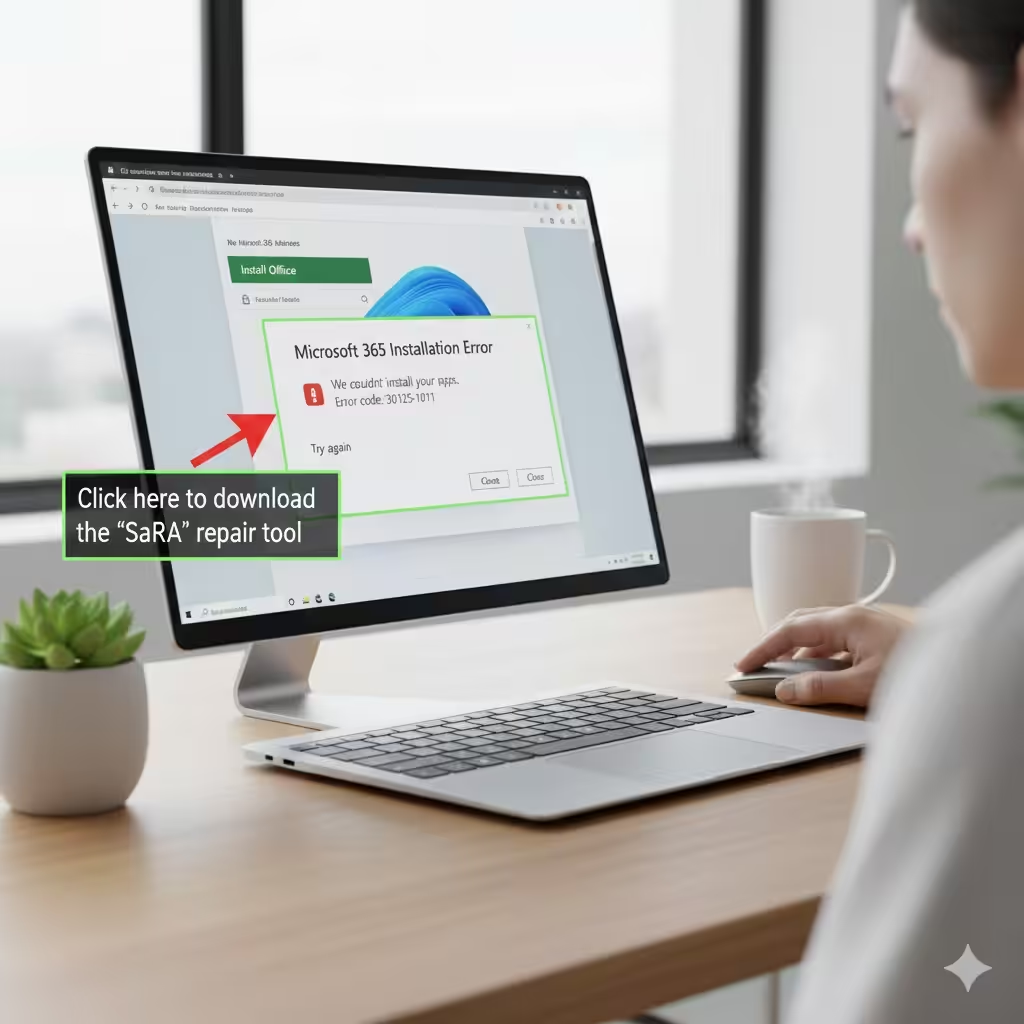
30125-1011 — Insufficient disk space
You can look up any error code on Microsoft’s support website for specific instructions.
Use the Microsoft Support and Recovery Assistant (SaRA)
SaRA is one of the most effective tools for resolving installation issues automatically.
How to Use It
-
Download SaRA from Microsoft.
-
Run the installer.
-
Choose Office and Office Apps.
-
Select Installation issues.
-
Allow SaRA to scan and repair problems.
SaRA repairs corrupted files, fixes licensing problems, removes leftover installations, and restores Office settings.
Try the Offline Installer
If your internet connection is unstable, the offline installer might be the best solution.
Steps
-
Sign in to portal.office.com.
-
Go to Install Office.
-
Choose Other install options.
-
Download the offline installer (IMG file).
-
Mount the file and run the setup.
This prevents installation failures caused by weak internet connections.
Free Up Space on Your Device
Office requires enough storage to download and unpack files. If your disk is nearly full, installation may stop or display errors.
How to Free Space
-
Delete temporary files using Disk Cleanup
-
Remove unused apps
-
Clear large files from Downloads
-
Empty the Recycle Bin
-
Move data to cloud storage or an external drive
After clearing space, restart your device and try reinstalling Office.
Restart Installation in Safe Mode (Advanced Method)
Safe Mode disables unnecessary background applications that may interfere.
Windows Safe Mode
-
Press Windows + R, type msconfig, and press Enter.
-
Select Safe boot.
-
Restart the device.
-
Install Office.
-
Return to normal mode afterward.
This advanced method resolves stubborn installation conflicts.
Contact Microsoft Support
If none of the methods above solve the issue, contacting Microsoft Support is the final step.
Prepare Before Contacting Support
-
Collect error codes or screenshots
-
Confirm your license details
-
Describe previous troubleshooting steps
-
Provide system information
Microsoft’s support team can help with complex licensing, admin portal issues, and advanced installation failures.
Conclusion
Installing Office for Business can sometimes be challenging due to system conflicts, licensing issues, outdated software, or network restrictions. Fortunately, most installation problems can be resolved by checking system requirements, updating your operating system, removing old Office versions, using the SaRA tool, adjusting network settings, or switching to the offline installer. With these troubleshooting methods, you can ensure a smooth and successful installation across your organization.