


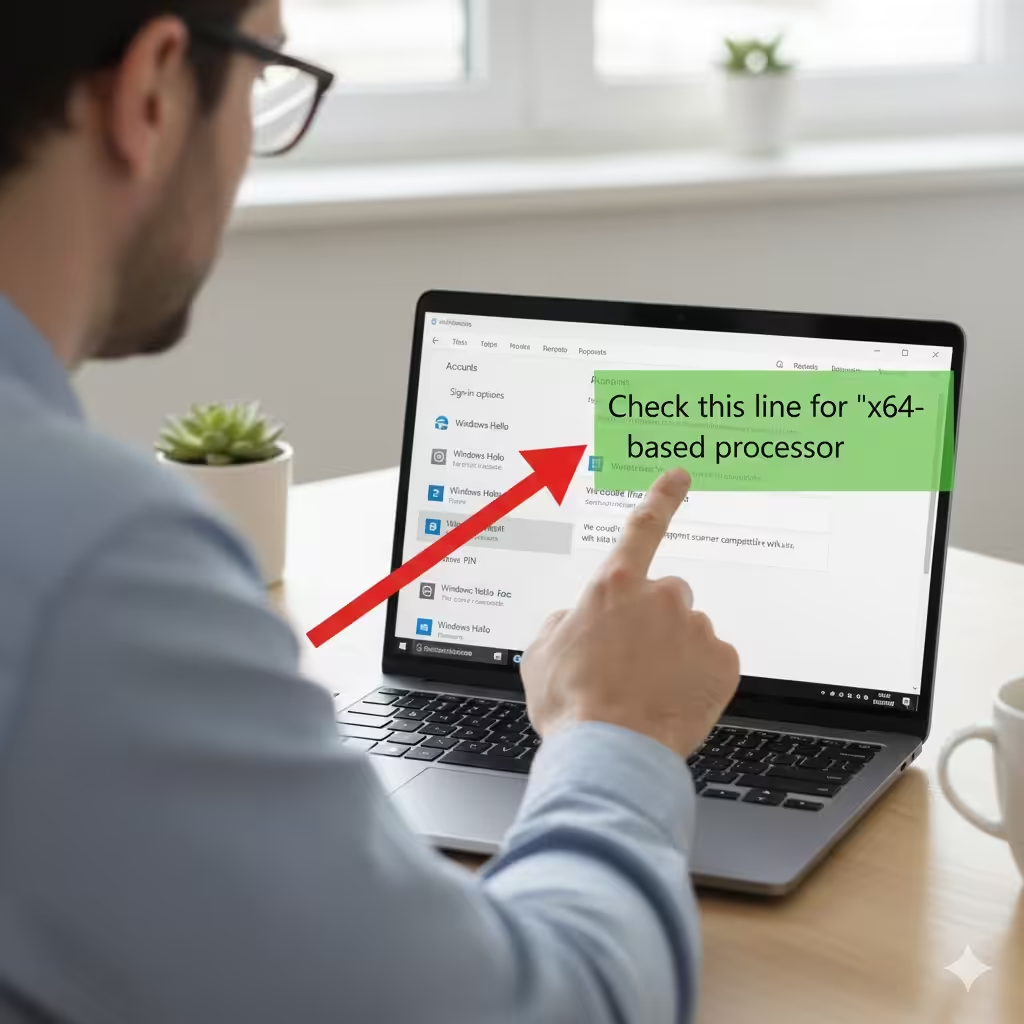
Windows 10 Guide: Configuring Windows Hello
Windows Hello is one of the most convenient and secure ways to sign in to your Windows 10 device. Instead of typing a password every time you log in, Windows Hello allows you to use facial recognition, a fingerprint scanner, or a PIN to unlock your device quickly and safely. This feature is designed to provide both enhanced security and a seamless authentication experience for work or personal use.
In this guide, you’ll learn what Windows Hello is, how to configure it, which devices support it, how to troubleshoot common setup problems, and why it has become a popular authentication tool for Windows 10 users.
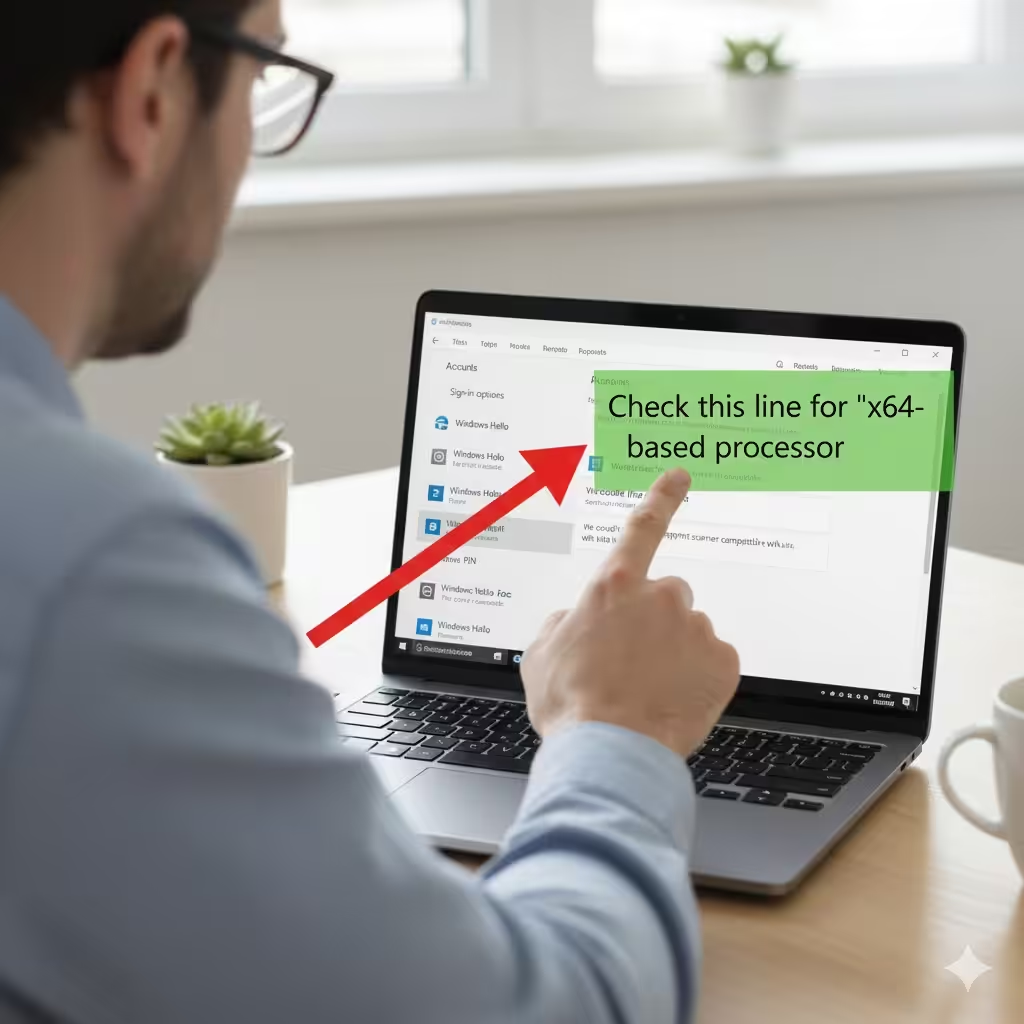
What Is Windows Hello?
Windows Hello is Microsoft’s biometric authentication system built into Windows 10. It offers three main sign-in methods:
-
Facial recognition
-
Fingerprint recognition
-
PIN authentication
Windows Hello is considered more secure than traditional passwords because your biometric data is stored locally on the device and never uploaded to the cloud. It also speeds up the login process, often unlocking your PC in less than a second.
Benefits of Windows Hello
-
Improved security compared to passwords
-
Faster login and authentication
-
Works across Windows apps and services
-
Supports enterprise-level security policies
-
Reduces password fatigue
Check If Your Device Supports Windows Hello
Before configuring Windows Hello, you need to determine whether your device supports biometric authentication hardware.
Supported Hardware Includes
-
Built-in infrared (IR) camera for facial recognition
-
Windows Hello–compatible fingerprint scanner
-
Intel RealSense depth cameras
If your device does not include biometric hardware, you can still use a PIN to access Windows Hello features.
How to Check Support
-
Press Windows + I to open Settings.
-
Select Accounts.
-
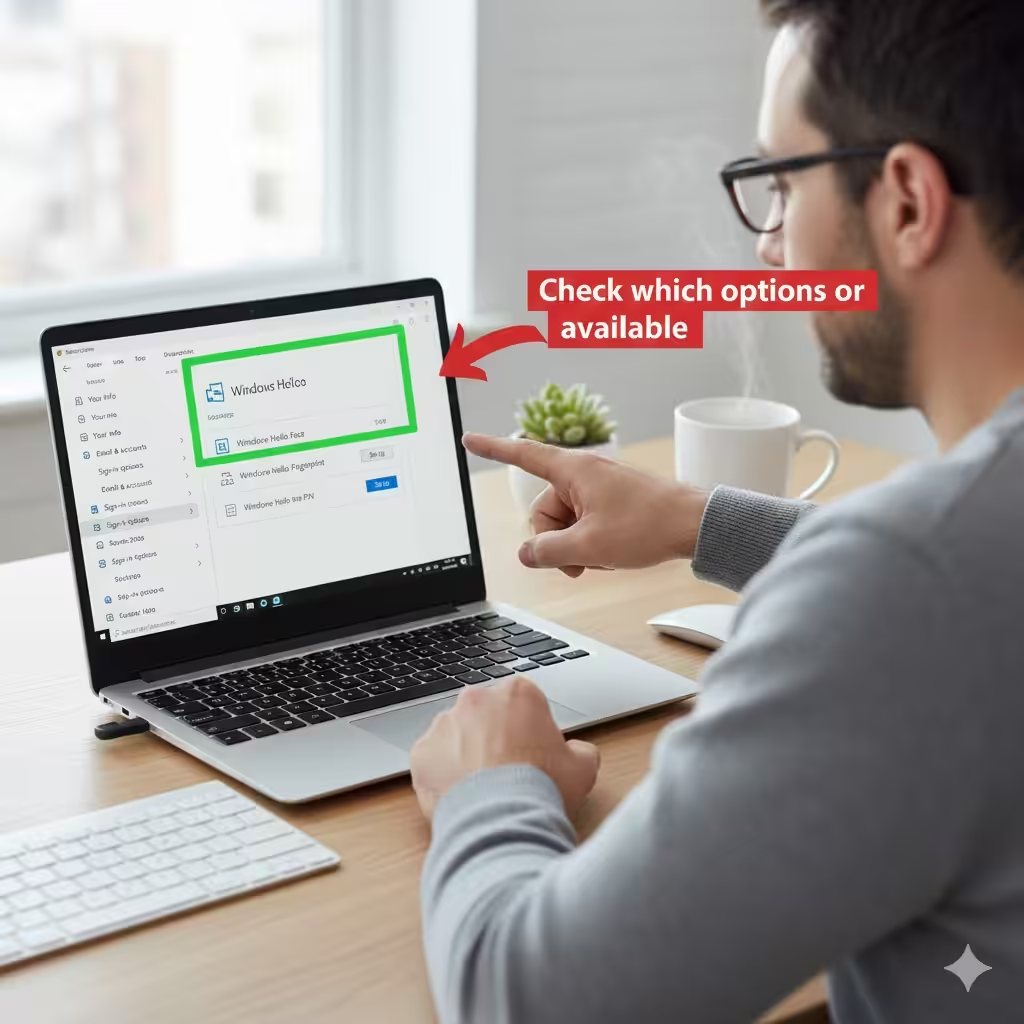
Click Sign-in options.
-
Under Windows Hello, check which options are available.
If facial recognition or fingerprint setup options are grayed out, your device may not have the required hardware.
How to Configure Windows Hello PIN
A PIN is the foundation of Windows Hello and is required before you can set up biometric methods.
Steps to Set Up a PIN
-
Open Settings by pressing Windows + I.
-
Select Accounts.
-
Choose Sign-in options.
-
Click Windows Hello PIN.
-
Select Add.
-
Enter your Microsoft account password for verification.
-
Create your new PIN and confirm it.
Your Windows Hello PIN is stored securely on your device and never transmitted online.
How to Configure Windows Hello Fingerprint
If your Windows 10 PC has a compatible fingerprint sensor, setting up Windows Hello Fingerprint is quick and simple.
Steps to Set Up Fingerprint Recognition
-
Go to Settings.
-
Select Accounts.
-
Click Sign-in options.
-
Under Windows Hello, select Fingerprint.
-
Click Set up, then choose Get started.
-
Follow the on-screen instructions and repeatedly place your finger on the scanner.
-
Add additional fingerprints if needed.
Tips for Better Accuracy
-
Make sure fingers are clean and dry.
-
Scan the edges of your finger as well as the center.
-
wp-signup.php multiple fingers for reliable sign-in.
Fingerprint sign-in is one of the fastest and most reliable methods supported by Windows Hello.
How to Configure Windows Hello Facial Recognition
Facial recognition is the most seamless and password-free way to sign in. You’ll need a supported IR or depth camera.
Steps to Set Up Facial Recognition
-
Open Settings.
-
Go to Accounts.
-
Choose Sign-in options.
-
Select Windows Hello Face.
-
Click Set up.
-
Choose Get started.
-
Look directly at the camera and allow Windows to scan your face.
Improve Facial Recognition Performance
-
Sit in a well-lit environment
-
Position your face directly in front of the camera
-
Remove glasses if the scan is inconsistent
-
Use the Improve recognition option to refine your profile
Facial recognition is quick and secure, using infrared technology to prevent spoofing.
Configure Windows Hello for Work or School Accounts
If you are part of an organization, Windows Hello may be managed by your IT department. Some companies enforce PIN complexity or biometric requirements.
To Check Work Account Policies
-
Open Settings.
-
Select Accounts.
-
Choose Access work or school.
-
Check whether your device is connected to a managed account.
If policies restrict Windows Hello setup, contact your IT administrator.
Troubleshooting Common Windows Hello Setup Problems
You may encounter issues when setting up or using Windows Hello. Here are the most common problems and their solutions.
Biometric Device Not Detected
-
Check Device Manager for biometric drivers
-
Update your camera or fingerprint drivers
-
Restart the PC and try again
Windows Hello Options Grayed Out
-
Your device lacks compatible hardware
-
Group policies or registry settings may block access
-
Work accounts may enforce restrictions
Facial Recognition Not Working
-
Clean the camera lens
-
Improve lighting conditions
-
Re-wp-signup.php your face using Improve recognition
Fingerprint Reader Not Responding
-
Check for dust or oil on the sensor
-
Reinstall the fingerprint driver
-
Try wp-signup.phping the same finger again
If none of these solutions work, run Windows Update to install driver patches.
How to Reset or Remove Windows Hello Settings
You might want to remove your biometric data or change your PIN.
To Remove a PIN
-
Go to Settings > Accounts > Sign-in options.
-
Select Windows Hello PIN.
-
Click Remove.
To Remove Fingerprint or Face Data
-
Go to Sign-in options.
-
Select Fingerprint or Face.
-
Choose Remove.
After removal, you can set up Windows Hello again from scratch.
Why Windows Hello Is More Secure Than Passwords
Windows Hello improves security in several ways:
-
Biometric data stays on the device
-
PINs are device-specific and not password-based
-
FIDO2 authentication standards prevent phishing
-
Biometrics can’t be used remotely by attackers
This makes Windows Hello an excellent choice for both home and enterprise environments.
Conclusion
Configuring Windows Hello in Windows 10 is a great way to enhance security and streamline your sign-in experience. Whether you choose fingerprint recognition, facial recognition, or a secure PIN, Windows Hello provides safer and faster authentication than traditional passwords. With the steps and troubleshooting tips outlined in this guide, you can set up Windows Hello smoothly and ensure it works reliably on your device.