


How to Use the Excel Camera Tool to Create Live, Dynamic Snapshots in Your Worksheets
The Excel Camera Tool is one of the most underrated yet powerful features available in Microsoft Excel. Many users are unaware of its existence because it’s hidden by default, but once enabled, it can dramatically improve how you present live data within a workbook. The tool allows you to take a “snapshot” of a selected cell range and paste it elsewhere in the spreadsheet as a dynamic image. Unlike static screenshots, the image created by the Camera Tool updates automatically whenever the original data changes.
This makes it especially useful for dashboards, reports, visual summaries, KPI tracking, and real-time analytics. In this guide, you’ll learn what the Excel Camera Tool is, how to enable it, how to use it effectively, and how to integrate it into professional workflows.
What Is the Excel Camera Tool?
The Excel Camera Tool captures selected cells and creates a live, update-able picture of them. This picture is not a typical static image; it’s essentially a linked visual reference that reflects any changes made to the source cells.
Key Features of the Camera Tool
-
Captures cell ranges as images
-
Updates the image dynamically when data changes
-
Retains formatting, charts, and colors
-
Can be resized or rotated
-
Useful for dashboards and presentations
The Camera Tool is helpful when you want to reference data from different sheets without manually copying and updating charts or tables.
Why Use the Excel Camera Tool?
Although Excel offers many tools for creating dashboards, the Camera Tool stands out because of its convenience and flexibility.
1. Create Dynamic Dashboards
Dashboards often pull data from multiple sheets. Using the Camera Tool, you can display live mini-tables or charts on a single dashboard sheet without duplicates or broken references.
2. Save Time Updating Reports
Simply change the source data, and the visual snapshot updates instantly. This reduces repetitive tasks and makes reporting faster.
3. Combine Data and Visuals
You can capture tables, charts, and formatted ranges as one combined image. This is helpful when preparing management summaries.
4. Share Clean Visual Elements
Resizing or arranging visuals is much easier when they are images instead of actual cell content.
How to Enable the Excel Camera Tool
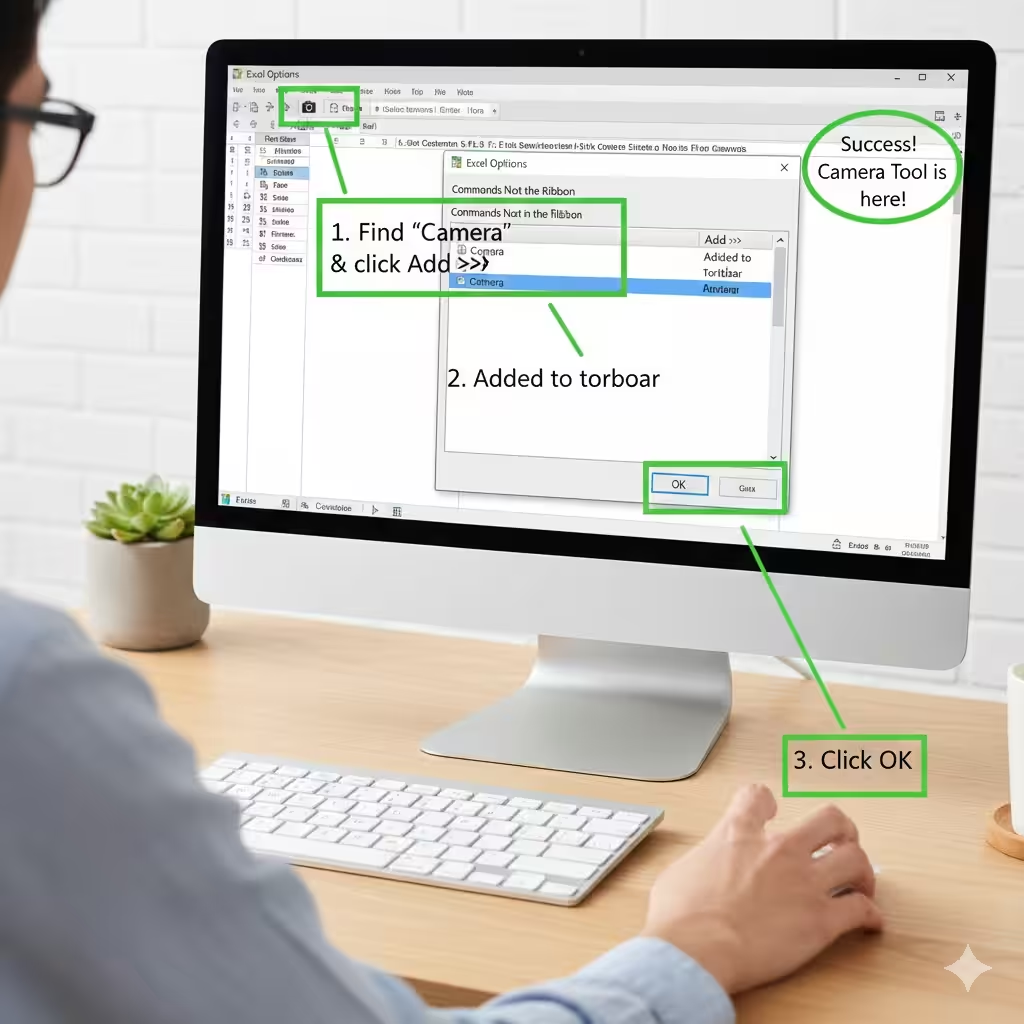
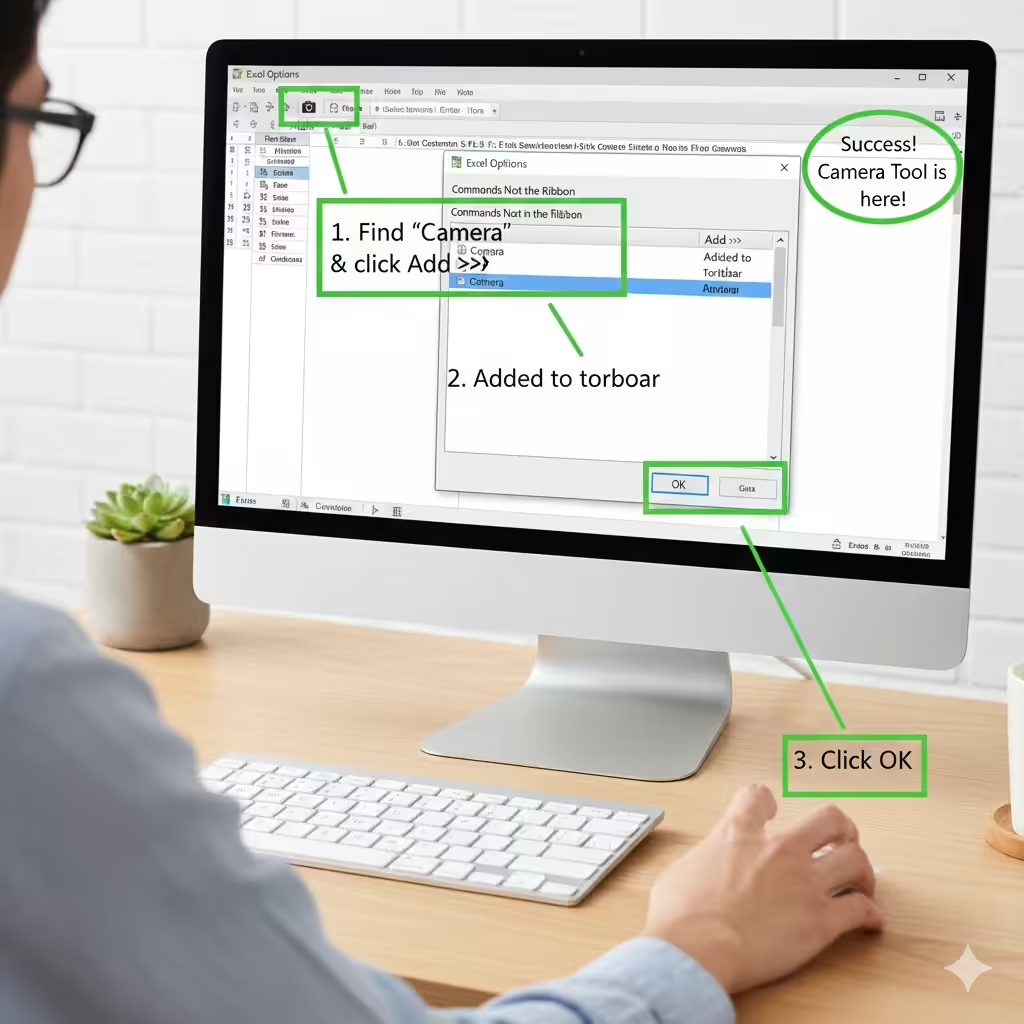
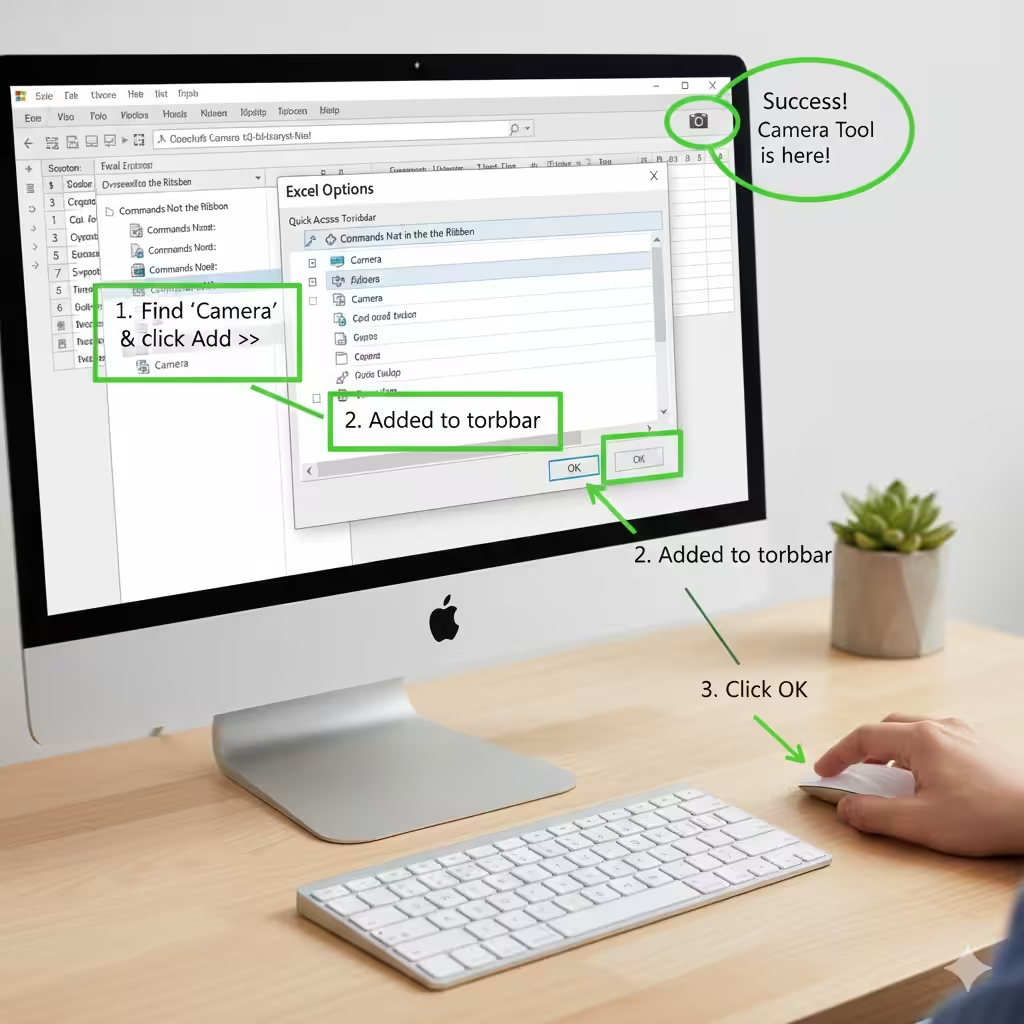
The Camera Tool isn’t visible by default. You must add it to the toolbar manually.
Step-by-Step to Enable the Tool
-
Open Excel.
-
Go to File → Options.
-
Select Quick Access Toolbar (or “Customize Ribbon”).
-
In the dropdown menu, choose Commands Not in the Ribbon.
-
Scroll down and find Camera.
-
Click Add >> to include it in your toolbar.
-
Click OK.
You will now see a small camera icon in your Quick Access Toolbar or ribbon.
How to Use the Excel Camera Tool
Using the tool is simple once you understand how linked snapshots work.
Step 1: Select the Cell Range
Highlight the cells you want to capture. This can include:
-
Tables
-
Charts
-
Formulas
-
Conditional formatting
-
Shapes and icons
Step 2: Click the Camera Icon
Once selected, click the Camera icon. Your cursor will now look like a small crosshair.
Step 3: Click Anywhere to Paste the Snapshot
Click on a new location in your sheet or another sheet entirely. A linked snapshot will appear.
Step 4: Resize or Move the Image
You can treat this image like any shape:
-
Resize from the corners
-
Rotate
-
Add borders
-
Apply shadow or other picture effects
The image updates whenever the original data changes.
How the Linked Snapshot Works
The snapshot is linked to the source as a formula.
If you click the picture, you may see something like:
This means the picture references that exact range. If you change formatting, values, colors, borders, or charts inside that range, the snapshot will update instantly.
Practical Uses for the Camera Tool
The Camera Tool is versatile, and its uses extend to many business and analytical tasks.
1. Building Interactive Dashboards
Rather than manually assembling tables or charts, use snapshots to pull visuals from:
-
Sales sheets
-
Inventory sheets
-
Marketing performance sheets
-
Accounting sheets
This lets you design dashboards with live data from multiple sources.
2. Monitoring Key Metrics
You can create a small floating window with real-time metrics such as:
-
Sales totals
-
Daily KPIs
-
Stock performance
-
Production output
You can place these metrics anywhere and resize them to fit your layout.
3. Presenting Reports More Clearly
Snapshots help create neat visuals without complex cell merging or formatting. You can organize snapshots in a clean, layout-friendly format.
4. Combining Charts and Tables
If you want to show a chart plus the underlying values together, the Camera Tool captures both as a single image.
5. Preparing Printable Reports
Since the camera images act like pictures, they help avoid page breaks and alignment issues when printing.
6. Creating Templates
Snapshots allow you to build templates that automatically reflect data when duplicated.
Tips to Use the Excel Camera Tool More Effectively
1. Use It With Named Ranges
When you assign a named range, snapshots remain stable even if you change layout or insert rows.
2. Increase Image Quality
If the snapshot appears blurry:
-
Adjust zoom level
-
Resize carefully
-
Use higher-resolution monitor settings
3. Avoid Overlapping Large Snapshots
Too many large snapshots can slow Excel down.
4. Use Snapshots for Cross-Sheet Summaries
You can create summary sheets without complex formulas.
5. Format Before Capturing
Snapshots look cleaner when formatting is completed first.
Common Issues and How to Fix Them
Blurry or Pixelated Images
-
Avoid stretching the picture too large
-
Capture smaller or cleaner ranges
-
Increase Excel’s zoom before capturing
Snapshot Not Updating
This may happen if:
-
The workbook is in manual calculation mode
-
The image reference is broken
-
The named range changed
Turn on automatic calculation:
-
Go to Formulas
-
Choose Calculation Options
-
Set to Automatic
Picture Moves When Scrolling
Enable Fix Position on Sheet by right-clicking the image and choosing Size and Properties.
Conclusion
The Excel Camera Tool is a powerful feature that takes your spreadsheets to the next level by providing dynamic, update-able snapshots that enhance dashboards, reports, and visual presentations. Whether you’re building professional management reports, interactive analysis dashboards, or simplified visual summaries, the Camera Tool gives you more flexibility and clarity than standard cell formatting or charts alone.