


Fixing Arrow Keys Issue in Microsoft Excel
Microsoft Excel is a powerful spreadsheet tool used by students, professionals, accountants, and analysts worldwide. One of its most basic navigation features is the arrow keys, which allow you to move between cells quickly and efficiently. However, many users encounter a frustrating issue where the arrow keys stop working correctly in Excel.
Instead of moving from one cell to another, the worksheet may scroll up, down, left, or right. In other cases, nothing may happen at all. If you’re experiencing this problem, don’t worry. In this complete guide, you’ll learn how to fix the arrow keys not working in Excel on Windows step by step.
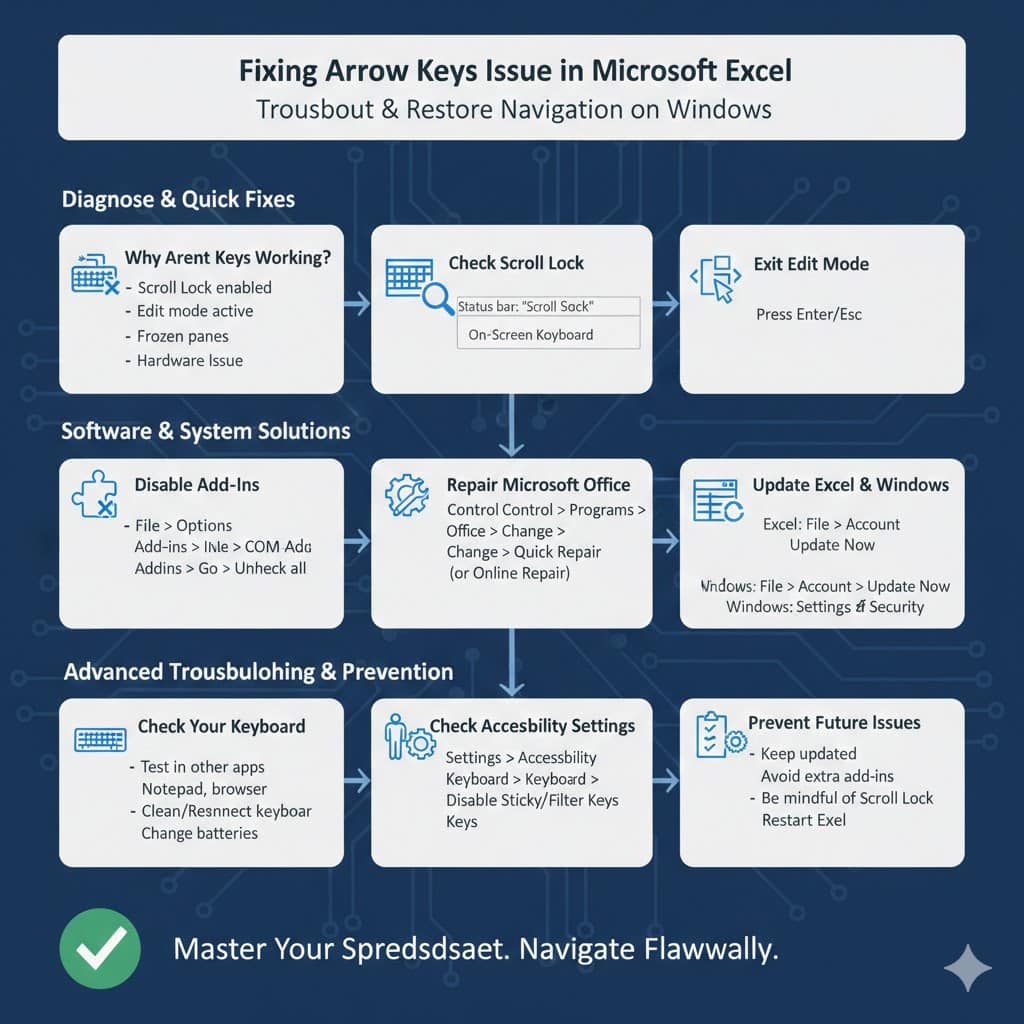
Why Are the Arrow Keys Not Working in Excel?
Before jumping into solutions, it’s helpful to understand the most common reasons behind this issue.
The most frequent cause is that Scroll Lock is enabled. When Scroll Lock is turned on, the arrow keys scroll the worksheet instead of moving the active cell.
Other possible causes include:
-
Frozen panes
-
Excel running in Edit mode
-
Add-in conflicts
-
Corrupted Excel settings
-
Keyboard hardware issues
-
Outdated Excel version
Identifying the root cause makes troubleshooting much easier.
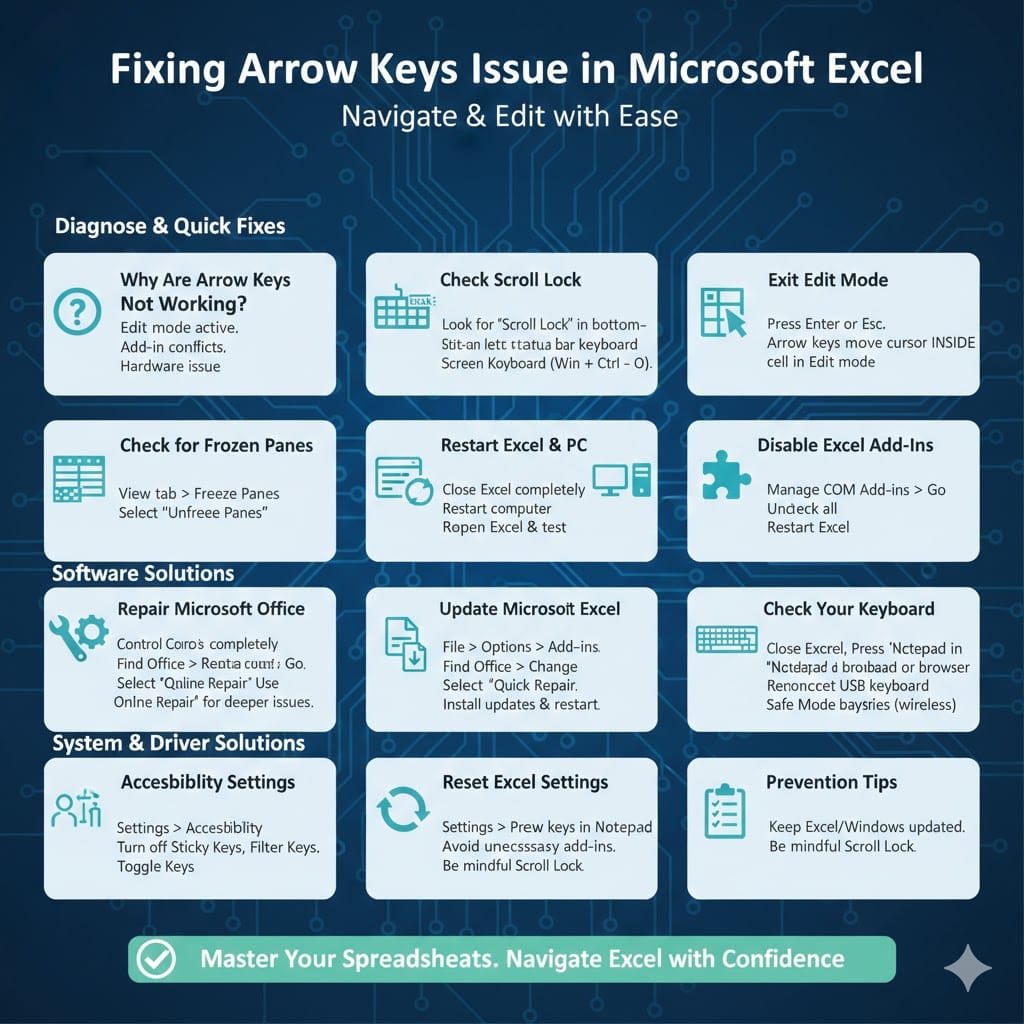
Check If Scroll Lock Is Enabled
In most cases, Scroll Lock is the main culprit.
How to Check Scroll Lock Status
Look at the bottom-left corner of the Excel window. If you see “Scroll Lock” displayed in the status bar, it means Scroll Lock is active.
If the status bar does not show it, you may need to enable the status indicator:
Right-click the Excel status bar.
Make sure “Scroll Lock” is checked.
How to Turn Off Scroll Lock
Press the Scroll Lock (ScrLk) key on your keyboard.
If your keyboard does not have a dedicated Scroll Lock key, try the following:
-
Use the On-Screen Keyboard
-
Press Windows + Ctrl + O to open it
-
Click the ScrLk key on the virtual keyboard
Once Scroll Lock is disabled, the arrow keys should work normally again.
Exit Edit Mode in Excel
If you are editing a cell, the arrow keys will move the cursor inside the cell instead of navigating between cells.
To exit Edit mode:
Press Enter or Esc on your keyboard.
After exiting Edit mode, try using the arrow keys again.
Check for Frozen Panes
Frozen panes can sometimes give the impression that arrow keys are not functioning properly.
To check this:
Go to the View tab.
Click Freeze Panes.
Select Unfreeze Panes if it is active.
After unfreezing, test the arrow keys again.
Restart Excel
Temporary glitches may cause unexpected behavior.
Close Excel completely.
Wait a few seconds.
Reopen the application and test the arrow keys.
Sometimes a simple restart resolves the issue immediately.
Restart Your Computer
If restarting Excel does not work, try restarting your computer.
This refreshes background services and resets temporary system conflicts that may interfere with keyboard functionality.
Disable Excel Add-Ins
Certain add-ins may conflict with keyboard behavior.
How to Disable Add-Ins
Open Excel.
Go to File > Options.
Select Add-ins.
At the bottom, choose COM Add-ins and click Go.
Uncheck all add-ins and click OK.
Restart Excel and check if the arrow keys work.
If they do, re-enable add-ins one by one to identify the problematic one.
Repair Microsoft Office
Corrupted Office installation files can cause input issues.
How to Repair Office
Open Control Panel.
Go to Programs and Features.
Find Microsoft Office in the list.
Click Change.
Select Quick Repair.
If the problem persists, try Online Repair for a more thorough fix.
Repairing Office can resolve hidden configuration errors.
Update Microsoft Excel
Running an outdated version of Excel may lead to compatibility problems.
Open Excel.
Go to File > Account.
Click Update Options.
Select Update Now.
Install any available updates and restart Excel afterward.
Check Your Keyboard
If none of the software solutions work, the problem may be hardware-related.
Test the arrow keys in other applications such as Notepad or a web browser. If they don’t work there either, your keyboard may be faulty.
Try:
-
Cleaning the keyboard
-
Reconnecting a USB keyboard
-
Replacing batteries in a wireless keyboard
-
Using a different keyboard
If the arrow keys work outside Excel, the issue is likely software-related.
Check for Sticky Keys or Accessibility Settings
Windows accessibility features may sometimes affect keyboard behavior.
Open Settings.
Go to Accessibility.
Select Keyboard.
Make sure features like Sticky Keys, Filter Keys, or Toggle Keys are turned off unless needed.
These settings can occasionally interfere with normal keyboard input.
Reset Excel Settings
If Excel settings are heavily customized or corrupted, resetting them can help.
While Excel does not have a direct reset button, you can:
Close Excel.
Press Windows + R.
Type the Excel startup command to open Excel in safe mode.
Safe Mode disables custom settings and add-ins temporarily. If arrow keys work in Safe Mode, a configuration issue is likely the cause.
Preventing Arrow Key Issues in the Future
To avoid similar problems:
Keep Excel and Windows updated.
Avoid installing unnecessary add-ins.
Be aware of the Scroll Lock key.
Restart Excel occasionally if performance slows down.
Regular maintenance reduces the risk of minor glitches turning into persistent issues.
Frequently Asked Questions
Why do my arrow keys scroll instead of moving cells?
This usually happens because Scroll Lock is enabled.
Why are my arrow keys moving inside the cell instead of to another cell?
You are likely in Edit mode. Press Enter or Esc to exit.
Can Excel updates fix arrow key problems?
Yes. Updates often include bug fixes and performance improvements.
Final Thoughts
When the arrow keys are not working in Excel, it can seriously disrupt your workflow. Fortunately, the issue is usually easy to fix. In most cases, simply turning off Scroll Lock resolves the problem immediately.