


Steps to Install Language Packs for Microsoft Office
Adding additional languages to Microsoft Office can greatly enhance your productivity, especially if you work in a multilingual environment or frequently collaborate with international teams. The Language Accessory Pack (LAP) allows you to add proofing tools, display languages, help files, and editing capabilities to various Office apps such as Word, Excel, PowerPoint, Outlook, and more. Whether you need to type in a new language, check spelling and grammar, or translate the interface, installing the Language Accessory Pack gives you the flexibility to work comfortably in the language of your choice.
This guide provides a comprehensive, step-by-step explanation of how to download, install, configure, and troubleshoot the Office LAP on both Windows and macOS. It applies to Microsoft Office 2016, 2019, 2021, and Microsoft 365 versions.
Understanding What the Language Accessory Pack Includes
Before proceeding with the installation, it helps to know what comes with each language pack.
Display Language
This changes the user interface (UI) of Office applications. Tabs, menus, buttons, and options will appear in your selected language. You can switch between multiple installed languages at any time.
Editing and Proofing Tools
These include:
-
Spell checker
-
Grammar checker
-
Thesaurus
-
AutoCorrect options
-
Specialized dictionaries
Editing tools are essential if you plan to write or edit documents in a new language.
Help Language
This changes the language used in the Office help section and documentation.
Not all languages offer all three components. Some languages include only editing tools, while others offer full support.
Step 1: Determine Which Office Version You Are Using
Before downloading the Language Accessory Pack, you must identify your Office version because installation files differ.
How to Check on Windows
-
Open any Office app (e.g., Word).
-
Select File.
-
Choose Account.
-
Under Product Information, look for:
-
Microsoft 365
-
Office 2021
-
Office 2019
-
Office 2016
-
Also check if you are using:
-
32-bit
-
64-bit
This is important because the LAP version must match your Office version.
How to Check on Mac
On macOS, Office uses the same installer regardless of system architecture. Checking your version is simpler:
-
Open Word.
-
Click Word in the top menu.
-
Select About Word.
You only need to know whether you have:
-
Microsoft 365 for Mac
-
Office 2021 for Mac
-
Office 2019 for Mac
After confirming your version, you’re ready to download the correct LAP file.
Step 2: Download the Language Accessory Pack
Microsoft provides official download links for LAP packages.
Downloading for Windows
-
Go to the Microsoft official Language Accessory Pack download page.
-
Choose your language from the list.
-
Select the correct Windows version:
-
Office 2021
-
Office 2019
-
Office 2016
-
Microsoft 365
-
-
Download the correct architecture (32-bit or 64-bit).
Languages are typically provided in standalone installers (EXE files).
Downloading for Mac
For macOS:
-
Select your language on the LAP download page.
-
Download the macOS version of the package.
-
The installer will be in PKG format.
Once the file is downloaded, you’re ready to install it.
Step 3: Install the Language Accessory Pack
Installing on Windows
-
Double-click the downloaded installer file.
-
Follow the on-screen instructions.
-
Wait for the installation to complete—it may take several minutes.
-
After installation, restart your Office apps.
Once installed, your new language tools will appear in the Office Language Preferences menu.
Installing on macOS
-
Open the PKG installer.
-
Follow each step in the installation wizard.
-
Restart all Office apps once installation is finished.
macOS automatically detects the new language files.
Step 4: Configure Your Language Settings in Office
Installing the LAP only adds the language files. You must configure Office to use them.
Configuring Language Settings on Windows
-
Open an Office application.
-
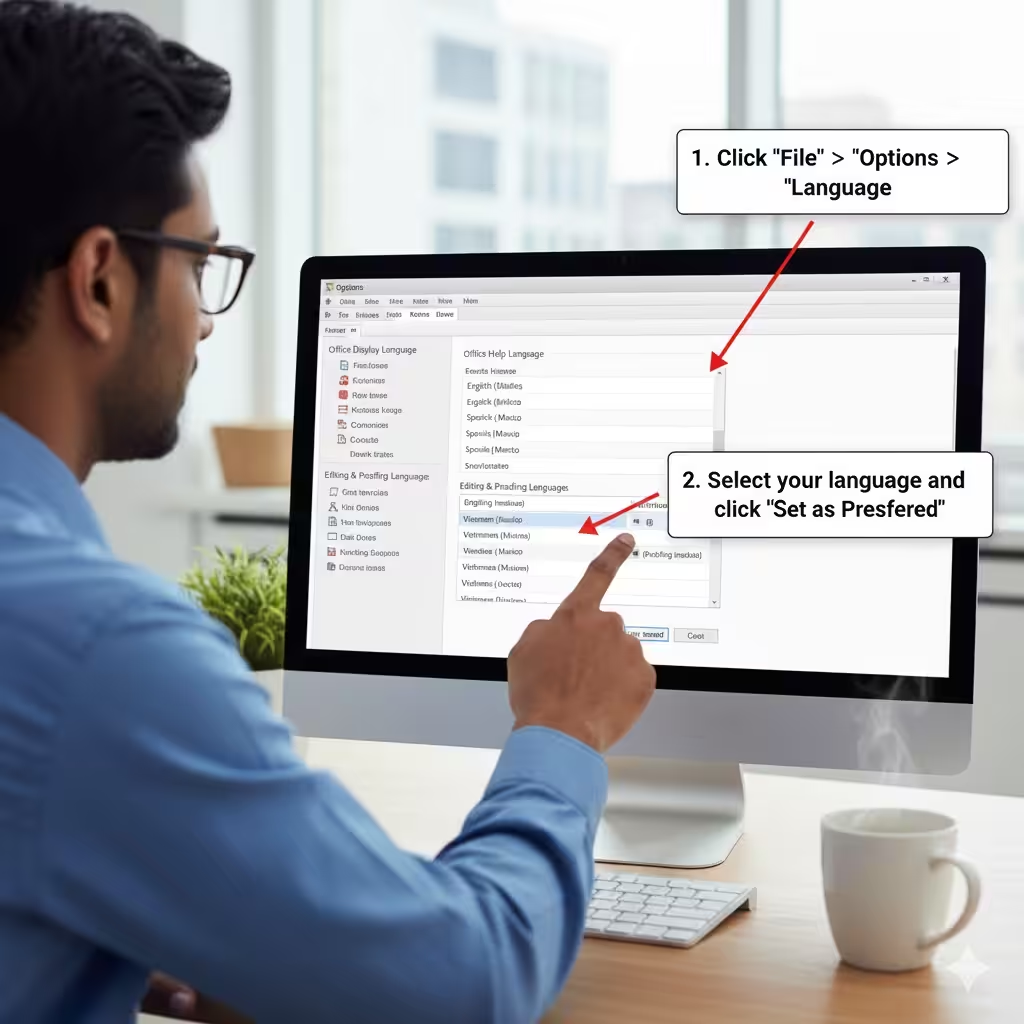
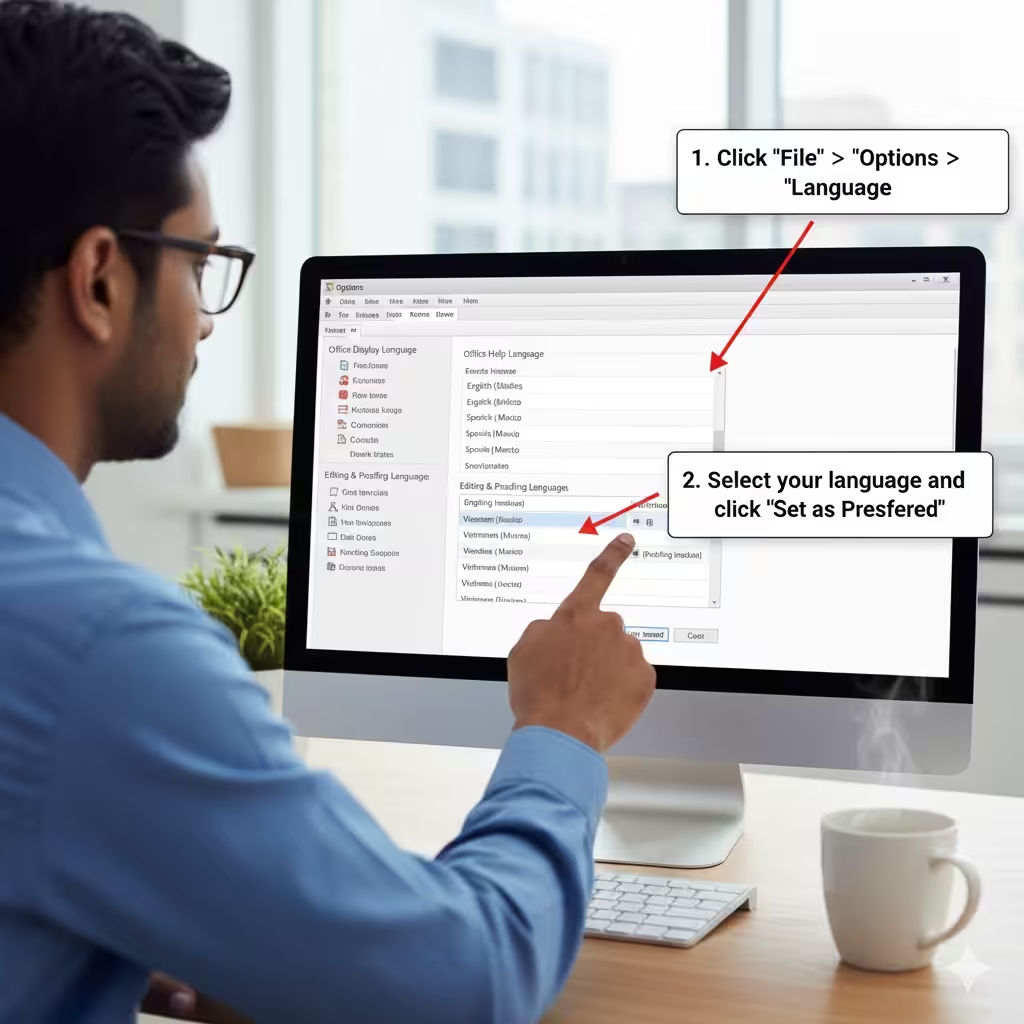
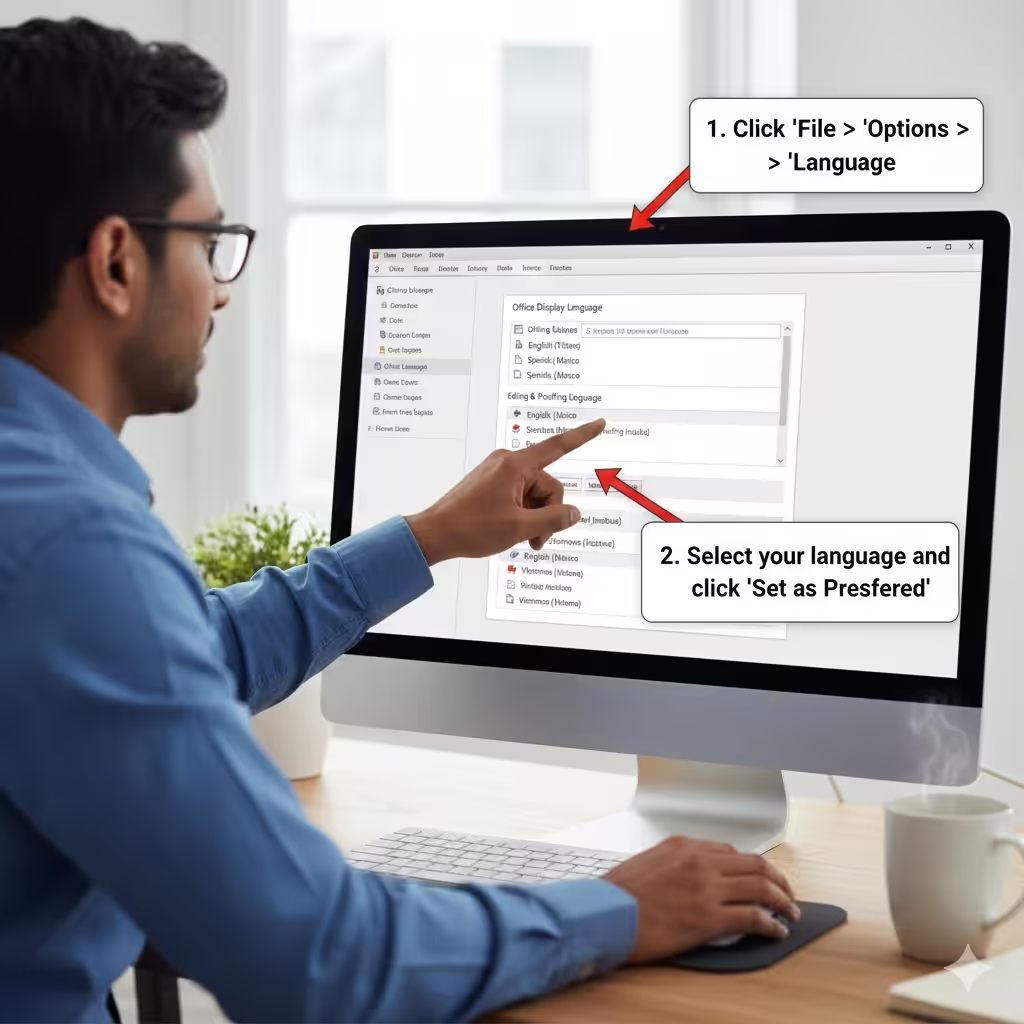
Go to File > Options.
-
Select Language.
-
You will see three categories:
-
Office Display Language
-
Office Help Language
-
Editing & Proofing Language
-
-
Click Set as Preferred for the language you want.
If proofing tools are missing, Office will display a message indicating that additional features are required.
Configuring Language Settings on Mac
-
Open Word.
-
Go to Tools.
-
Select Language for editing tools.
-
To change the display language:
-
Go to System Settings on macOS.
-
Select Language & Region.
-
Add your preferred language.
-
Move it to the top of the list.
-
Office uses macOS system preferences for display and help languages.
Step 5: Test Your New Language Tools
After switching languages, check whether everything is functioning correctly.
Test Editing Tools
Create a new document and type in the language you installed. Confirm that:
-
Spell check works
-
Grammar suggestions appear
-
AutoCorrect reacts to misspelled words
Test Display Language
Navigate through the Office ribbon. All interface elements should now appear in your selected language.
Test Help Language
Open a help window or press F1. The content should display in the chosen language, if supported.
Troubleshooting Common Issues
Even though LAP installation is usually smooth, you may encounter problems.
Missing Proofing Tools
If spell check doesn’t work:
-
Reopen Office
-
Reinstall the LAP
-
Ensure the language is selected under Editing Tools
Language Does Not Change
Check that you selected Set as Preferred under Display Language. Some changes require restarting the computer.
Installer Does Not Match Office Version
If you installed the wrong architecture (32-bit vs. 64-bit), uninstall the package and download the correct version.
Mac Interface Does Not Change Languages
Office on macOS follows system language order, so ensure your preferred language is first in Language & Region.
Benefits of Installing the Language Accessory Pack
Using multiple languages in Office offers several advantages.
Better Communication
You can write documents, emails, and presentations in the correct language with proper grammar and spelling support.
Localized Interface
Navigating Office in your native language can improve productivity and comfort.
Global Collaboration
If you work with international teams, switching between languages becomes quick and seamless.
Multiple Language Support
You can install as many LAPs as you need—switching between them only takes a few clicks.
Conclusion
Installing the Microsoft Office Language Accessory Pack is an excellent way to expand your productivity tools and work in the language that suits you best. Whether you need editing tools, a full display language, or localized help files, the LAP provides everything you need to personalize Office. By following the steps outlined above—checking your Office version, downloading the correct package, installing it, and configuring your language preferences—you can easily transform Office into a fully multilingual environment.