


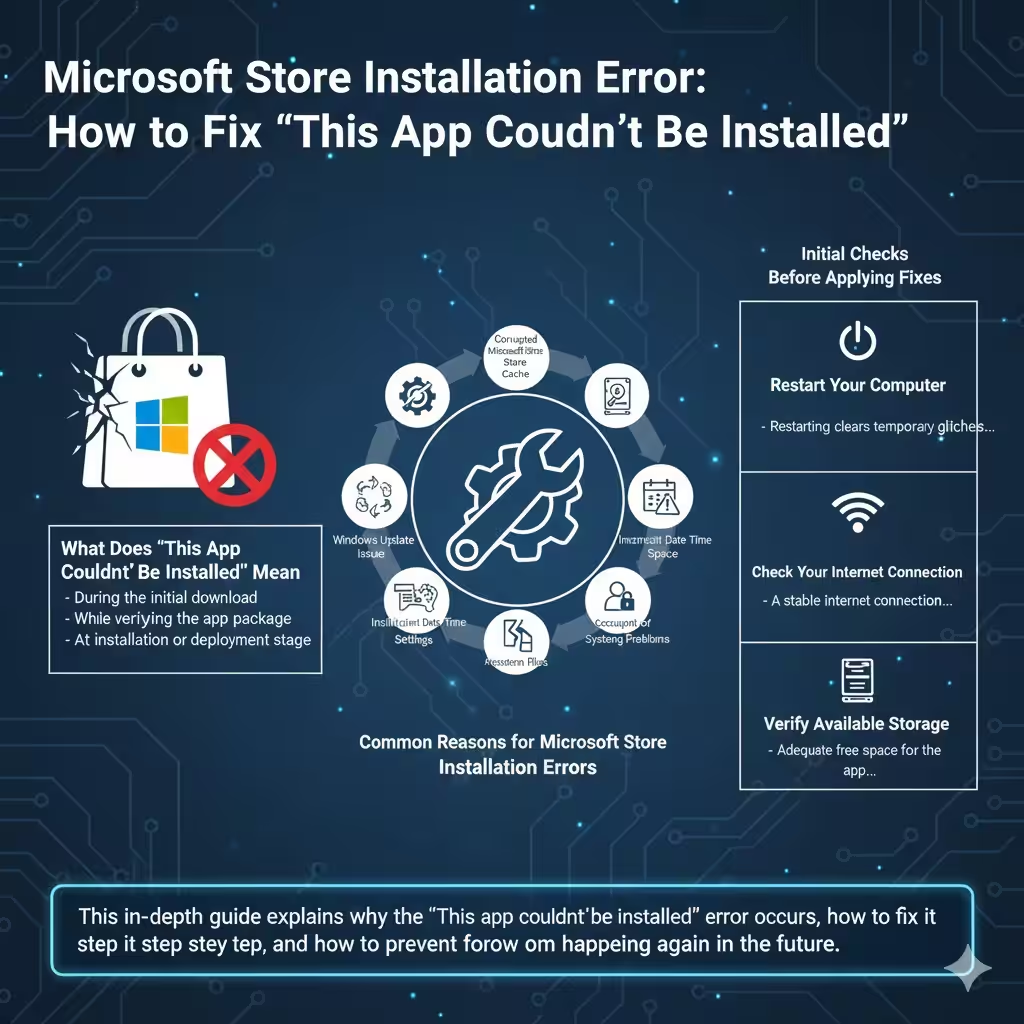
Microsoft Store Installation Error: How to Fix “This App Couldn’t Be Installed”
Microsoft Store is the primary platform for downloading apps, games, and system utilities on Windows. However, many users encounter the frustrating error message “This app couldn’t be installed” when trying to download or update an app. This issue can occur on Windows 10 and Windows 11 and may affect both free and paid applications.
This in-depth guide explains why the “This app couldn’t be installed” error occurs, how to fix it step by step, and how to prevent it from happening again in the future.
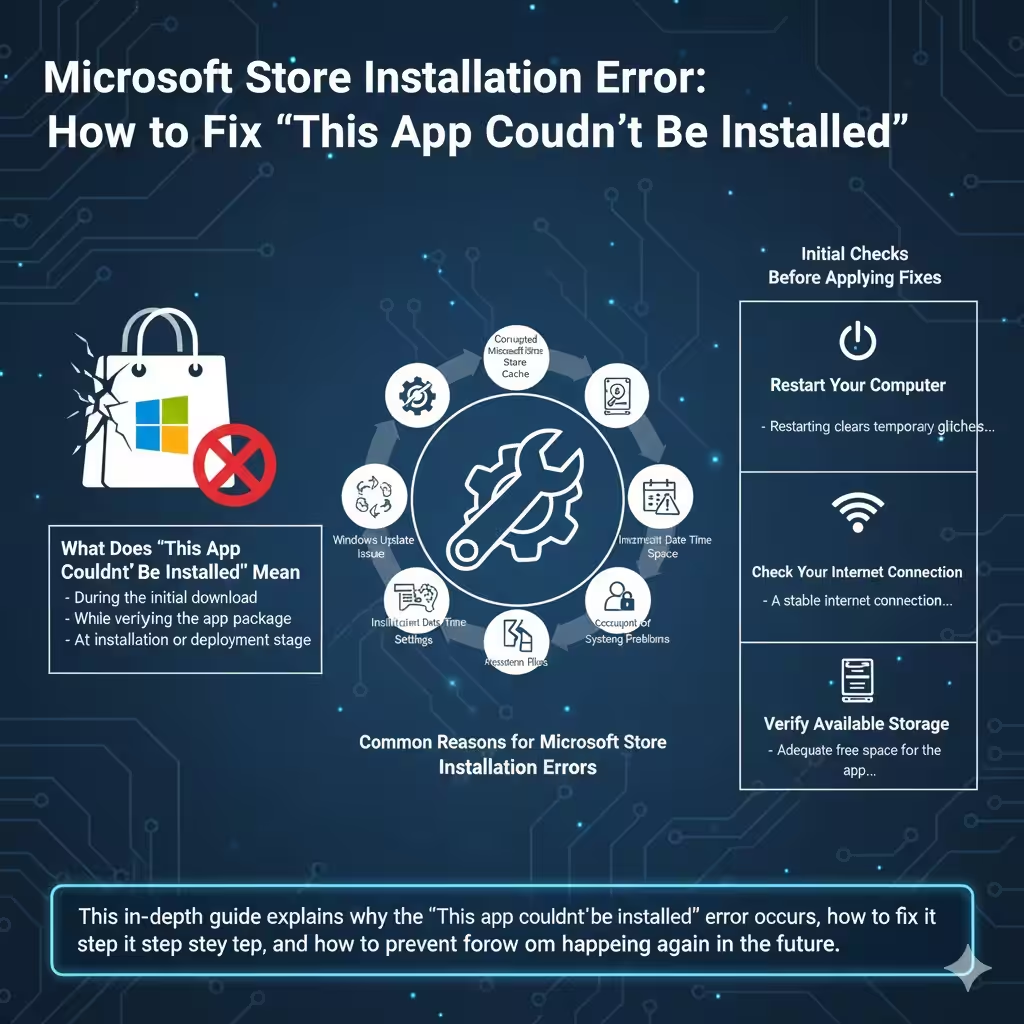
What Does “This App Couldn’t Be Installed” Mean
This error indicates that Microsoft Store failed to complete the app installation process. The failure can happen at different stages, such as:
-
During the initial download
-
While verifying the app package
-
At the installation or deployment stage
The message itself is generic, which means troubleshooting is required to identify the root cause.
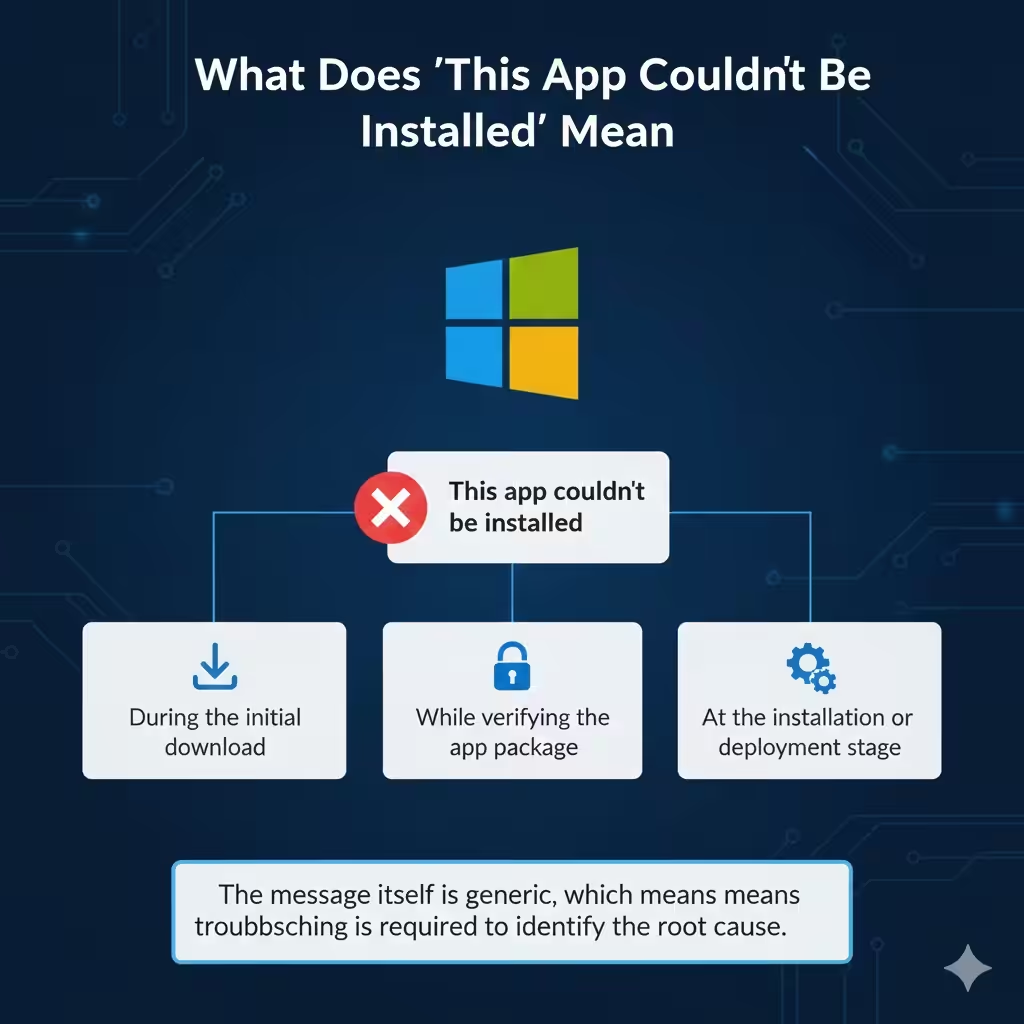
Common Reasons for Microsoft Store Installation Errors
Understanding the possible causes helps you apply the correct fix.
Corrupted Microsoft Store Cache
A damaged cache can prevent apps from downloading or installing properly.
Windows Update Issues
Outdated or failed Windows updates may cause compatibility problems with Store apps.
Insufficient Disk Space
Large apps or games require adequate free space to install successfully.
Incorrect Date and Time Settings
Microsoft Store relies on correct system time for authentication and licensing.
Corrupted System Files
Damaged Windows system files can interfere with app installation.
Account or Licensing Problems
Problems with your Microsoft account may block app downloads.
Initial Checks Before Applying Fixes
Before moving on to advanced troubleshooting, perform these basic checks.
Restart Your Computer
Restarting clears temporary glitches, restarts services, and often resolves minor issues.
Check Your Internet Connection
Ensure:
-
A stable internet connection
-
No VPN interference
-
No network restrictions
Verify Available Storage
Make sure your system drive has enough free space for the app.
Method 1: Clear Microsoft Store Cache
Clearing the Store cache is one of the most effective solutions.
Why This Works
Clearing the cache:
-
Removes corrupted temporary files
-
Resets Store settings
-
Forces Store to reload fresh data
This fix is safe and quick.
Method 2: Sign Out and Sign Back Into Microsoft Store
Account-related issues can prevent app installation.
How This Helps
Signing out and back in:
-
Refreshes your account session
-
Resolves licensing issues
-
Syncs account permissions
This method is especially helpful for paid apps.
Method 3: Check Date, Time, and Region Settings
Microsoft Store depends on accurate system settings.
Why This Matters
Incorrect date or region settings can cause:
-
Authentication failures
-
Licensing mismatches
-
Download errors
Ensure your settings match your actual location.
Method 4: Run Windows Store Apps Troubleshooter
Windows includes a built-in troubleshooter for Store-related problems.
What the Troubleshooter Does
-
Detects Store configuration errors
-
Fixes permissions and service issues
-
Resets app components
This automated tool often resolves common problems.
Method 5: Reset Microsoft Store App
Resetting the Store app restores it to default settings.
What Resetting Does
-
Clears app data
-
Fixes corrupted settings
-
Does not remove installed apps
This method is more thorough than clearing the cache alone.
Method 6: Re-wp-signup.php Microsoft Store Using PowerShell
If the Store app is corrupted, re-wp-signup.phping it can help.
Why Re-Registration Works
This process:
-
Restores missing Store components
-
Fixes broken app registration
-
Repairs permissions
PowerShell should be used carefully, but it is safe when following standard procedures.
Method 7: Check Windows Update Status
Microsoft Store relies on Windows Update services.
Why Updates Matter
Missing updates may:
-
Break Store compatibility
-
Prevent app deployment
-
Cause security-related installation failures
Install all available updates and restart your system.
Method 8: Restart Essential Windows Services
Several background services are required for app installation.
Key Services Involved
-
Windows Update
-
Background Intelligent Transfer Service
-
Microsoft Store Install Service
Restarting these services can resolve stuck or failed installations.
Method 9: Repair System Files Using System File Checker
System file corruption can block app installation.
How System File Checker Helps
It scans and repairs:
-
Missing Windows files
-
Corrupted system components
-
Files required by Microsoft Store
After the scan, restart your device.
Method 10: Repair Windows Image Using DISM
If deeper system corruption exists, DISM can repair it.
What DISM Does
-
Restores Windows image health
-
Repairs update-related issues
-
Fixes Store installation problems
This method is effective when other fixes fail.
Method 11: Create a New User Account
A corrupted user profile may prevent Store apps from installing.
When This Helps
-
Store works on other accounts
-
Installation errors persist on one profile
Creating a new account helps determine whether the issue is profile-specific.
Method 12: Perform an In-Place Windows Repair
As a last resort, an in-place repair can restore Store functionality.
Why Choose This Option
-
Keeps personal files
-
Reinstalls Windows components
-
Fixes severe system corruption
This method should only be used after exhausting other options.
Common Mistakes to Avoid
Avoid these actions:
-
Downloading Store apps from third-party websites
-
Force-closing the Store repeatedly
-
Disabling Windows Update permanently
-
Running unverified scripts
These can worsen the issue.
How to Prevent Microsoft Store Installation Errors
To reduce future problems:
-
Keep Windows updated
-
Maintain sufficient disk space
-
Avoid aggressive system cleaners
-
Use reliable internet connections
Regular system maintenance improves Store reliability.
Frequently Asked Questions
Does This Error Affect All Apps
No. It may affect only specific apps or updates.
Will Resetting Microsoft Store Delete My Apps
No. Installed apps remain intact.
Can Antivirus Software Cause This Error
Yes. Some antivirus tools may block Store processes.
Conclusion
The “This app couldn’t be installed” error on Microsoft Store can be caused by cache corruption, system file issues, account problems, or update-related conflicts. Fortunately, the issue can usually be fixed using built-in Windows tools such as clearing the Store cache, resetting the app, repairing system files, or updating Windows.