


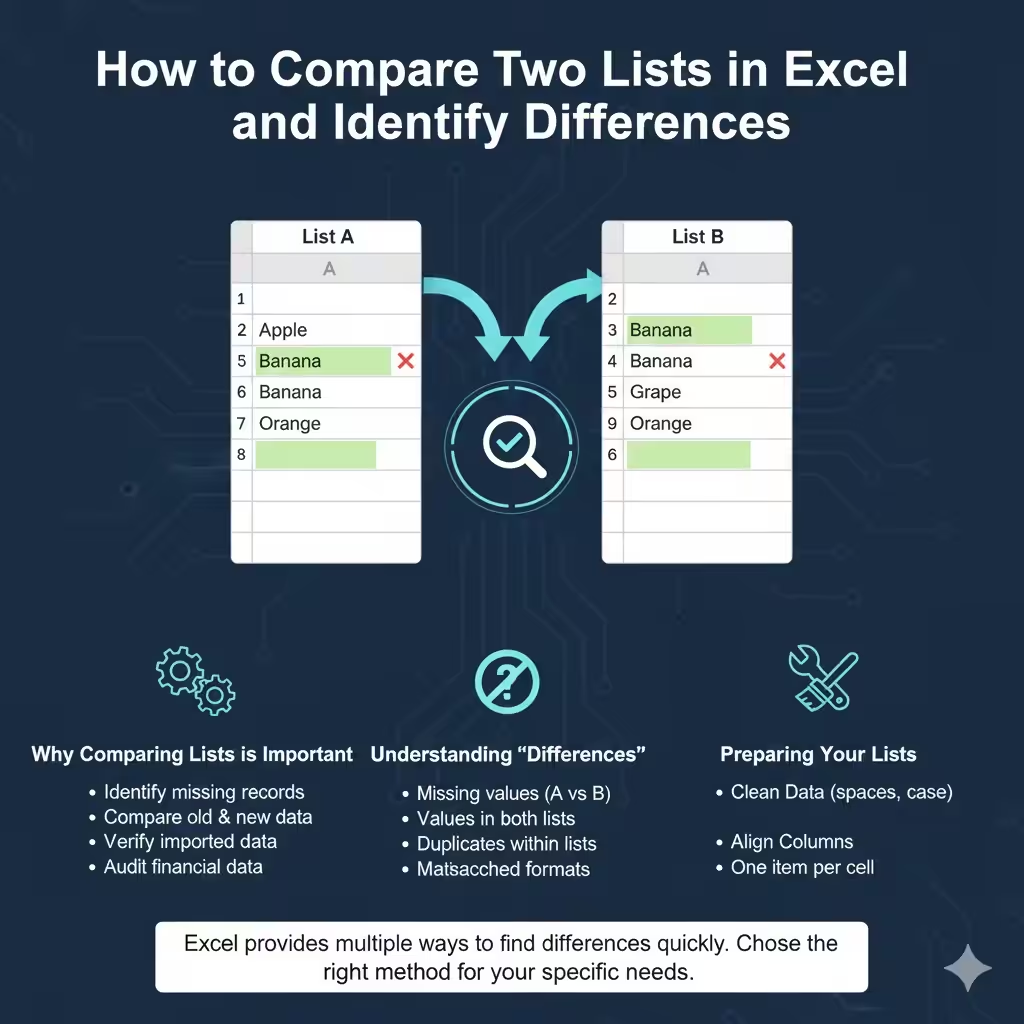
How to Compare Two Lists in Excel and Identify Differences
Comparing lists in Excel is a common task for students, office workers, analysts, and business professionals. Whether you are checking customer records, comparing inventory lists, validating data imports, or identifying missing values, Excel provides multiple ways to find differences between lists quickly and accurately.
This guide explains how to compare lists in Excel to find differences, covering simple methods for beginners and more advanced techniques for larger or more complex datasets. By the end, you will understand which approach works best for your specific situation.
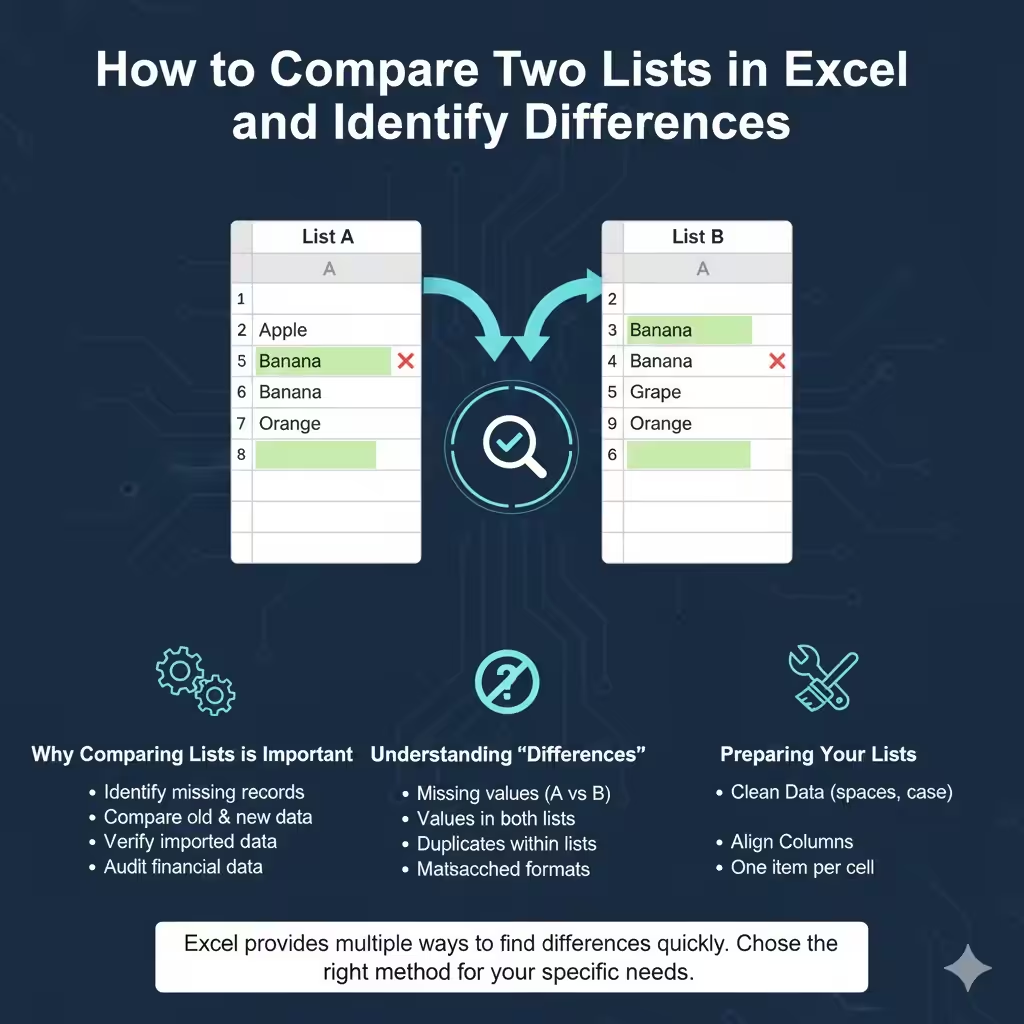
Why Comparing Lists in Excel Is Important
List comparison helps ensure data accuracy and consistency.
Common real-world scenarios include:
-
Identifying missing or duplicate records
-
Comparing old and new data versions
-
Verifying imported or merged datasets
-
Checking employee, customer, or product lists
-
Auditing financial or operational data
Excel makes these tasks manageable without specialized software.
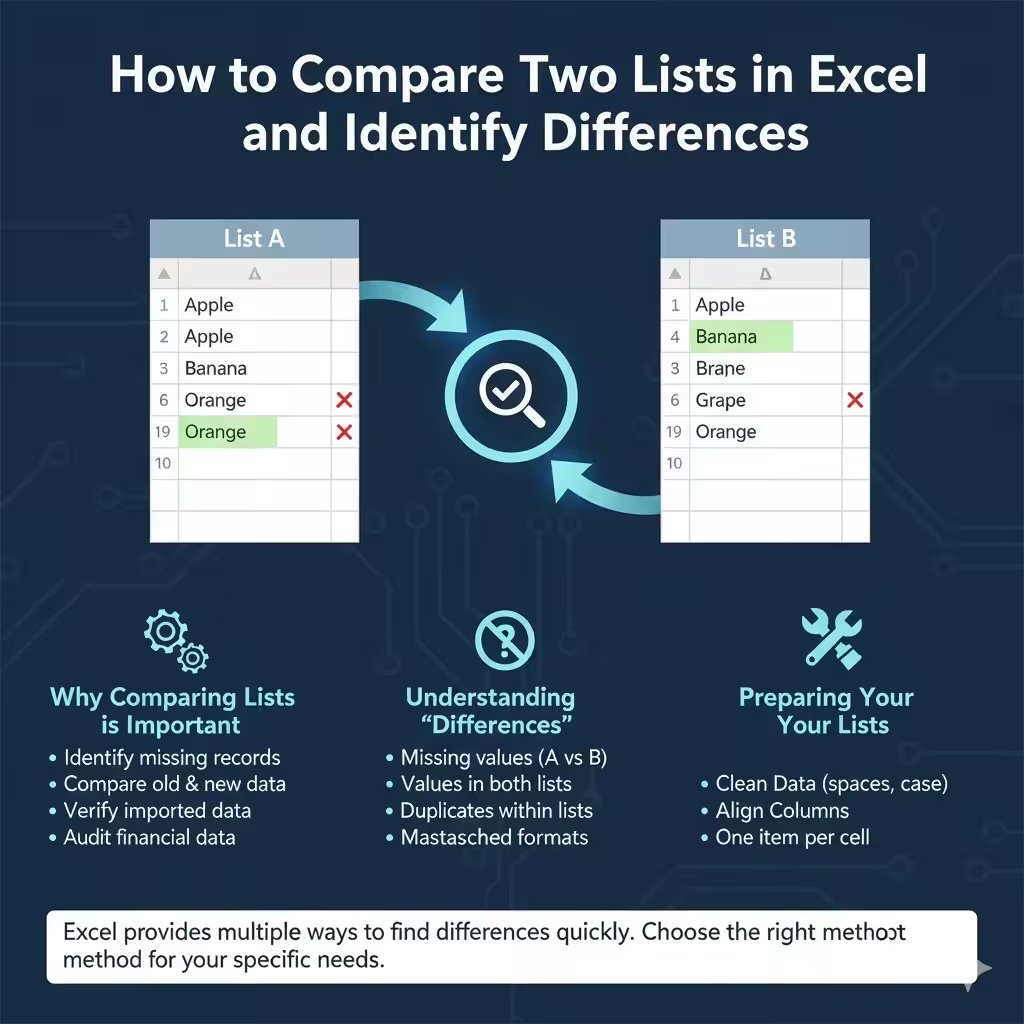
Understanding What “Differences” Mean in Excel
Before comparing lists, clarify what type of difference you are looking for.
Differences may include:
-
Values that exist in one list but not the other
-
Values that appear in both lists
-
Duplicates within a single list
-
Mismatched data formats or spelling
Your goal determines the method you should use.
Preparing Your Lists Before Comparison
Good preparation improves accuracy and reduces errors.
Clean the Data
Before comparing lists:
-
Remove extra spaces
-
Ensure consistent capitalization
-
Align data formats (text vs numbers)
-
Remove obvious duplicates
Clean data leads to more reliable results.
Align List Structure
For best results:
-
Place lists in adjacent columns
-
Ensure one item per cell
-
Use consistent ordering when possible
Structured data makes comparisons easier.
Method 1: Compare Lists Using Conditional Formatting
Conditional Formatting is one of the easiest ways to visually identify differences.
How This Method Works
Excel highlights cells based on whether values appear in another list.
When to Use This Method
-
Quick visual comparison
-
Small to medium datasets
-
No formulas required
What You Can Identify
-
Values present in one list but missing in another
-
Matching values between lists
This method is ideal for beginners.
Method 2: Compare Lists with the IF Function
The IF function allows logical comparison between lists.
Why Use IF for Comparison
The IF function:
-
Tests whether values match
-
Displays custom results
-
Helps automate comparisons
Common Use Cases
-
Marking matches and non-matches
-
Creating status columns
-
Preparing reports
This method works well when you want clear textual results.
Method 3: Find Differences Using COUNTIF
COUNTIF is a powerful and flexible function for list comparison.
How COUNTIF Works
COUNTIF checks whether a value appears in another range.
Why COUNTIF Is Popular
-
Simple syntax
-
Works with large lists
-
Identifies missing or extra values
What You Can Detect
-
Values that appear only once
-
Items missing from a second list
-
Duplicate entries
COUNTIF is one of the most commonly used methods for comparing lists.
Method 4: Compare Lists Using VLOOKUP or XLOOKUP
Lookup functions are useful for matching values across lists.
When to Use Lookup Functions
-
Comparing lists with related data
-
Pulling information from one list to another
-
Identifying missing matches
VLOOKUP vs XLOOKUP
-
VLOOKUP works in older Excel versions
-
XLOOKUP is more flexible and modern
Both functions can identify differences effectively when used correctly.
Method 5: Use MATCH to Find Missing Values
The MATCH function searches for values and returns their position.
Why MATCH Is Useful
MATCH:
-
Returns a result if a value exists
-
Shows errors when a value is missing
This makes it easy to flag items that do not appear in another list.
Method 6: Compare Lists Using Excel Tables
Excel Tables improve list comparisons by adding structure.
Benefits of Using Tables
-
Automatic range expansion
-
Clear column references
-
Built-in filtering
Tables are especially helpful when lists grow over time.
Method 7: Use Pivot Tables to Compare Lists
Pivot Tables can summarize and compare large datasets.
When Pivot Tables Are Ideal
-
Large datasets
-
Aggregated comparisons
-
Summary-level analysis
Pivot Tables help identify overlaps and discrepancies efficiently.
Method 8: Compare Lists with Power Query
Power Query is a powerful data transformation tool in Excel.
Why Use Power Query
Power Query allows you to:
-
Merge lists
-
Identify matching and non-matching rows
-
Automate comparison workflows
This method is ideal for recurring or complex comparisons.
Handling Case Sensitivity and Formatting Issues
Excel comparisons are usually not case-sensitive.
Potential Problems
-
“Apple” and “apple” treated as the same
-
Leading or trailing spaces
-
Hidden characters
How to Avoid Errors
-
Use text-cleaning functions
-
Standardize formatting
-
Validate input data
Proper preparation prevents false matches.
Comparing Lists Across Different Worksheets or Files
Excel supports comparisons across:
-
Different worksheets
-
Different workbooks
This is useful when data comes from multiple sources.
Common Mistakes When Comparing Lists
Avoid these common issues:
-
Comparing unclean data
-
Using the wrong comparison method
-
Ignoring duplicates
-
Misinterpreting error values
Understanding Excel’s logic prevents confusion.
Choosing the Right Method for Your Needs
There is no single best method for every situation.
Quick Visual Check
Use Conditional Formatting.
Logical Results and Labels
Use IF or COUNTIF.
Data Lookups
Use VLOOKUP or XLOOKUP.
Large or Repeating Tasks
Use Power Query or Pivot Tables.
Choosing the right tool saves time and reduces errors.
Best Practices for Accurate List Comparison
To improve accuracy:
-
Always clean data first
-
Use helper columns when needed
-
Document your formulas
-
Double-check results
These habits lead to reliable comparisons.
Frequently Asked Questions
Can Excel Compare Lists Automatically
Yes, using formulas, tables, or Power Query.
Which Method Is Best for Large Lists
Power Query and Pivot Tables are best for large datasets.
Can I Compare Lists with Different Lengths
Yes, most Excel comparison methods handle lists of different sizes.
Conclusion
Comparing lists in Excel is an essential skill for data accuracy and analysis. Whether you are working with simple lists or complex datasets, Excel offers multiple methods to identify differences efficiently. From Conditional Formatting and basic formulas to advanced tools like Power Query, each approach serves a specific purpose.