


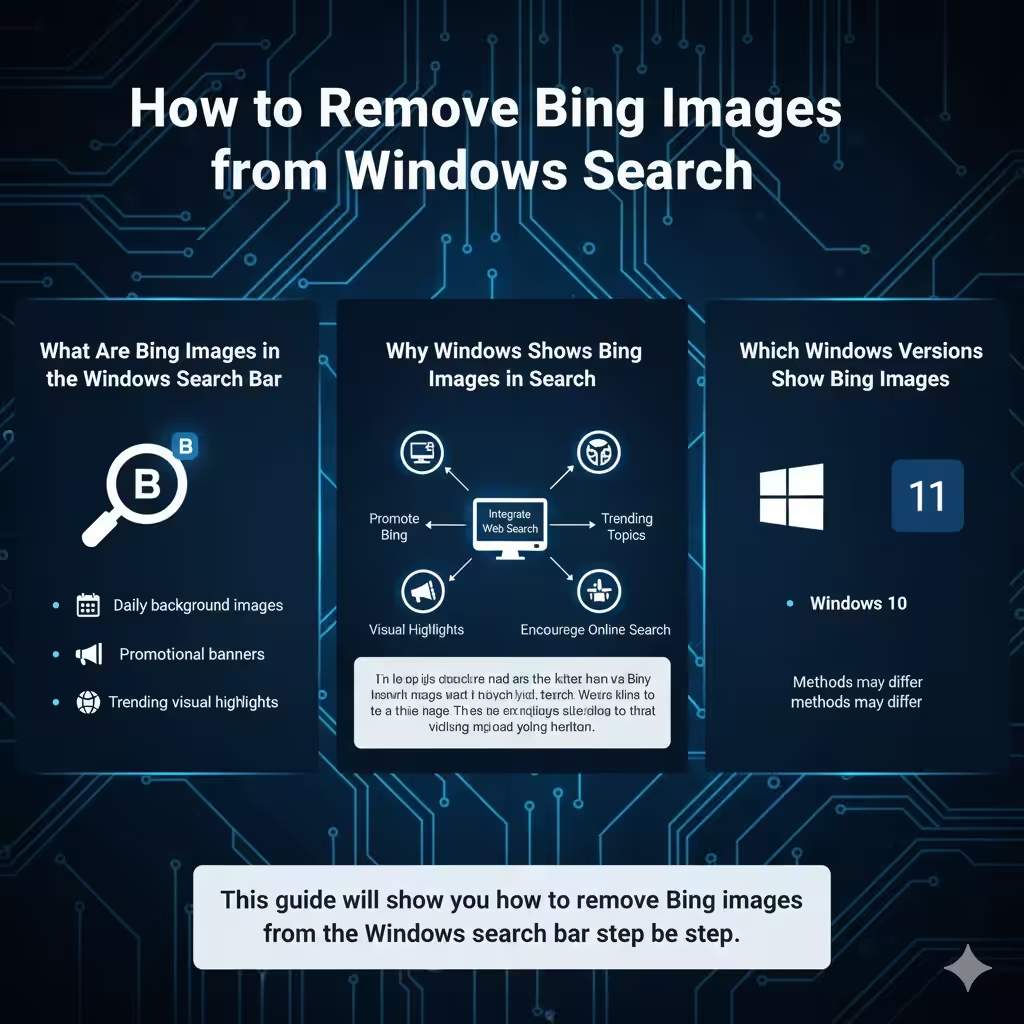
How to Remove Bing Images from Windows Search
Windows search has evolved significantly in recent versions of Windows 10 and Windows 11. One noticeable change is the appearance of Bing images and highlights in the Windows search bar. These images, often referred to as Search Highlights or Bing Search visuals, may include daily photos, promotions, or web-based suggestions.
While some users find these images visually appealing, many prefer a clean, distraction-free search bar focused only on local files, apps, and system settings. If you are one of those users, this guide will show you how to remove Bing images from the Windows search bar step by step.
This article explains what Bing images in Windows Search are, why they appear, and multiple ways to disable them, depending on your Windows version.
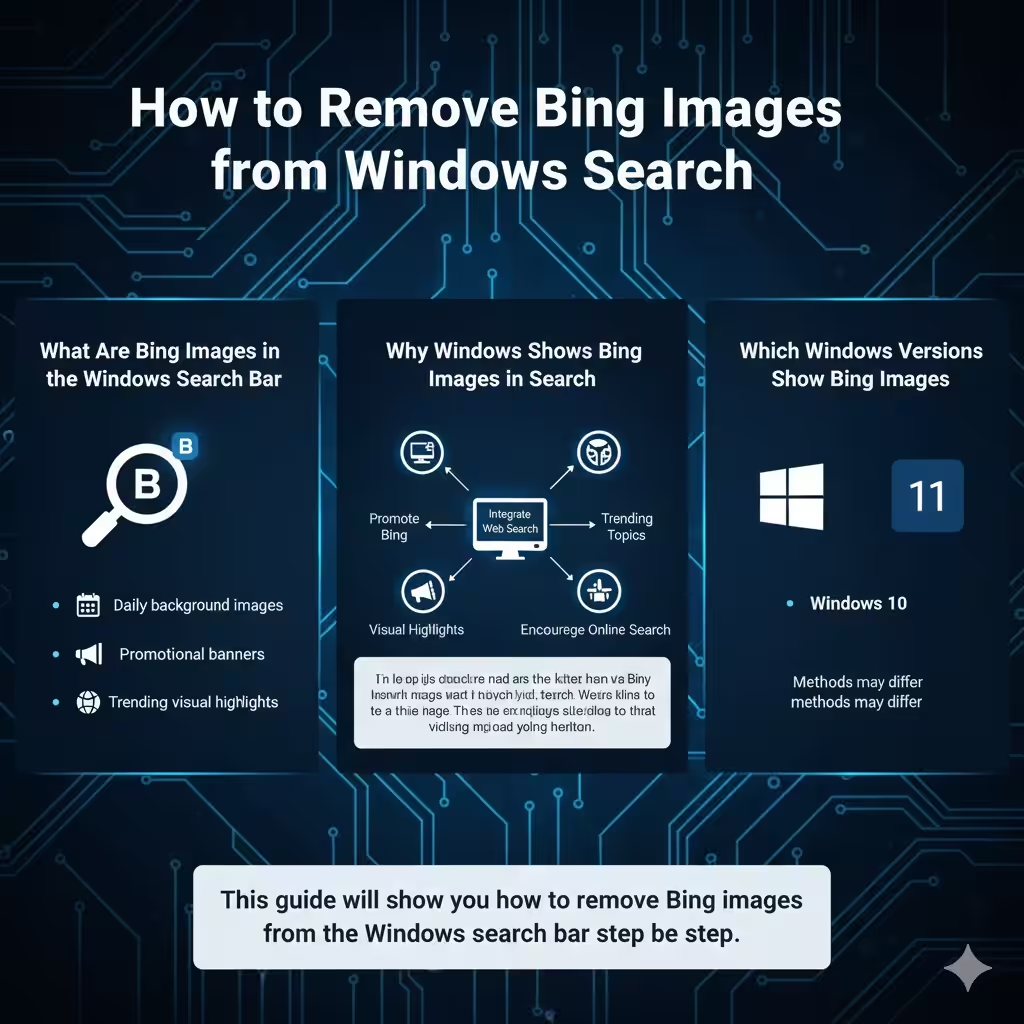
What Are Bing Images in the Windows Search Bar
Bing images in the Windows search bar are part of Microsoft’s effort to integrate web search results and Bing services directly into Windows. These images may appear as:
-
Daily background images in the search box
-
Promotional banners or suggestions
-
Visual highlights related to trending topics
-
Bing-powered search suggestions
They are pulled directly from Microsoft’s Bing service and updated automatically.
Why Windows Shows Bing Images in Search
Microsoft includes Bing images in the search bar for several reasons:
-
To integrate web search more deeply into Windows
-
To promote Bing as a search engine
-
To provide visual highlights and trending information
-
To encourage users to use online search instead of local-only search
However, these features are optional and can be disabled if you prefer a simpler experience.
Which Windows Versions Show Bing Images
Bing images in the search bar commonly appear on:
-
Windows 10 (recent updates)
-
Windows 11
The settings and methods to remove them may differ slightly depending on your version.
Method 1: Disable Search Highlights in Windows Settings
This is the easiest and most recommended method.
Steps to Turn Off Search Highlights
-
Open Settings on your Windows PC
-
Click Privacy & security
-
Select Search permissions
-
Scroll down to find Search highlights
-
Toggle Search highlights to Off
Once disabled, Bing images and daily highlights will disappear from the search bar.
What This Method Does
-
Removes Bing images and visual highlights
-
Keeps local search fully functional
-
Does not affect Cortana or File Explorer search
This method works on both Windows 10 and Windows 11.
Method 2: Disable Bing Web Results from Windows Search
If you want to remove not only images but also Bing web results, this method is effective.
Why Use This Method
Some users want Windows search to display only local content, such as:
-
Files
-
Apps
-
Settings
Disabling Bing web results reduces clutter and speeds up search.
Using Registry Editor
This method requires careful changes to system settings.
-
Press Windows + R and type regedit
-
Navigate to the Windows Search key
-
Create or modify the value that disables Bing search
-
Restart your computer
After this change, Windows search will no longer display Bing images or web content.
This approach is best for advanced users who are comfortable editing system settings.
Method 3: Disable Online Search Using Group Policy
This method is available on Windows Pro and Enterprise editions.
Steps Using Group Policy Editor
-
Press Windows + R, type gpedit.msc, and press Enter
-
Navigate to Search policies
-
Disable online search and web integration
-
Apply changes and restart your PC
Benefits of This Method
-
Completely removes Bing integration
-
Prevents web-based images and suggestions
-
Ideal for work or school environments
This method is commonly used by system administrators.
Method 4: Hide the Search Box or Use Search Icon Only
If you want a minimal taskbar, you can hide the search bar entirely.
How to Change Search Bar Appearance
-
Right-click on the Taskbar
-
Go to Search
-
Choose Hidden or Search icon only
This removes Bing images by removing the search box itself.
When This Is Useful
-
You rarely use the search bar
-
You prefer keyboard shortcuts like Windows + S
-
You want a cleaner taskbar layout
Method 5: Disable Bing Suggestions via Taskbar Settings
In some Windows builds, Bing content can be limited directly from taskbar-related options.
What This Affects
-
Search suggestions
-
Trending content
-
Visual highlights
While not as comprehensive as other methods, it helps reduce distractions.
What Happens After Removing Bing Images
Once Bing images are removed:
-
The search bar becomes plain and minimal
-
Search focuses on local files and apps
-
No daily images or promotional content appear
-
Windows search often feels faster and less cluttered
There is no negative impact on system performance or stability.
Common Issues and Troubleshooting
Bing Images Still Appear After Disabling Settings
Try restarting your computer. Some changes require a full restart to take effect.
Settings Option Not Available
Make sure Windows is fully updated. Older versions may not display the Search highlights toggle.
Changes Revert After Update
Major Windows updates may re-enable Bing features. Recheck settings after updates.
Is It Safe to Disable Bing Images in Windows Search
Yes, disabling Bing images is completely safe. It does not:
-
Break Windows search
-
Affect system updates
-
Remove core Windows functionality
It only changes how search content is displayed.
Why Many Users Choose to Remove Bing Images
Users often remove Bing images because:
-
They prefer a distraction-free workspace
-
They want faster, local-only search results
-
They do not use Bing web search
-
They dislike promotional or trending content
For productivity-focused users, a clean search bar is more efficient.
Frequently Asked Questions
Removing Bing images does not disable Windows search. You can still search for apps, files, and settings normally. This change is reversible at any time by re-enabling Search highlights or online search options.
Disabling Bing images does not affect Microsoft Edge or Bing in a web browser.
Conclusion
Bing images in the Windows search bar are designed to add visual appeal and web integration, but they are not for everyone. If you prefer a clean, focused, and distraction-free search experience, removing Bing images is a practical choice.