


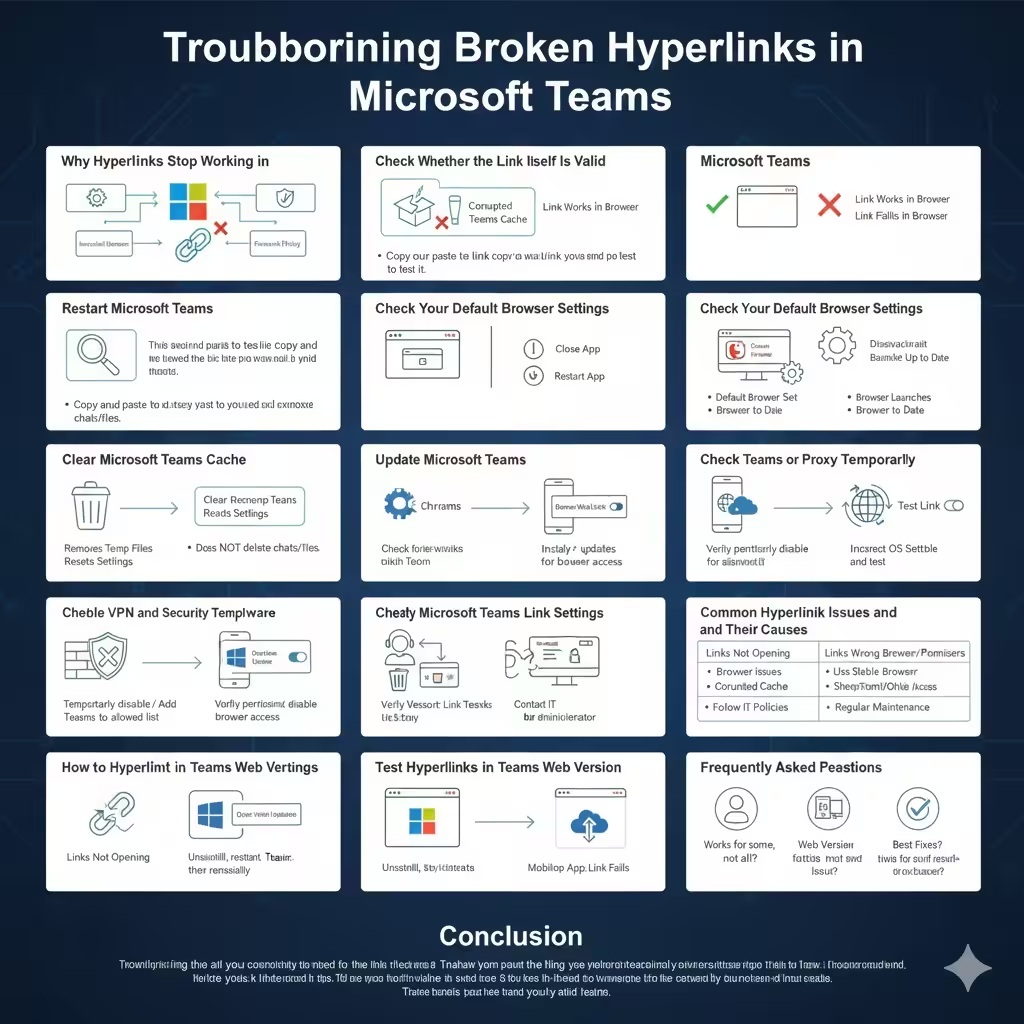
Troubleshooting Broken Hyperlinks in Microsoft Teams
Microsoft Teams is widely used for communication and collaboration in workplaces and educational environments. It allows users to share messages, files, and links quickly. However, one common and frustrating problem is when hyperlinks in Microsoft Teams do not work. You may click a link in a chat or channel and nothing happens, or the link may open incorrectly or display an error.
This comprehensive guide explains why hyperlinks may not work in Microsoft Teams and provides clear, step-by-step solutions to fix the issue on Windows, macOS, and mobile devices.
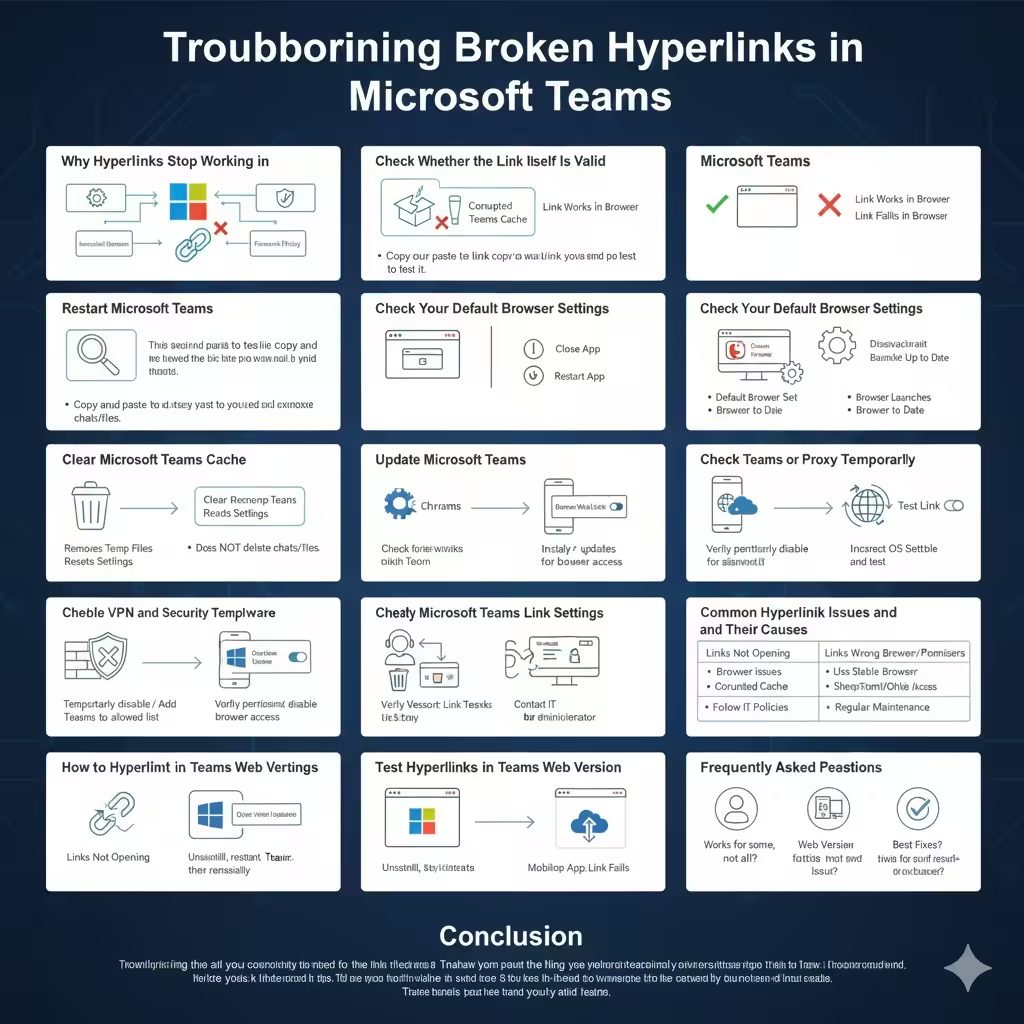
Why Hyperlinks Stop Working in Microsoft Teams
Before fixing the problem, it helps to understand what causes it.
Hyperlinks in Teams rely on several system components, including your default web browser, operating system settings, Teams app configuration, and network policies. When one of these elements is misconfigured or corrupted, links may fail to open.
Common causes include:
-
Incorrect default browser settings
-
Corrupted Microsoft Teams cache
-
Outdated Teams app or operating system
-
Restricted network or firewall policies
-
Disabled link preview or security settings
-
Formatting issues in the hyperlink itself
Check Whether the Link Itself Is Valid
Before changing system settings, verify the link.
Copy the hyperlink and paste it directly into a web browser. If the link does not open in a browser, the issue is with the URL, not Microsoft Teams. Some links shared in Teams may also require permissions, such as private SharePoint or OneDrive links.
If the link opens normally in a browser, proceed with the fixes below.
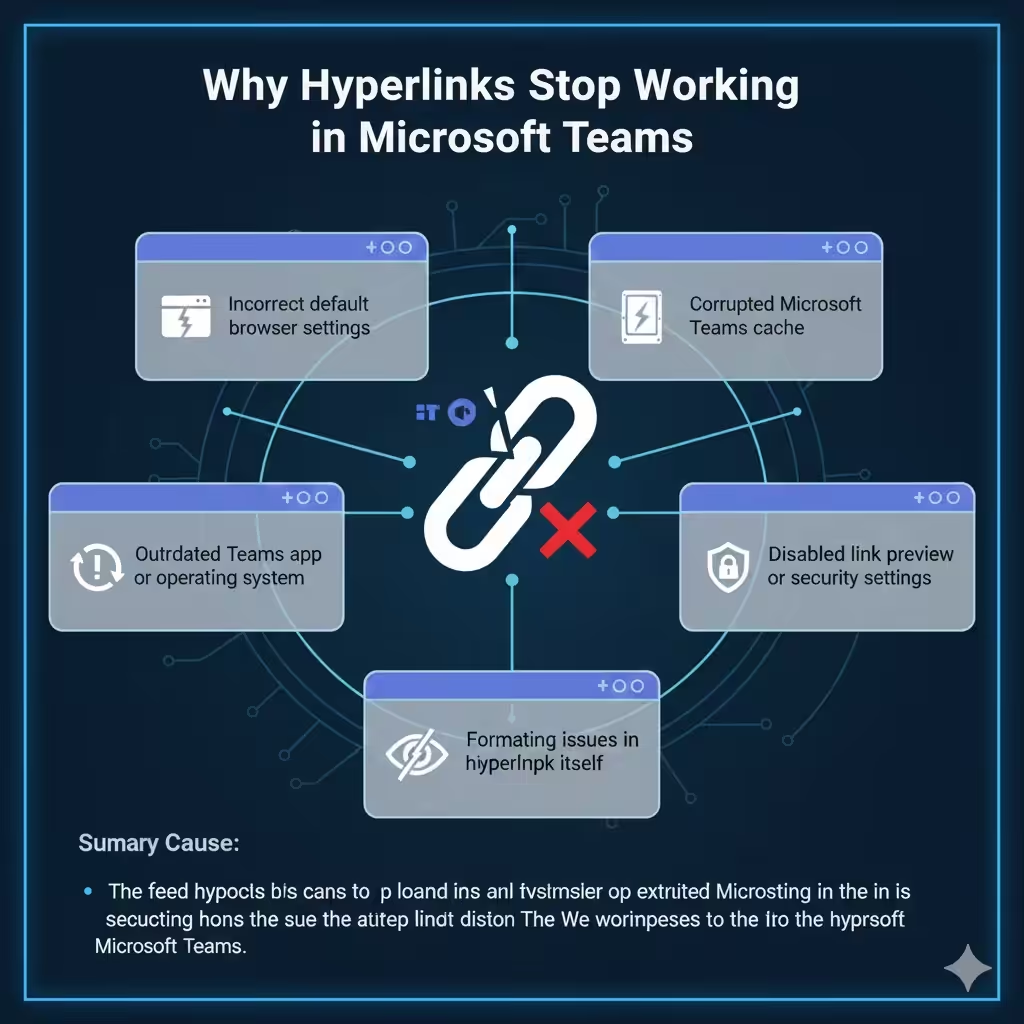
Restart Microsoft Teams
A simple restart can often fix minor glitches.
Close Microsoft Teams completely and make sure it is no longer running in the background. Reopen the app and test the hyperlink again. This step refreshes the app session and resolves temporary issues that may block link handling.
Check Your Default Browser Settings
Microsoft Teams uses your system’s default web browser to open hyperlinks.
If no default browser is set or if the default browser is corrupted, links may fail to open.
Ensure that:
-
A default browser is selected in your system settings
-
The default browser launches normally when opened manually
-
The browser is up to date
Changing the default browser to a different one and testing the link can help identify browser-related issues.
Clear Microsoft Teams Cache
A corrupted cache is one of the most common causes of hyperlink problems.
Clearing the Teams cache removes temporary files that may interfere with link handling. This does not delete chats or files, as all data is stored in the cloud.
After clearing the cache, restart Microsoft Teams and check if hyperlinks work properly.
Update Microsoft Teams
Running an outdated version of Teams can cause compatibility issues.
Check for updates within Microsoft Teams or through your system’s app store. Updates often include bug fixes related to link handling, security improvements, and performance enhancements.
After updating, restart Teams and test the hyperlink again.
Update Your Operating System
Operating system updates can affect how apps interact with browsers and network components.
Make sure your device is running the latest version of:
-
Windows
-
macOS
-
Android or iOS
System updates may fix underlying issues that prevent Teams from opening links correctly.
Check Teams App Permissions
On mobile devices and some desktop systems, Teams may not have permission to open external links.
Verify that Microsoft Teams has permission to:
-
Open web links
-
Access the default browser
-
Use background services
If permissions are restricted, links may fail to open.
Disable VPN or Proxy Temporarily
VPNs and proxy servers can block or redirect web traffic.
If you are using a VPN, temporarily disable it and try clicking the hyperlink again. Some corporate VPNs restrict external links or redirect them through secure gateways that may not work correctly with Teams.
If the link works after disabling the VPN, you may need to adjust VPN settings or contact your network administrator.
Check Firewall and Security Software
Firewalls and security applications may block Teams from opening external links.
If you are on a work or school network, security policies may restrict certain URLs. Personal antivirus software can also interfere with browser launching.
Try temporarily disabling security software to test whether it is the cause. If the issue is resolved, add Microsoft Teams and your browser to the allowed list.
Verify Microsoft Teams Link Settings
Some Teams environments are managed by administrators.
If you are using Teams through an organization:
-
External links may be restricted by policy
-
Certain domains may be blocked
-
Link previews may be disabled
Contact your IT administrator to confirm whether link restrictions are in place.
Reinstall Microsoft Teams
If none of the above solutions work, reinstalling Teams may help.
Uninstall Microsoft Teams from your device, restart your system, and then install the latest version. This process replaces corrupted app files and restores default settings.
After reinstalling, sign in and test hyperlinks again.
Test Hyperlinks in Teams Web Version
Using the web version helps determine whether the problem is app-related.
Open Microsoft Teams in a web browser and click the same hyperlink. If the link works in the web version but not in the desktop app, the issue is likely related to the installed Teams application.
Common Hyperlink Issues and Their Causes
Links not opening at all are often caused by default browser issues or corrupted cache. Links opening in the wrong browser usually indicate incorrect system settings. Permission errors often occur with SharePoint or OneDrive links that require sign-in or access approval.
Understanding these patterns helps identify the correct fix faster.
How to Prevent Hyperlink Issues in Microsoft Teams
To reduce the chances of this issue recurring:
-
Keep Microsoft Teams updated
-
Use a stable and supported web browser
-
Avoid frequently switching default browsers
-
Keep your operating system up to date
-
Follow organizational IT policies
Regular maintenance helps ensure smooth performance.
Frequently Asked Questions
Hyperlinks may work for some users and not others due to individual system settings, browser configuration, or permissions. The issue can occur on both desktop and mobile versions of Teams, though the fixes may vary slightly.
Clearing cache and updating Teams are the most effective solutions in most cases.
Conclusion
Hyperlinks not working in Microsoft Teams can disrupt communication and productivity, but the issue is usually caused by simple configuration or software problems. By checking your default browser, clearing the Teams cache, updating the app and operating system, and reviewing network or security settings, you can resolve the problem in most cases.