


Guide to Resetting Network Settings on iOS Devices
Network issues on an iPhone can be frustrating. Problems such as Wi-Fi not connecting, mobile data not working, Bluetooth failing to pair, or frequent “No Service” errors often stem from incorrect or corrupted network settings. One of the most effective ways to resolve these problems is to reset network settings on your iPhone.
This detailed guide explains what resetting network settings does, when you should use it, and how to reset network settings on an iPhone step by step. It also covers what happens after the reset and how to reduce the risk of network problems in the future.
What Does Reset Network Settings Do on an iPhone
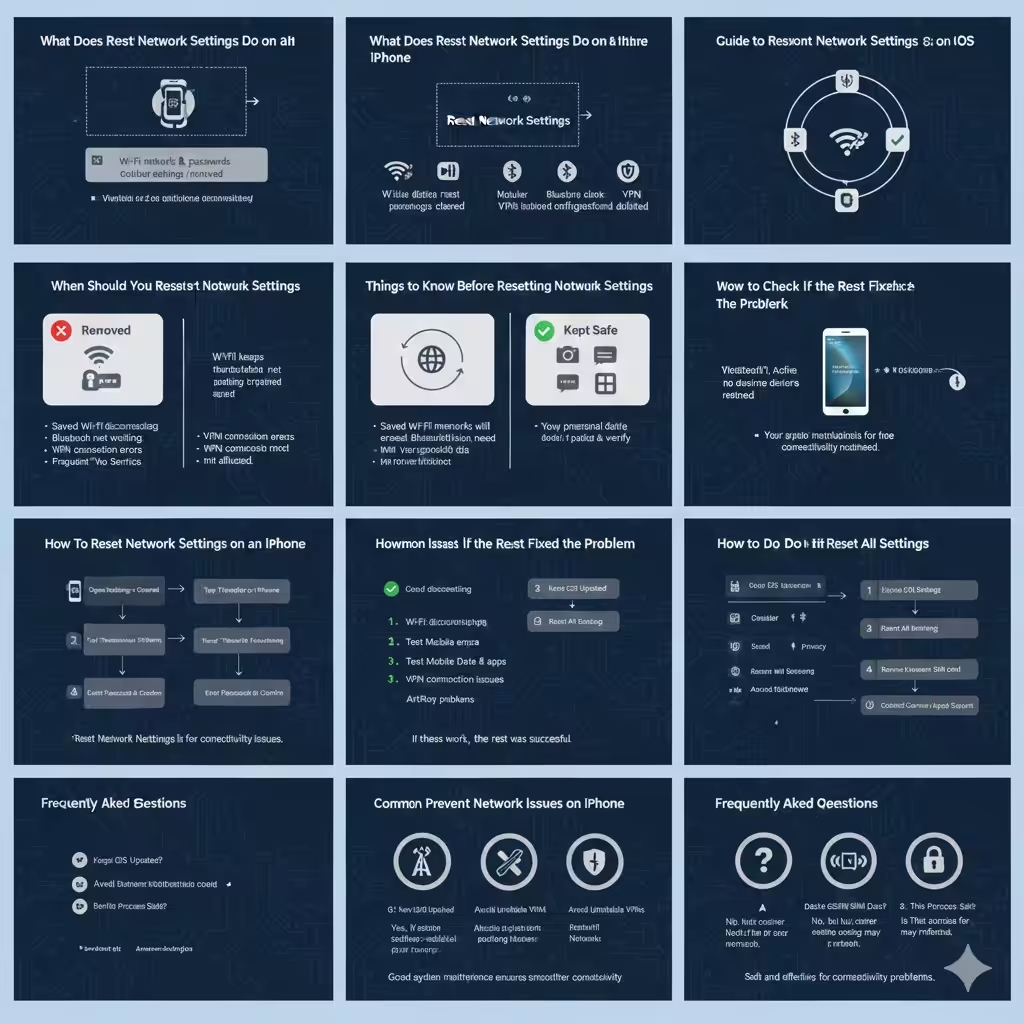
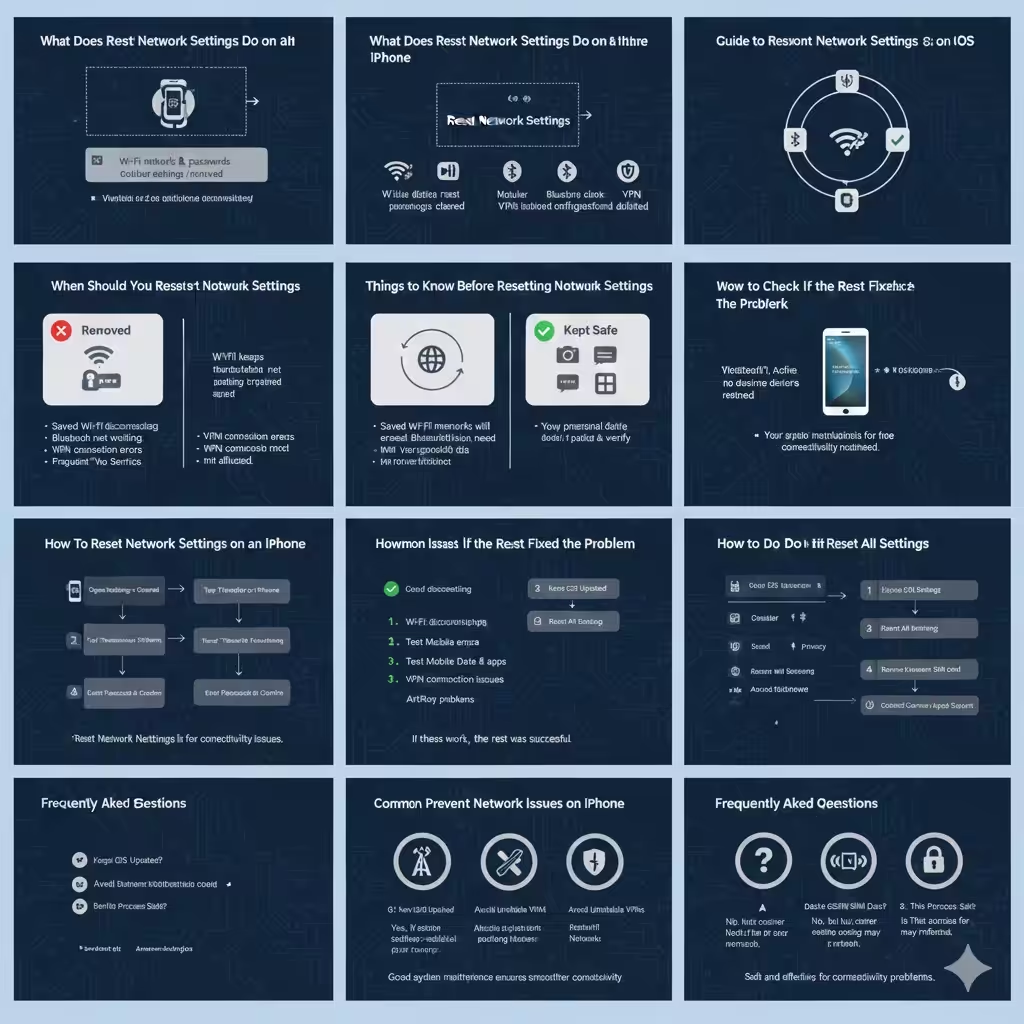
Resetting network settings restores all network-related configurations on your iPhone to their default state. This process does not remove personal data such as photos, apps, messages, or contacts.
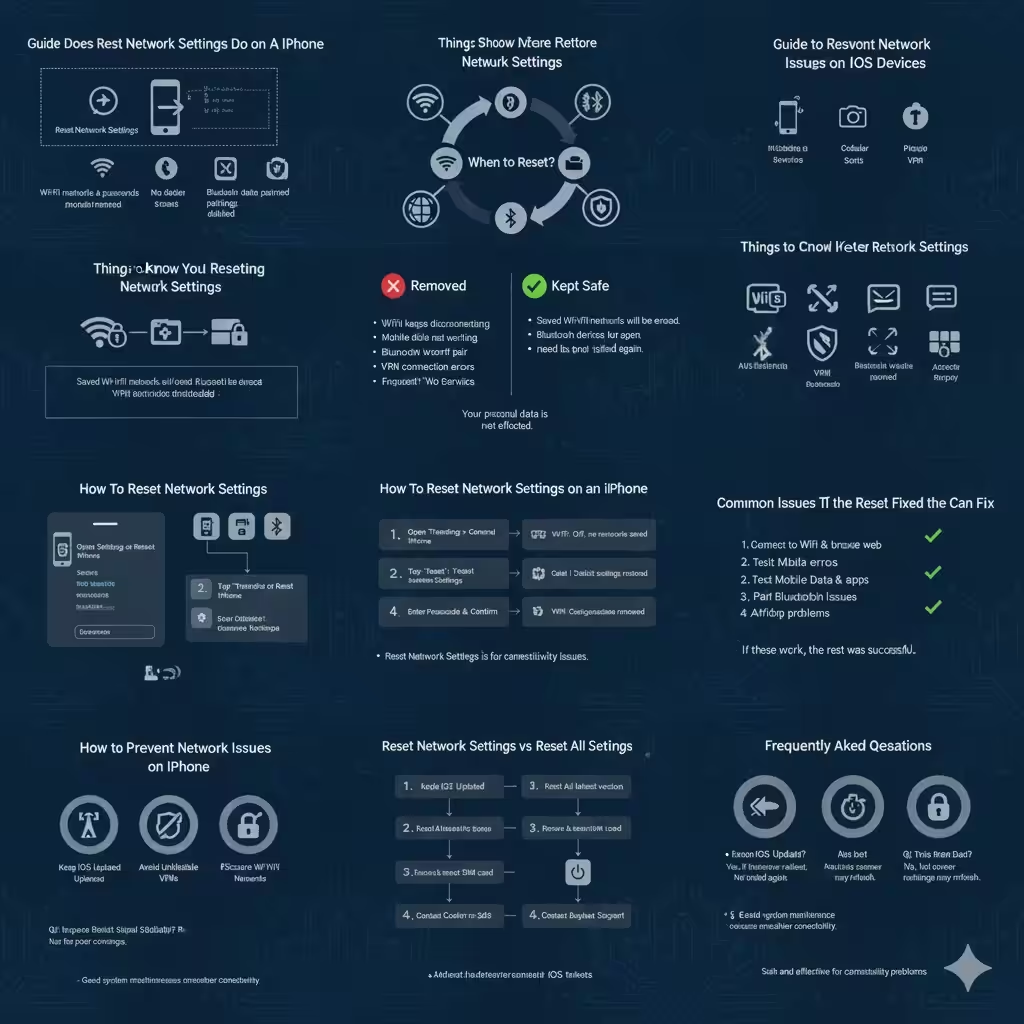
When you reset network settings, your iPhone will remove all saved Wi-Fi networks and passwords, reset cellular and mobile data settings, clear Bluetooth pairings, delete VPN and proxy configurations, and restore network preferences to factory defaults.
Because this action targets only network components, it is considered safe and is commonly recommended when troubleshooting persistent connectivity issues.
When Should You Reset Network Settings
Resetting network settings is especially helpful when standard troubleshooting steps fail.
You should consider this option if your iPhone cannot connect to Wi-Fi networks, frequently disconnects from wireless networks, experiences mobile data issues, fails to pair with Bluetooth devices, displays “No Service” errors, or has problems with VPN connections and AirDrop.
If restarting your iPhone, toggling Airplane Mode, or reconnecting to a network does not solve the issue, resetting network settings is often the next best step.
Things to Know Before Resetting Network Settings
Before performing the reset, it is important to understand what will change and what will remain intact.
Saved Wi-Fi networks and passwords will be erased, so you should make sure you know your Wi-Fi credentials. Bluetooth devices such as headphones, smartwatches, and car systems will need to be paired again. VPN and custom APN settings will also be removed.
However, your apps, photos, videos, messages, Apple ID, and iCloud data will remain unchanged. The reset affects only network-related configurations.
How To Reset Network Settings on an iPhone
Resetting network settings on an iPhone is simple and takes only a few minutes.
First, unlock your iPhone and open the Settings app. Next, scroll down and tap General. Continue scrolling and select Transfer or Reset iPhone. From there, tap Reset, then choose Reset Network Settings. When prompted, enter your device passcode to confirm.
Your iPhone will restart automatically once the process is complete.
What Happens After Resetting Network Settings
After the reset, your iPhone behaves as if it has never connected to any networks before. Wi-Fi will be turned on, but no networks will be saved. Bluetooth will be active, but no devices will be paired.
You will need to reconnect to your Wi-Fi networks and re-enter passwords, pair Bluetooth accessories again, and reconfigure VPN or cellular settings if you use them. In most cases, network performance improves immediately after reconnecting.
How to Check If the Reset Fixed the Problem
Once your iPhone restarts, test the features that were causing issues. Connect to a Wi-Fi network and browse the web or stream a video. Turn off Wi-Fi and test mobile data by opening apps or making a call. Pair a Bluetooth device and verify that it connects and works normally.
If these features function as expected, the reset was successful.
Reset Network Settings vs Reset All Settings
Many users confuse resetting network settings with resetting all settings, but the two options are very different.
Reset Network Settings only affects Wi-Fi, mobile data, Bluetooth, and VPN configurations. Reset All Settings restores system preferences such as display settings, sounds, privacy permissions, and accessibility options, but still does not delete personal data.
For connectivity problems, resetting network settings is the more targeted and less disruptive choice.
Common Issues That Reset Network Settings Can Fix
Resetting network settings can resolve Wi-Fi networks that keep disconnecting, iPhones that fail to detect available networks, mobile data not working correctly, Bluetooth pairing failures, and VPN connection errors caused by outdated or conflicting profiles.
It can also help with AirDrop problems and unexpected signal drops caused by software misconfigurations.
What to Do If Reset Network Settings Does Not Work
If the problem persists after resetting network settings, additional steps may be required. Updating iOS to the latest version can fix known connectivity bugs. Resetting all settings may help if the issue extends beyond networking. Removing and reinserting the SIM card can resolve carrier-related issues.
If none of these steps work, contacting your carrier or Apple Support is recommended, as hardware problems or network outages may be involved.
How to Prevent Network Issues on iPhone
You can reduce the likelihood of future network problems by keeping iOS up to date, avoiding unreliable VPN profiles, restarting your iPhone periodically, and connecting only to secure and stable Wi-Fi networks.
Maintaining good system hygiene helps ensure smoother and more reliable connectivity.
Frequently Asked Questions
Resetting network settings can improve signal stability if the issue is caused by incorrect software configurations, but it cannot fix poor carrier coverage. The reset does not delete eSIM or physical SIM data, although some carrier settings may need to be refreshed. This process is safe and designed specifically for troubleshooting network-related problems.
Conclusion
Resetting network settings on an iPhone is a reliable and effective solution for fixing Wi-Fi, mobile data, Bluetooth, and VPN issues. The process is quick, safe, and does not erase personal data. While you will need to reconnect to networks afterward, the reset often restores stable connectivity and improves overall network performance.