


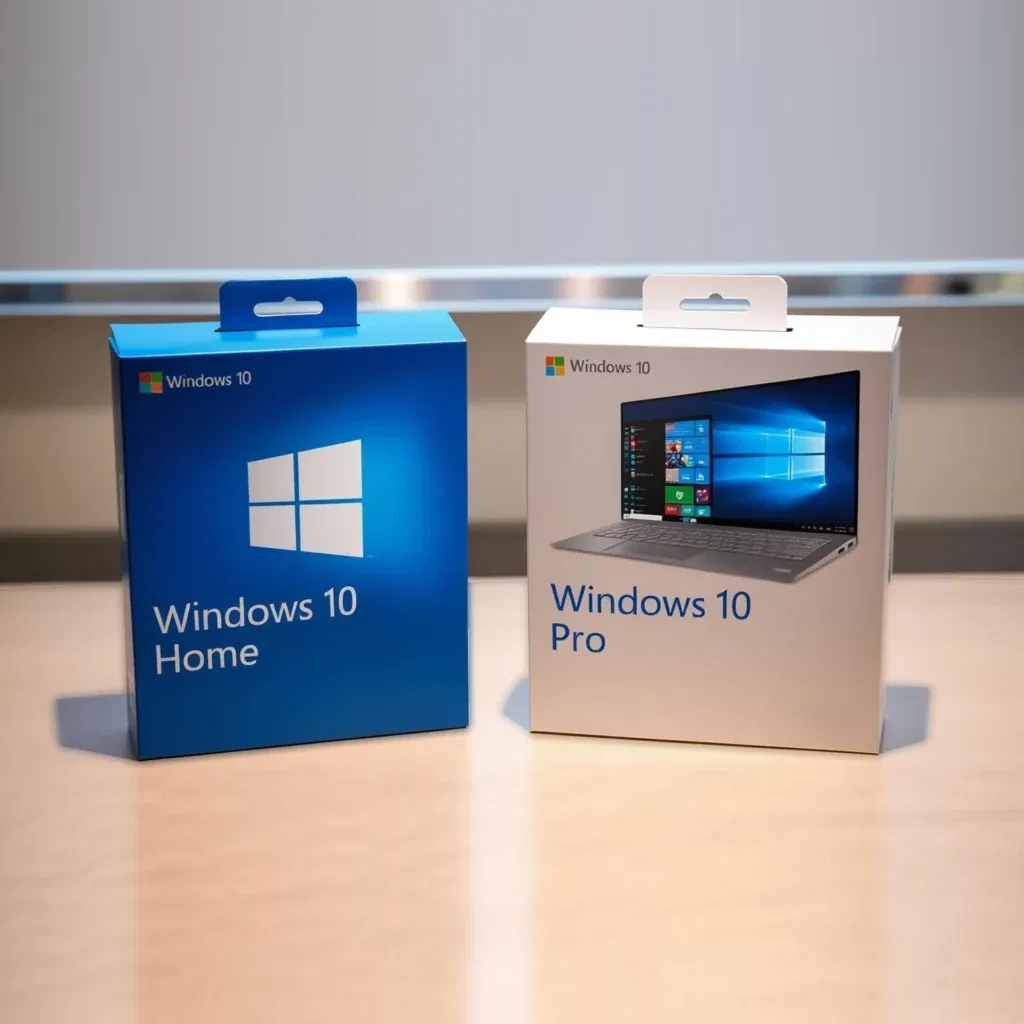
Step-by-Step Guide to Upgrade Windows 10 Home to Pro Using SLMGR and a Product Key
Upgrading from Windows 10 Home to Windows 10 Pro is a common need for users who want to access advanced features such as BitLocker encryption, Remote Desktop, Group Policy management, and enhanced security tools. While the standard way to upgrade is through the Microsoft Store or by entering a Pro product key in the Settings app, there is also a powerful command-line method using SLMGR (Software Licensing Management Tool) for activation and upgrade.
This comprehensive guide will walk you through the step-by-step process of upgrading your Windows 10 Home edition to Pro using an upgrade key and leveraging SLMGR commands for activation and troubleshooting.
Why Upgrade from Windows 10 Home to Pro?
Windows 10 Pro offers several features not available in the Home edition, making it ideal for professionals, businesses, and power users. Some key Pro features include:
-
BitLocker Drive Encryption for enhanced data protection
-
Remote Desktop to connect to your PC from anywhere
-
Hyper-V virtualization support
-
Group Policy Editor to customize system settings
-
Ability to join Azure Active Directory or Windows Domain
If you need any of these advanced capabilities, upgrading to Windows 10 Pro is the best choice.
What You Need Before Starting the Upgrade
Before beginning the upgrade process, make sure you have:
-
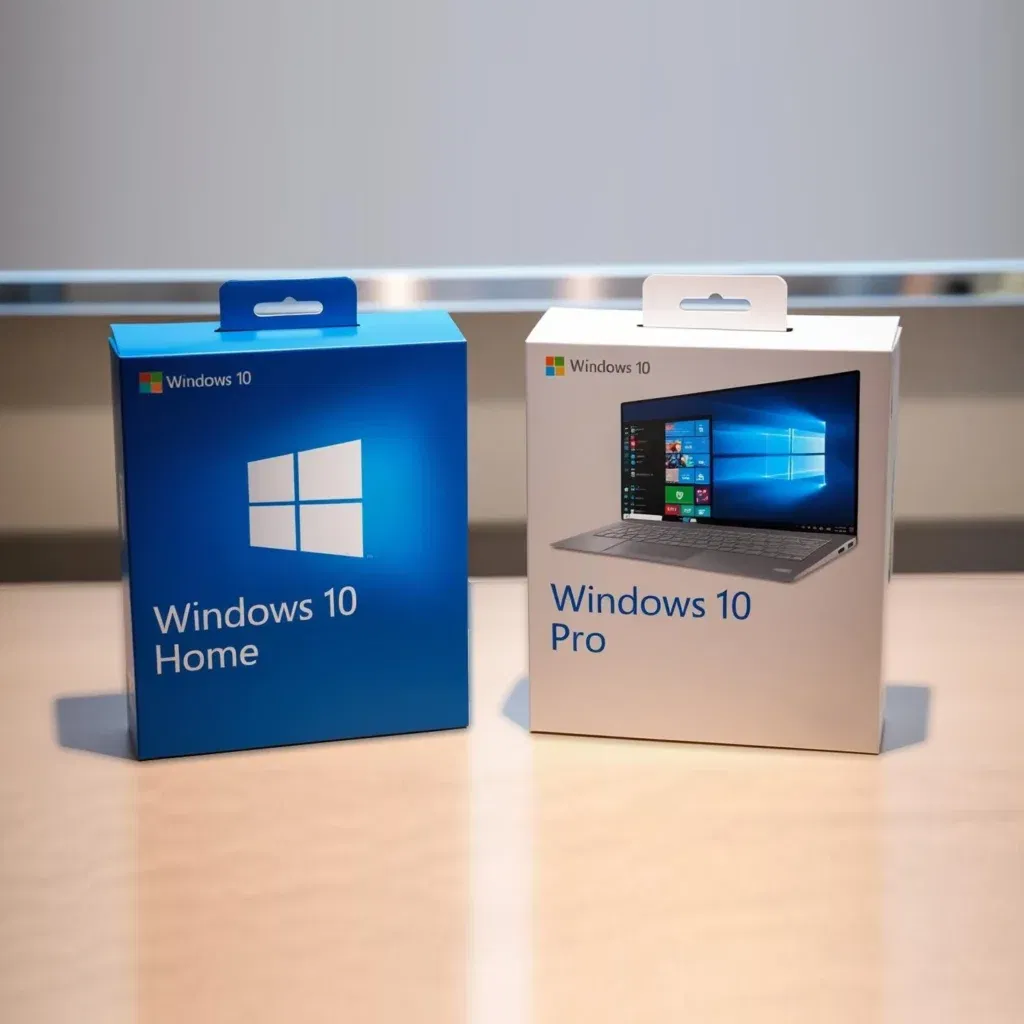
A genuine Windows 10 Pro upgrade product key. This is typically a 25-character alphanumeric code.
-
A stable internet connection.
-
Administrative privileges on your PC.
-
Backup of important data (optional but recommended).
Step 1: Check Your Current Windows Edition
To confirm you are currently running Windows 10 Home:
-
Press Windows + I to open Settings.
-
Navigate to System > About.
-
Under Windows specifications, check the Edition field.
If it says Windows 10 Home, you can proceed with the upgrade steps.
Step 2: Use the Settings App to Start Upgrade (Optional Step)
Before using command-line tools, you can attempt the upgrade using the Settings app:
-
Go to Settings > Update & Security > Activation.
-
Click Change product key.
-
Enter your Windows 10 Pro product key.
-
Follow the on-screen instructions to complete the upgrade.
If you prefer to use the command line for a more controlled upgrade or if the above fails, proceed to the next steps.
Step 3: Use SLMGR to Upgrade Windows 10 Home to Pro
SLMGR (Software Licensing Management Tool) is a Windows command-line tool that manages licensing and activation. While it cannot directly change the edition, it can help manage activation after an edition upgrade triggered by an upgrade key.
Upgrade Windows Edition via Command Prompt
First, to change the edition, you actually use the built-in DISM tool with an upgrade product key, then use SLMGR to activate Windows.
Use DISM to Enter the Windows 10 Pro Product Key
-
Open Command Prompt as Administrator:
-
Press Windows + X, then select Windows Terminal (Admin) or Command Prompt (Admin).
-
-
Enter the following command to change the edition by specifying the Pro upgrade key:
Replace XXXXX-XXXXX-XXXXX-XXXXX-XXXXX with your genuine Windows 10 Pro product key.
-
Wait for the process to complete. The system will initiate an upgrade and might require a reboot.
Step 4: Activate Windows Using SLMGR Commands
Once the edition has been upgraded, you need to activate your copy of Windows 10 Pro. You can do this using the SLMGR tool.
Common SLMGR Commands for Activation
-
Open Command Prompt as Administrator again.
-
To install the product key, use:
Replace the X’s with your Windows 10 Pro key.
-
To activate Windows online, enter:
This command requests activation from Microsoft’s servers.
-
To check the activation status, run:
Or for detailed license information:
Step 5: Restart Your Computer
After the upgrade and activation process, it’s recommended to restart your PC to apply all changes properly.
Troubleshooting Common Issues
Error: “Product Key Is Invalid” or “Upgrade Failed”
-
Ensure the key you are using is a valid Windows 10 Pro upgrade key.
-
Make sure your Windows 10 Home version is genuine and properly activated.
-
Check for typos when entering the product key.
-
Run Windows Update to ensure your system is fully patched.
-
If the issue persists, consider contacting Microsoft support for assistance.
SLMGR Activation Errors
-
Verify internet connectivity.
-
Run Command Prompt as Administrator.
-
Temporarily disable firewall or antivirus that might block activation.
-
Use the Windows Activation Troubleshooter via Settings > Update & Security > Activation.
Benefits of Upgrading Using DISM and SLMGR
Using the DISM and SLMGR command-line tools offers advantages such as:
-
Greater control and flexibility for IT professionals.
-
Ability to script the upgrade for multiple machines.
-
Quick troubleshooting with detailed activation information.
-
Bypass issues sometimes encountered with the graphical interface.
Final Thoughts
Upgrading from Windows 10 Home to Windows 10 Pro unlocks many powerful features suited for business and advanced personal use. Whether you use the Settings app for a quick upgrade or prefer the command-line approach using DISM and SLMGR, the process is straightforward if you have a valid product key.
Always ensure you back up your data before performing system upgrades and keep your Windows updated to minimize issues. If you encounter difficulties, Microsoft’s support resources or community forums can provide additional help.
With this guide, you’re now equipped to confidently upgrade your Windows 10 Home to Pro edition and enjoy all the enhanced features that come with it.